Writing code on a Mac does not mean you have to rely on complicated development environments or basic text editors. There are several excellent third-party code editors for macOS, ranging from lightweight applications for quick edits to advanced development tools with intelligent code completion, debugging, Git integration, and artificial intelligence (AI) assistance. In this article, we explore the top 10 code editor apps for Mac, including free and paid options for beginners, web developers, and experienced programmers.
Why is TextEdit Not the Best Choice for Coding on Mac?
TextEdit is the default text editor included with macOS. It is useful for writing notes, editing plain / rich text documents, and making simple changes to configuration files. However, it lacks several features that make programming more convenient. Here are the main reasons to consider a third-party code editor.
- The plain text editor mode (toggle with Command + Shift + T keys) in TextEdit does not provide the comprehensive, language specific syntax highlighting available in specialized code editors.
- Dedicated editors can suggest functions, variables, methods, and other code elements while you type. TextEdit does not offer intelligent code completion.
- When working on a website or application, you may need to manage dozens or hundreds of files. Code editors provide project explorers, file navigation, and search tools to help you work across an entire project.
- Many development editors integrate debugging tools that let you inspect variables, set breakpoints, and identify errors without constantly switching between applications for debugging.
- Specialized editors can integrate with Git, terminals, programming language servers, extensions, and other development tools.
Also, you should be careful that rich text mode is not turned on mistakenly and ensure that the files are saved in the appropriate format. So, TextEdit app remains useful for simple tasks, but it is not designed to provide a complete coding workflow. A dedicated code editor offers a more suitable environment for writing, reviewing, and maintaining source code.
1. Visual Studio Code
Visual Studio Code, commonly known as VS Code or Code, is our favorite and one of the most versatile code editors available for Mac. Developed by Microsoft, it supports a wide range of programming languages and can be customized to suit different development workflows. Its built-in features include syntax highlighting, intelligent code completion, code navigation, an integrated terminal, and Git source control. You can also install extensions to add support for additional languages, frameworks, linters, debuggers, and development tools.
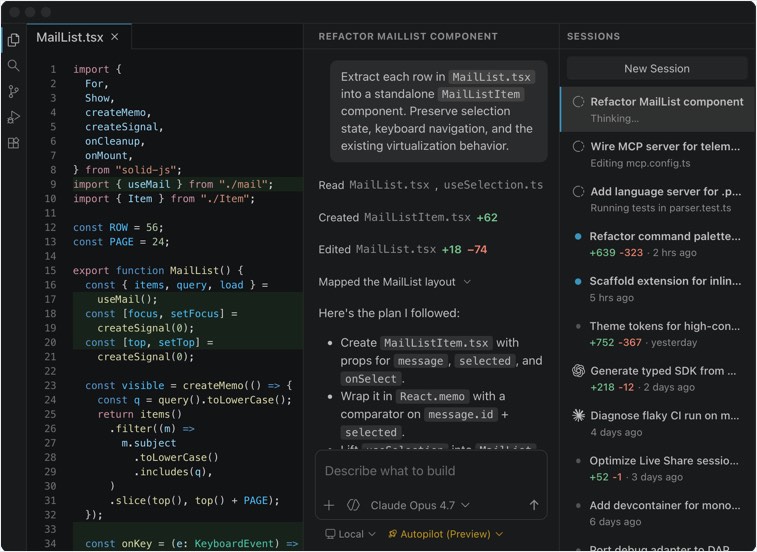
Another advantage is its integrated terminal, which allows you to run commands without leaving the editor. This is particularly useful when working with Node.js applications, Git repositories, and local development servers.
Advantages:
- Free to download and use.
- Supports numerous programming languages.
- Extensive extension marketplace.
- Integrated terminal, Git tools, and debugging support.
- Available for macOS, Windows, and Linux.
- Supports AI-assisted development through available tools and integrations.
Limitations:
- The interface may feel complicated to beginners.
- Extensions and background services can increase resource usage.
- Some features require additional configuration.
Best for: General-purpose programming and web development
Price: Free
If you want one editor for most programming tasks on your Mac, VS Code is an excellent starting point.
2. Sublime Text
Sublime Text is a popular choice for developers who prefer a fast, responsive, and uncluttered editing environment. Unlike a full integrated development environment, Sublime Text focuses on efficient text editing while allowing users to add functionality through packages. It supports syntax highlighting for many programming languages, multiple selections, split editing, keyboard shortcuts, and powerful search features.
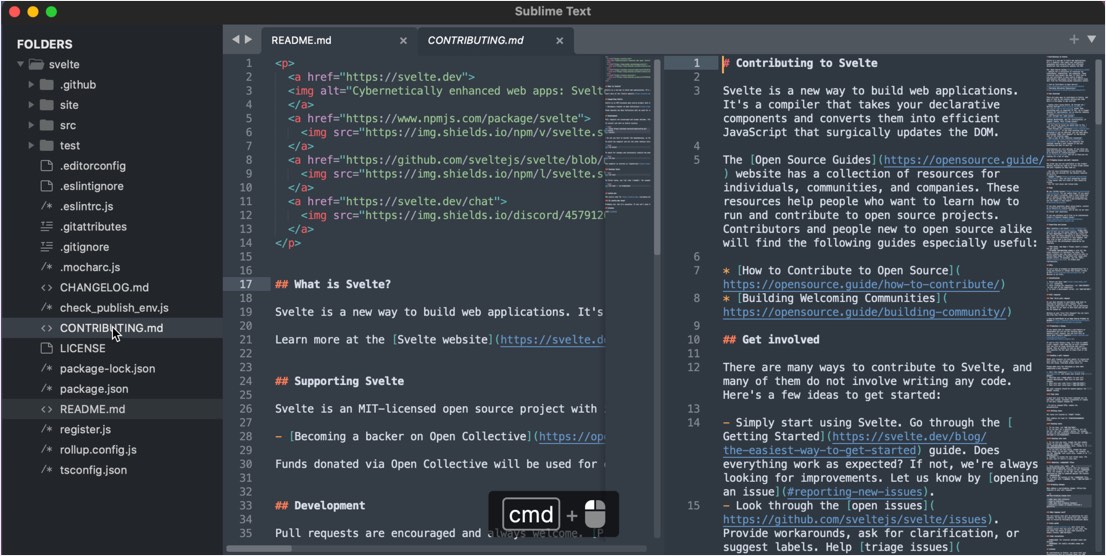
One particularly useful feature is multiple-cursor editing. You can select several locations in a file and modify them simultaneously, saving time when making repetitive changes. The Command Palette also lets you access editor commands quickly without navigating through multiple menus.
Advantages:
- Fast startup and responsive editing.
- Clean, customizable interface.
- Powerful keyboard shortcuts.
- Multiple cursors and selections.
- Supports numerous programming languages.
- Available for macOS, Windows, and Linux.
Limitations:
- Advanced functionality may require packages or external tools.
- Some users may prefer the more extensive built-in development features of VS Code.
- A paid license is required for continued licensed use beyond evaluation.
Best for: Fast editing and lightweight development
Price: Free to evaluate; a paid license is available.
Choose Sublime Text if speed, simplicity, and efficient text manipulation are your main priorities.
3. BBEdit
BBEdit is a long established text and code editor designed specifically for macOS. It is particularly useful for web developers, writers working with technical documents, and users who frequently edit HTML, scripts, logs, and structured text files.
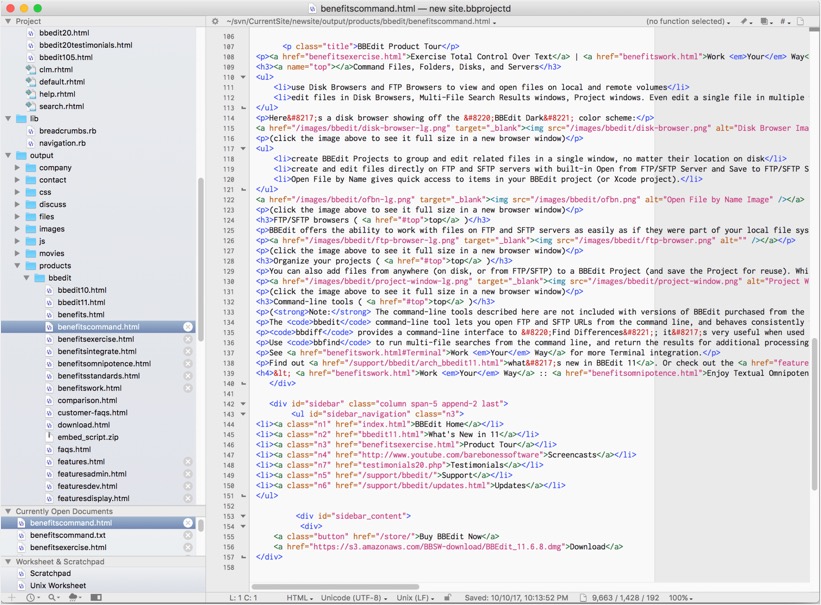
BBEdit offers syntax highlighting, code folding, powerful search and replace, text transformations, and tools for working with files and directories. Its search capabilities are especially valuable. You can search across multiple files and use regular expressions to find or replace complex text patterns. For example, if you need to update a recurring HTML element across several website files, BBEdit can help you locate the relevant code and make changes efficiently.
Advantages:
- Designed specifically for macOS.
- Powerful multi-file search and replace.
- Supports HTML, scripts, and numerous text formats.
- Useful text-processing and transformation tools.
- Free mode available.
- Suitable for technical text and web development.
Limitations:
- Some advanced features require a paid license.
- Its project-development workflow differs from that of full IDEs.
- The interface may feel less familiar to users accustomed to VS Code.
Best for: Mac users working with code, HTML, and large text files
Price: Free mode available; paid license required for additional features.
BBEdit is worth considering if you regularly edit website files, process text, or maintain existing code on your Mac.
4. Nova
Nova is a code editor developed by Panic, a software company known for Mac applications and developer tools. Unlike cross platform editors designed to work similarly on multiple operating systems, Nova focuses specifically on the macOS experience. Its interface integrates project navigation, code editing, extensions, Git tools, and development workflows into a cohesive application.
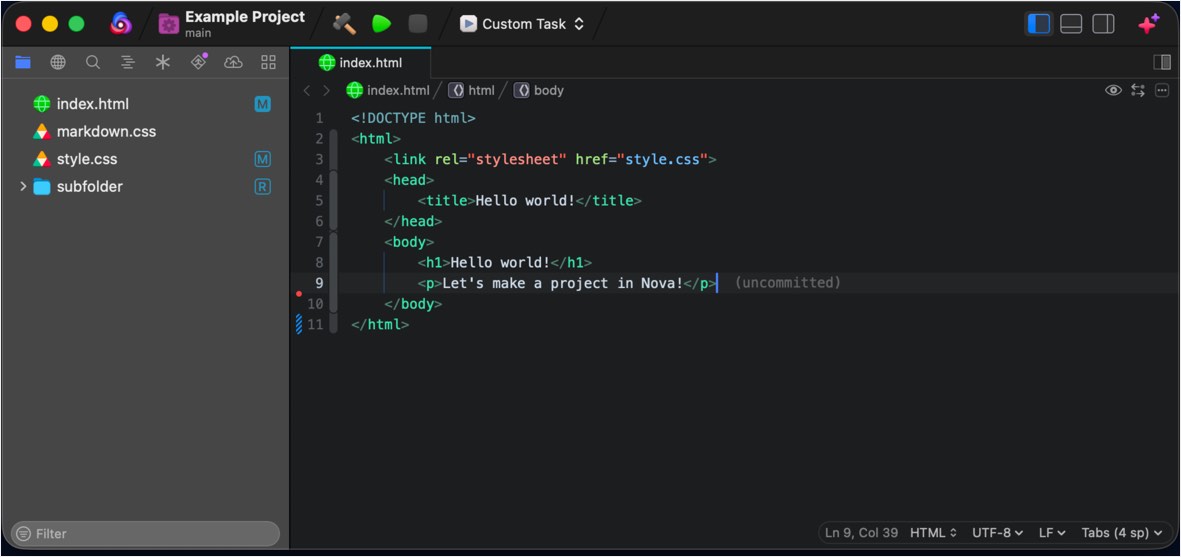
Its features include syntax highlighting, code completion, project-wide search, task automation, and support for extensions that expand the editor’s capabilities. Nova also provides tools for working with remote servers and transferring files, making it useful for certain website maintenance workflows.
Advantages:
- Designed specifically for macOS.
- Clean interface with project management tools.
- Supports common web development languages.
- Includes Git integration and extension support.
- Provides tools for development tasks and remote workflows.
Limitations:
- Requires a paid license.
- Available only for Mac.
- Has a smaller extension ecosystem than VS Code.
Best for: Native Mac web development.
Price: Paid.
Consider Nova if you want a dedicated Mac code editor with a polished interface and features tailored to web development.
5. Zed
Zed is a modern code editor designed around speed, collaboration, and an efficient development workflow. It is built using Rust and uses GPU-accelerated rendering to deliver a responsive editing experience. Zed supports syntax highlighting, code navigation, language-server integrations, Git features, and extensions. Its development tools also include AI-assisted coding capabilities and collaborative editing features.
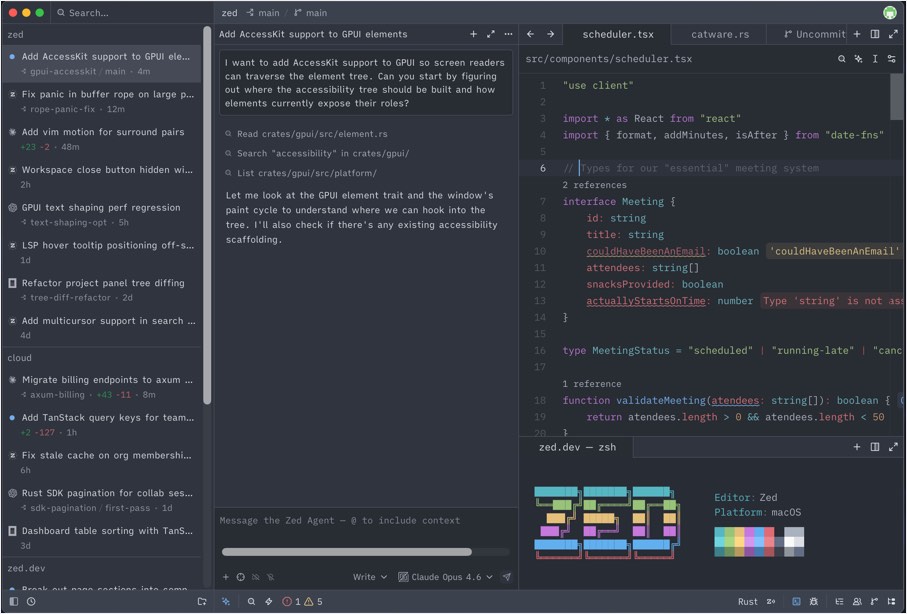
Its collaboration tools are useful for developers who want to work with teammates in a shared coding environment. AI features can also assist with understanding code and generating or modifying sections of a project.
Advantages:
- Responsive editing experience with modern interface.
- Supports collaboration and AI-assisted workflows.
- Provides language tooling and Git integration.
- Available for macOS and other supported platforms.
Limitations:
- Some integrations may be less mature than those in established editors.
- Certain workflows require configuration.
- Some AI services and advanced features may involve additional costs.
Best for: Fast editing, collaboration, and AI-assisted coding.
Price: Free editor; paid plans and services are available for certain features.
Zed is worth exploring if you want a modern alternative to traditional code editors, particularly if speed and collaboration are important to your workflow.
6. Cursor
Cursor is an AI-focused code editor designed to help developers understand, write, and modify code with assistance from artificial intelligence. It is based on the Visual Studio Code ecosystem, so developers familiar with VS Code may find the interface and workflow recognizable. Cursor’s main attraction is its integration of AI into everyday programming tasks.
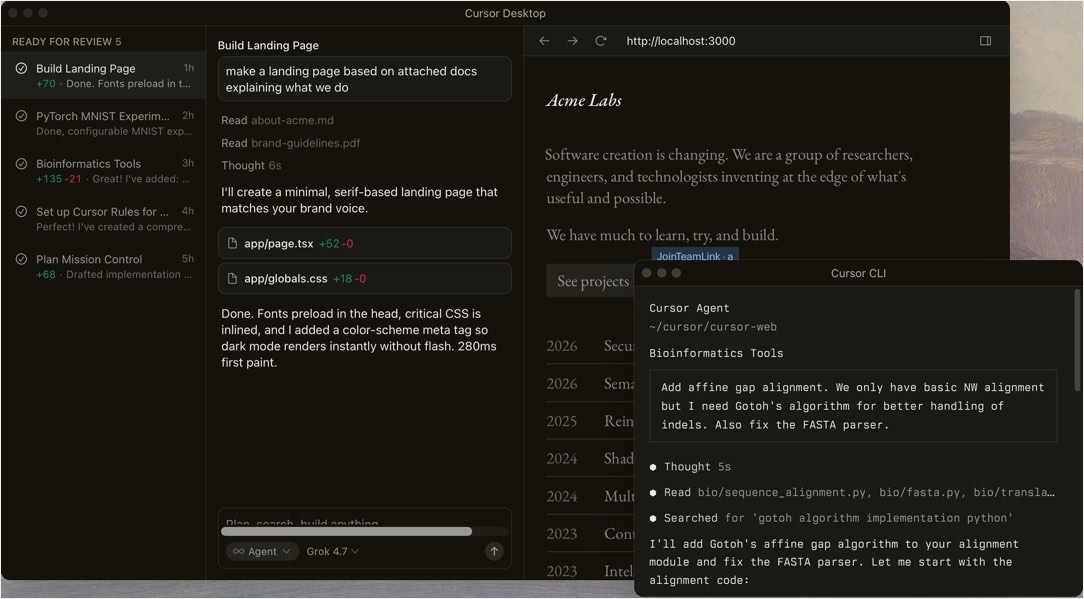
Depending on the selected model and available plan, you can ask questions about your codebase, generate code, make changes across files, and receive assistance with debugging. Its ability to work with project context can be useful when dealing with interconnected files rather than isolated code snippets.
Advantages:
- AI assistance integrated into the editing workflow.
- Can work with context from a project.
- Supports code generation and modification.
- Familiar environment for many VS Code users.
- Useful for exploring unfamiliar codebases.
Limitations:
- Some AI capabilities require a paid subscription.
- Usage limits and model availability depend on the plan.
- AI-generated code can contain errors.
- May be unnecessary if you prefer to write and review code manually.
Best for: AI-assisted software development.
Price: Free plan available; paid subscription plans are offered.
Choose Cursor if you want AI to play a central role in your programming workflow rather than relying primarily on conventional editor extensions.
7. CotEditor
CotEditor is a lightweight, open source text editor designed for macOS. It supports syntax highlighting for numerous programming languages and text formats. It also offers line numbers, search and replace, text encoding controls, and other features useful for technical editing. These capabilities make it suitable for editing HTML, CSS, JavaScript, shell scripts, JSON, XML, and configuration files.
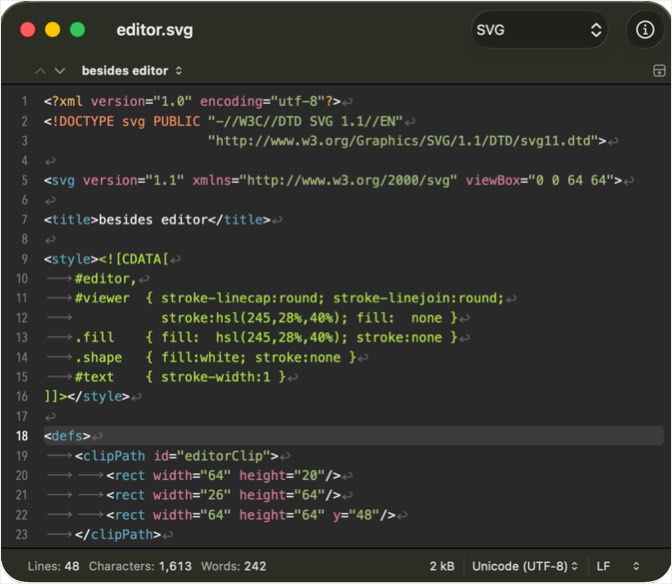
Its straightforward interface makes it easier to use than many advanced development environments when you only need to modify a file or inspect a script.
Advantages:
- Free and open source.
- Designed for macOS.
- Supports syntax highlighting.
- Provides text encoding and editing tools.
- Lightweight and straightforward.
- Suitable for quick source code edits.
Limitations:
- Does not provide the complete development environment found in VS Code.
- Advanced debugging and project tools are limited.
- Its feature set is primarily focused on text editing.
Best for: Free, lightweight text and code editing.
Price: Free.
If you want a free and simple Mac application for editing source code, CotEditor is a practical option.
8. Neovim
Neovim is a modern, extensible text editor derived from Vim. It is designed for users who want extensive control over their editing environment and prefer working primarily through the keyboard. Unlike conventional graphical editors, Neovim uses modal editing. Different modes allow you to enter text, navigate through files, select content, and execute commands. This approach can initially feel unfamiliar, but experienced users can perform many editing operations without moving their hands away from the keyboard.
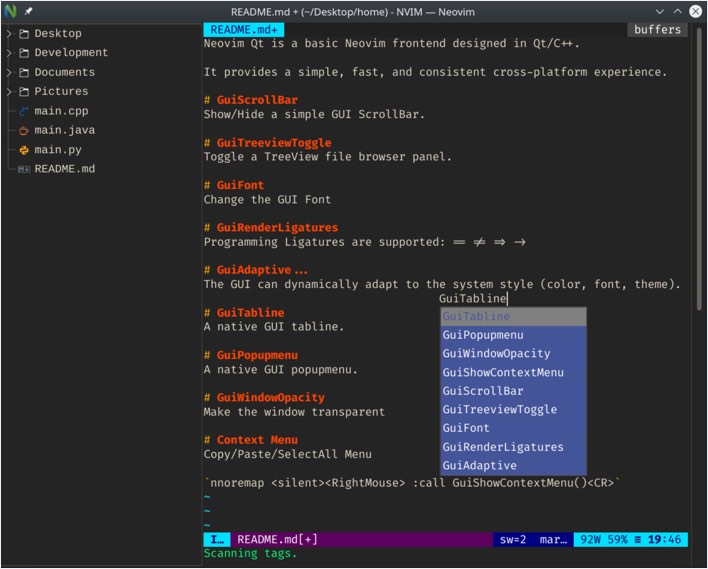
Neovim can be configured to support syntax highlighting, code completion, language servers, diagnostics, formatting, and debugging through its built-in capabilities and plugins. Its Lua-based configuration system also allows developers to customize key bindings, workflows, and integrations. You can use Neovim directly in the terminal on your Mac, making it suitable for developers who frequently work with command-line tools and remote servers.
Advantages:
- Free and open source.
- Highly customizable.
- Efficient keyboard driven workflow.
- Supports numerous programming languages through its configuration and plugins.
- Runs in the terminal.
- Useful for remote development and command-line workflows.
Limitations:
- Requires time to learn.
- Modal editing can be difficult for beginners.
- Advanced functionality often requires configuration.
- May not suit users who prefer a conventional graphical interface.
Best for: Keyboard driven programming and customization.
Price: Free and open source.
Neovim is an excellent candidate for developers who value customization and want to build an editing environment around their own workflow.
9. Xcode
Xcode is Apple’s official integrated development environment for creating software for its platforms. Unlike a lightweight code editor, Xcode combines source code editing with tools for building, testing, debugging, and distributing applications. It is the primary development environment for building native applications for macOS, iOS, iPadOS, watchOS, and tvOS. You can also use the app for editing the default plist files on Mac.
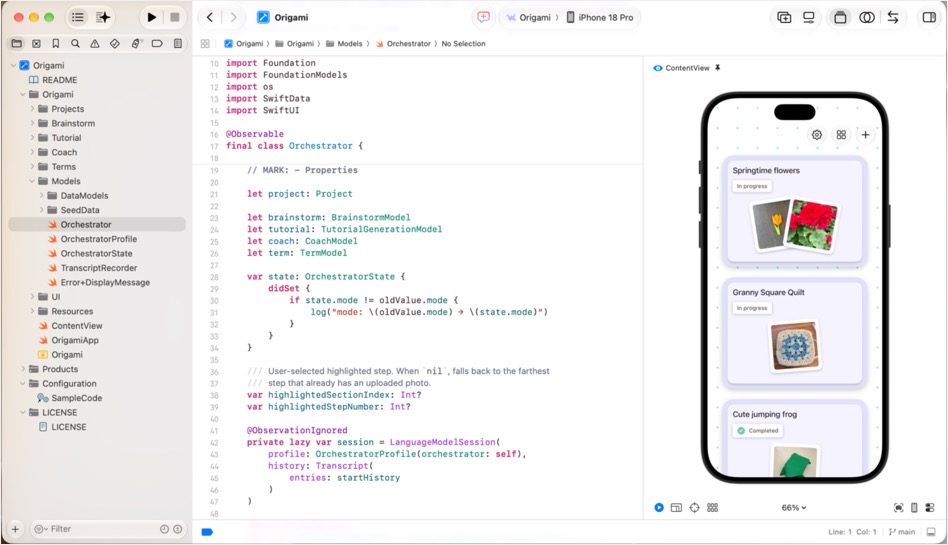
Xcode includes a source editor with syntax highlighting, code completion, refactoring support, and debugging tools. It also integrates with Apple’s SDKs, simulators, and interface design tools. Developers working with Swift or Objective-C can use Xcode to create applications that take advantage of Apple’s operating systems and frameworks.
Advantages:
- Apple’s official development environment.
- Designed for macOS and iOS application development.
- Includes debugging and testing tools.
- Integrates with Apple’s SDKs and simulators.
- Supports Swift and Objective-C development.
- Available without a purchase price.
Limitations:
- Requires considerable disk space compared with lightweight editors.
- Can be resource-intensive.
- Primarily focused on Apple’s development platforms.
- Has a steeper learning curve than a basic code editor.
Best for: Developing apps for Apple’s platforms.
Price: Free to download; some associated Apple developer services may require payment.
If your goal is to create applications for the Apple ecosystem, Xcode should be among the first tools you investigate.
10. JetBrains IDEs
JetBrains develops a collection of integrated development environments (IDEs) designed for different programming languages and development workflows. Rather than providing just one general purpose editor, JetBrains offers specialized products such as IntelliJ IDEA for Java and Kotlin development, PyCharm for Python, and WebStorm for JavaScript and TypeScript. These applications combine code editing with deeper language analysis, refactoring, testing, debugging, and project management features.
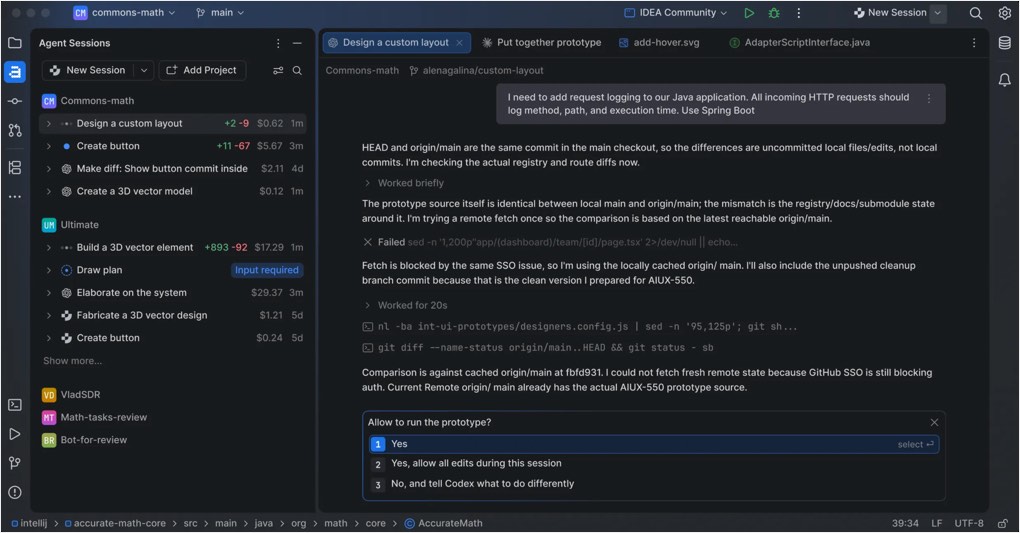
Many JetBrains products also integrate with version control systems and offer AI-assisted development features. The main advantage of this approach is that each IDE can provide tools tailored to the language or technology you use.
Advantages:
- Advanced code analysis and completion.
- Strong refactoring and navigation tools.
- Integrated debugging and testing.
- Specialized environments for different programming languages.
- Useful for large and complex software projects.
- Offers a range of licensing options depending on the product.
Limitations:
- Some products require paid subscriptions.
- Can consume more system resources than lightweight editors.
- Different IDEs target different development needs.
- May provide more functionality than necessary for simple website editing.
Best for: Professional development with advanced language specific tools
Price: Varies by product; free and paid licensing options are available.
JetBrains IDEs are worth considering if you work professionally with a particular programming language and need more comprehensive development tools than a lightweight editor provides.
Quick Comparison of the 10 Mac Code Editors
The following table summarizes the main differences between these applications.
| Code Editor | Price | Best For | Main Advantage |
|---|---|---|---|
| Visual Studio Code | Free | General programming and web development | Extensive extensions and development tools |
| Sublime Text | Paid license available | Fast code editing | Responsive performance and multiple cursors |
| BBEdit | Free mode and paid license | HTML, scripts, and text processing | Powerful search and text manipulation |
| Nova | Paid | Mac web development | Mac-focused design and workflow |
| Zed | Free editor; paid services available | Fast editing and collaboration | Modern interface and AI features |
| Cursor | Free and paid plans | AI-assisted coding | Integrated AI development tools |
| CotEditor | Free | Lightweight text and code editing | Simple Mac-native editing |
| Neovim | Free | Keyboard-driven development | Extensive customization |
| Xcode | Free | Apple-platform development | Apple’s SDKs, simulators, and debugging tools |
| JetBrains IDEs | Free and paid options, depending on product | Professional, language-specific development | Advanced code analysis and refactoring |
Conclusion
TextEdit is sufficient for basic text editing on a Mac, but specialized code editors provide a much better experience for regular programming. You do not need to install all ten applications. Identify the languages you work with and the features you need, then choose an editor that fits your workflow. For most users looking for a general-purpose development environment, Visual Studio Code is a sensible place to start. If you prefer a simpler application for occasional code edits, CotEditor or Sublime Text may be a better fit. For specialized development work, Xcode or a suitable JetBrains IDE may provide the tools you need.