
Adding code blocks in Word document is an essential part of any technical documentation work. For example, you want to create a tutorial document including HTML, CSS or JavaScript code blocks. Simply typing or pasting the code blocks like other regular text will make the document unreadable and make the reader’s life difficult. So, if you frequently want to insert code blocks in your Word documents, here are some of the options for you to use syntax highlighting.
Example Code Block in Word Document
Let’s say, you want to insert the below example code block in a Word document.
<HTML>
<HEAD>
<TITLE>ALERT BOX EXAMPLE</TITLE>
</HEAD>
<BODY>
<SCRIPT Language="JavaScript">
alert("Welcome to Our Website!!!");
document.write('<IMG SRC=""/>');
</SCRIPT>
</BODY>
</HTML>
Copy paste from Notepad app to Word will look like below without any way to identify the code and normal text content in the document.

Follow one of the below solutions.
1. Copy Paste from Code Editor Apps
Instead of using plain text editors like Notepad, make sure to write your code in rich text code editors like Visual Studio Code app. This not only helps to speed up your coding work but also helps to paste the code block as rich HTML content in Word.
- Simply copy your code from VS Code or any RTF editor.
- Position the cursor in your Word document and paste the copied code.
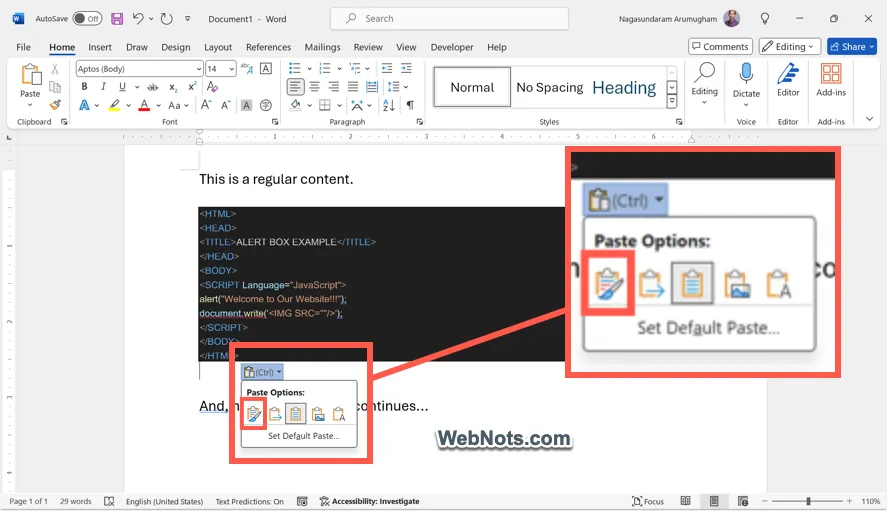
- You will see Word automatically pasted the content as HTML with syntax highlighting.

If you do not see the content is pasted properly, click the “Paste Options” button appears after pasting the code. Click “Keep Source Formatting” icon to retain the rich text formatting copied from the editor.
2. Use Paste Special
Next option is to use the “Paste Special” menu and insert the code block in HTML format.
- Copy your code from code editor and go to “Home” tab in Word app.
- Click “Paste” button and select “Paste Special” option.

- This will open a pop-up and click the “Paste” radio button.
- Select “HTML Format” option and click “OK” button.

- Now, you will see the code is properly inserted with syntax highlighting.
It is also a good idea to convert the Word document with syntax highlighted code blocks as a PDF file so that the formatting will not be lost when opened with different app.
3. Using Professional Syntax Highlighter Add-in
if you are not using a code editor app, then the above two options may not work for you. In such a case, it is a good idea to install a third-party syntax highlighter add-in for Word to make your work easier.
- Go to “Home” tab and click on the “Add-ins” button showing at the right end of the ribbon.
- Search for “syntax highlighter” and find Easy Syntax Highlighter add-in.
- Click the “Add” button to install the item in your Word app.

- Paste or type the code block in your document and select the block.
- Click the “Highlight Selection” button showing on the right sidebar section of Easy Syntax Highlighter add-in.

- The code will be highlighted with proper syntax in an easily identifiable manner.

You can save and share the documents with anyone. This highlighted code block will show properly even if the recipients do not have the add-in installed on their Word app.
Final Words
The best option is to use editors like Visual Studio Code and copy/paste the code block in Word document. You can use “Paste Special” option to insert the code block in HTML format. Otherwise, you need to look for installing an add-in which is better when you have plenty of documentation work with codes and you do not want to switch between editor and Word apps.


