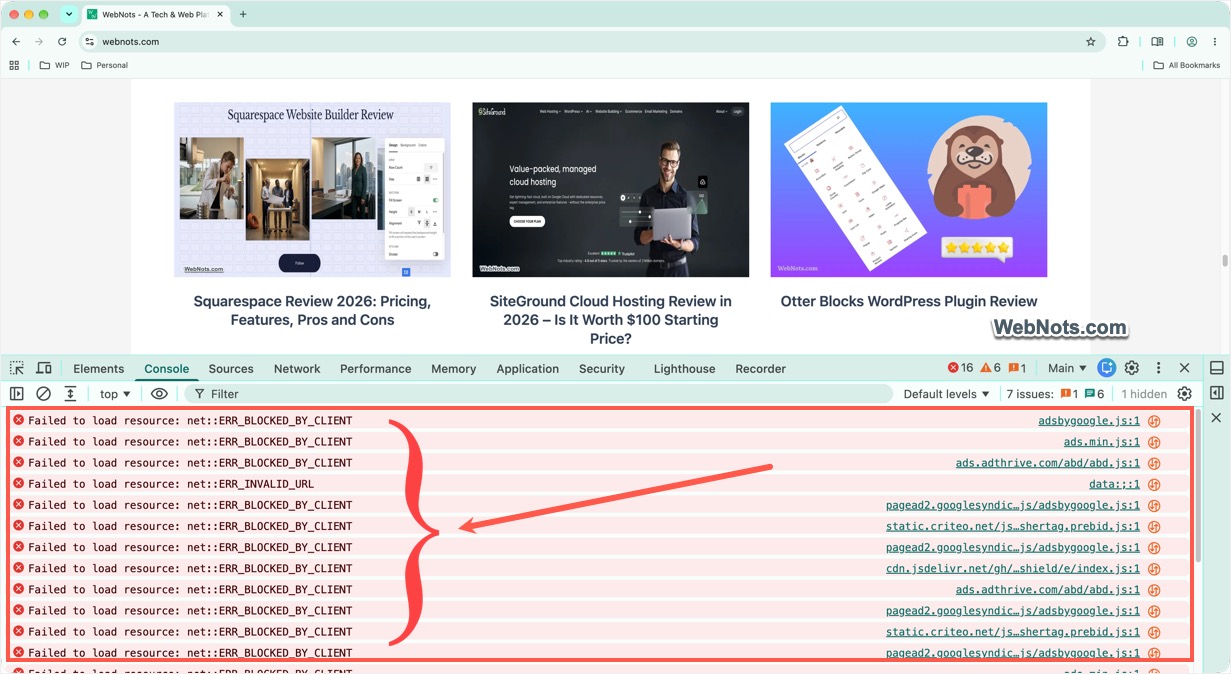
If you use Chrome’s Developer Tools, you may sometimes see an error like “Failed to load resource: net::ERR_BLOCKED_BY_CLIENT”. At first glance, it can look like a problem with the website or its server. In many cases, however, Chrome is deliberately preventing a request from loading due to various reasons. The good thing is that this error is usually easy to diagnose and fix.
What Does ERR_BLOCKED_BY_CLIENT Mean?
Google Chrome shows various network related errors mostly starting with ERR_. The ERR_BLOCKED_BY_CLIENT is identified with the error code -20 and generally means that something on the user’s side of the browser blocked a network request. This error is shown only in the Developer Tools section under “Console” tab and not shown on the normal browser view.
However, you can simulate the error by typing chrome://network-error/-20 in the address bar and pressing Enter key (enable internal debugging if prompted).
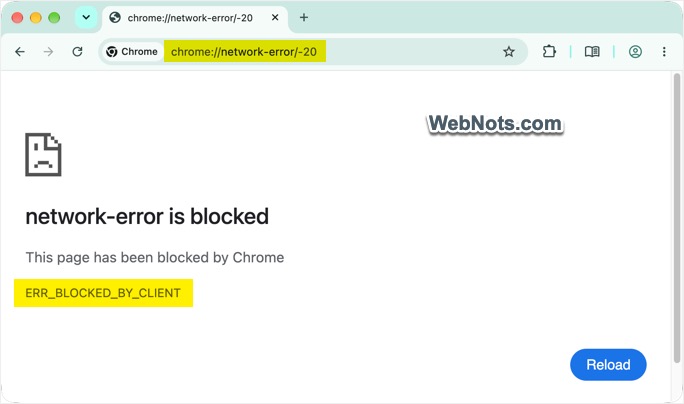
As you can see, the simulated error shows, “This page has been blocked by Chrome”. The “client” in ERR_BLOCKED_BY_CLIENT error refers to the Chrome browser rather than the website’s server. The webpage showing this error might try to load advertisements, analytics script, tracking pixel, third-party JavaScript, social media widget, embedded resource, or font / image hosted on another domain.
When these resources are blocked, Chrome will show the error in Developer Tools section and normally load the remaining parts of the webpage. Due to this, you may find the advertisements are not showing or social icons are missing while other content is loaded properly. Follow the below suggestions to fix the issue and reload the page with its full content.
Note: You can open Chrome’s Developer Tools by pressing F12 or Ctrl + Shift + I on Windows or Command + Option + I on Mac.
1. Check Your Chrome Extensions
The first thing to investigate is your installed extensions. Ad blockers and privacy extensions are particularly common causes of this error. Examples include extensions that block advertisements, trackers, scripts, cookies, or suspicious websites. To test whether an extension is responsible:
- Open Chrome, click the three-dot menu in the upper-right corner and go to “Extensions > Manage Extensions”.
- Temporarily disable all installed extensions that can block or modify web requests.
- Reload the webpage.
- Check whether the error disappears.
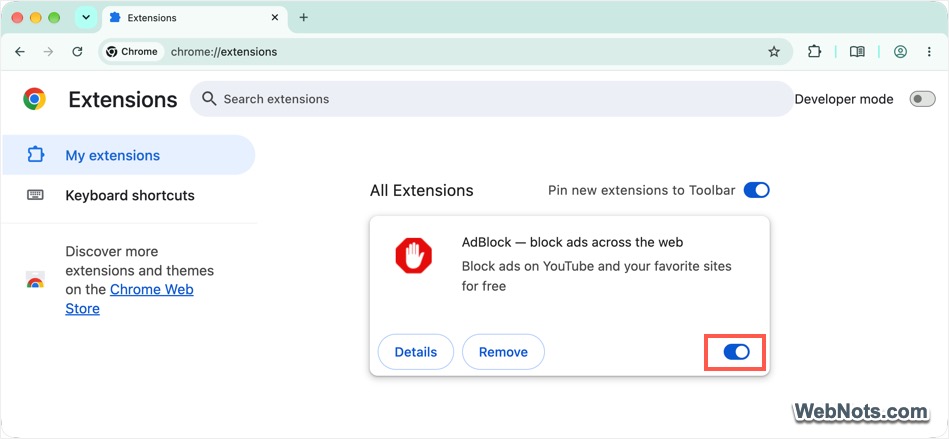
If the error disappears after disabling an extension, you have probably found the cause. You do not necessarily need to remove the extension. You may be able to add the website to its allowlist or exception list. For example, you can click “Pause on this site” option with AdBlock extension to exclude the particular website.
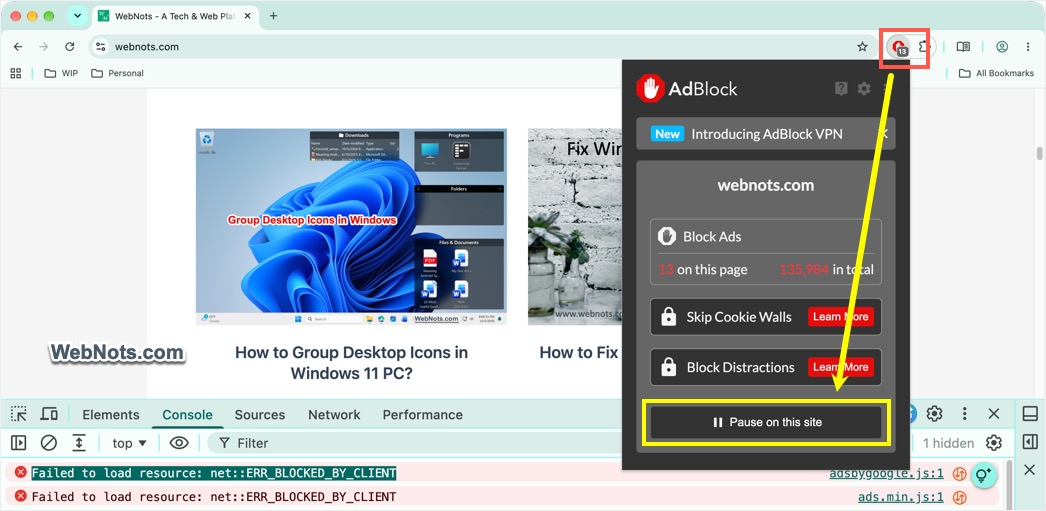
If the extension you use allows to exclude file names, try to whitelist files like ads.js, analytics.js, and tracking.js.
2. Try the Page in Incognito Mode
Chrome’s Incognito mode can help determine whether an extension is causing the problem.
- Open an Incognito window by pressing Ctrl + Shift + N on Windows or Command + Shift + N on Mac.
- Then open the same webpage.
- If the resource loads correctly in Incognito mode, an extension, third-party cookies, or browser configuration is a likely cause.
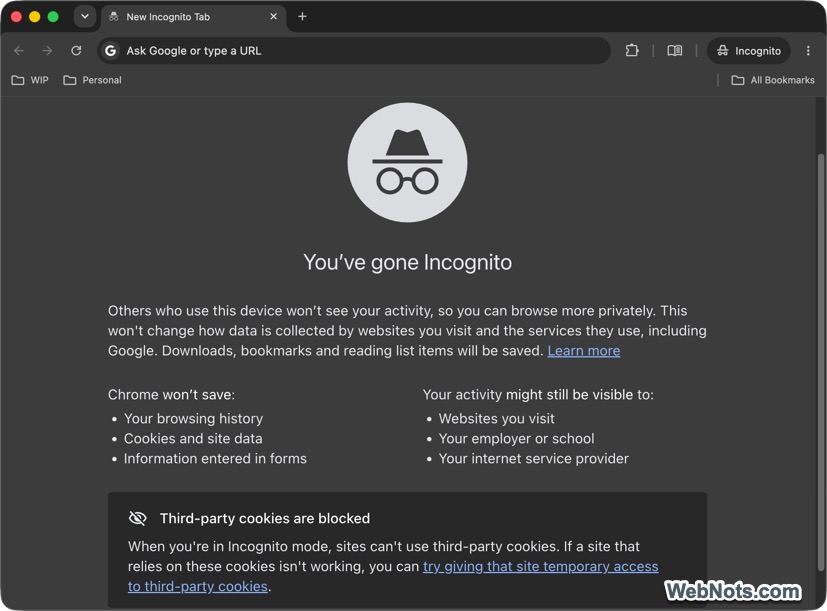
Keep in mind that extensions can be allowed to run in Incognito mode, so this test is not conclusive by itself.
3. Clear Chrome’s Cache
A corrupted or outdated cached resource can sometimes cause unexpected loading problems. To clear cached data:
- Go to Chrome’s Settings page and navigate to “Privacy and security” section.
- Choose “Delete browsing data” and select “Cached images and files”.
- Choose an appropriate time range and click “Delete from this device”.
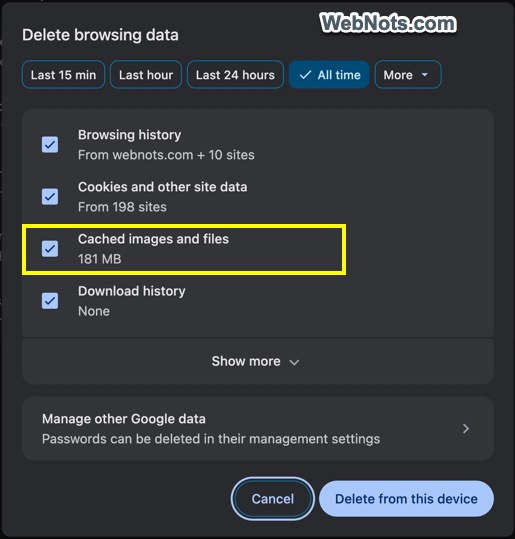
Then reopen the webpage and check the error can be seen in Developer Tools.
4. Hard Refresh a Webpage
You can also perform a hard refresh to request fresh versions of the page’s resources instead of relying on cached copies.
- First, open the Developer Tools.
- Right-click on the reload or refresh icon showing left side of the site’s address.
- Select “Hard Reload” or “Empty Cache and Hard Reload” option.
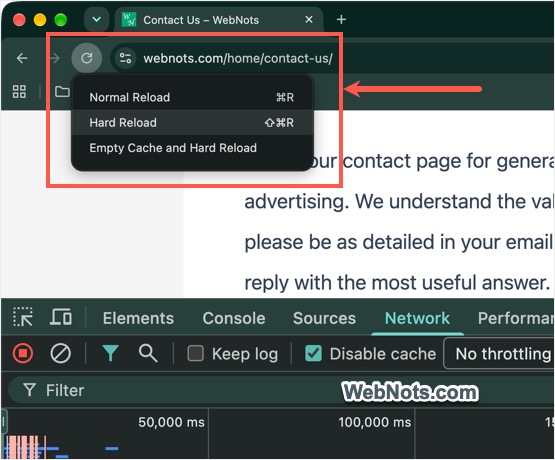
Alternatively, use the keyboard shortcuts Ctrl + Shift + R on Windows or Command + Shift + R on Mac.
5. Check the Chrome Developer Tools Network Tab
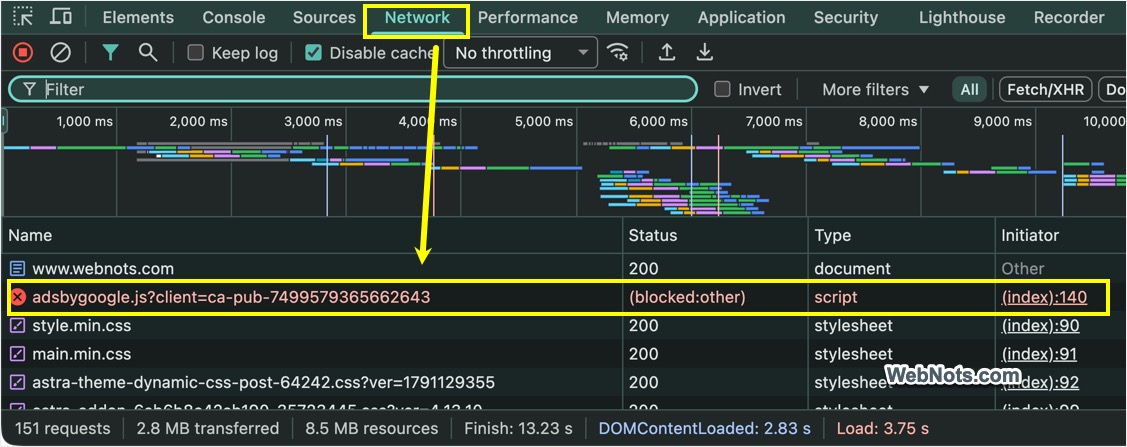
Although you can find the error under “Console” tab of the Developer Tools, the “Network” tab can provide much more information about the blocked resource.
- Open Developer Tools and go to the “Network tab”.
- Reload the page.
- Look for requests that appear in red or have failed status information.
- Select the failed request and examine its HTTP Header, Response, and other technical details. For example, you can see the adsbygoogle.js script is blocked in the below screenshot due to the AdBlock extension.
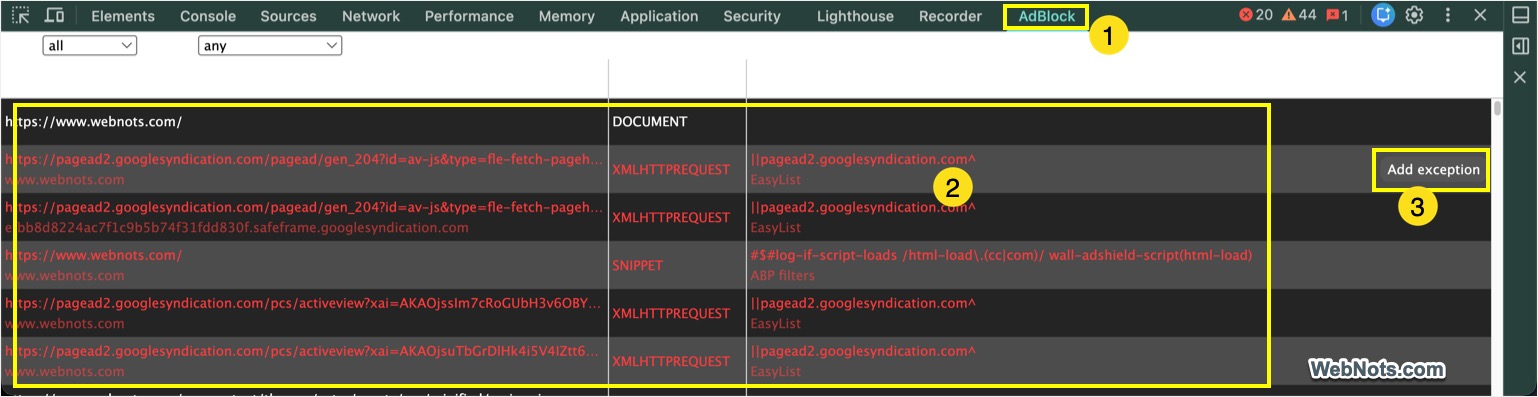
The AdBlock extension also allows you to add a tab (named AdBlock) in Developer Tools to check the blocked resources. You can use this feature to find which script or CSS files are actually blocked by the extension by which rules and exclude on case by case basis.
6. Check Your Security Software
Most antivirus and security programs include features like browser protection, web filtering, tracker blocking, and malicious site protection. When enabled, these features can sometimes block websites or individual resources loaded through the browser apps like Chrome. You can temporarily disable the app and check whether it is blocking the resource in Chrome.
Do not permanently disable security protection simply to eliminate the error. Instead, identify the specific blocked resource and create an appropriate exception only if you trust it.
7. Check Chrome’s Site Permissions
Chrome allows websites to use different browser capabilities, including JavaScript, cookies, pop-ups, redirects, and other functionality. If a website behaves incorrectly, check its site permissions.
- Click the “View site information” icon to the left of the website address in Chrome’s address bar and go to “Site settings” to review the permissions for that site.
- You can also open “Settings > Privacy and security > Site settings” and review the relevant permissions.
- You can delete the stored cookies data and reset the permissions if required.
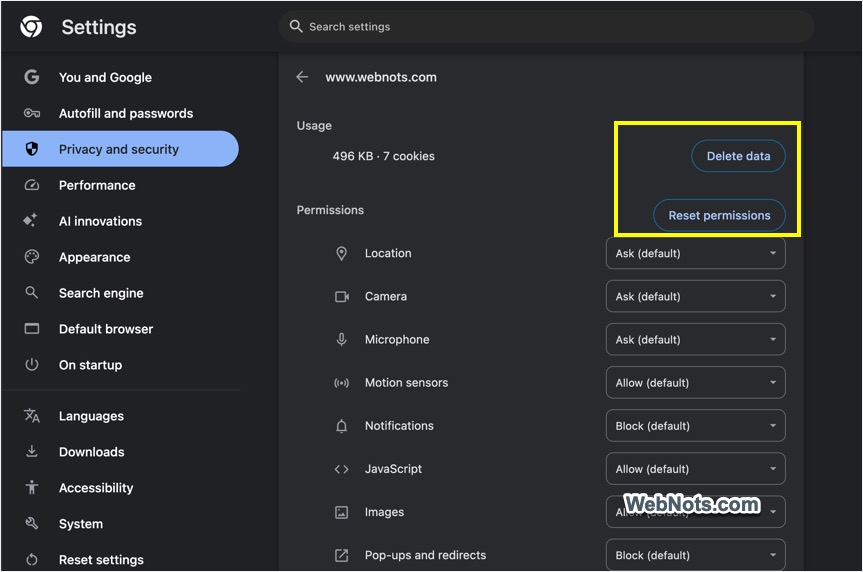
This is particularly useful if the problem occurs only on one website.
8. Reset Chrome Settings
If you have tried the common solutions and the problem continues, Chrome’s settings may need to be reset. Go to “Settings > Reset settings” and select “Restore settings to their original defaults”. Confirm your action by clicking the “Reset settings” button.
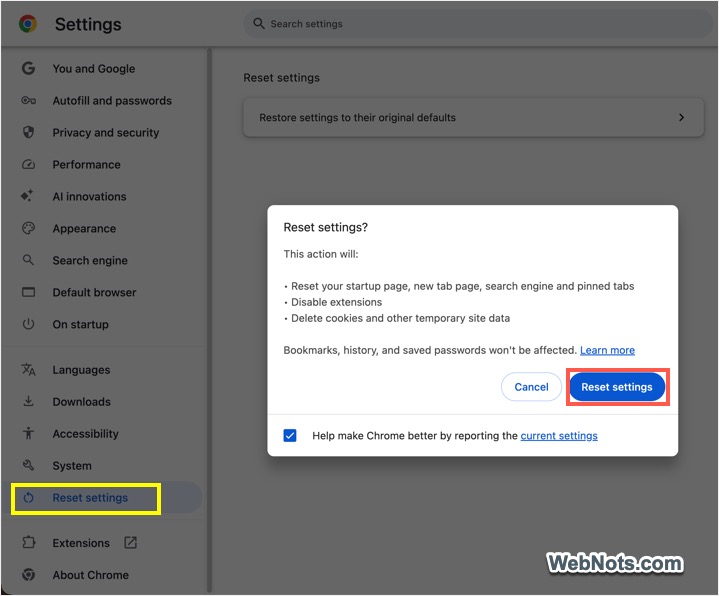
This can restore browser settings without deleting your bookmarks and saved passwords, although you should review what Chrome says will be reset before proceeding. This should be considered a later troubleshooting step rather than the first solution.
9. If You Are a Website Owner
If you own the website generating the error, do not immediately assume that the server is malfunctioning. First check the blocked resource’s URL and determine what it does. If it is an advertising, analytics, tracking, or social media resource, browser blocking is a likely explanation.
However, there is another important consideration: your resource may accidentally look like something that ad blockers or privacy filters commonly block. For example, a JavaScript file like /scripts/ads.js could potentially trigger a blocking rule. Renaming a legitimate resource to something more neutral can sometimes prevent false positives. However, this should not be treated as a way to circumvent users’ privacy or content-blocking choices.
Final Thoughts
The ERR_BLOCKED_BY_CLIENT message sounds more serious than it usually is. In many cases, Chrome or one of its extensions is simply preventing a particular resource from loading. For ordinary users, disabling or configuring the extension responsible is often enough. For developers, the most important step is to identify exactly which resource is being blocked and determine whether it is essential to the website.
If the blocked resource is an advertisement, tracker, analytics script, or other optional third-party service, the error may not require any action at all. If an essential script, stylesheet, image, or application resource is being blocked, further investigation is warranted.