Visual Studio Code has become the editor of choice for millions of developers and for good reason. It’s fast, extensible, and packed with features that can dramatically speed up your workflow. Here are ten practical tips that will transform how you write code.
Sync Your Settings Across Machines
Make sure to sign into VS Code with your GitHub or Microsoft account, then turn on synchronization settings (go to “Code > Settings… > Backup and Sync Settings…” and select the items to sync) . This helps to avoid rebuilding your environment on every new machine as your extensions, keybindings, snippets, and themes follow you everywhere.
1. Master Multi-Cursor Editing
One of VS Code’s most powerful features is the ability to type in multiple places simultaneously. Pressing Alt/Option + Click adds a new cursor wherever you click.
- Need to edit the same word on ten lines? Select it, press Ctrl/Cmd + Shift + L and every instance gets a cursor.
- For sequential lines, use Ctrl/Cmd + Alt/Option + Down/Up Arrow to stack cursors vertically.
- Press Esc to get back to a single cursor mode.
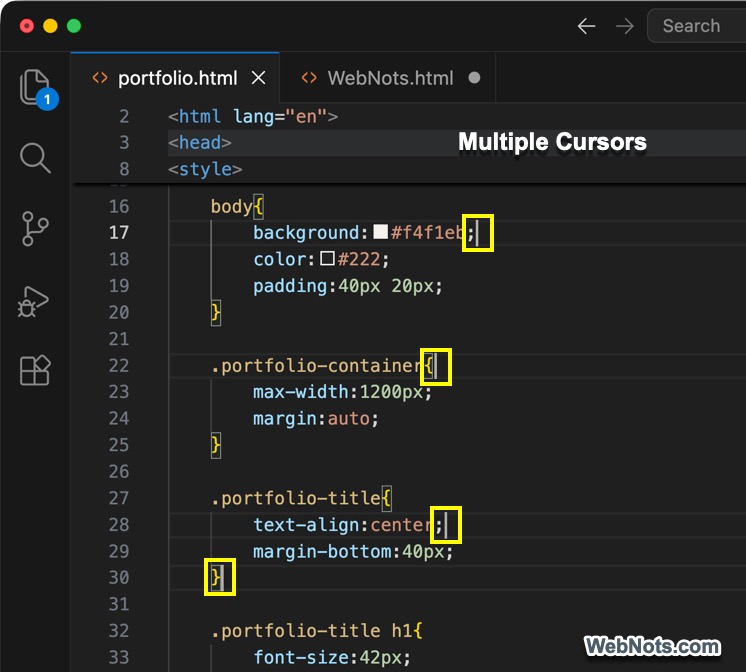
This single technique can replace repetitive find-and-replace operations in seconds.
Note: You can also use Ctrl/Cmd + Click instead of Alt/Option + Click by enabling that option from the “Selection > Switch Ctrl / Cmd + Click for Multi-Cursor” menu.
2. Learn the Command Palette
Press Ctrl/Cmd + Shift + P keys to open the Command Palette, which is the control center for everything VS Code can do.
- Forgot where a setting is? Type “settings” and find the item.
- Need to change syntax highlighting? Type “change language”.
- Want to run a npm script? Just start typing it.
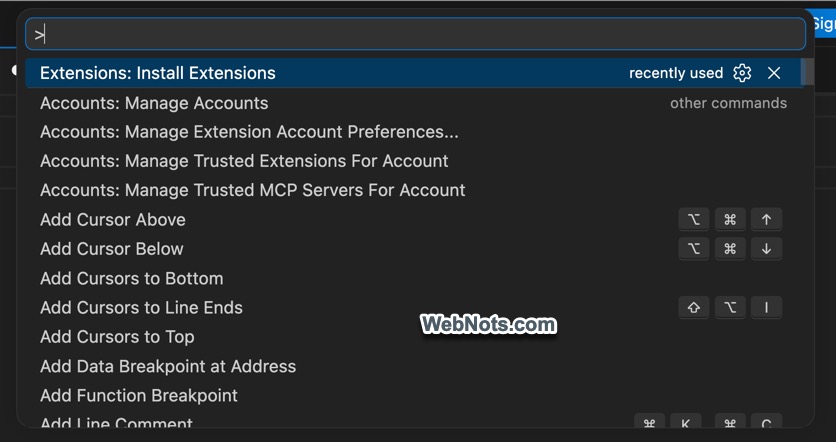
The palette learns what you use most and surfaces those commands first. Make it a habit to use it for anything that feels awkward to find with a mouse.
3. Use Emmet Abbreviations
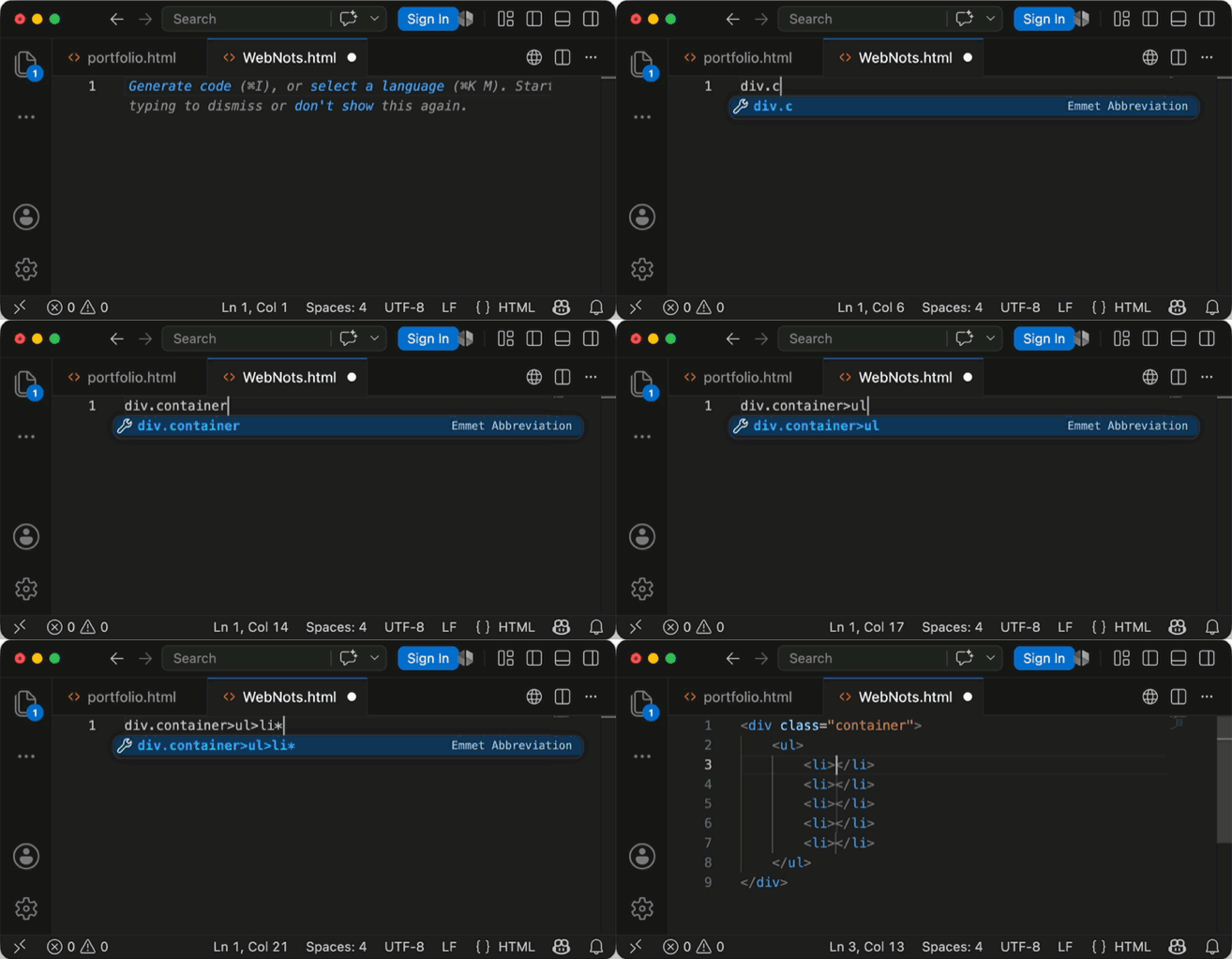
VS Code has Emmet built in and learning a handful of Emmet abbreviations helps to write markup at the speed of thought.
- Type
div.container>ul>li*5and press Tab, it expands into full HTML<div>container with 5 unordered list items. - Simply type
!and press Tab to generate a complete HTML5 boilerplate. - For CSS,
m10becomesmargin: 10px;anddfbecomesdisplay: flex;.
4. Set Up Custom Snippets for Your Boilerplate
You often type the same block of code like a React component, a function skeleton, or an HTML structure. Emmet handles common cases, but not your personal or company‑specific patterns. Use custom snippets to create your own.
- Press Ctrl/Cmd + Shift + P to open the Command Palette.
- Type “snippets” and select “Snippets: Configure Snippets”.
- Choose “New Global Snippets file…” and give it a name like “my-snippets”.
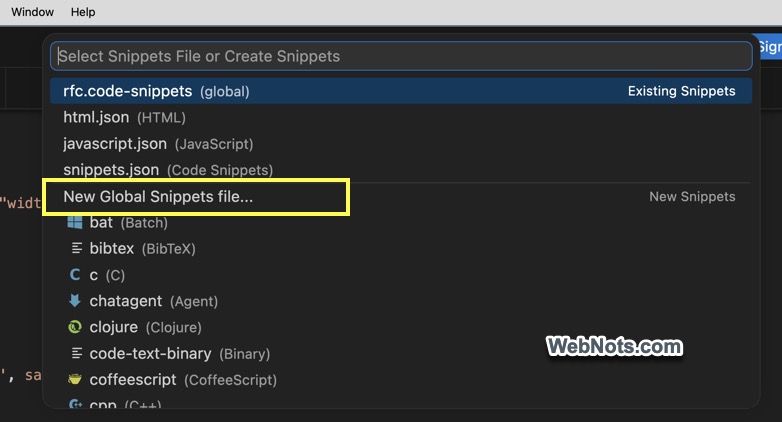
- VS Code opens a JSON file and paste something like below:
{
  "React Functional Component": {
    "prefix": "rfc",
    "body": [
      "import React from 'react';",
      "",
      "const ${1:ComponentName} = () => {",
      "  return (",
      "    <div>${2}</div>",
      "  );",
      "};",
      "",
      "export default ${1:ComponentName};"
    ],
    "description": "Creates a React functional component"
  }
}- In the above code:
prefixis the shortcut you type (hererfc).bodyis the code inserted, line by line.${1:ComponentName}is a tab stop. Typerfc, press Tab, and your cursor lands onComponentName. Type the real name, press Tab again, and it jumps to${2}(inside the<div>).${1:ComponentName}repeated means “fill the same value here automatically”.
- Save the file. Now in any .js or .jsx file, type rfc and press Tab – the whole component appears.
This helps to stop copying/pasting from old files and create consistent, error‑free boilerplate in seconds.
Note: Instead of creating a global snippet file, pick a language like JavaScript to create a javascript.json file for language‑specific snippets.
5. Navigate Files and Symbols Instantly
Clicking through the file tree is slow. You also waste time scrolling to find a specific function inside a long file.
Quick file open:
- Press Ctrl/Cmd + P to open the search box.
- Start typing part of a filename like “log” to find LoginForm.js, logger.ts, etc.
- Select the file (or press Enter) to open it.
- You can also type > to run a command like in the Command Palette.
Go to symbol in current file:
- Press Ctrl/Cmd + Shift + O to view every function, class, variable, etc. in that file in a dropdown.
- Type @ to see only functions (like @render).
- Type # to see only variable names.
Go to symbol across the whole project:
- Press Ctrl/Cmd + T and type part of a symbol name allowing VS Code to search all files.
- For example, type
validateFormand jump straight to that function definition, no matter which file it’s in.
6. Turn on Auto Save and Format on Save
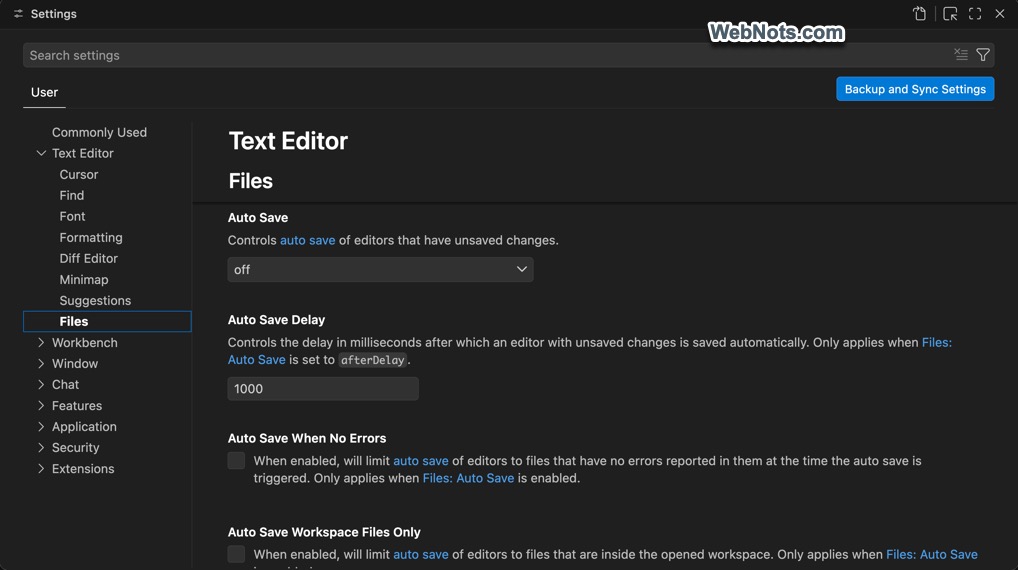
Nothing kills flow like losing unsaved changes. Go to “File > Auto Save” or go to “Code > Settings… > Settings > Text Editor > Files” and turn on “Auto Save” and set the required interval.
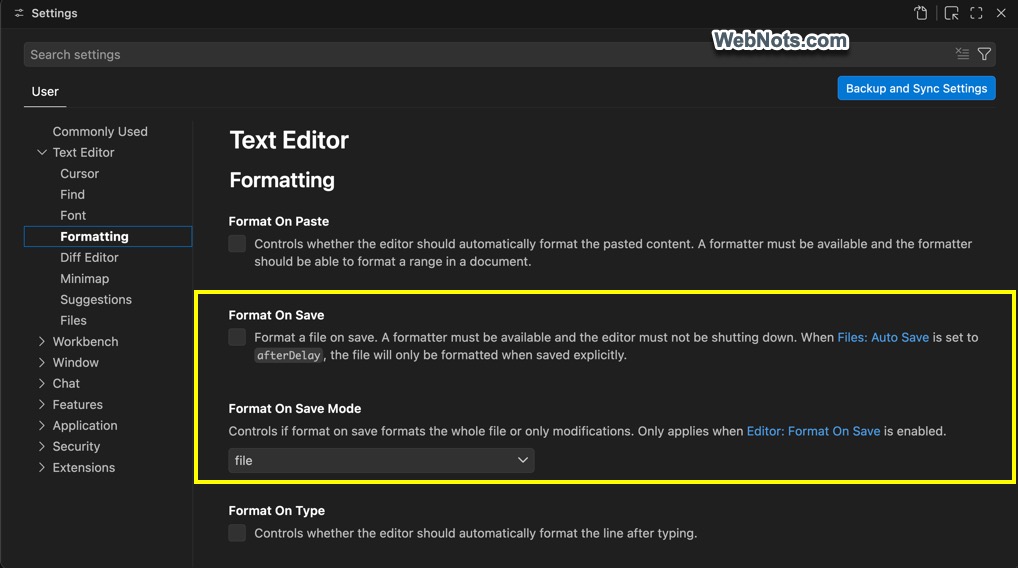
Better yet, enable “Format on Save” under “Text Editor > Formatting” settings section. This automatically runs your formatter (Prettier, Black, etc.) every time you save your file or only the modifications.
7. Master Git from Within the Editor
VS Code has excellent built-in Git integration. The Source Control panel (Ctrl + Shift + G) shows changed files and lets you stage, commit, and push. Press Ctrl + Enter to commit and use the timeline view to see file history, and click on any commit to see a diff.
For inline blame, install the GitLens extension. It shows who wrote each line and when, which is invaluable for understanding legacy code.
8. Use Zen Mode for Focused Writing
VS Code editor is stuffed with many panels, which can easily create distractions and affect deep work.
- Simply press Ctrl/Cmd + K Z to enter Zen Mode, which hides everything and only shown your code in full screen. The UI disappears; only your file remains.
- To exit, the same Ctrl/Cmd + K Z again or press Esc twice.
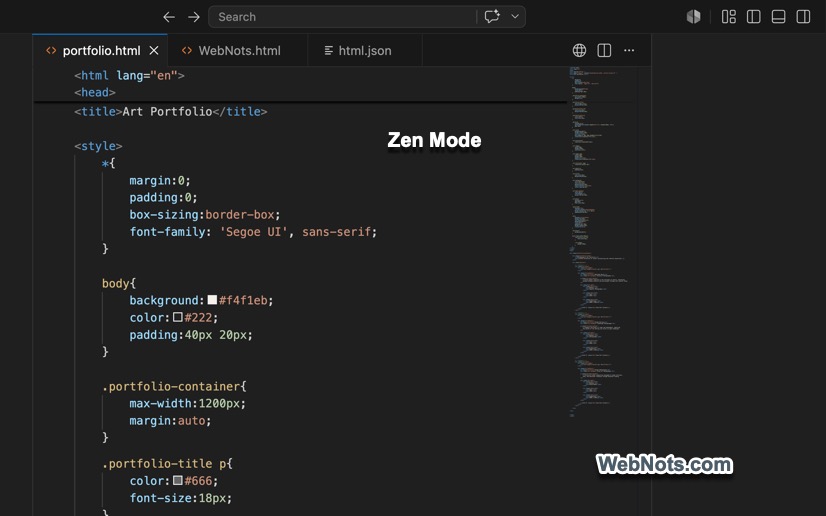
You can code for hours without a single visual distraction.
Note: Zen Mode can also be toggled from “View > Appearance” menu.
9. Customize Your Keybindings
VS Code offers huge a list of keyboard shortcuts, but your hands are unique.
- Press Ctrl/Cmd +K Ctrl/Cmd +S to open the Keyboard Shortcuts editor.
- Search for any command and select it.
- Double-click or press Enter or click the pencil icon in the front.
- Press the keys to change the default binding.
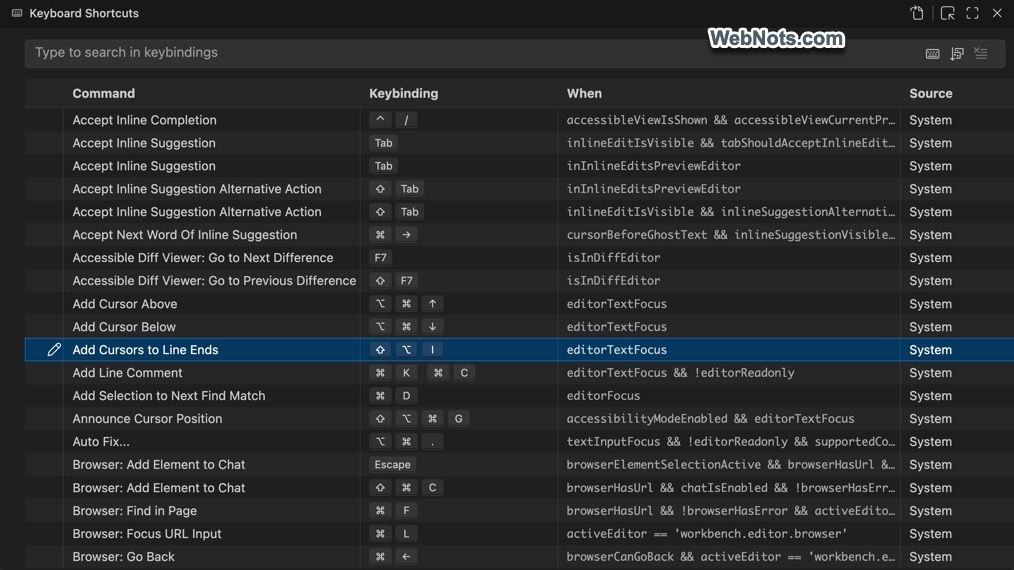
You can also open the JSON file, enter the details, and replace multiple keybindings at once.
10. Run Terminal Commands Without Leaving the Editor
Most users constantly switch between editor and Terminal to run tests, builds, or linters breaking the workflow.
- Press Ctrl+` or go to “View > Terminal” to open Terminal panel at the bottom portion of the app.
- You can have multiple terminals (bash, PowerShell, etc.) and split them.
- Run npm test, python script.py, git status – everything right there. You never leave VS Code.
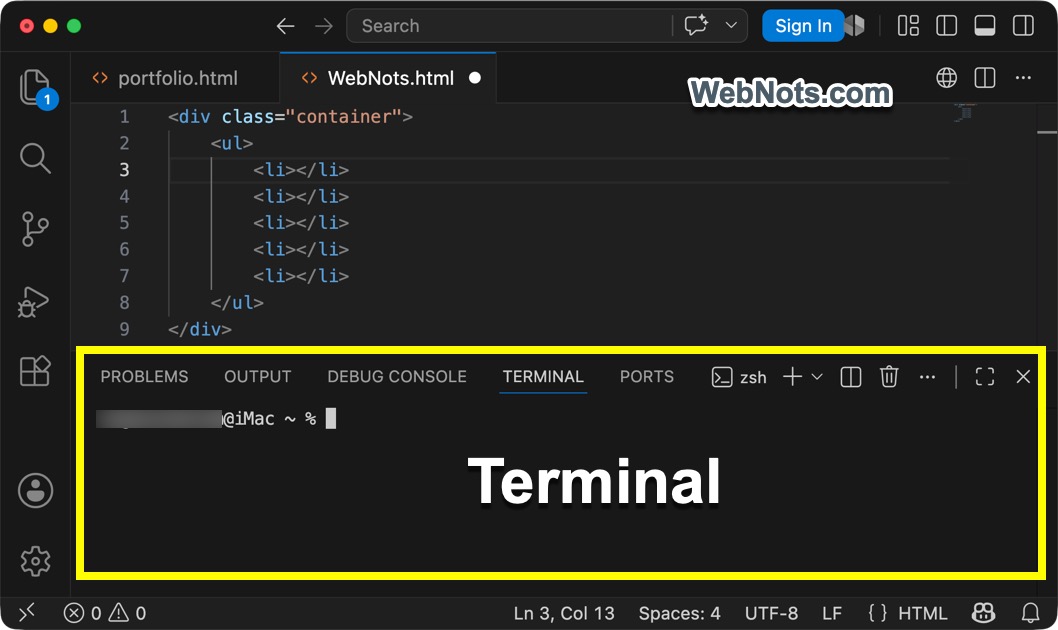
You can also use an extension to run a command in Terminal every time you save a file (Run on Save), which is perfect for tests or formatting.
Final Words
Visual Studio Code is not a simple code editor though that’s its main purpose. The app has lot of hidden features, which you can find / understand only by exploring the interface. The above ten tips are just a start and within a week, you’ll wonder how you ever coded without them. The more shortcuts and features you discover, the faster and more enjoyable your coding becomes.