
Have you ever tried to open a website only to see a message saying, “429 Too Many Requests”? Instead of loading the page, your browser displays an error message, preventing you from accessing the website. As the description of the error indicates, the server has received too many requests from your browser, IP address, or application within a specific period. In this article, we’ll explore what the “429 Too Many Requests” error means, why it occurs, and how to fix it.
What is the 429 Too Many Requests Error?
429 is one of the HTTP status codes as part of 4xx series and originates due to the error / problem in the request sent from the client (generally a web browser). So, “Too Many Requests” in the error message indicates that a server has received more requests from the browser than it allows within a particular period. Let’s take an example:
- Imagine you visit a website in Chrome browser and refresh the page repeatedly (just press F5 in Windows or Cmd + R in Mac).
- If the website limits visitors to a certain number of requests per minute, your IP address might temporarily exceed that limit.
- The server will then return a 429 error to prevent further requests.
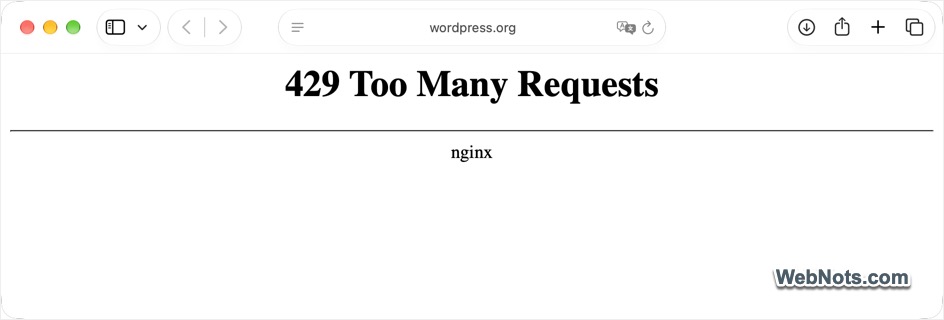
Although “429 Too Many Requests” is the most common form, the error can appear with other similar messages like HTTP Error 429, Error 429, Too Many Requests, or 429 Too Many Requests nginx. The exact message depends on the web server, hosting provider, or application handling the request. A server may also include a “Retry-After” header indicating how long a client should wait before making another request. For example, a response might look like this:
HTTP/1.1 429 Too Many Requests
Retry-After: 60
In this example, the server recommends waiting 60 seconds before retrying the request.
How to Fix the 429 Too Many Requests Error as a Website Visitor
The error does not always mean you personally sent too many requests. A browser extension, website plugin, automated script, or shared network connection could be responsible. Understanding the cause will help you choose the right solution. If you encounter this error while visiting a website, try the following solutions in order.
1. Wait a Few Minutes Before Trying Again
The simplest solution is to stop making requests temporarily.
- Close the affected tab or leave the website alone for a few minutes. Then open it again.
- If the server applies a temporary rate limit, access may be restored automatically when the restriction expires.
- If the error response includes a “Retry-After” header, follow the specified waiting period.
Avoid repeatedly refreshing the page while waiting. Doing so may extend the restriction or trigger additional security measures.
2. Clear Your Browser Cache and Cookies
Corrupted cookies or outdated browser data can sometimes interfere with website access. Clearing them is worth trying, although it will not resolve a server side rate limit by itself.
- Simply press Ctrl + Shift + Delete in Windows or Cmd + Shift + Delete in Mac.
- Choose the relevant time range, select the appropriate cached files and cookies, and delete the stored data.
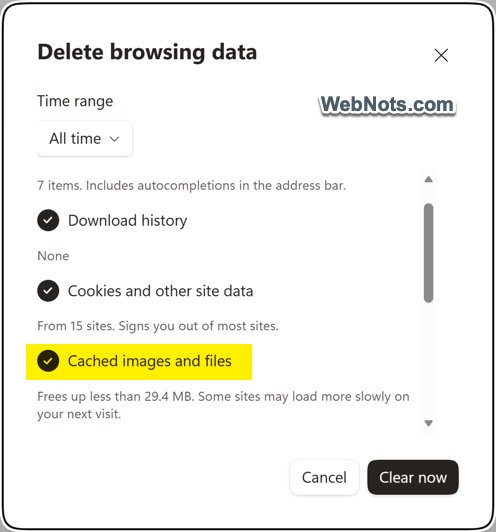
This works on all major browsers like Chrome, Edge, and Firefox. If you are using Safari on a Mac, go to “Safari > Clear History…” to remove the cached data.
Note: Removing website data may sign you out of the website, so make sure you know your login credentials before proceeding. You can also remove data for only the affected website from the browser’s settings page if you prefer not to clear information for other sites.
3. Disable Your VPN or Proxy Temporarily
A VPN may route your traffic through an IP address shared by many users. If other users have generated excessive traffic, the website may restrict requests from that address. So, if you are using a VPN or proxy, disconnect it temporarily and try accessing the website again. If disabling the VPN resolves the problem, you can try to reconnect using a different VPN server.
4. Try a Different Network
Your current network’s public IP address may be subject to a temporary restriction. To check whether this is the cause, try accessing the website through another permitted network like a mobile hotspot. If the website works on the alternative network but not on your usual connection, the website owner might have restricted your IP address. If you believe the restriction is incorrect, contact the website administrator (through social or another channel) and request for unblocking your IP.
5. Disable Browser Extensions
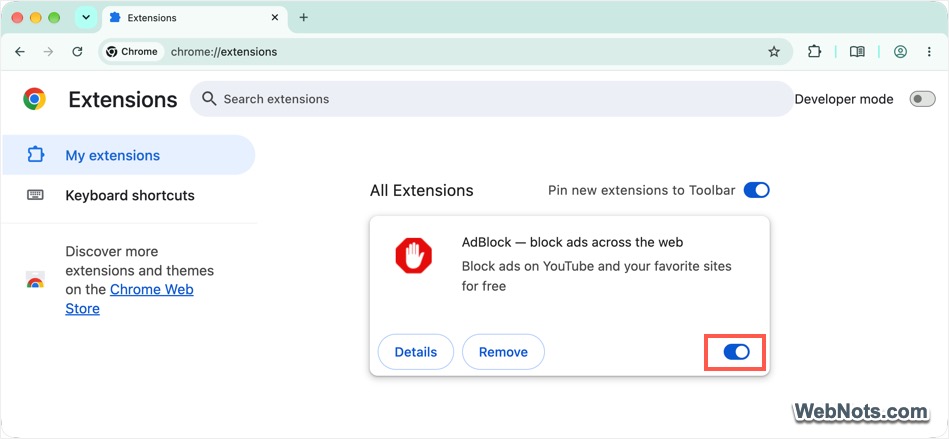
Browser extensions can sometimes generate repeated requests or interfere with website functionality. To test whether an extension is responsible, open the website in a private browsing window with extensions disabled, or temporarily disable extensions individually. Pay particular attention to:
- Automatic page refresh extensions.
- Web scraping tools.
- SEO and website analysis extensions.
- Download managers.
- Extensions that repeatedly check website content.
If the website works after disabling an extension, re-enable extensions one at a time to identify the cause.
6. Try Another Browser
Open the website in another browser to determine whether the problem is browser-specific. For example, if you normally use Safari, try Chrome or Firefox.
- If the website works in the alternative browser, investigate your original browser’s extensions, cookies, and settings.
- If the error appears in every browser, the issue is more likely related to your IP address, network, website, or server configuration.
7. Fix 429 Too Many Requests Error in WordPress
If you own a WordPress website and encounter a 429 error, you will need to investigate the website’s plugins, server configuration, and security settings. Before making changes, create a backup of your website and database if possible.
- Deactivate WordPress Plugins: Go to “Plugins > Installed Plugins” section in your dashboard and deactivate all your plugins. If the error disappears, reactivate plugins individually to identify the one responsible. You may need to check for updates, review its configuration, and contact the plugin developer if the problem persists.
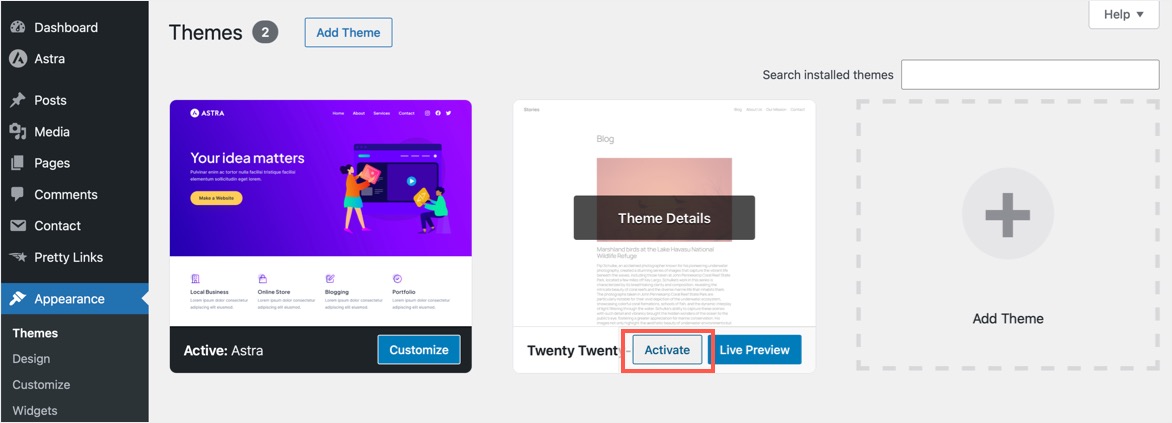
- Switch to a Default WordPress Theme: To test the problems with your theme, temporarily activate a default WordPress theme (like Twenty Twenty-Five) by going to “Appearance > Themes” section in your dashboard. If the error disappears, investigate your original theme’s custom code and integrations.
- Check Your WordPress Security Plugin: Review your security plugin’s logs for blocked requests, rate limits, or repeated requests from the affected IP address. If the plugin provides configurable rate-limiting rules, verify that legitimate visitors and WordPress services are not being blocked unnecessarily.
- Review Your CDN and Firewall Settings: If your WordPress website uses a content delivery network or web application firewall, look for repeated requests from the same IP address, a particular URL, or a specific API endpoint. Identifying the component generating the response will make troubleshooting more efficient.
- Check WordPress Cron Jobs and REST API: First identify whether scheduled tasks (using the default WP-Cron) are actually responsible. If yes, consider configuring a proper system cron job instead of relying exclusively on visitor-triggered WP-Cron. Similarly, if a specific plugin or application is responsible for generating a large number of REST API requests, consider reducing unnecessary requests, cache appropriate responses, or adjust its polling frequency.
8. Fix 429 Too Many Requests Error on Nginx Server
Nginx provides the limit_req module, which can restrict how frequently clients make requests. For example, a configuration might contain a rule similar to this:
limit_req_zone $binary_remote_addr zone=api_limit:10m rate=5r/s;
server {
    location /api/ {
        limit_req zone=api_limit burst=10 nodelay;
    }
}
This configuration illustrates a rate limit of five requests per second, with a burst allowance of ten requests. If a client exceeds the configured limit, Nginx can reject requests. You can adjust the rate or burst allowance if the current settings are too restrictive and test the configuration before reloading Nginx with the following command:
sudo nginx -tIf the test succeeds, reload Nginx using the appropriate command for your server environment:
sudo systemctl reload nginxNote: Only change server configuration if you have the necessary permissions and understand the effects of the change. If you use managed hosting, ask your hosting provider to investigate instead.
Frequently Asked Questions
No. A 429 error does not necessarily mean the website is down. The server may be operating normally but refusing requests that exceed a configured limit.
The duration depends on the server’s rate limiting rules. Some restrictions expire after a few seconds, while others may last several minutes or longer.
Sometimes, but it is not a guaranteed solution. Clearing cookies and cached data may help with browser related problems, but it will not remove a server side rate limit.
Possible causes include a problematic plugin, repeated REST API requests, security rules, CDN restrictions, or server rate limits. Start by checking recent plugin changes and security logs. If you cannot identify the cause, ask your hosting provider to investigate the server logs.
Possible if your public IP address is temporarily restricted (common when using a VPN or proxy server). Testing with network (with different IP address) can help narrow down the cause.
HTTP “429 Too Many Requests” indicates that the server is refusing requests because a rate limit has been exceeded. However, HTTP “503 Service Unavailable” indicates that the server is temporarily unable to handle the request, often because of maintenance or overload. The main difference is that 4xx status codes indicate errors related to the client’s request, while 5xx status codes indicate that the server failed to fulfill a seemingly valid request.
Yes. A CDN or web application firewall may apply rate limits and reject excessive requests before they reach the origin server. If your website uses a CDN like Cloudflare, review its security events and rate limiting configuration to determine whether it generated the error.


