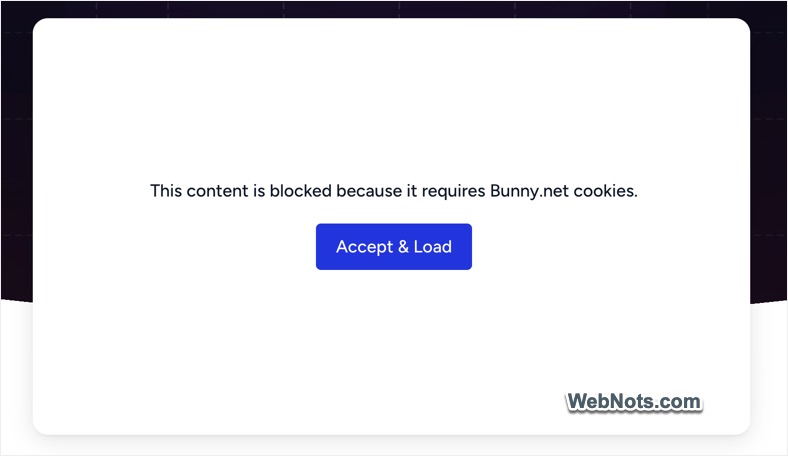
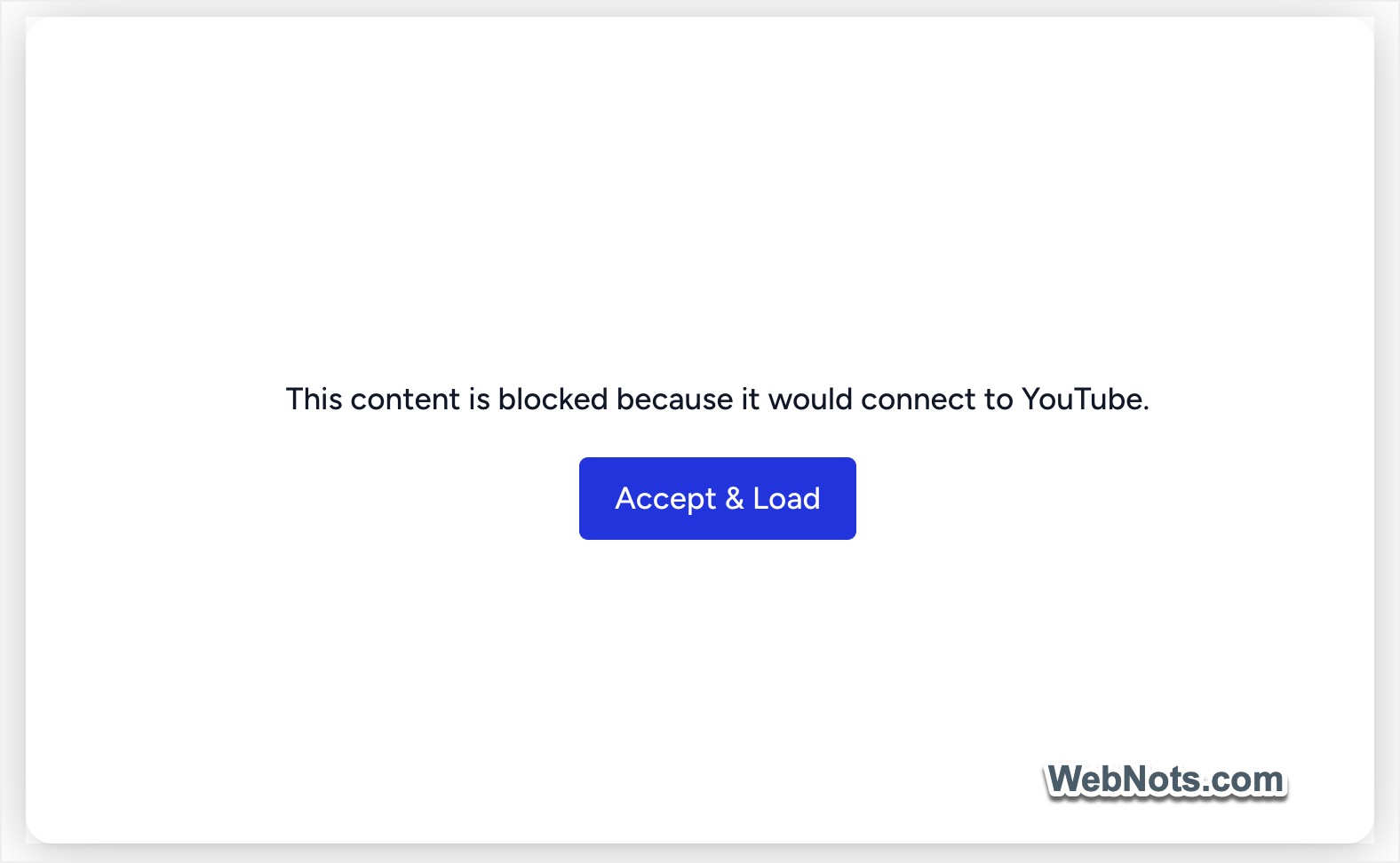
Have you ever opened a webpage in Google Chrome only to see a message like “This content is blocked because it would connect to YouTube” or “This content is blocked because it requires … cookies”? These messages can be confusing because the webpage itself may load normally while a video, embedded player, image, or other third-party content remains unavailable. In many cases, the problem is related to Chrome’s privacy settings, third-party cookies, embedded content permissions, browser extensions, or the website’s own cookie consent system. Here is how to fix the problem.
What Does “Content is Blocked” Mean?
The underlying issue is often a tradeoff between privacy and website functionality. A modern webpage can contain content from multiple domains. For example, a webpage may be hosted on one domain but use:
- YouTube for embedded videos.
- CDN or Content Delivery Network (like Cloudflare or Bunny.net) for video, images, and content delivery.
- Google services for sign-in or other features.
- A separate advertising or analytics service.
- A third-party image or content provider.
Chrome can restrict third-party cookies and access to information from embedded websites to reduce cross-site tracking, but it can also prevent some embedded services from functioning correctly. That is why a page may load normally while a YouTube video, video player, login widget, or other embedded component displays a “Content is blocked” message like “This content is blocked because it requires … cookies” and “This content is blocked because it would connect to YouTube”.
1. Allow Third-Party Cookies
The first thing to check is Chrome’s third-party cookie setting.
- Open Chrome on your computer, click the three-dot icon in the upper-right corner, and select “Settings” menu.
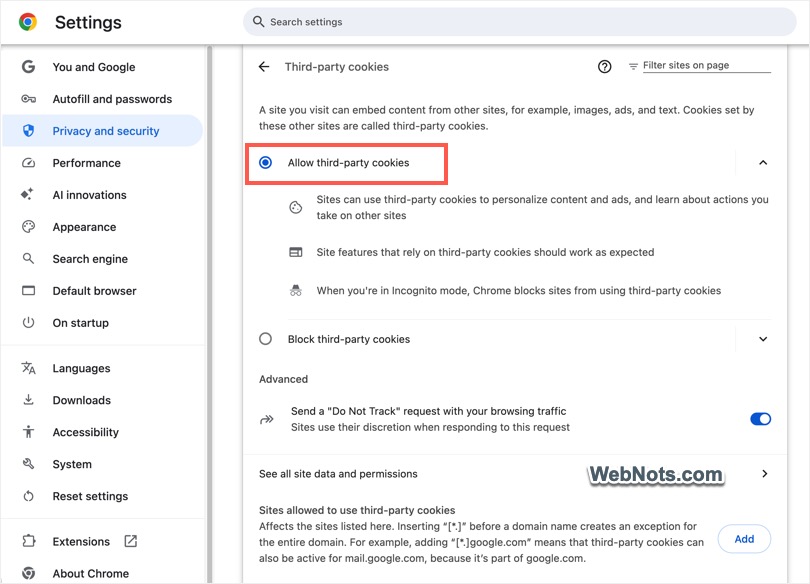
- Go to “Privacy and security” and select “Third-party cookies”.
- Check whether third-party cookies are being blocked.
For testing, you can temporarily select “Allow third-party cookies” and then return to the webpage and reload it. If the blocked content starts working, you have identified the likely cause. However, you don’t necessarily need to enable third-party cookies globally. A better approach is to create an exception for the affected website.
2. Allow Cookies Only for the Affected Website
If you don’t want to allow third-party cookies everywhere, Chrome lets you create exceptions. For example, if a particular website requires embedded services to function, you can add an appropriate exception for that site rather than changing your global privacy settings.
- Go to “Settings > Privacy and security > Third-party cookies” as explained above.
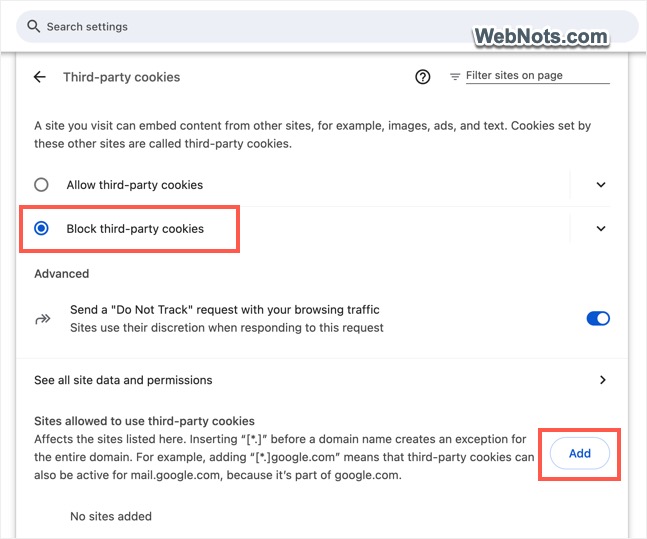
- Make sure “Block third-party cookies” option is selected.
- Click the “Add” button showing in “Sites allowed to use third-party cookies” section.
- Add the website that is displaying the blocked content. You can use wildcard entries using [*.] to cover a domain and its subdomains.
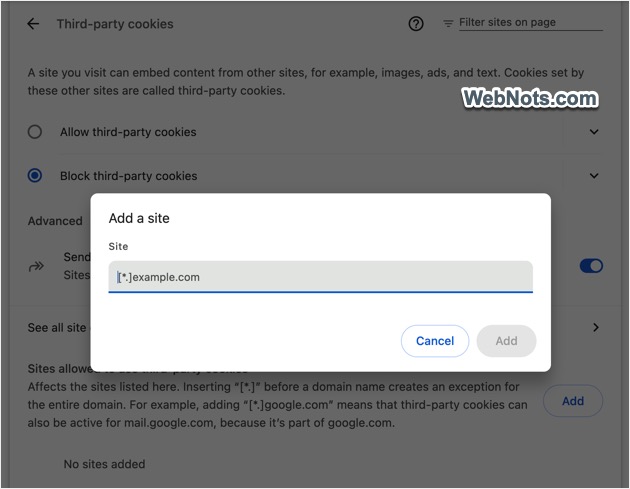
This is generally the better choice if you want to maintain stronger privacy protection elsewhere. Note that if you click “Accept & Load” button on the error message, Chrome will add the site to this exception list and allow the content. You can anytime remove the site later from the settings page.
3. Temporarily Allow Third-Party Cookies From the Address Bar
Chrome can also provide a temporary way to allow third-party cookies for the website you’re currently visiting.
- When third-party cookies are blocked, look near the left side of the address bar and click the “View site information” icon.
- Select “Cookies and site data” option from the dropdown.
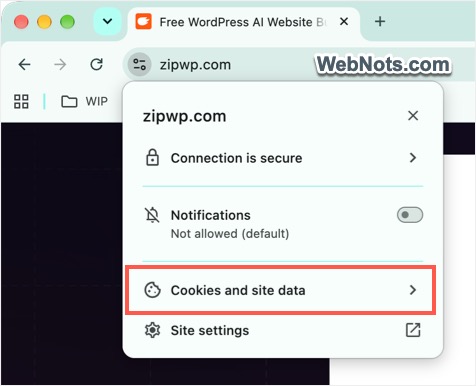
- Turn on “Third-party cookies” option.
- After enabling it, reload the page to allow third-party cookies only for that site.
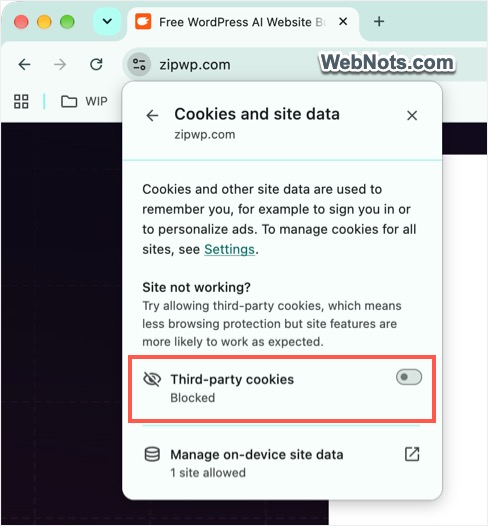
This is useful because you can test whether cookies are actually responsible before changing Chrome’s general settings.
4. Check Embedded Content Permissions
There is another setting that can affect content embedded inside webpages. Chrome allows users to control whether embedded content can access information saved by another website.
- If Chrome displays a permission request for embedded content, choose “Allow” if you trust the website and need the embedded feature.
- Otherwise, go to chrome://settings/content/storageAccess page.
- Select “Sites can ask to use information they’ve saved about you” option under “Default behavior” heading.
- If you have previously blocked a permission request from a website, you can check and remove the site from “Customized behavior” heading.
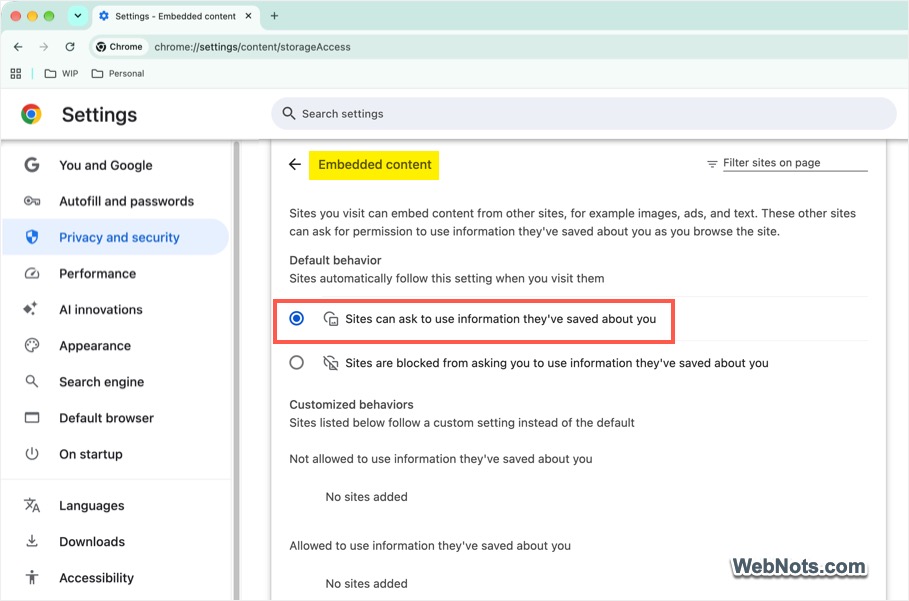
You can also click the “View site information” icon next to the address bar to check the blocked permissions for the website and enable them.
5. Clear Cookies and Cached Data for the Website
Old or corrupted cookies can sometimes cause websites and embedded content to behave incorrectly. Instead of immediately deleting all browser data, you can try clearing the data associated with the affected website.
- Go to “Settings > Privacy and security > Site settings” and click “View permissions and data stored across sites” option. Alternatively, go to that section directly using chrome://settings/content/all command URL from the address bar.
- Search for the affected website using the “Sort by” filter or search box.
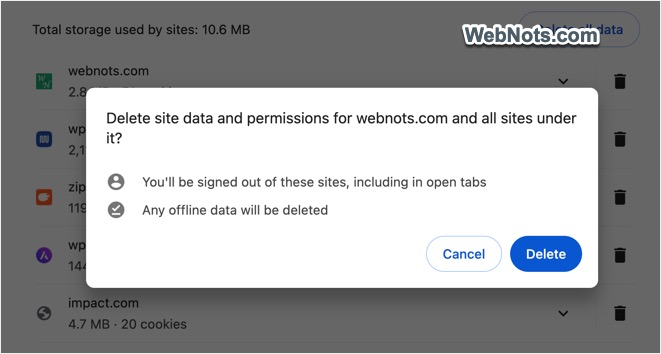
- Click the Trash icon and you will see a warning that deleting site data will sign you out of the website and remove all offline data.
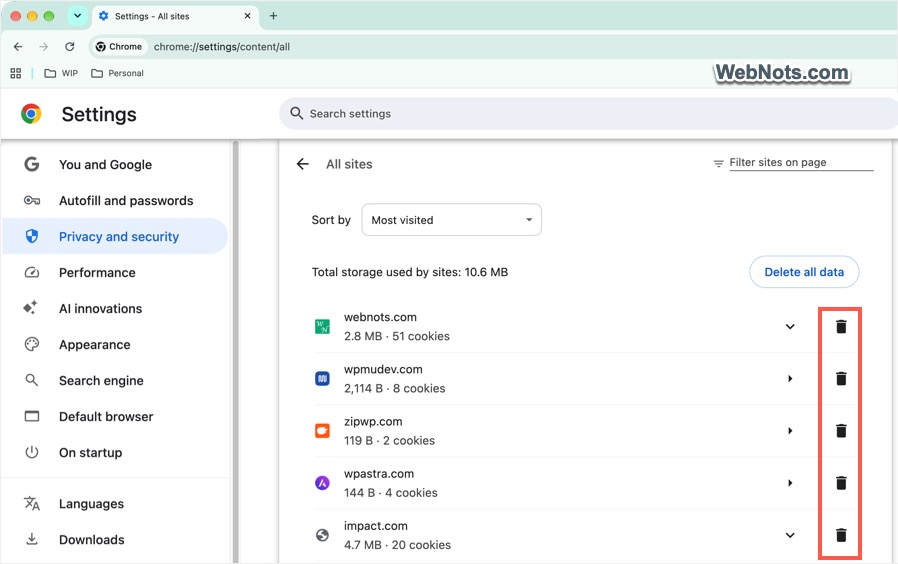
- Confirm your action by clicking the “Delete” button to remove the site’s stored data.
- Then close the tab, reopen the website, and try again.
6. Temporarily Disable Chrome Extensions
Browser extensions can also interfere with embedded content. This is particularly common with extensions related to ad blocking, privacy and security, cookie management, tracking protection, and VPN. To test this:
- Open Chrome, click the three-dot menu, and go to “Extensions > Manage Extensions” to open extensions management page.
- Temporarily disable all extensions in the list.
- Reload the affected webpage.
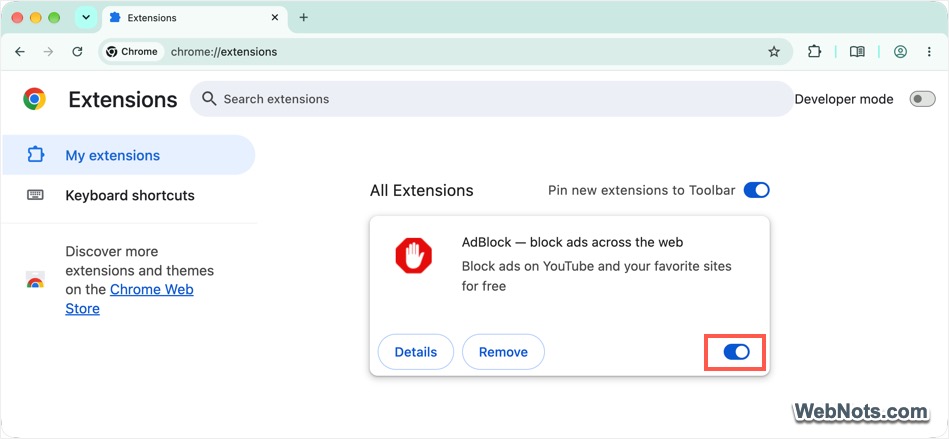
If the content begins working, re-enable the extensions one at a time to identify which one is causing the problem. You don’t necessarily need to permanently disable the extension. Many privacy and ad blocking extensions allow you to whitelist a particular website.
7. Don’t Test the Problem in Incognito Mode
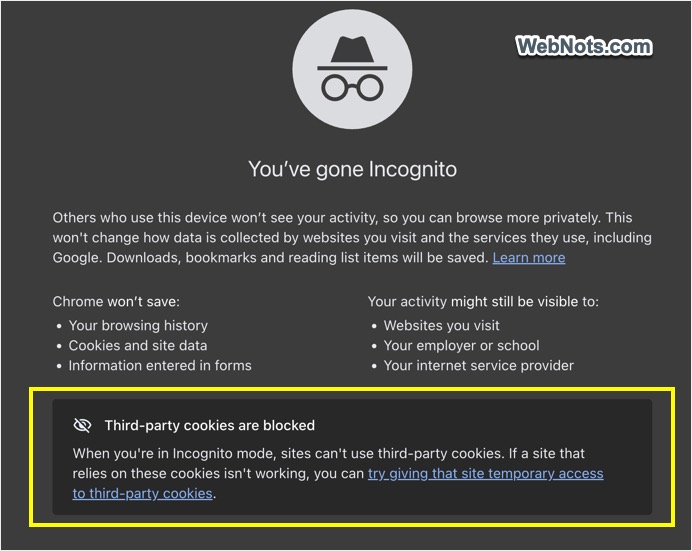
You may think of checking the site in incognito mode since all extensions are disabled by Chrome in incognito mode. However, if you are troubleshooting cookies, avoid using an incognito window as your first test as Chrome also blocks third-party cookies by default in incognito mode. Therefore, a website that works normally in a regular Chrome window may display a blocked content message in incognito mode. Try the same webpage in a normal Chrome window. If the content works normally there, the problem may be related to incognito’s stricter cookie behavior.
8. Check Whether YouTube is Being Blocked
If the message specifically says, “This content is blocked because it would connect to YouTube”, then the webpage is probably trying to load an embedded YouTube component. Some countries (like China) block YouTube and other social platforms. So, open YouTube directly in another tab and make sure it works normally. If YouTube itself is blocked, you may need to use a reliable VPN app or contact your Internet Service Provider (ISP) to unblock it for you.
9. Accept the Website’s Cookie or Privacy Prompt
Sometimes the problem isn’t caused directly by Chrome. The website itself may have a cookie consent system that prevents external services from loading until you give permission. For example, you might see a button like “Accept Cookies” or “Allow Cookies & Load”. This is particularly relevant when the blocked content is hosted by another service like a video platform or CDN.
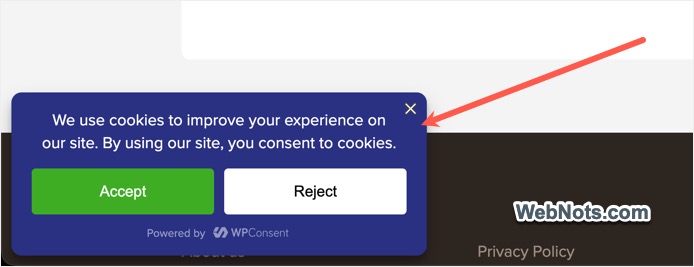
If you trust the website and are comfortable with the requested connection, accepting the site’s consent request may allow the embedded content to load. The important distinction is that clicking “Accept & Load” may be the website’s own consent mechanism rather than a Chrome setting.
10. Check Your Privacy or Security Software
If the problem continues after changing Chrome’s settings, another application may be blocking the connection. Check whether you are using:
- VPN app (not Chrome extension)
- Antivirus web protection
- Firewall software
- DNS filtering
- Network level ad blocking
- Parental control software
- Corporate security software
These services can block connections to third-party domains even when Chrome itself is configured to allow them. If you’re on a work or school computer, some browser settings may also be controlled by an administrator, which you can’t change.
11. Try Another Network
A useful diagnostic test is to connect your computer to another network. For example, you can connect your computer to a phone hotspot or open the same webpage on a mobile network and check whether the content loads. If the content works through the hotspot or mobile network but not through your normal Wi-Fi network, the problem may be caused by network level filtering, DNS settings, a firewall, or security measure applied by your ISP rather than Chrome.
You may need to contact your ISP for troubleshooting and fix the issue in this case.
12. Reset Chrome Settings as a Last Resort
If many unrelated websites are experiencing strange loading or permission problems, your Chrome’s configuration may be corrupted. You can reset Chrome settings from “Settings > Reset settings”.
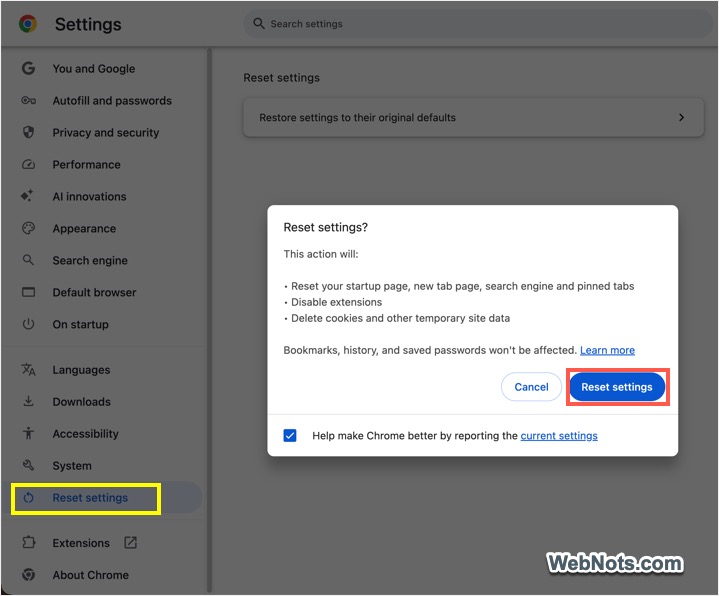
This should be considered a last resort because resetting settings can change browser configuration like the startup behavior, search settings, and extensions.
Final Words
In most cases, third-party cookies cause the “Content is blocked” issue in Google Chrome. The solution is usually not to disable Chrome’s security features completely. Instead, identify which embedded service is being blocked and allow the required access only for the website that needs it. This helps you to allow the functionality required by a particular website while continuing to block third-party cookies elsewhere. If cookies are not causing the issue, try other methods explained above before going to the final option of resetting Chrome.