Ransomware is a short form of “Ransom + Software”. It is a type of malicious software that encrypts files or locks access to a device, then demands payment to restore access as the name indicates. These attacks not only target businesses, and organizations but also affect individuals like you. Once files are encrypted, victims often cannot recover their data without backups or a decryption key, which attackers may or may not provide even after payment.
Good thing is that Windows 11 includes a built-in ransomware protection through Windows Security app. When properly configured, it adds an extra layer of defense to protect important folders from unauthorized changes and enables file recovery through cloud backup.

Ransomware Protection in Windows 11
As mentioned, Ransomware Protection is part of Windows Security, previously known as Windows Defender. It focuses on preventing unauthorized applications from modifying important files and ensures that your data can be restored if compromised. It includes two primary components:
- Controlled Folder Access – This feature blocks unauthorized apps from making changes to protected folders. If a suspicious application attempts to modify files, Windows will prevent the action and notify you.
- Ransomware Data Recovery – This integrates with Microsoft OneDrive to back up protected folders. If files are encrypted or damaged, you can restore them from your cloud backup.
Why You Should Enable Ransomware Protection?
Windows Security already provides real time antivirus protection. However, modern ransomware variants use advanced techniques that may bypass standard detection methods. So, enabling Controlled Folder Access adds an extra layer of security. Even if malware reaches your system, it cannot modify files inside protected folders without explicit permission.
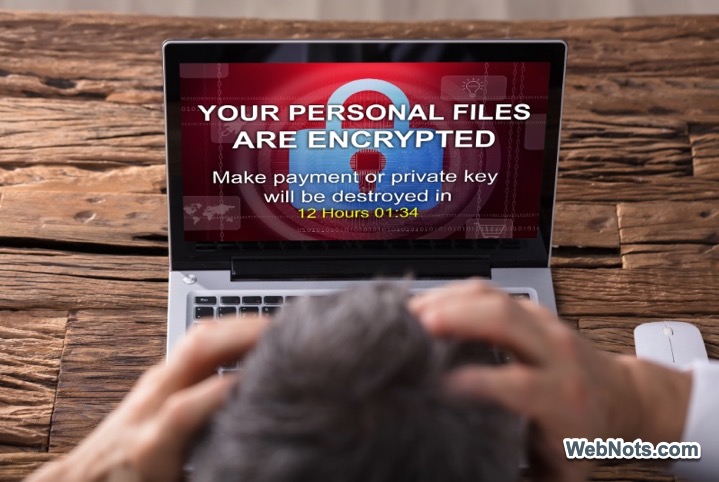
This is especially important if you store sensitive documents, work remotely, run a small business from your PC, frequently download or install software, and share files across networks.
Enable Ransomware Protection in Windows 11
Before enabling, ensure you are signed in with an administrator account. If you use third party-antivirus software, verify that similar protection features are not conflicting (turn off).
- Search and open Windows Security app.
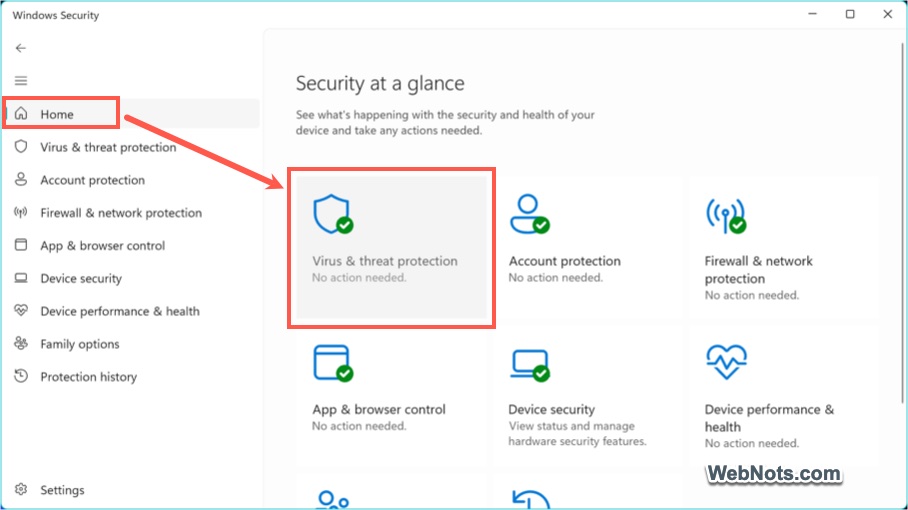
- Go to “Virus and threat protection” section from “Home” tab or from the sidebar.
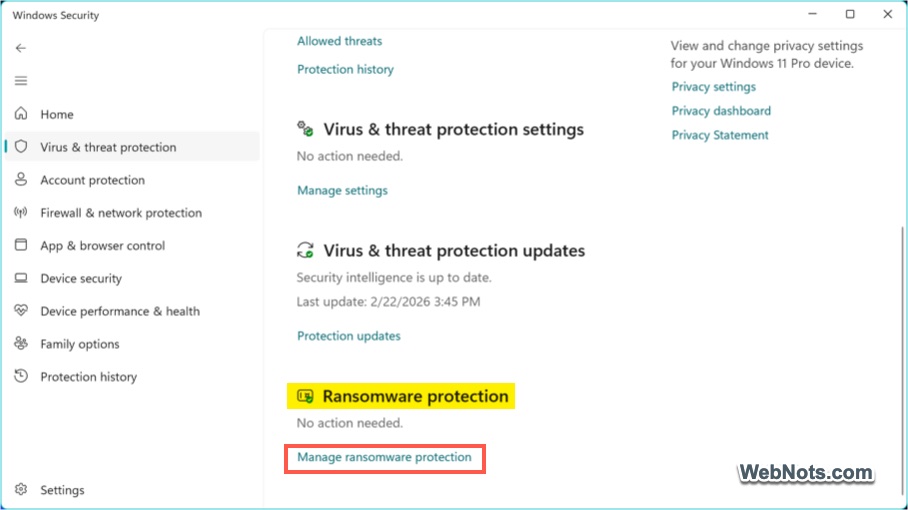
- Scroll down and locate the “Ransomware protection” section.
- Click “Manage ransomware protection” link.
- Turn on “Controlled folder access” and confirm the User Account Control prompt if it appears.
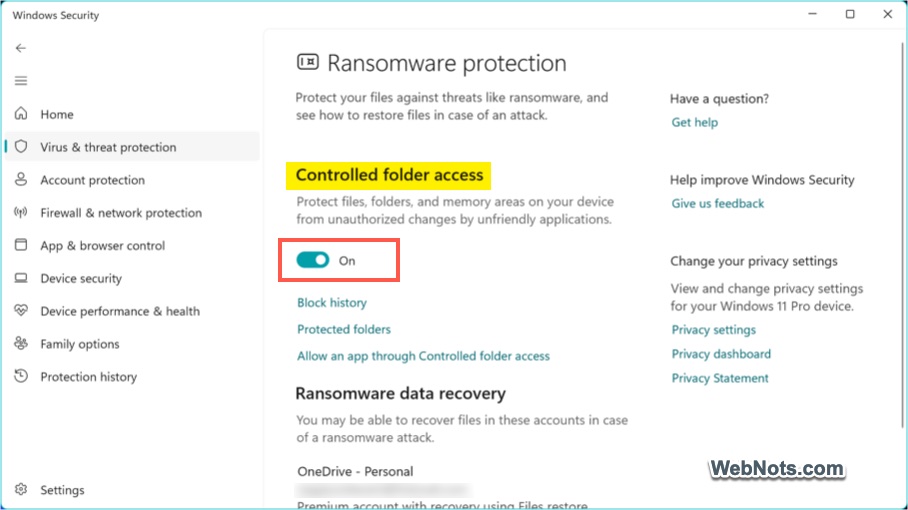
Once enabled, Windows begins protecting default folders on your computer like Documents, Pictures, Videos, and Desktop.
Adding Custom Folders to Protection
If you store important files outside the default folders, you can manually add additional locations.
- In the Ransomware protection settings page, click “Protected folders” link.
- Select “+ Add a protected folder” and choose the folder you want to secure.
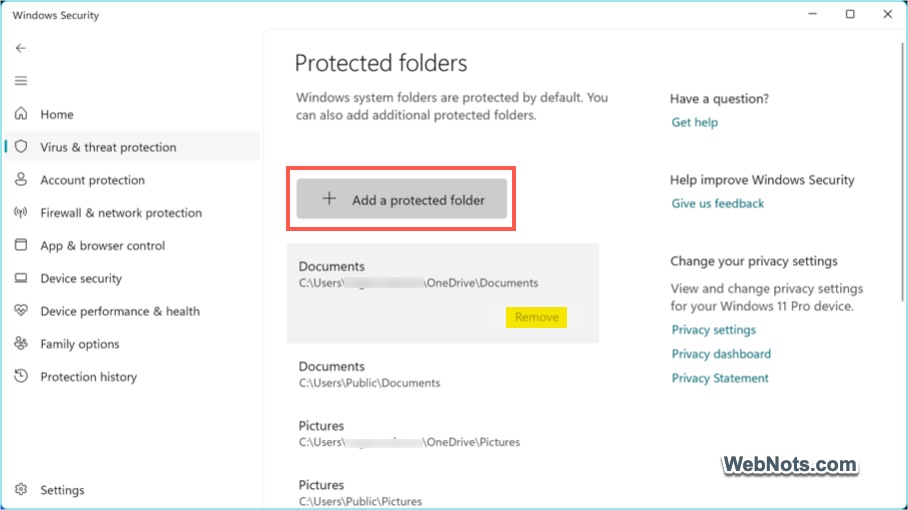
This ensures that important files are protected regardless of where they are stored. You can anytime select the custom folder and click “Remove” button to stop the protection.
Allowing Apps to Access Controlled Folders
The problem with Controlled Folder Access is that sometimes it blocks legitimate apps from accessing the files in protected folders. If a trusted app is denied access:
- Go to “Manage ransomware protection” section and click “Allow an app through Controlled folder access” link.
- Click the “+Add an allowed app” button and select the application’s executable file to grant permission.
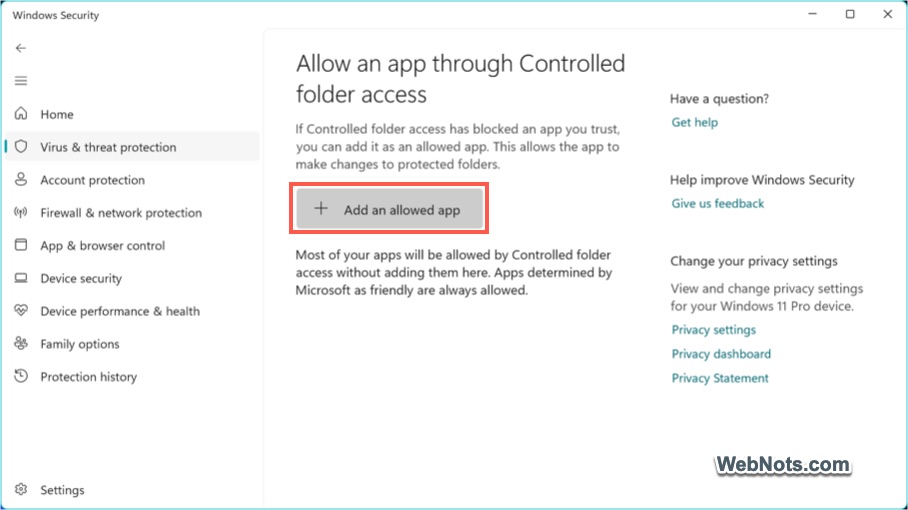
Make sure to only allow apps you fully trust to maintain security integrity.
Setting Up Ransomware Data Recovery with OneDrive
Backing up files to OneDrive ensures that even if ransomware encrypts your system, you can restore clean copies.
- In the Ransomware protection settings page, locate the “Ransomware data recovery” section (on the bottom).
- Click “Set up OneDrive” link and sign in with your Microsoft account.
- Connect your OneDrive account and enable the backup.
- After connecting, the linked account will appear, along with a confirmation message indicating that file recovery is enabled.
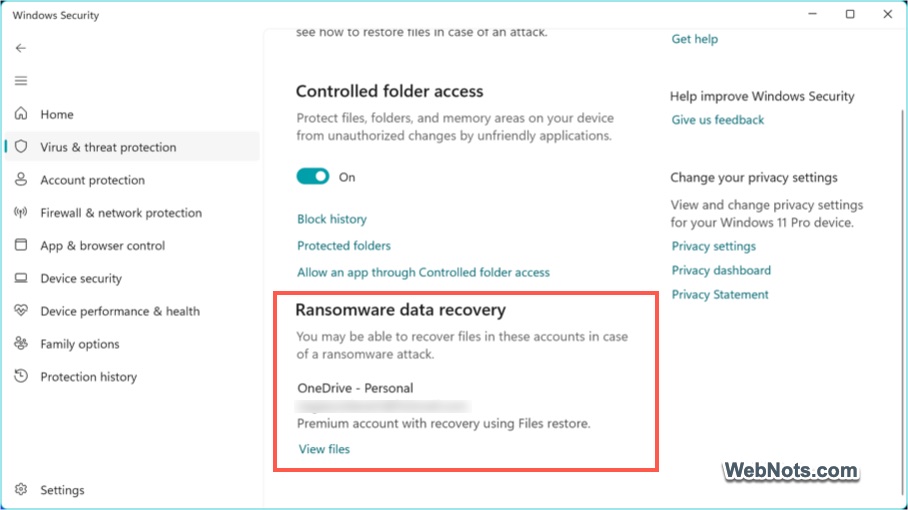
Once configured, protected folders will automatically sync to the cloud. You can anytime recover a file from the history and restore it safely.
What to Do If You Suspect a Ransomware Attack?
If you believe your device has been infected:
- Click the “Block history” link under “Controlled folder access” section to view the details and take necessary actions if needed.
- If you are not sure, contact cybersecurity professionals or your IT support team and run a full system scan using Windows Security.
- Once the issue is resolved, click the “View files” link under “Ransomware data recovery” section to view and restore files from your OneDrive backup.