Windows comes with an in-built Command Prompt (cmd.exe) tool which is a text-based interface to interact with the operating system. You can use the Command Prompt to execute Windows (MS-DOS) commands to get things done quickly without navigating through the graphical user interface (so called app windows). If you are bored with the Command Prompt app, this article explores the top alternatives to Command Prompt in Windows, examining their strengths and weaknesses.
Windows Terminal is the Future
If you are using Windows 11 25H2 or later, you may easily get confused with Command Prompt and Terminal. Microsoft made the Terminal app as a default command-line interface in Windows 11 and allowed to use Command Prompt either independently or through Terminal (as one of the profiles). However, the latest Windows version opens the Terminal interface when you search and open cmd (using Windows Search or Run dialog). Though you can still access the old Command Prompt interface by searching for cmd and select “Run as administrator” option, that may also change soon.

Being said that, Terminal interface is the future of Windows and you need to use Command Prompt inside the Terminal app. It offers tabbed interface for multiple shells (you can access Command Prompt, PowerShell or Azure Cloud) with customizable themes. You can check our article about Windows Terminal to get the complete details.

So, if you do not want to use Command Prompt (either in admin mode or as part of Terminal), then here are some of the alternatives for you. Note that these tools may offer additional commands which you can make use to interact with the operating system.
1. Windows PowerShell
Windows PowerShell is a system app (preinstalled with OS) and a powerful command-line shell and scripting language tool. Though this is primarily used by system administrator for task automation and configuration management, you can still use it for running basic Windows commands.
- Powerful scripting with access to .NET classes.
- Object-oriented output (cmdlets return objects, not plain text).
- Remote administration capabilities.
- Extensive support for automation tasks.
- Rich help system with Get-Help.
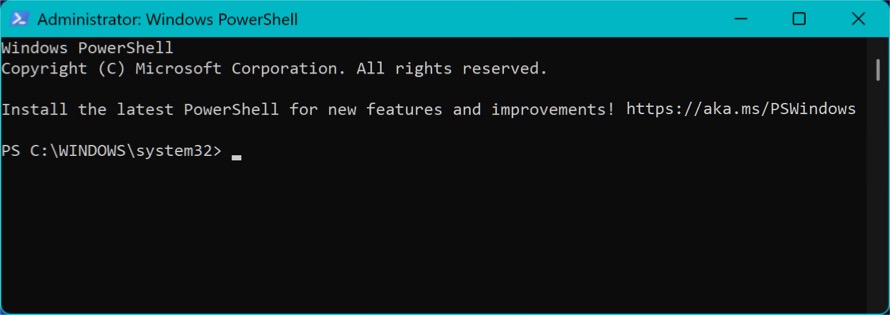
One drawback is that it has a steeper learning curve compared to Command Prompt, especially for users who are not familiar with its syntax and scripting features. Additionally, some legacy cmd.exe commands may behave differently or may not be supported, which can create compatibility issues when running older command scripts.
Note: Windows PowerShell will also open in Terminal by default and the admin mode can be accessed as an independent app (this is the current Windows behavior).
2. Take Command
Take Command is a commercial command-line environment for Windows that enhances scripting, command-line editing, and batch file capabilities. Ideal for IT professionals and power users seeking advanced command-line capabilities with robust scripting and automation features.
- Tabbed console interface.
- Enhanced command-line editing and auto-completion.
- Advanced batch file support.
- Hundreds of new commands and features.
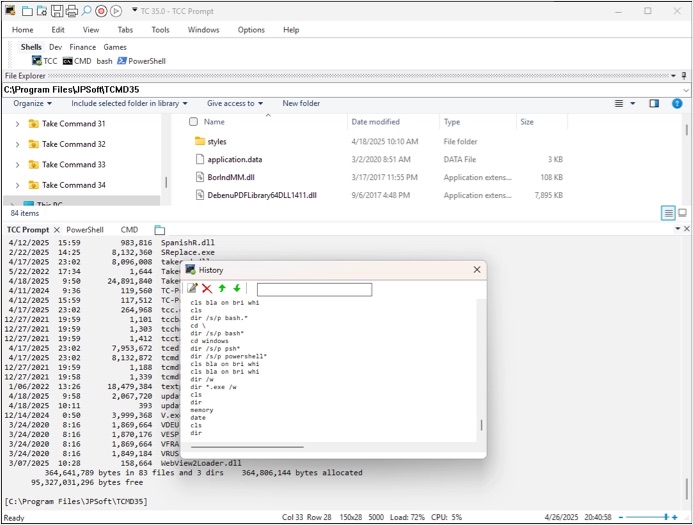
Take Command requires a commercial license, which may not be suitable for users looking for free tools. In addition, the software can be more advanced than necessary for simple tasks, making it somewhat excessive for casual users who only need basic functionality.
3. Windows Subsystem for Linux (WSL)
WSL is an open-source tool part of Windows Developers Tools and enables users to run a full-fledged Linux setup in Windows (you do not a virtual machine or dual boot). This opens the door to a vast array of Linux command-line tools and utilities.
- Native integration with popular Linux distributions (Ubuntu, Debian, etc.) with access to Linux file system and tools.
- Ability to use package managers like apt or yum.
- Support for graphical Linux applications (WSL 2).
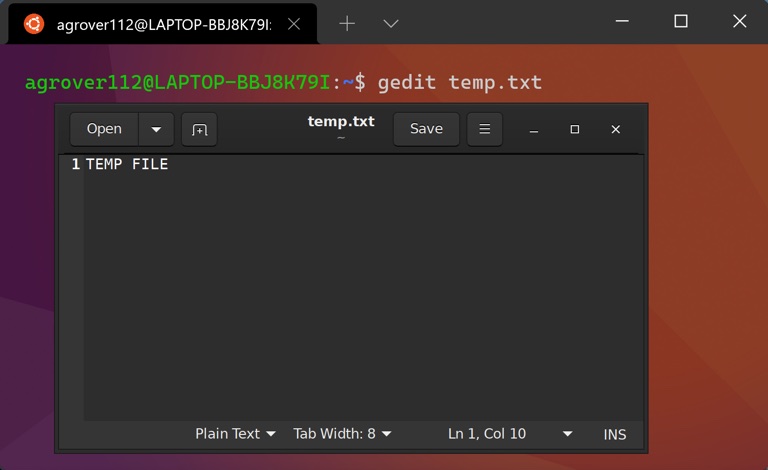
Note that you need to install and setup Windows Subsystem for Linux (WSL) before it can be used. In addition, some advanced Linux features and tools may only work properly with WSL 2, which may require an additional upgrade or configuration step.
4. ConEmu
ConEmu stands for “Console Emulator” and is a free, open-source terminal emulator for Windows. It provides a tabbed interface and advanced features for running multiple consoles and graphical applications.
- Tabbed interface for multiple command windows.
- Highly customizable appearance and behavior.
- Integration with PuTTY, PowerShell, Git Bash, and more.
- Support for ANSI escape codes and extended clipboard features.

One drawback is that the user interface can feel overwhelming at first, especially for beginners who are not familiar with the available options and features. Additionally, there may be occasional compatibility issues with certain shells, which can affect how some commands or scripts behave.
5. Cmder
Built on ConEmu, Cmder is another popular console emulator bundled with additional enhancements. It offers Unix-like features via the included “clink” and “Git for Windows” packages.
- Portable and easy to install.
- Unix command emulation (ls, grep, etc.).
- Enhanced prompt and auto-completion.
- Tab management and customization options.
- Integration with Git and other developer tools.
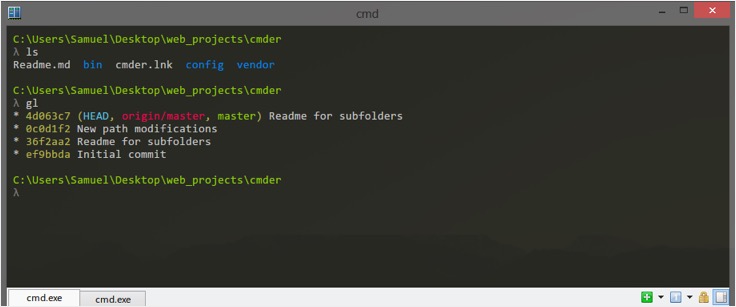
There can be occasional compatibility issues with certain Windows commands, which may not always work as expected. In addition, the software is not developed as actively as tools like Windows Terminal or PowerShell, which means updates and new features may appear less frequently.
6. Terminus
Terminus is a highly customizable, visually appealing modern terminal application based on web technologies. It runs on Windows, MacOS, and Linux, and supports plugins for enhanced functionality. The Starter version of the app is free and can also be used for commercial use.
- Cross-platform support with secure sync including on iOS and Android devices.
- Autocomplete, split view and focus mode features.
- Plugin architecture for extensibility.
- Multiuser collaboration with tabs, themes, and hotkeys.

This app may use more system resources compared to minimalist terminal applications. In addition, advanced workflows require additional configuration and customization before the tool works exactly as needed.
7. Hyper
Hyper is another cross-platform, open-source terminal built on Electron. It is known for its plugin system, modern look, and ideal for developers eager to tailor their terminal experience. Though it is a popular terminal emulator for macOS, you also have a Windows version.
- Plugin and theme support for endless customization.
- Cross-platform compatibility.
- GPU acceleration for fast rendering.

Hyper consumes more memory than many native applications. It may also have limited integration with certain Windows system utilities, which can affect how smoothly it works with built-in tools and features.
8. Git Bash
Git Bash is part of the Git for Windows package and provides a Bash emulation environment. It allows users to run Bash scripts and familiar Unix commands in Windows.
- Support for Bash scripting and core Unix utilities.
- Seamless integration with Git workflows.
- Lightweight and easy to install.
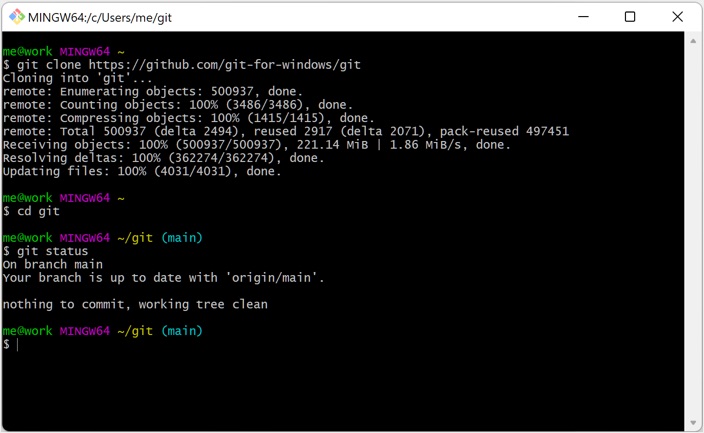
It only provides access to the collection of Unix commands that come bundled with Git Bash and is not designed for full Windows system administration, so it may not be suitable for managing many native Windows tasks.
Choosing the Right Alternative
Selecting the best alternative to Command Prompt depends on your needs, level of experience, and workflow. For advanced system administration and scripting, Windows PowerShell remains a top choice. For a visually pleasing, multi-shell environment, Windows Terminal is hard to beat. Developers who need Linux tools will appreciate WSL, while ConEmu, Cmder, and Take Command offer extensive customization for heavy command-line users. For those who favor open-source, extensible, or cross-platform options, Hyper and Terminus provide compelling experiences.