Reader mode enables user to remove unnecessary clutter on the webpage. This helps to read webpages without distraction like advertisements, sidebar and promoted content. Similar to other popular browsers like Apple Safari, Google Chrome also offers reader view as a default feature. In addition, you can use an experimental flag or install an extension to enable reader mode in Chrome.
1. Enable Reading Mode in Google Chrome
First, let us explain using the in-built Reading Mode feature.
- Open Chrome and click on the “Customize Chrome” button on the new tab page (showing on bottom right corner).
- This will open a sidebar with various options, scroll down and click on “Toolbar” option.
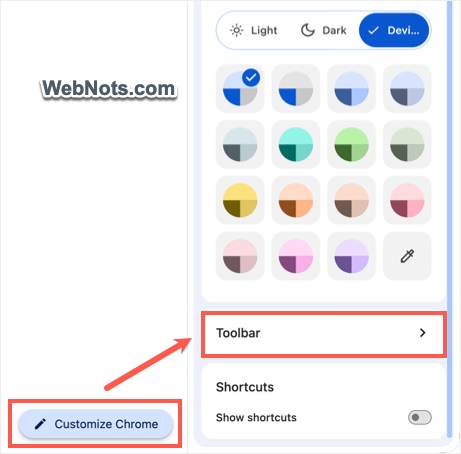
- On the toolbar, scroll down to “Tools and Actions” section and turn on “Reading Mode” option.
- This will add an icon next to the address bar.

1.1. Using Default Reading Mode
Open a webpage with advertisements and click on the “Reading Mode” icon. This will open the reader mode in a Split View showing both the original and uncluttered page side-by-side.
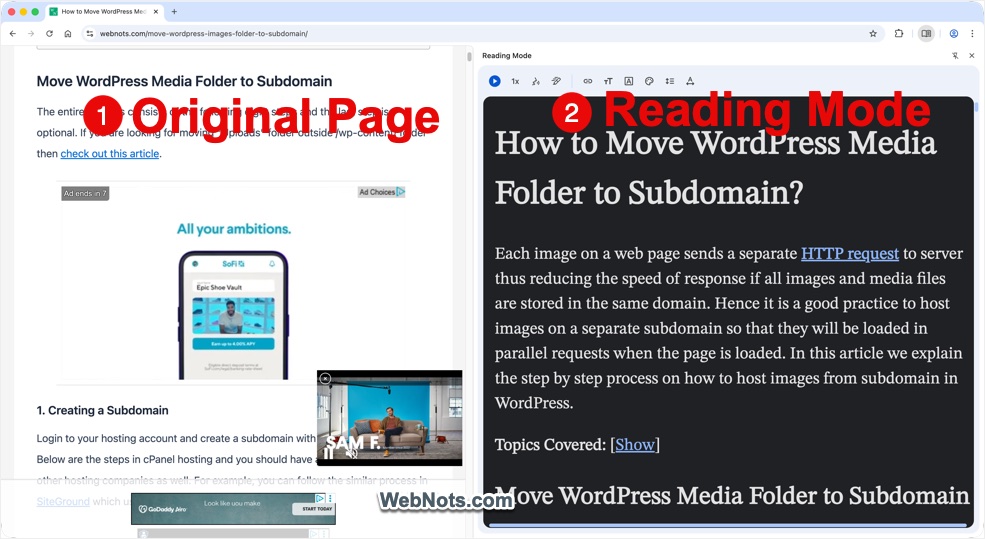
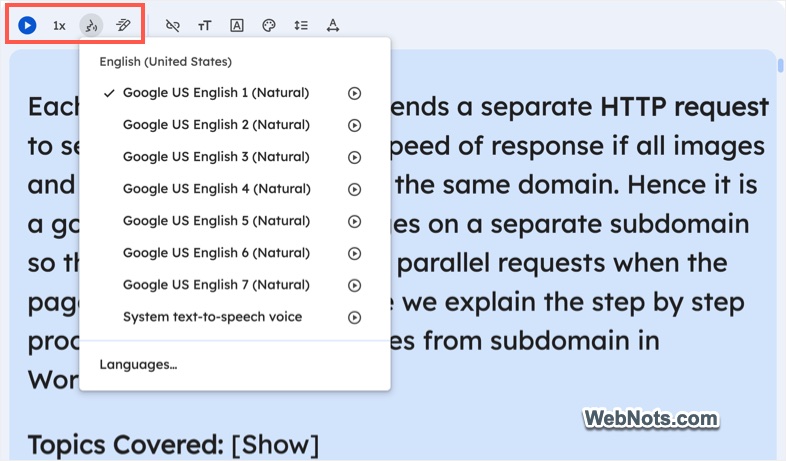
Reading mode view has a toolbar allowing you to adjust the content:
- Read Aloud: Click on the play button and Chrome will start reading the content, you should provide microphone access for Chrome to use this feature. It is possible to adjust the speed, voice and highlighting options.
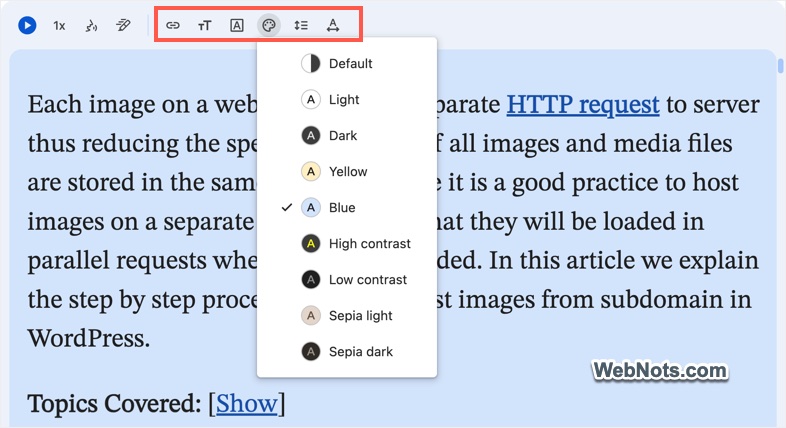
- Customize the Appearance: You can change the background color, line height, letter spacing, font size, font family and remove all hyperlinks.
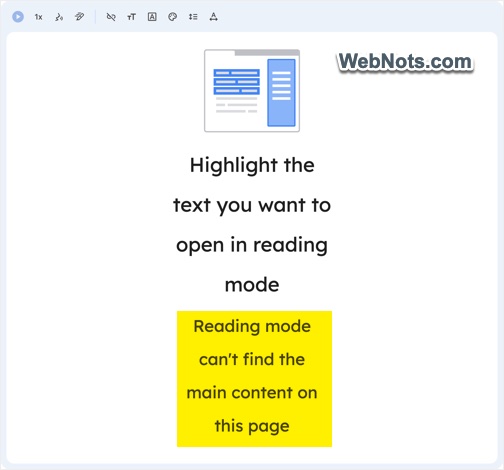
Remember that reading mode will work only when the webpage has full-length content. Otherwise, you will see a message showing “Reading mode can’t find the main content on this page”.
Note: You can also select content from the webpage, right-click on it and then select “Open in Reading Mode” option.
2. Using Reader Mode Extension for Chrome
As you can see, default Reading Mode always shows the original page with advertisements and there are no options to only see the uncluttered page like Safari or Firefox. So, the best option is to go for a third-party extension from Chrome Web Store.
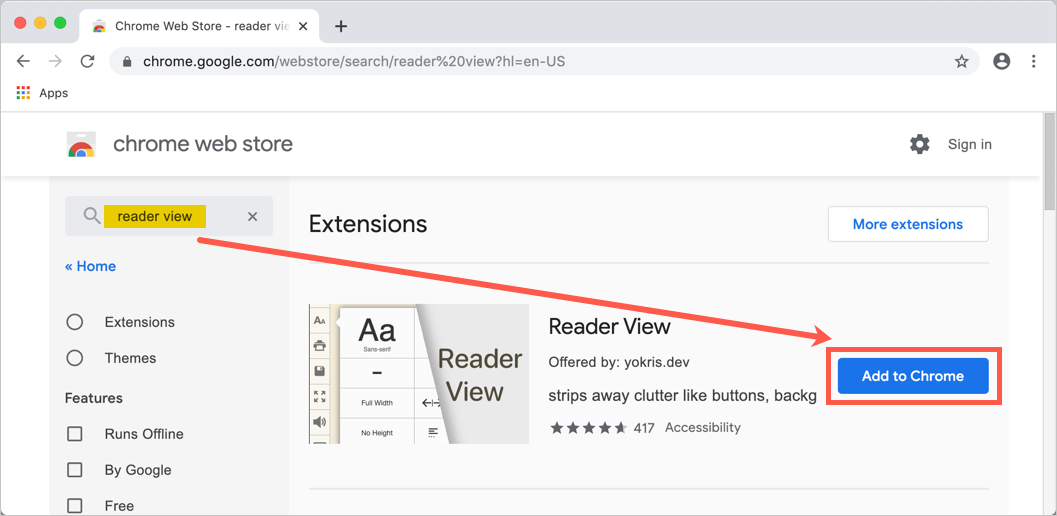
- Go to Chrome Web Store and search for “reader view” extensions.
- You can find few extensions and click on the “Add to Chrome” against the “Reader View” extension to install on your browser.
- Confirm the installation by clicking on “Add extension” button.

2.1. Features of the Reader View Extension
The Reader View extension uses Firefox readability library to remove the clutter. It adds a book icon on right of browser address bar. Open any webpage and click on the extension icon to view the content in reader view.

- Toggle the reader view by clicking on the icon.
- Enable or disable images.
- View the content in full screen mode.
- Dictate the content to hear the audio.
- Save or print the HTML page.
- Increase or decrease the font size.
You can also right-click on the extension icon to select “Options” and customize the features.

3. Using a Chrome Flag
Older versions of Chrome offer an experimental flag to enable reading mode. Remember, Google can remove experimental flags in Chrome updates without any communication. So, this flag may not be available on your Chrome app.
- Launch Google Chrome and open the URL chrome://flags.
- Type the word “reader” in the search box to dynamically filter “Enable Reader Mode” flag.

- Alternatively, you can directly go to the URL chrome://flags/#enable-reader-mode to filter the “Enable Reader Mode” flag.

- This is flag is available in Mac, Windows, Linux and Chrome OS. By default, the flag is disabled on Chrome. Click on the “Disabled” button and choose “Enabled” option.
- Chrome will prompt you to relaunch the browser. Click on the “Relaunch Now” button to reopen the browser. Remember to logout from the websites and save all your work before you enable the flag.

- Now you have enabled reader mode in Chrome, click on the three dots settings button on top right corner that shows “Customize and control
Google Chrome” when hovering the mouse over it. - You should see an addition menu item “Distill Page” indicating the reader mode is enabled on your browser.

3.1. Checking Reader Mode in Chrome
Now, open any of your favorite webpage. Go to “Settings > Distill Page” to remove the advertisements and other junks from the webpage to view it in reader view. Below is an example of the original CNN webpage in Chrome.

Here is how it will look when viewed in reader view in Chrome stable version.

If you are using Chrome canary version, then reader mode flag will also enable an icon on the address bar. You can easily click on the icon to enable reader mode to view the simplified page.

Comparing Safari and Firefox Reader View
Reader view became popular with Apple promoting the feature with its iconic Safari browser. This feature is available by default in Safari browsers for iOS and macOS. If you are a Mac or iPhone user, you can easily check the reader view function in Safari is much better than Chrome’s feature.

Firefox reader view is also good, however, it does not show on all the pages. When supported, you can click on the reader view icon on the address bar to remove the clutter.

The big different is that other browsers only show reader mode without the original page. However, we don’t see that is possible on Chrome and you will always see the original page with advertisements.
Why Google May Not Promote the Default Reading View in Chrome?
It’s obvious that Google may not promote the reading view or remove the original page as Apple does for Safari.
- Google’s primary source of income is advertisement. If visitors remove the advertisements with reader view, then it will have direct impact on Google’s revenue.
- Chrome has +60% of market share in the browser market. Adding such a feature will have a huge impact on Google’s ad revenue.
Even if Google removes the original page in future versions, it will be there for name shake like ad block feature.
Conclusion
Reading view or reader mode is a useful feature for removing unnecessary images, backgrounds and advertisements from any webpage. In order to enable reader mode in Google Chrome, you can customize the toolbar or use from the right-click context menu. If you want to have a perfect reader mode, then try using the extension.