It is difficult to refer the area left and right to the address bar (also called smart search bar or omnibox) in a browser. By default, you can find back/forward, refresh, home icons on the left and extensions, bookmarks icons on the right of the Chrome address bar. Now that Google has given a name in Chrome to these areas called Toolbar. Good thing is that you can customize the icons and add your favorite items for quicker access.
Customize Toolbar in Chrome
First, make sure you have the latest Chrome version installed. Simply, close and reopen Chrome when connected to internet and the browser will be updated to the latest version. Otherwise, go to chrome://settings/help page and the browser will be updated automatically.

- Open a new tab page in Chrome.
- Click on the “Customize Chrome” button showing on bottom right corner.

- This will open the side panel and scroll down to bottom.
- Click on the “Toolbar” section.

- You will see plenty of options and turn on the items you want to add in the Toolbar. Make sure to turn off unnecessary items to remove the clutter.
- Items will be added or removed instantaneously when you toggle the button.

Available Icons for Toolbar
Customizing toolbar is very useful to keep your frequently used items. For example, you need to click on the three vertical icons and then go to “Passwords and Autofill > Google Password Manager” for viewing your saved passwords in Chrome. However, with the toolbar customization, you can simply add Google Password Manager icon which will be shown on the right side of the address bar. Similarly, you can add print, QR code, translation and many useful items.
Following are the currently available items for adding in your toolbar.
Navigation:
- Home
- Forward
- New Incognito Window
Your Chrome:
- Google Password Manager
- Payment Methods
- Addresses and More
- Bookmarks
- Reading List
- History
- Delete Browsing Data
Tools and Actions:
- Search with Google Lens
- Translate
- Create QR Code
- Reading Mode
- Copy Link
- Send to your devices
- Task Manager
- Developer Tools
Except Home and Forward icons, all other items will be added on the right side of address bar.
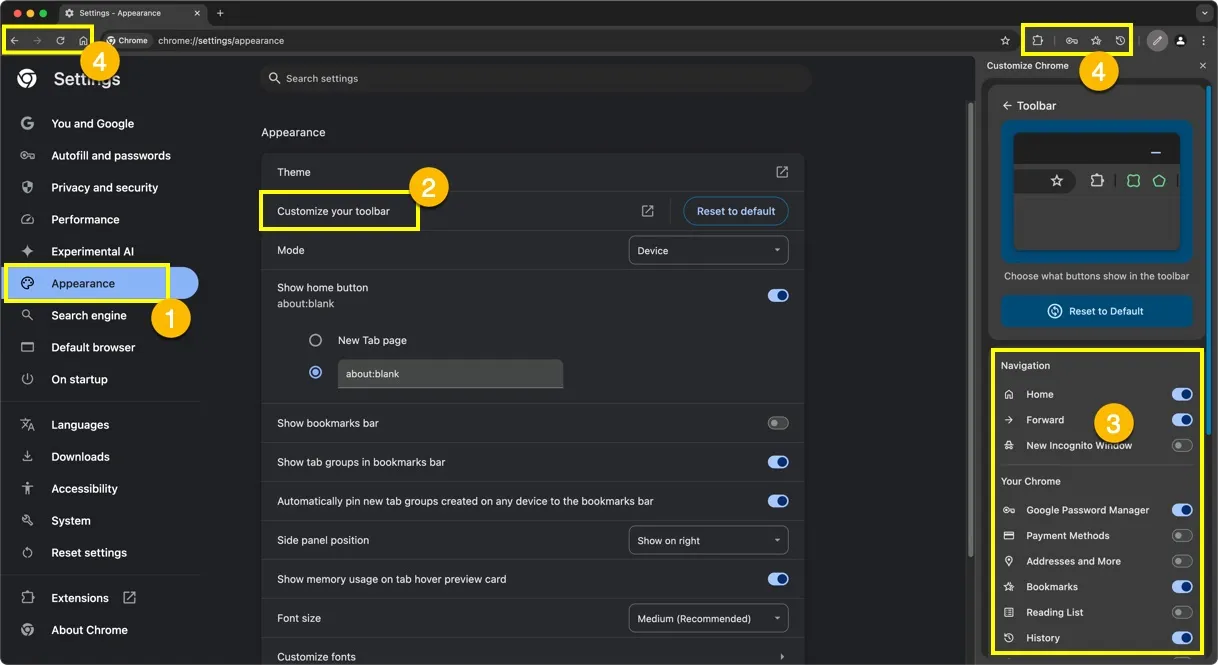
Accessing Toolbar from Settings
It is also possible to open Toolbar from Chrome’s settings page.
- Click the three vertical dots icon that says “Customize and control Google Chrome” on top right corner of the browser.
- Select “Settings” from the list of menu items that appears.

- Go to “Appearance” section from left sidebar.
- Click “Customize your toolbar” option to open it in the side panel.
- Add or remove the items as you desire.
Remove All Icons and Reset
If you have added too many icons, simply click on the “Reset to Defaults” button on the side panel or in the settings page to remove all icons with a single click and only keep the default items. This will show back/forward, refresh icons on left side and extension icon on the right side of the address bar.

Note: Toolbar is different than Bookmarks Bar which will show below the toolbar / address bar section in Chrome. By default, you can hide the Bookmarks bar when visiting webpages but not on new tab pages. Check our article on various methods to hide bookmarks bar in Chrome.