Advertisements are the primary source of income for most website owners. However, sometimes you may want to read an article without any clutter. For example, you may want to take a screenshot of webpage in Safari and insert it on Notes app for reference. In such cases, including ads in the screenshot will disturb the purpose. Good thing is that Safari browser on Mac offers an option called Reader Mode to overcome this.
Reader Mode in Browsers
Almost all web browsers offer distraction free reading option. While it is called Reader Mode in Chrome and Safari, Edge calls it as Immersive Reader Mode. You can use this reader mode to remove advertisements and all other distractions from webpages.
Enable Reader Mode in Safari
- Launch Safari app and open a webpage which has advertisements.
- Click the website settings icon showing on the left corner of the address bar.
- Click “Show Reader” button.

- Safari will remove all distractions and show only text and images on the page.

Alternatively, simply press Command + Shift + R keys to toggle reader mode in Safari Mac. You can also long press the website settings icon to quickly turn on the reader mode.
Customizing Reader Mode in Safari
Another advantage of using reader mode in Safari is that you can customize the page’s visibility to make it more convenient for reading. First, click the reader mode icon in address bar to see a dropdown with additional options.
- Theme – select dark or light theme by clicking on the color palette.
- Font – choose one of the available fonts to replace the original webpage’s font.
- Text Size – use this to increase or decrease the text size to make the content visually readable for your convenient.
- Find – find any text content on the page.

Any time click on “Hide Reader” button to reload the webpage in normal mode.
Automatically Open a Site in Reader Mode
For forcing a webpage to always open in reader mode:
- Click the site settings icon in address bar and select “Website Settings…” option.
- Check “Use Reader when available” item.

Managing Reader Mode for Multiple Websites
Over period if you have enabled reader mode for multiple websites, you can view and manage them from Safari settings section.
- Go to “Safari > Settings…” menu.
- Navigate to “Websites” section and select “Reader” tab from left sidebar.
- You will see a list of websites previously configured along with the webpages currently opened in Safari.
- Click the dropdown and select “On” or “Off” as per your need to enable or disable reader mode for that website.
- Select any site and click “Remove” button to delete the site from the list.
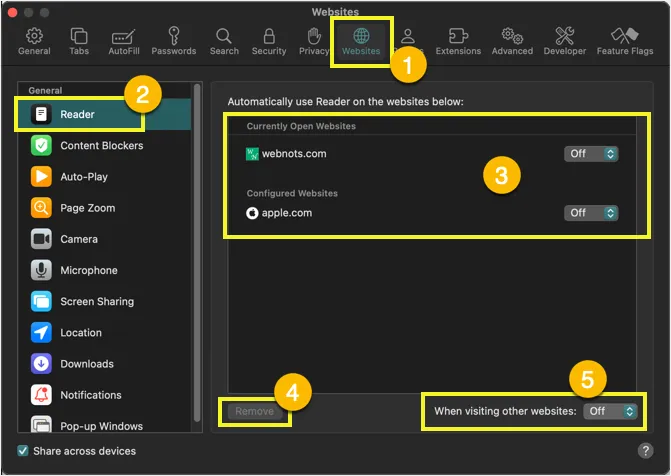
Sites turned on here will automatically open in reader mode. Most important use of this settings section is that you can force reader mode to be turned on or off on all the sites you open in Safari. For that, simply select “On” or “Off” against “When visiting other websites:” option.
Note that you can turn off reader mode for the sites in your list and turn on for all other sites or vice versa using this option.
Table of Contents in Reader Mode
Apple added two new features in Safari reader mode with macOS Sequoia (version 15). Now, Safari will show the summary of the webpage along with table of contents when viewing in reader mode. However, these features work only on supported pages and most pages don’t show them.

Apple also introduced an additional option to selectively remove distractive elements from a webpage in macOS Sequoia (Safari version 18). If Reader Mode removes the required elements like an image or video, you can use this feature as explained in this article to manually remove unnecessary items.
Final Words
Though Reader Mode in Mac Safari helps to view the page clutter free, not all websites support this feature. For example, CNN and many other popular sites (which show the feed) do not support reader mode in Mac Safari. So, you can only make use of this on individual pages and on supported websites.