PDF (Portable Document Format) files are designed for viewing and sharing while preserving the document formatting across different devices and operating systems. So, editing a PDF generally needs a dedicated application like Adobe Acrobat. The alternative option is, if you have Microsoft Word installed on your computer, you can use it to open and edit many PDF files without installing additional PDF editing software. Let’s look at how to edit PDF files in Microsoft Word, the features you can use, and the elements you may lose during the process.
How it Works?
Here is a summary of how it works:
- Word converts the PDF into an editable Word document (.docx).
- This allows you to modify text, replace images, update tables, and make other changes. This is useful for editing text-based documents like your resumes, cover letters, reports, business letters, etc.
- However, documents that contain complicated layouts and interactive elements may lose their formatting while conversion.
- Once finished, you can save the document back as a PDF file.
Opening a PDF File in Microsoft Word
Microsoft Word can open PDF files and automatically convert them into an editable DOCX document. Here is an example PDF showing a table of Android symbols (opened in Edge):

Let’s convert and edit this PDF file:
- Open Microsoft Word on your computer, click “File” and select “Open”.
- Browse your computer and select the PDF file you want to edit.
- Word displays a warning message explaining that it will convert the PDF into an editable Word document.
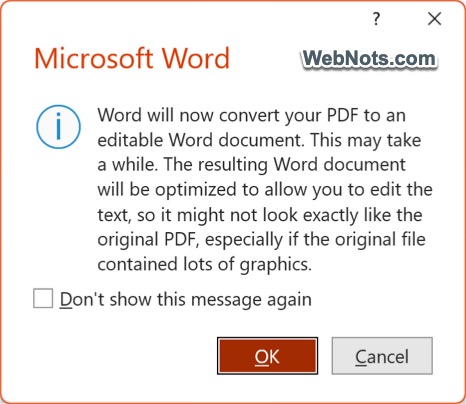
- Click “OK” to continue.
- Wait for Word to convert the file and display its contents.
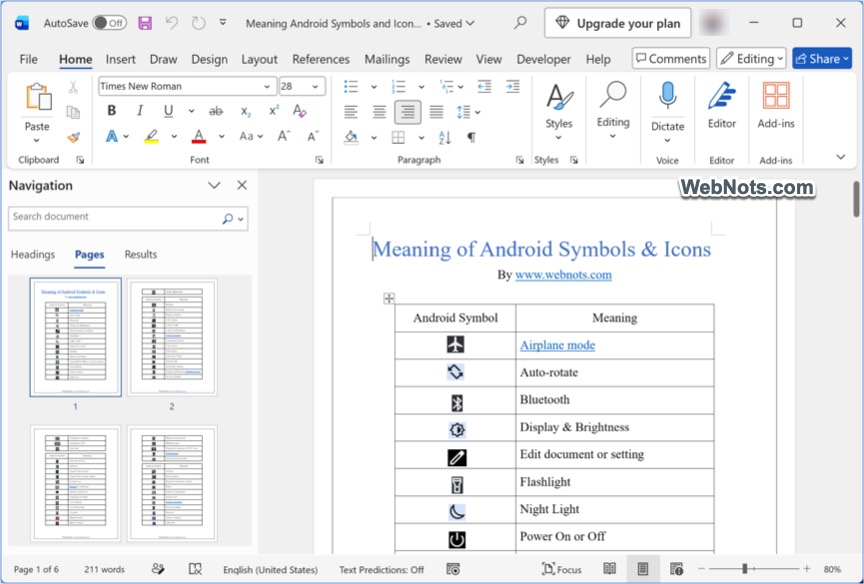
Once the conversion is complete, you can edit the document just like any other Word file. Note that the conversion may take longer for large PDFs or documents containing complex formatting, tables, and graphics.
What Can You Edit in a PDF Using Microsoft Word?
After converting a PDF into a Word document, you can use most of the regular Word editing features. The available editing options depend on the original PDF’s structure and content. For example, if you have an old resume in PDF format, you can open it in Word and update your job title, work experience, educational qualifications, and contact information. You can also add new paragraphs, remove unwanted text, and reorganize sections.
Here are some of the most useful features.
- Edit and Replace Text: You can modify existing text, correct spelling mistakes, update paragraphs, and replace words or sentences.
- Change Font Formatting: You can change font type and size, adjust paragraph alignment, modify line spacing and paragraph spacing, and apply headings and other text styles.
- Insert and Replace Images: If the PDF contains images, logos, or other graphics that Word successfully converts, you can modify them using Word’s image editing features. You can also insert new images, resize existing ones, crop pictures, and adjust their positions.
- Edit Tables: Tables that are recognized during conversion can generally be edited using Word’s table tools. You can add or remove rows and columns, modify cell contents, change borders, adjust cell alignment, and apply table styles.
- Add Headers, Footers, and Page Numbers: You can use Word’s Insert menu to add or modify headers, footers, and page numbers. This is useful when updating business documents, reports, and other multipage PDFs.
- Add Shapes, Text Boxes, and Other Elements: You can insert new shapes, text boxes, symbols, icons, and other objects into the converted document.
What Features and Elements May Not Work?
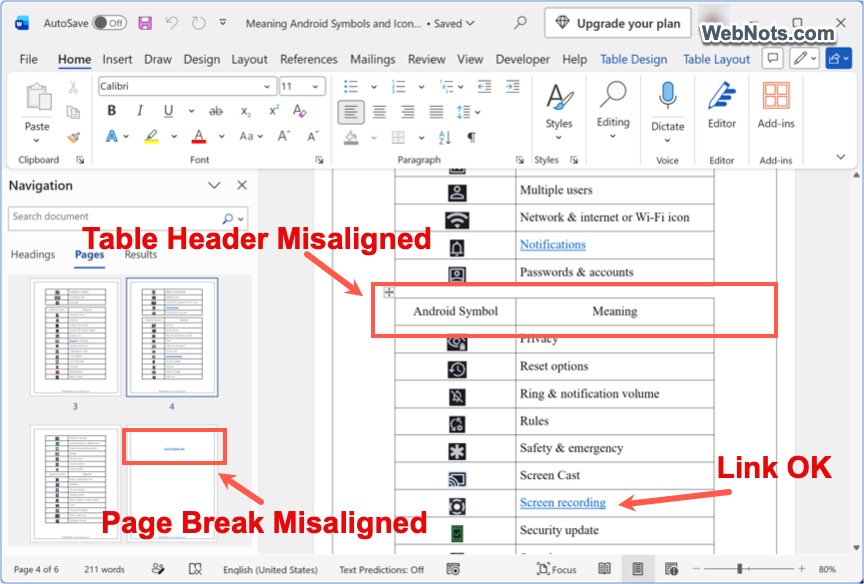
Although the converted document looks similar to the original PDF as you can see in the above example, it does not preserve every PDF element. Here are some important limitations.
- Interactive PDF Forms: PDF form elements like text input fields, checkboxes, radio buttons, and dropdown menus may not retain their original functionality. Some may appear as static text, images, or empty spaces.
- Hyperlinks and Bookmarks: Most hyperlinks survive the conversion; however, we recommend checking the document thoroughly.
- Digital Signatures: Opening and modifying a digitally signed PDF in Word does not preserve its original signed state. Also, saving the converted document as a new PDF will not retain the original digital signature’s validity.
- Multimedia and Interactive Content: Multimedia elements like embedded audio and video, interactive buttons and animations, and JavaScript-based PDF actions may disappear or become nonfunctional after conversion.
- Complex Layouts and Formatting: Documents containing multiple columns, floating text boxes, unusual fonts, layered graphics, and complex tables may experience formatting changes.
- Scanned PDF Documents: A scanned PDF typically contains page images rather than selectable text. Word may insert these pages as images instead of converting their contents into editable text. You will then need OCR (Optical Character Recognition) software to extract the text before editing it.
Note: You can add form elements using Word’s Developer tools if you want similar functionality in the Word document.
How to Save the Edited Document Back as a PDF?
After completing your changes, you can convert the Word document back into PDF format.
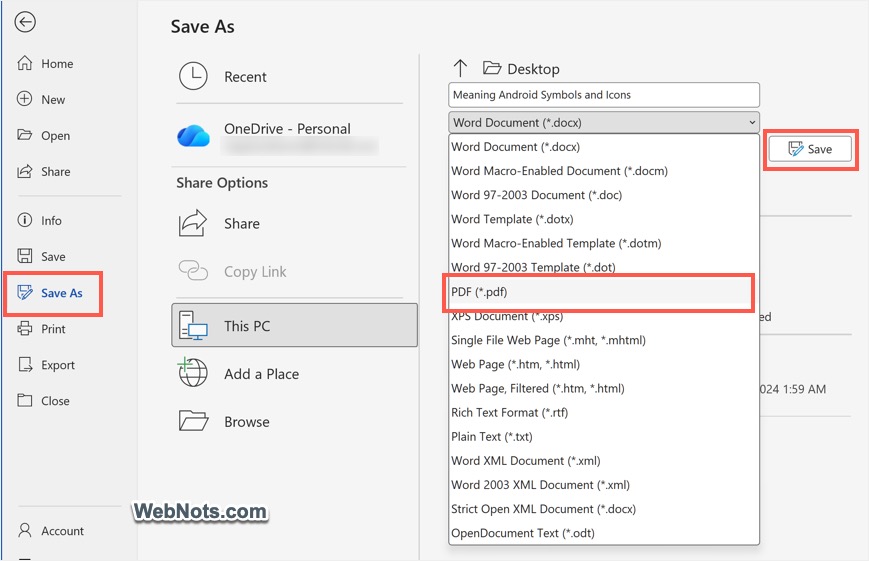
- Click “File” tab and select “Save As”.
- Simply type a name for your document, select “PDF (*.pdf)” from the file type dropdown, and click “Save” button.
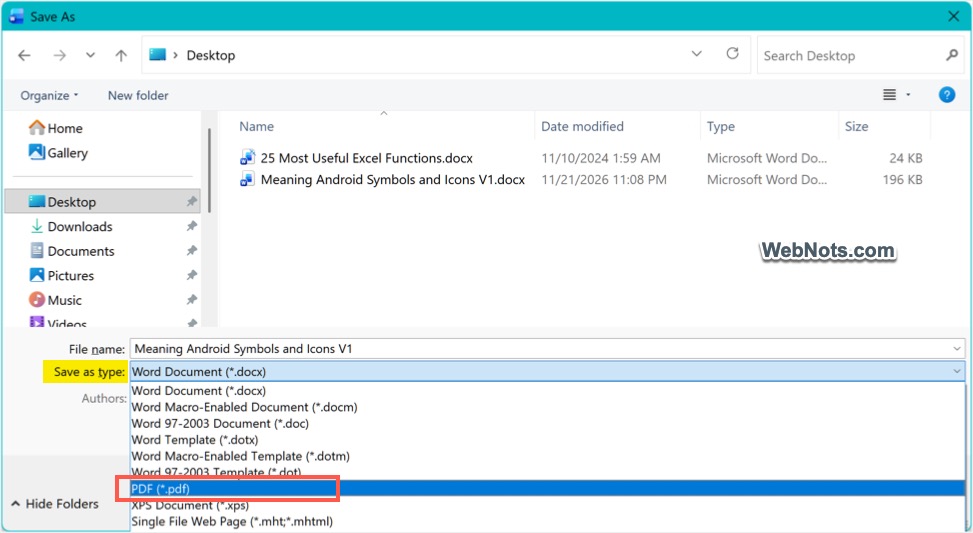
- Otherwise, double-click on “This PC” or click “Browse” to select a different destination folder. Click the “Save as type” dropdown and select “PDF (*.pdf)” option and “Save” your file.
Your edited document will now be available as a new PDF file.
Password Protect an Edited PDF in Microsoft Word
One useful feature of Microsoft Word is the ability to password protect the PDF when exporting it. You can add a password so that recipients must enter it before opening the PDF.
- Go to “File” tab, select “Save As”, and click “Browse” to open the “Save As” dialog box.
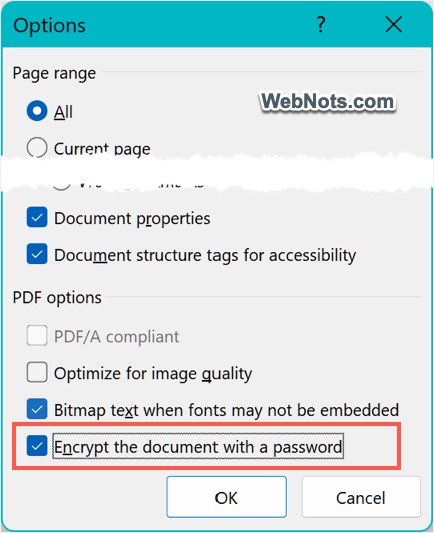
- Choose “PDF (*.pdf)” as the file format and click the “Options” button.
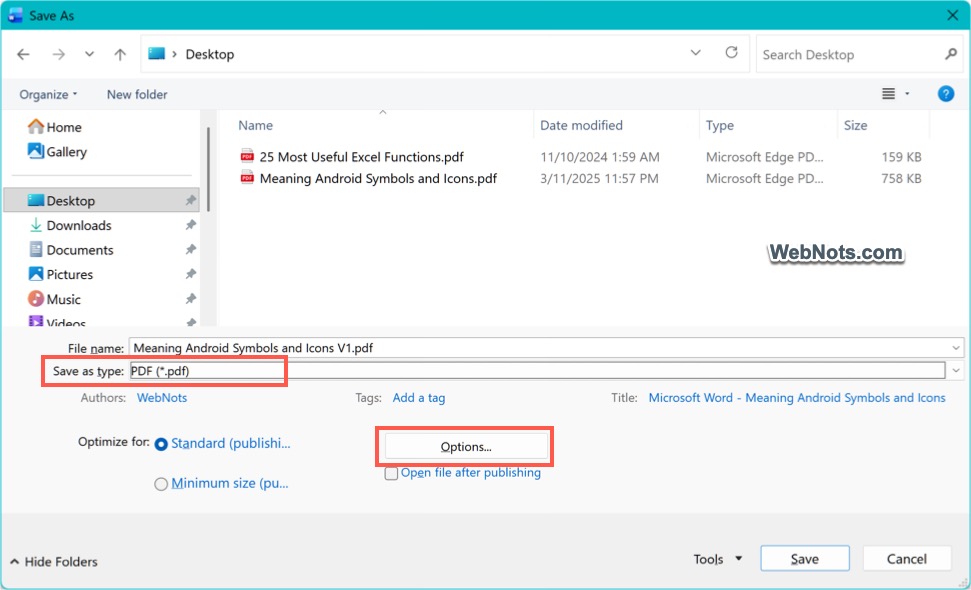
- Select “Encrypt the document with a password” option in the pop-up and click “OK”.
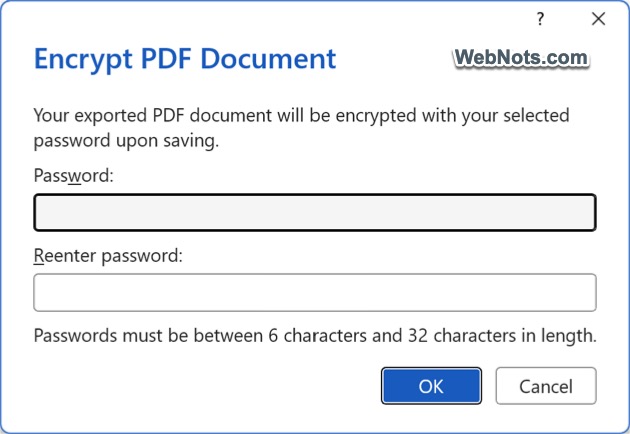
- Enter your password and confirm it.
- Now, “Save” the PDF file.
Your PDF will now require the password to open.
When Should You Use Microsoft Word to Edit PDFs?
Microsoft Word is a convenient option for editing PDFs, but it is not a complete replacement for dedicated PDF editing software. The following comparison can help you decide when to use it.
| PDF Editing Requirement | Microsoft Word |
|---|---|
| Correct spelling mistakes | Yes |
| Replace existing text | Yes |
| Add or remove paragraphs | Yes |
| Change fonts and formatting | Yes |
| Insert new images | Yes |
| Resize and crop images | Yes |
| Edit converted tables | Yes |
| Add headers and footers | Yes |
| Add page numbers | Yes |
| Add new shapes and text boxes | Yes |
| Convert PDF to DOCX | Yes |
| Export Word document to PDF | Yes |
| Password protect exported PDF | Yes, with supported desktop versions |
| Preserve interactive form fields | Not reliably |
| Preserve digital signatures | No |
| Preserve PDF bookmarks and comments | Not reliably |
| Edit embedded audio and video | No |
| Edit JavaScript-based PDF actions | No |
| Perform OCR on scanned PDFs | No, not as a built-in PDF conversion feature |
| Preserve complex PDF layouts perfectly | Not guaranteed |
If your requirements go beyond basic text and image editing, consider using dedicated PDF editing software like Adobe Acrobat.