Archive Utility is one of the apps that come preinstalled with macOS. You can extract ZIP files on Mac using this app without any third-party tools. However, sometimes Archive Utility will show “Error 2 – No such file or directory” error when trying to extract ZIP files. We used to frequently download .zip and .gz database files and this is the common error we face. In this article, we will explain the common causes of the error and show you different methods to extract your files successfully.
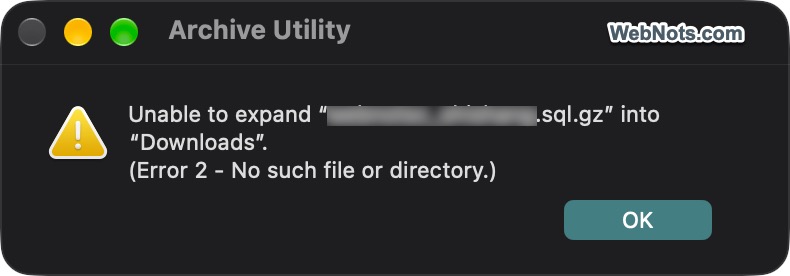
Why Does Mac Archive Utility Show “No Such File or Directory”?
Before trying the solutions, it helps to understand why this error occurs. Here are some common reasons:
- Incorrect file path: The archive file may have been moved or renamed after it was downloaded.
- Incomplete download: The ZIP file may not have downloaded completely, leaving it damaged or incomplete.
- Invalid archive structure: The archive may contain corrupted files or directory information that Archive Utility cannot process.
- Filename or path issues: Unusual characters, excessively long filenames, or deeply nested folders can sometimes cause extraction problems.
- Permission restrictions: macOS may not have permission to access the archive or write extracted files to the destination folder.
- External drive problems: The archive may be stored on an external drive that is disconnected, unavailable, or experiencing file-system errors.
- Unsupported archive format: The file extension may not match its actual format, or the archive may use a compression method that Archive Utility cannot handle.
Try the following solutions in order.
1. Move the ZIP File to the Desktop
Archive Utility may have trouble accessing files stored in temporary folders, external drives, network locations, or folders with complicated directory paths. So, one of the easiest ways to fix the error is to move the archive to your Mac’s Desktop before extracting it.
- Open Finder and navigate to the folder containing the ZIP file.
- Drag the ZIP file to your Desktop.
- Double-click the file to extract it.
If the file extracts successfully, the original location may have caused the problem. You can move the extracted files to your preferred folder afterward.
2. Download the ZIP File Again
A corrupted or incomplete download is another possible reason for the error. This is the most common issue when downloading larger SQL database files (in compressed .zip or .gz format). This can happen when your internet connection is interrupted, a browser download fails, or the download server provides an incomplete archive.
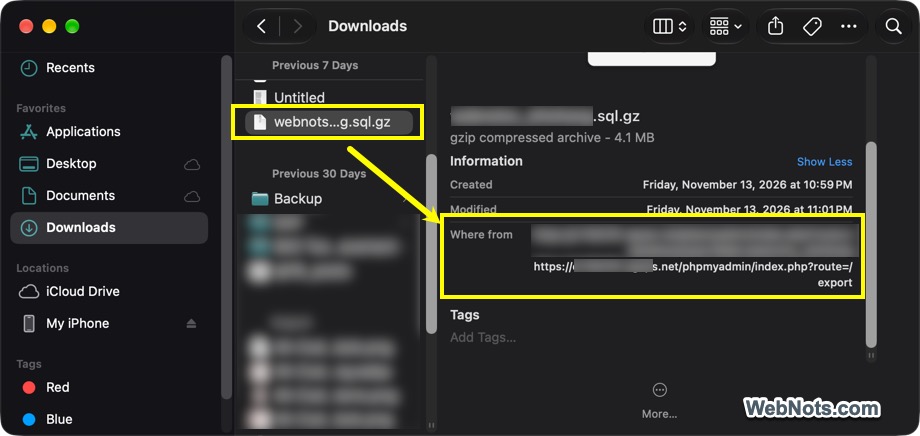
- First, select the problematic ZIP file and check “Where from” information in the Finder.
- It shows the source link from where the file was originally downloaded.
- Copy the link and then delete or move the ZIP file to another location.
- Open the source website and download the archive file again.
- Make sure the file is completely downloaded.
- Open the newly downloaded ZIP file.
If the new archive extracts successfully, the original download was probably incomplete or corrupted.
3. Rename the ZIP File
Sometimes, filenames containing unusual characters, long names, or special symbols can cause problems when working with archives. Try renaming the ZIP file to something short and simple. For example, change the name from “My Downloaded Files (2026) – Version #2.zip” to “archive.zip”. To rename, simply select the ZIP file and press Enter key. Now, type a shorter filename and press Enter again.
Note: If you are creating an archive (by right-clicking and selecting “Compress” option) file, make sure to change the folder name beforehand.
4. Check File and Folder Permissions
macOS uses file permissions to control which applications can access files and folders. If Archive Utility cannot read the archive or write extracted files to the destination folder, extraction may fail.
- Right-click the ZIP file and select “Get Info”.
- Expand the “Sharing & Permissions:” section.
- Check your user account’s privileges and make sure your account has “Read & Write” privilege.
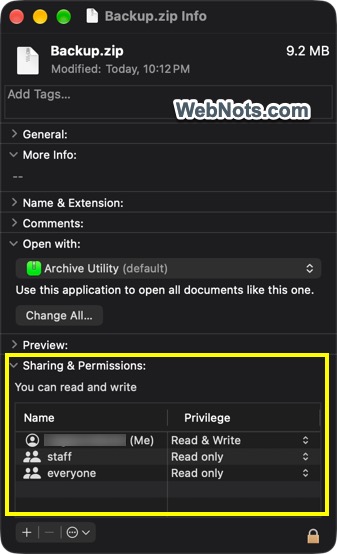
You should also check the destination folder and confirm that your account has permission to read and write files there.
5. Extract the Archive Using Terminal
If Archive Utility continues to show the error, try extracting the ZIP file using Terminal. macOS includes a built-in command-line utility called unzip, which can extract ZIP archives without opening Archive Utility. Let’s say, you have a file named Backup.zip in Downloads folder and you want to extract the content to ExtractedFiles folder in Desktop.
- Open Finder and navigate to “Applications > Utilities” folder.
- Find and open “Terminal” app.
- Type the following command and press enter to create a ExtractedFiles folder in Desktop.
mkdir -p ~/Desktop/ExtractedFiles- After that, type
unzipand drag the ZIP file from Finder into the Terminal window to insert its full file path. Press Space and type-d ~/Desktop/ExtractedFilesafter the file path. - The complete command should look similar to this and press Enter key.
unzip /Users/<Username>/Downloads/Backup.zip -d ~/Desktop/ExtractedFiles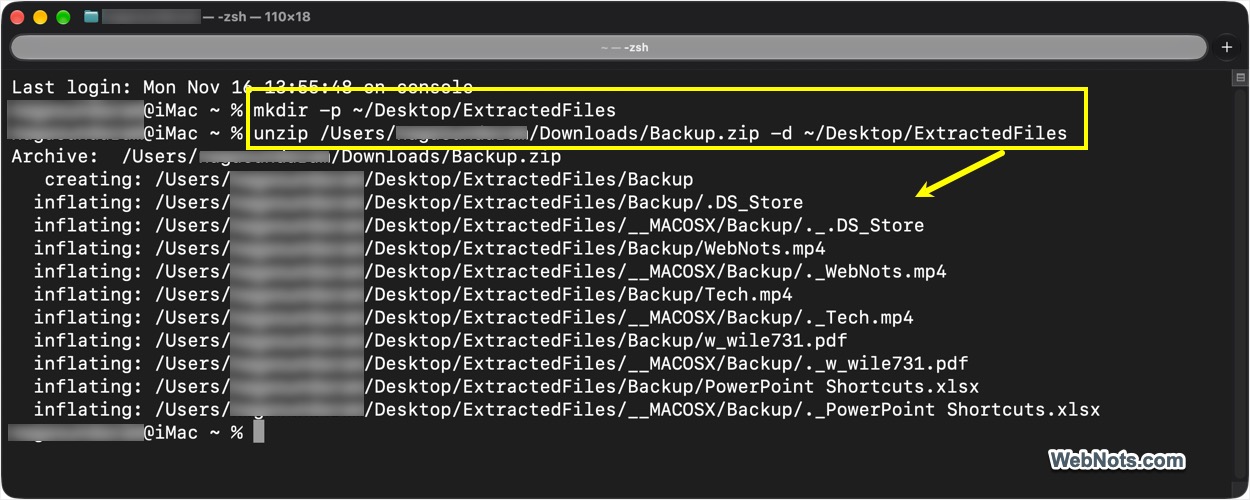
This works in most cases compared to using the Archive Utility. You can also use Terminal to check whether a ZIP archive is damaged before attempting to extract it using the following command:
unzip -t ~/Downloads/Backup.zip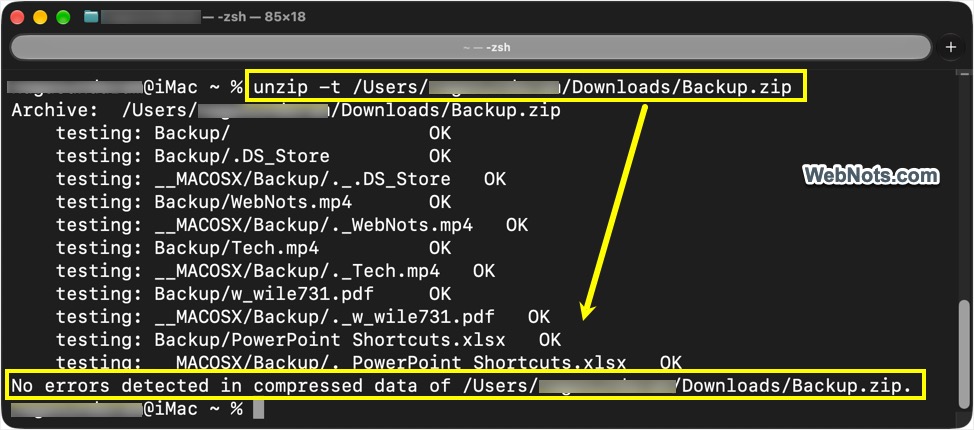
Replace the example path with the actual location of your ZIP file. The command checks the archive contents without extracting them. If the archive is valid, Terminal should display a message indicating that no errors were detected. If it reports errors such as an invalid ZIP structure or unexpected end of file, the archive may be corrupted or incomplete. In that case, download another copy of the file.
6. Check Whether the Archive is Actually a ZIP File
Sometimes, a file has a .zip extension but is not actually a ZIP archive. For example, a downloaded file may have been incorrectly renamed, or the website may have provided an error page instead of the expected archive. You can check the actual file type in Terminal using the below command:
file ~/Downloads/archive.zipThe output should identify the file as a ZIP archive if it is a valid ZIP format file. If Terminal identifies it as HTML, plain text, or another format, the file may not be a genuine ZIP archive. Download the correct file or use an extraction application that supports its actual format.

7. Use a Third-Party Archive Application
If none of the previous solutions work, try another archive extraction application. Several macOS applications support ZIP and other compressed file formats. Some popular options include:
- The Unarchiver: A free macOS application that supports ZIP, RAR, 7Z, TAR, and many other archive formats.
- Keka: A macOS archive utility that supports several compression and extraction formats.
- BetterZip: A commercial archive manager with additional features for browsing and extracting compressed files.
These applications can sometimes extract archives that Apple’s built-in Archive Utility cannot handle. However, if the archive itself is corrupted or incomplete, switching applications may not solve the problem.
Conclusion
The “No such file or directory” error in Mac Archive Utility usually results from an inaccessible file path, an incomplete download, permission restrictions, or a problematic archive. In most cases, one of these methods should help you identify the underlying problem and extract your files successfully. For archives that remain problematic, try The Unarchiver or Keka as alternatives to Apple’s built-in extraction utility.