Passwordless sign-in removes your account password and allows you to sign-in using alternate method without entering the password. You can use Microsoft Authenticator app, Windows Hello, Outlook Android app, security key or SMS code for login purpose. This helps to protect your account from unauthorized access using your password. In this article, I will explain how to enable passwordless sign-in to Microsoft account using Microsoft Authenticator app.
Step 1 – Check Current Login Attempts
Before proceeding it is a good idea to check the current failed login attempts for your account.
- Open Microsoft website, click “Sign in” showing on top right corner and login to your account.

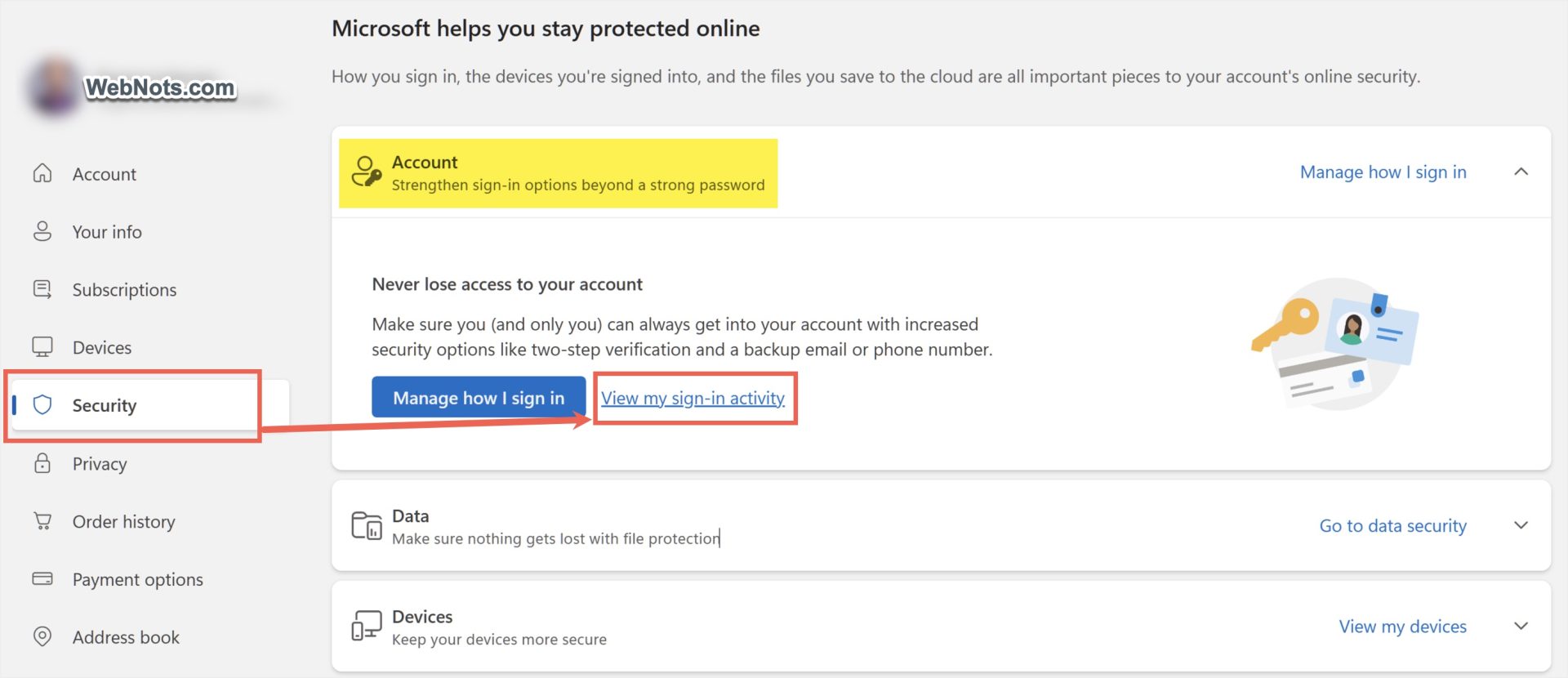
- Go to “Security” section from left sidebar and expand “Account” heading.
- Click “View my sign-in activity” link.
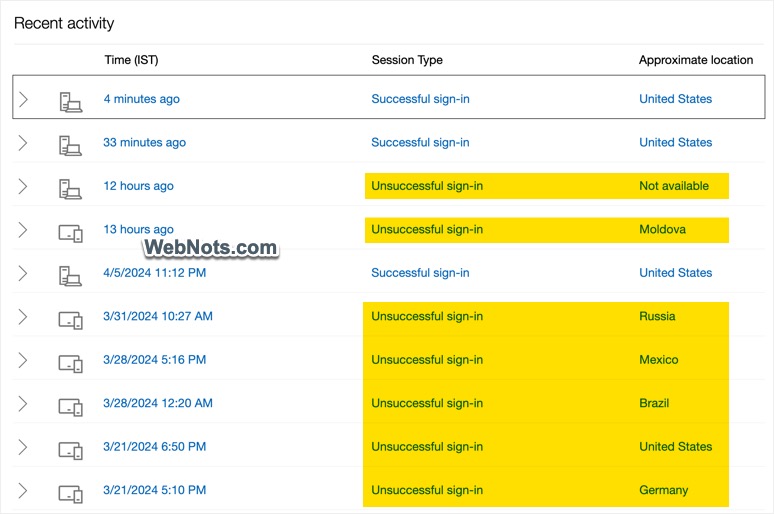
- Check under “Session Type” column to find “Unsuccessful sign-in” attempts along with the location. If there are too many failed attempts from different locations, it is an indication that someone is trying to hack your account and it is time to go for passwordless login.
Step 2 – Download and Install Microsoft Authenticator App
Next step is to install Authenticator app on your mobile device. Note that there is also a Google Authenticator app available, so, make sure to install the Authenticator app from Microsoft.
- Open App Store in iPhone or Google Play store in your Android phone.
- Search for “authenticator” app.
- Download and install Microsoft Authenticator app.

Step 3 – Get QR Code for Linking Authenticator App
Next step is to get the QR code for linking your Microsoft account to Authenticator app. You can do this on a desktop so that it is easy to scan from your mobile app.
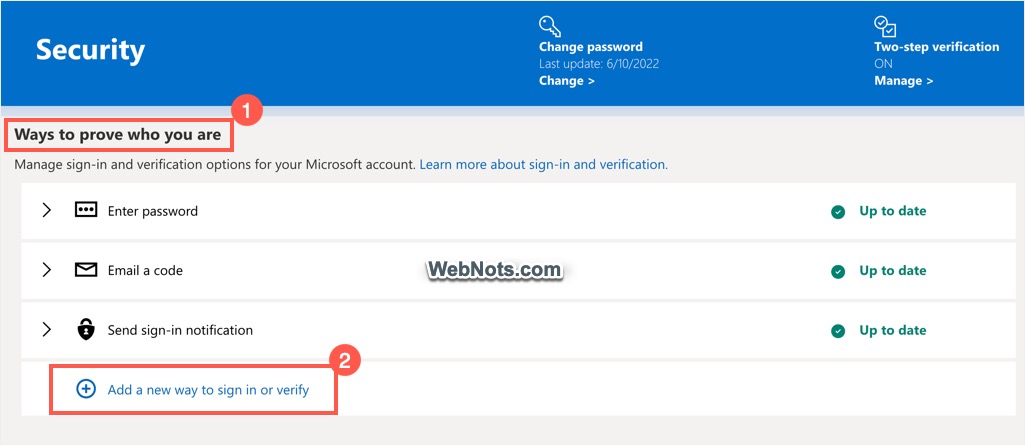
- Go to “Security > Account” section in your Microsoft account and click on the “Manage how I sign-in button”.

- Click “Add a new way to sign in or verify” link showing at the bottom of “Ways to prove who you are” section.
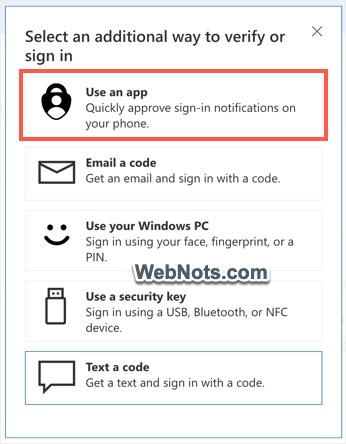
- You will see a list of sign in options and select “Use an app”.
- On the next screen, click on “Get it Now” button and then click “Next” button to reveal the QR code (as you have already installed the app on your phone).

Step 4 – Connect Your Account and Authenticator App
Next step is to add your Microsoft account in Authenticator app.
- Open Microsoft Authenticator app and tap on the + icon on top right corner.
- Select “Personal account” option (or the one applicable) and scan the QR code from your account.


- This will add your Microsoft account in Authenticator app.
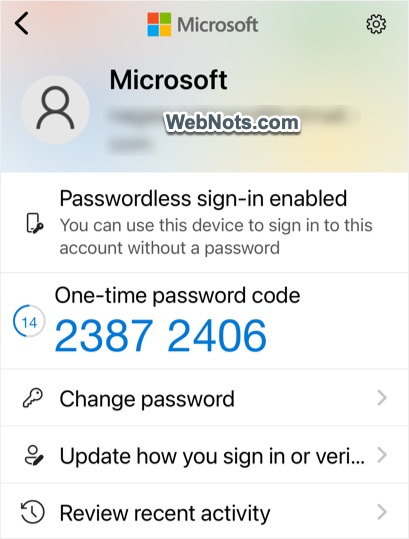
- The account (on desktop) will show “You’re all set!” message. Click the “Finish” button to return back to account settings screen.
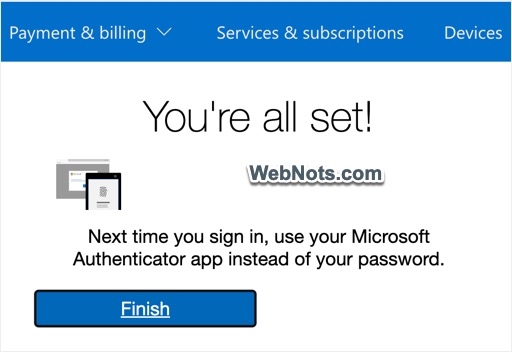
At this point of time, if you try to login to your account with password, Microsoft will show a prompt to send notification to your Authenticator app.

Tap on “Send notification” to send a 2-digit sign-in verification code to the linked Authenticator app.

You need to tap on the correct number in Authenticator app to approve the login.
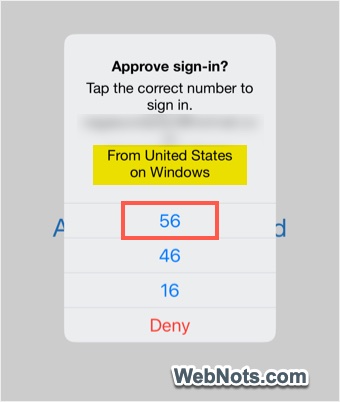
Though you can login with Authenticator app, you still need to enter the password for triggering the 2-digit code. The passwordless option will remove the password and allow you to approve the login action only using Authenticator app.
Step 5 – Turn on Passwordless Sign In
- Make sure you are in “Security > Account > Manage how I sign-in” section in your Microsoft account.
- Click “Turn on” link showing below “Passwordless account” option under “Additional security” section.

- You may be prompted to verify with Authenticator app, click on “Send notification” button and confirm the 2-digit code with your Authenticator app.

- You will see “Set up your passwordless account” pop-up and click on “Next” button.

- This will trigger a request to your Authenticator app.

- Open Authenticator app on your mobile and approve the request.
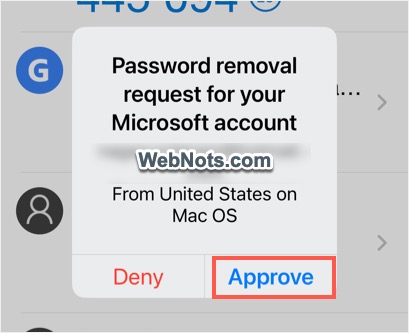
- You will see a “Password removed” confirmation and click “Done” button to close the pop-up.
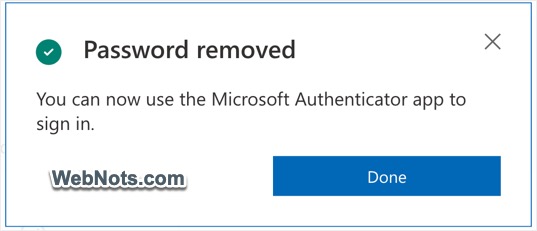
- Now, all password related settings will be removed from your account.
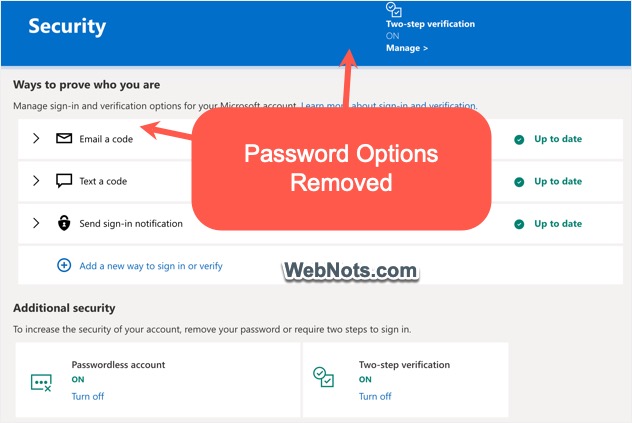
Henceforth, you can send notification to Authenticator app and approve the login without entering password.
Step 5 – Turn On Two-Step Verification
This is another option available to add an additional layer of protection to your login process. When enabled, you need to always verify with two methods for logging into your account from untrusted devices.
- Go to “Security > Advanced security options” section in your Microsoft account.
- Click “Turn on” link showing below “Two-step verification” under “Additional security” heading.
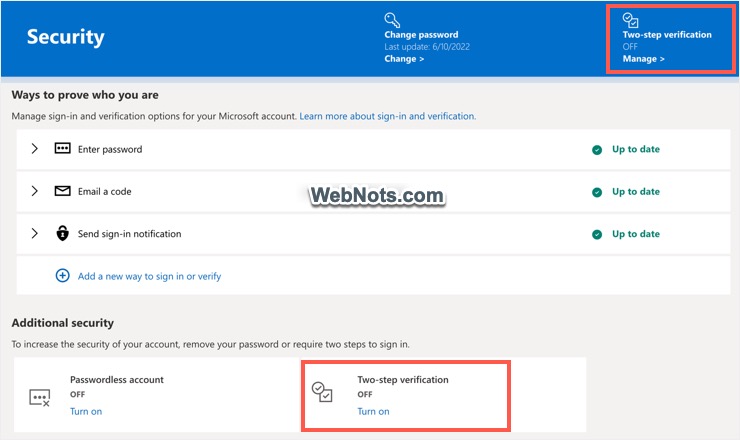
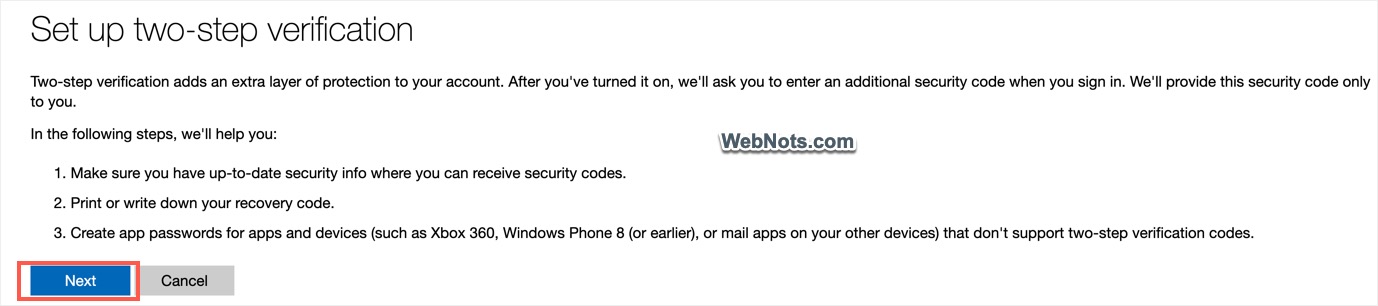
- Next screen will show the process and supported apps. Click on “Next” button to continue.
- Copy and save the generated recovery code or print it if required and click “Next” button.

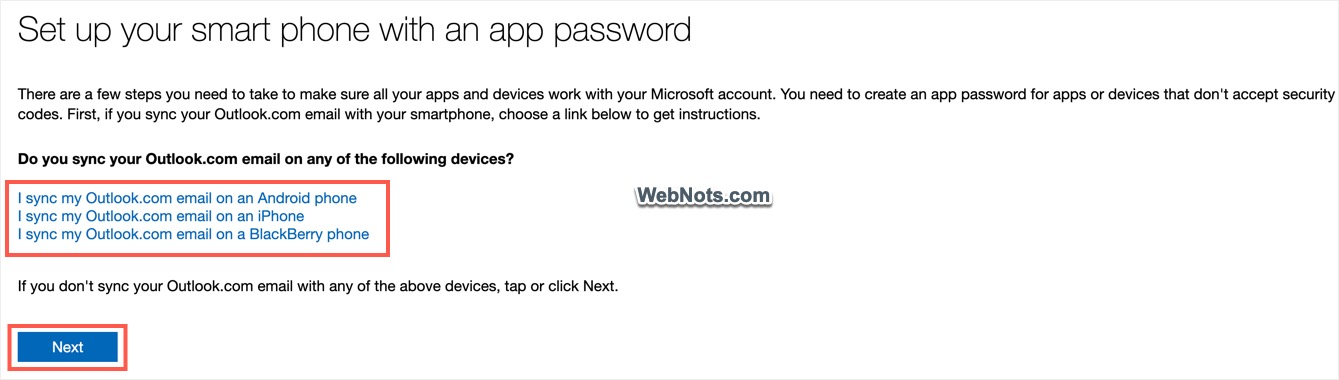
- Some apps do not support two-step verification code and hence you need to generate password for them. First, you will be prompted to set password for Outlook on Android / iPhone / BlackBerry. Select the link and setup the password if you are using Outlook app on your mobile.
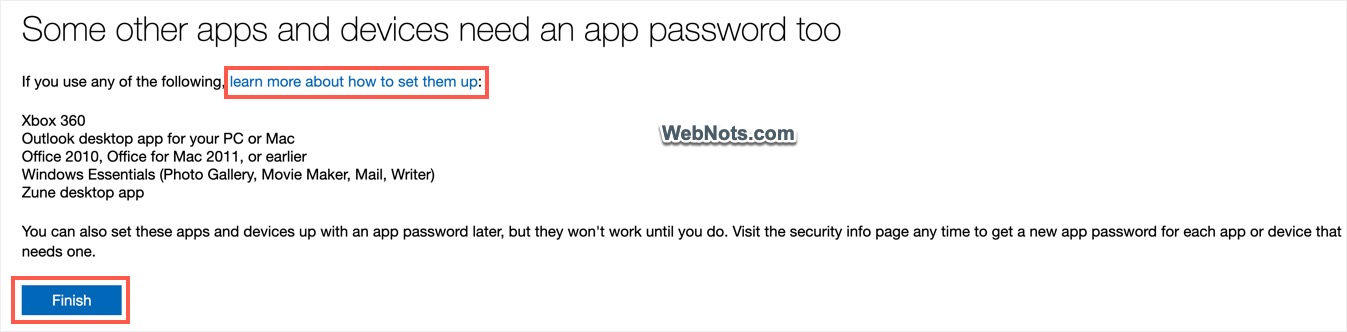
- Next, you will see a list of apps that needs password for and click on the “learn more about how to set them up” link to set password for those apps you are using. Finally, click “Finish” button to end the process.
Personally, I do not recommend to setup recovery code through two-step verification. Because it will be difficult to logon to your account if you lose the recovery code. Passwordless login with Authenticator app is sufficient to protect your account and you can alternate options when you don’t have access to Authenticator app.
Disable Passwordless Sign-in
Follow the below steps if you want to turn off passwordless sign in for any reasons.
- Login to your Microsoft account and go to “Security > Advanced security options” section.
- If you have enabled two-step verification, click “Turn off” showing for “Two-step verification” under “Additional security” section.
- After that, click “Turn off” link showing below “Passwordless account” option.
- Finally, expand “Send sign-in notification” section under “Ways to prove who you are” heading. Click “Remove” button for account verification with Authenticator app.

Now you will see the password options are enabled back and you can start using the password login.
For removing the account from Authenticator app – tap on the account, then tap on the gear icon and then tap “Remove account” link.

Before Going Passwordless
Though it is useful, remember the followings below setting up:
- You need access to Microsoft Authenticator app all the time.
- Your current password and all related settings will be removed from the account.
- Some services (like IMAP/POP email setup) and apps (like Xbox 360) still need password for login. You need to setup them individually.
- You can use alternate methods for login when do not have access to Authenticator app. If you have enabled two step verification, then two methods are always required for verification (like email, SMS or security code).
- You can turn off the passwordless sign-in anytime and enable password from account settings again.