Microsoft introduced Windows 10 in July 2015 and announced that official product support will end on October 14, 2025. After this date, Windows 10 will not get any security and feature updates. Though users can enroll for an Extended Security Update (ESU) program, this will only receive security patches and not functional updates. So, it’s high time to upgrade to Windows 11 and to avoid any disruptions to your routines (some apps may stop working). This article provides a high-level overview of the features available in Windows 11 so that you can be familiar with the setup.
Moving to Windows 11
Microsoft officially introduced Windows 11 in June 2021, so it is not new and has been available on the market for quite some time. Compared to Windows 10, Windows 11 not only offers an interface upgrade but also makes significant improvements in functionalities. In most cases, your Windows 10 digital license can be used for upgrading to Windows 11. However, this may vary on individual cases and you may also need to check the hardware requirements to decide whether you need a new PC or current one will work with Windows 11.
1. Device Compatibility and System Requirements
Windows 11 sets a stricter baseline for hardware compatibility compared to Windows 10, ensuring a more modern and secure environment. Below are some of the basic requirements and you can check the complete list in official Microsoft website.
- TPM 2.0 Requirement: Trusted Platform Module (TPM) 2.0 is now a mandatory requirement for installation, bolstering hardware security.
- Processor and RAM: Windows 11 requires at least a compatible 64-bit 1 GHz dual-core processor, 4 GB RAM, and 64 GB of storage.
- Display and Graphics: A 720p display and DirectX 12 compatible graphics are required.
This may result in some older PCs that could run Windows 10 will not support Windows 11. You will see an error when trying to install Windows 11 on unsupported PCs and the only option is to purchase a new PC in that case.
2. Visual and Interface Redesign
The visual overhaul is the first thing you will notice in Windows 11. The interface is modern, though some users don’t like the new design (like the shortened right-click menu).
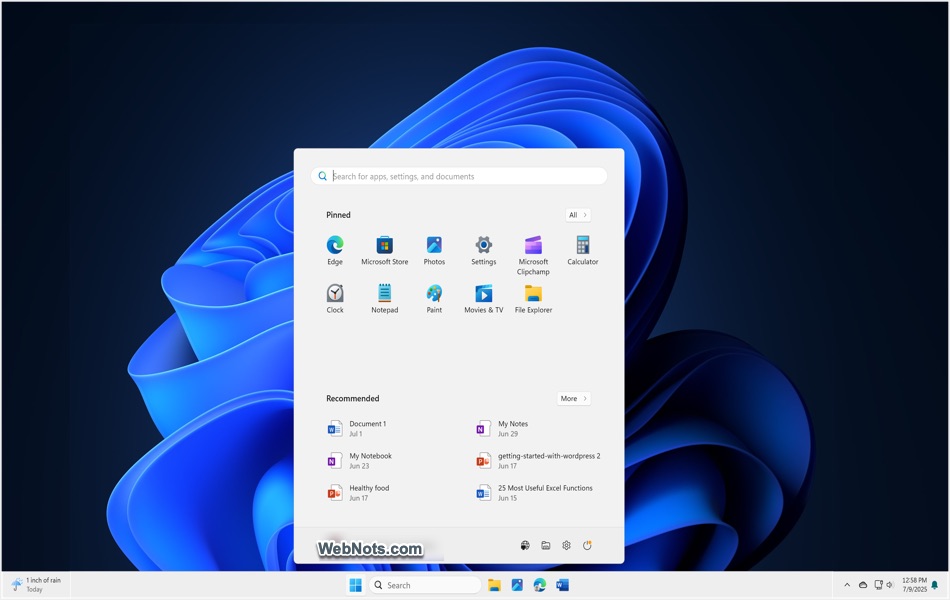
- Centered Taskbar and Start Menu: The Start button and Taskbar are now centered by default, deviating from the traditional left-aligned style of previous Windows iterations. If needed, you can change to left aligned from the Settings app.
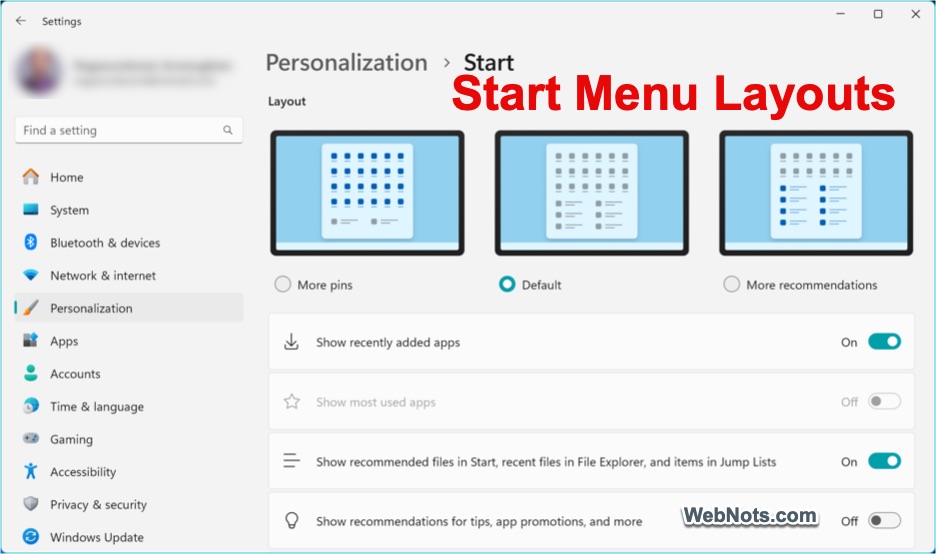
- Redesigned Start Menu: The live tiles of Windows 10 are gone. In their place, Windows 11 offers a simplified Start Menu featuring pinned apps, a search bar, and a section for recommended files and applications. This decluttered approach aims to streamline the experience and reduce cognitive load. The layout can be chosen from “Settings > Personalization > Start” section.
- Rounded Corners and Fluent Design: Windows 11 uses rounded corners on windows and menus, gentle transparency effects, and revamped system icons, all part of Microsoft’s Fluent Design System.
- Redesigned Notification Center and Quick Settings: Notifications and quick controls for volume, connectivity, and brightness are now better organized and easier to access.
3. Settings and Accessibility Improvements
The Settings app in Windows 11 has been thoroughly redesigned for clarity and usability, moving further away from the legacy Control Panel.
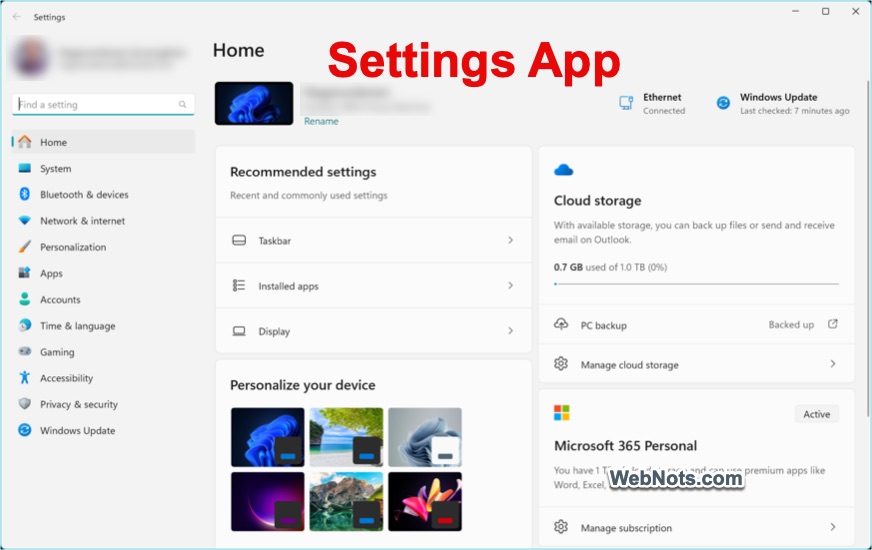
- Smoother Navigation: The new Settings app features a cleaner layout, better categorized sections, and improved search, making it easier to find and adjust system preferences.
- Enhanced Accessibility Features: Windows 11 introduces new accessibility tools, including improved voice navigation, magnifier, color filters, and support for more assistive devices.
Note: Press “Windows + I” keys or right-click on the Start button and select “Settings” to open the Settings app. This is the same process in Windows 10.
4. Productivity and Multitasking Enhancements
Windows 11 introduces several features specifically designed to boost productivity and make multitasking easier for users.
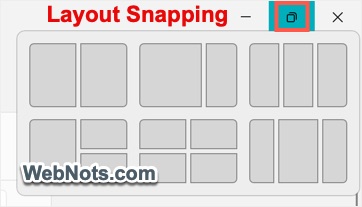
- Snap Layouts: Building on Windows 10’s Snap Assist, Windows 11 introduces Snap Layouts, allowing to quickly organize open windows into predefined layouts (such as side-by-side, grid, or column views). Simply hover over the maximize icon on any app window and select the layout to arrange the apps on your screen.
- Virtual Desktops: The Virtual Desktop feature has been enhanced in Windows 11, enabling users to create multiple custom desktops for different projects or personal/professional separation. Each desktop can be personalized with its own wallpaper and settings.
- Improved Touch and Voice Input: Windows 11 is optimized for hybrid devices. Now the voice typing is now smarter and more accurate, leveraging AI-powered speech recognition and the touch interface feels more responsive, with bigger touch targets and improved gestures. New animations for small touches, such as window open/close and maximize/minimize effects, add to the OS’s polished feel.
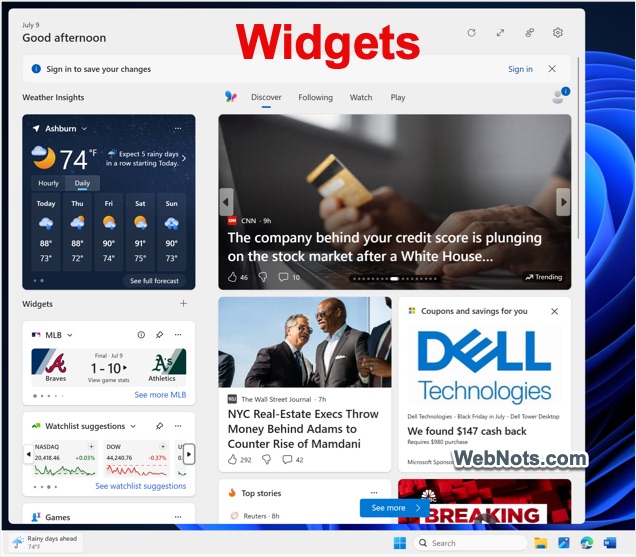
- Widgets: Widgets provide personalized, at-a-glance information like news, weather, calendar, and to-do lists. While Windows 10 had Live Tiles and a basic news feed, Windows 11’s widgets are more visually engaging and can be customized to your preferences. Simply hover over the weather information on bottom left to open widgets area.
5. Microsoft Store and App Support
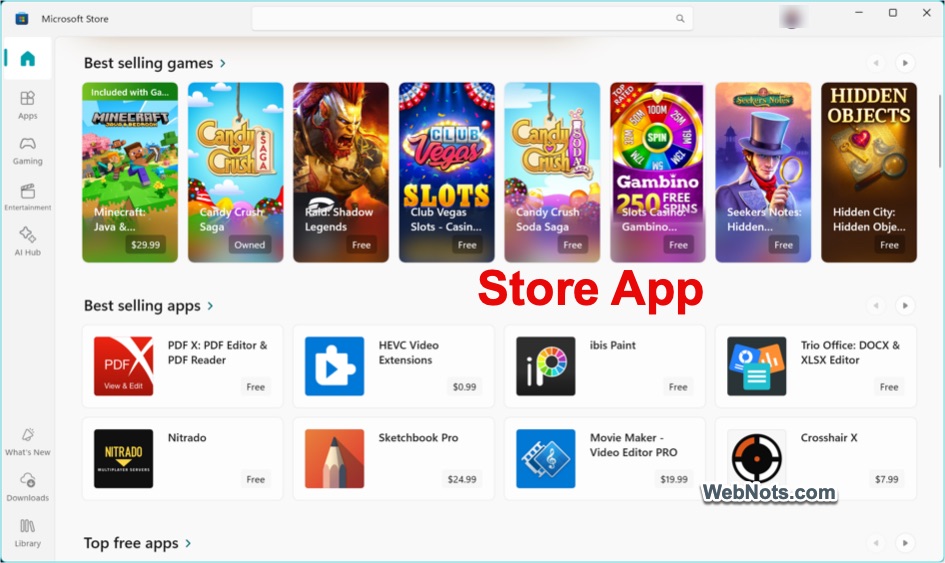
The Microsoft Store has been completely redesigned in Windows 11, featuring a cleaner layout, better curation, and more app choices.
- Expanded App Selection: Developers can now submit a wider range of apps, including traditional Win32, .NET, and Progressive Web Apps (PWAs). This marks a major shift from the more restrictive policies of the Windows 10 era.
- Android App Support: Through the Microsoft Store, users can install a selection of Android apps via the Amazon Appstore, significantly expanding what users can do on their PCs. While this feature is still being rolled out in some regions, it represents a key differentiator from Windows 10.
- Improved Store Performance: The new store loads faster and makes it easier to find and download the apps and content you need.
6. Gaming Experience
Microsoft has made gaming a central focus of Windows 11, integrating several features previously exclusive to its Xbox consoles.
- Auto HDR: Games that support HDR automatically benefit from richer visuals, even if they weren’t originally designed for HDR displays.
- DirectStorage: DirectStorage allows games to quickly load assets directly from NVMe SSDs, reducing load times and enhancing performance for gamers.
- Xbox Integration: The built-in Xbox app allows gamers to access the Xbox ecosystem, Game Pass, cloud gaming, social features, and cross-platform play more easily than ever.
7. Performance, Security, and Compatibility Improvements
As mentioned, Windows 11 introduces several improvements in the backend primarily focusing on performance, security, and compatibility.
- Faster Updates: Windows 11 updates are reportedly up to 40% smaller and more efficient, installing in the background to minimize interruptions.
- Improved Performance: Microsoft has optimized memory management, app prioritization, and sleep/wake speed, resulting in a noticeably faster experience compared to Windows 10.
- Enhanced Security: Windows 11 is built with a “Zero Trust” security model in mind. Key requirements such as TPM 2.0 and Secure Boot are now mandatory, raising the baseline for device security and making it harder for malware to compromise systems.
- Dynamic Refresh Rate: For supported hardware, Windows 11 can switch between standard and high refresh rates to balance performance and battery life.
- Improved Battery and Power Management: More efficient background processing and sleep modes help extend battery life, especially on laptops and tablets.
8. Copilot Integrations
Copilot integrations in Windows 11 introduce a new level of intelligent assistance directly into the operating system. Acting as an AI-powered companion, Copilot helps users streamline tasks, find information, and automate workflows – right from the desktop.
- You can use the Copilot app which comes preinstalled or you can install it from Microsoft Store.
- There is also a separate Microsoft 365 Copilot app (install from Microsoft Store) which you can make use of.
- With a valid Copilot Pro subscription, you can summarize emails (Outlook), generate content (Word), analyze data (Excel), and prepare your slides (PowerPoint) within the Microsoft 365 desktop apps.
- Edge Copilot allows you to summarize webpage’s content.
- You can also use the AI assistant online with any browser app.
- Traditional Microsoft apps like Paint and Notepad also integrated with Copilot in Windows 11.

If using AI is your priority and you are purchasing a new PC, consider Copilot+ PC. It offers various additional features like Recall, Click to Do, and optimized Windows search.
Conclusion
Starting from the Start menu to right-click menu to Settings app, you will feel a new experience with Windows 11. Though some changes can be customized or even reverted like Windows 10, most design changes will stay and only continue to evolve from here. If the interface changes are overwhelming, you may need to spend time in learning the stuffs before making it convenient for your daily use. Apart from the overall interface updates, here is a quick summary of specific differences between Windows 11 and Windows 10 (some features depend on your system hardware).
| Feature | Windows 11 | Windows 10 |
|---|---|---|
| Auto HDR | Increased color range for games. | ⊗ |
| Auto Wake and Lock | Automatic locking when you leave and wakeup when you are nearby the system. | ⊗ |
| Control Bar | Easily access previously played games. | ⊗ |
| Dynamic Lighting | Response based on LED lighting on keyboard or mouse. | ⊗ |
| File Explorer | Tabs and recommendations. | ⊗ |
| Live Captions | Shows on supported languages and app. | ⊗ |
| Paint App | Additional features like background removal, Cocreator, and Layers. | Additional features not available. |
| Phone Link App | Available for both iPhone and Android. | Only for Android. |
| Remember Docking | Remembers previous settings of connection with external displays. | ⊗ |
| Smart App Control | Only allows apps from reputed developers. | ⊗ |
| Start Menu | Layout and recommendations. | ⊗ |
| Voice access | Voice typing and commands for performing basic functions. | Only voice typing. |
| Widgets | Customizable widgets. | Only MSN feed. |
| Windows Backup App | Available for backup and restore | Only backup and no restoring possible |
| Windows Hello Passkey | Integrated passkeys with Windows Hello. | ⊗ |
| Windows Studio Effects | Optimized video calls. | ⊗ |