
Microsoft frequently releases Windows updates to patch security vulnerabilities, improve system performance, and add new features. These updates are an essential part of maintaining a smooth, secure, and efficient computing experience. For beginners, understanding how Windows updates work and how to manage them can be confusing. This guide breaks down the process, offering clear steps and handy tips to help you navigate updates with ease.
Why Windows Updates are Important?
There are several reasons why keeping your system up to date is essential:
- Updates patch security holes that could be exploited by malware or hackers.
- New updates often come with performance improvements and bug fixes, making your system faster and more reliable.
- Some updates introduce new features or improvements to the existing software, enhancing the user experience.
- Updates often include driver updates and other changes that help your hardware and software function correctly.
Types of Windows Updates
Windows updates can be grouped into the following categories:
- Feature Updates – These are major updates that introduce new features and significant changes to the operating system. They are typically released twice a year.
- Quality Updates – Also known as cumulative updates, these are smaller updates released more frequently. They contain security patches, performance improvements, and bug fixes.
- Definition or Security Updates – These patches fix vulnerabilities in the operating system and are critical to keeping your system safe from threats.
- Driver Updates – These updates improve hardware compatibility and performance by updating the drivers for devices like printers, graphics cards, etc.
How to Check and Install Windows Updates?
To ensure your system is up-to-date, follow these steps:
- Press the “Windows Logo + I” keys and open Windows Settings app.
- Go to “Home” section which will show the last time your system checked for an update. Click on that “Windows Update” heading.
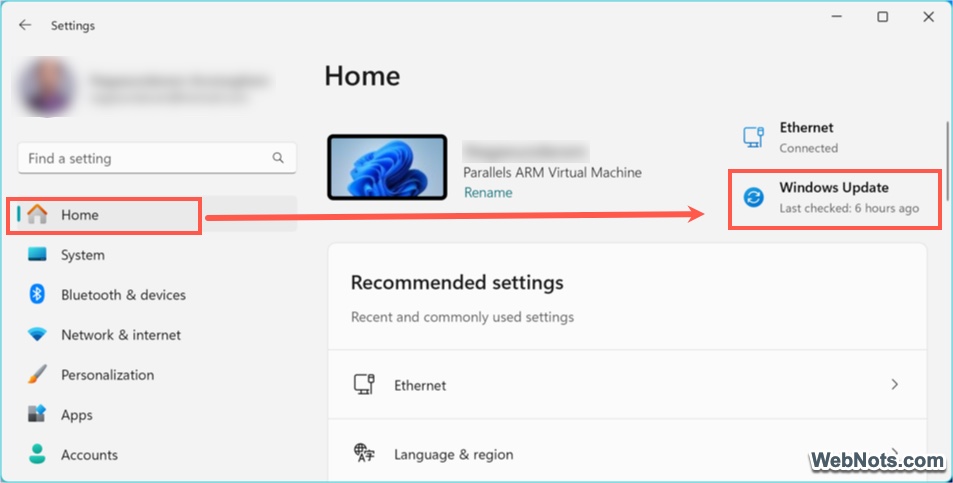
- Alternatively, navigate to the “Windows Update” section from left sidebar. Click on the “Check for Updates” button to see if there are any updates available.

- If updates are found, they will be automatically downloaded and installed. Otherwise, click “Install” link or “Download & install” button to apply the updates.
- Some updates require a restart. You can either restart immediately or schedule it for later.
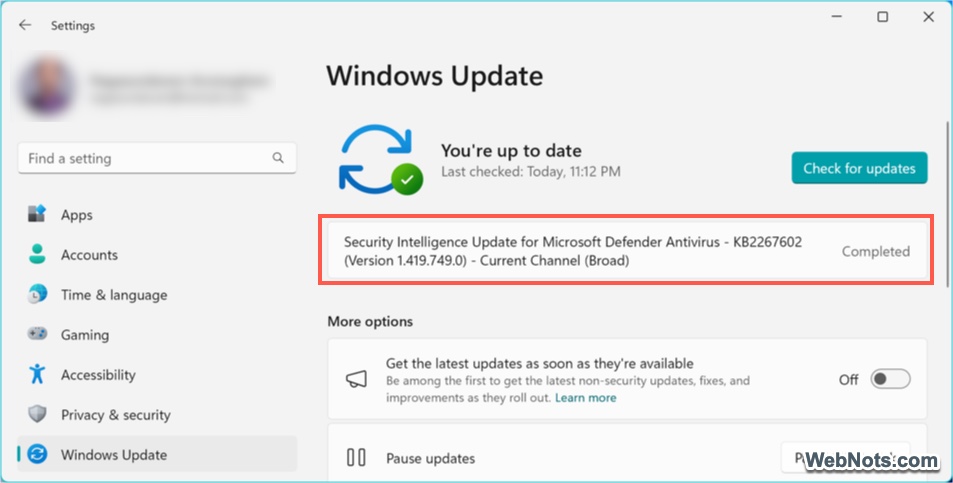
Note: Turn off “Get the latest updates as soon as they’re available” option under “More options” as the latest updates may have bugs affecting your daily routines. Some driver / feature / quality updates are available as optional. Go to “Settings > Windows Update > Advanced options > Optional updates” section find the availability.
Under “More options” heading, you can find many additional options and below are some of the important things you should know.
Pausing Windows Updates
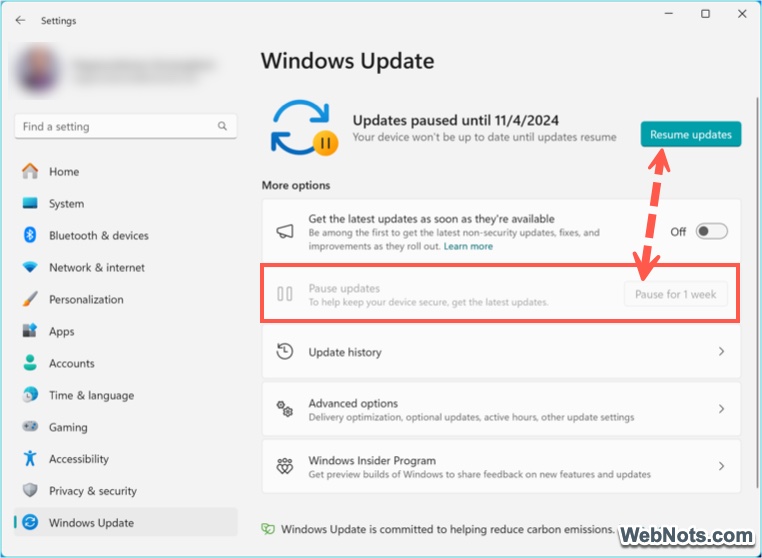
You have an option to pause the updates for 1 week time. When you click on the “Pause for 1 week” button, the “Check for Updates” on the top will change to “Resume updates”. You can click on that “Resume updates” button anytime disable the pausing (it will immediately install all available updates).
Uninstalling Windows Updates
If you have a problem after an update (like an app is crashing), go to “Update history” section. Here you can view the details of Feature / Quality / Definition / Other updates previously installed on your system. Click “Uninstall updates” option showing under “Related settings” heading.
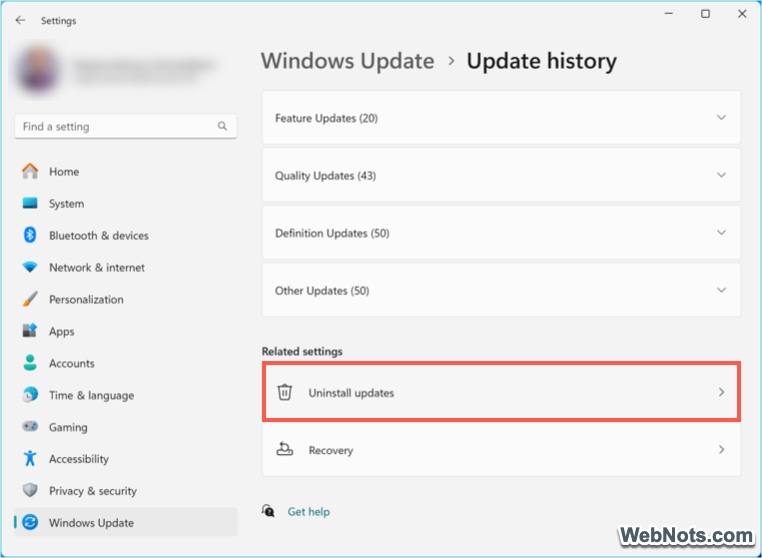
View the list of available options and click on the “Uninstall” link against any update to revert back.

Note that you will be able to uninstall security and minor updates and not the major ones.
Advanced Options
You can find some useful configurations available under this section.
- Receive updates for other Microsoft products – enable this option to get Microsoft apps update (like Office apps) along with Windows update.
- Get me up to date – enable immediate restart for installing the updates (recommended to disable this option).
- Download updates over metered connections – disable this to avoid updates are installed when connected over limited data network.

- Notify me when a restart is required to finish the updating – enable this to get restart notification before installing the updates.
- Active hours – set active hours during which Windows won’t restart for updates.
Delivery Optimization allows you to speed up the download of updates including Windows, Microsoft Store and other Microsoft apps. Learn more about this feature to decide whether to enable or disable this.
Windows Insider Program
The Windows Insider Program is a beta testing platform created by Microsoft that allows users to gain early access to pre-release versions of the Windows operating system.
- It offers participants the opportunity to explore and provide feedback on new features, updates, and changes before they are publicly released.
- The program has multiple channels such as Canary Channel, Dev Channel, Beta Channel, and Release Preview Channel, each offering different levels of stability and access to new builds.
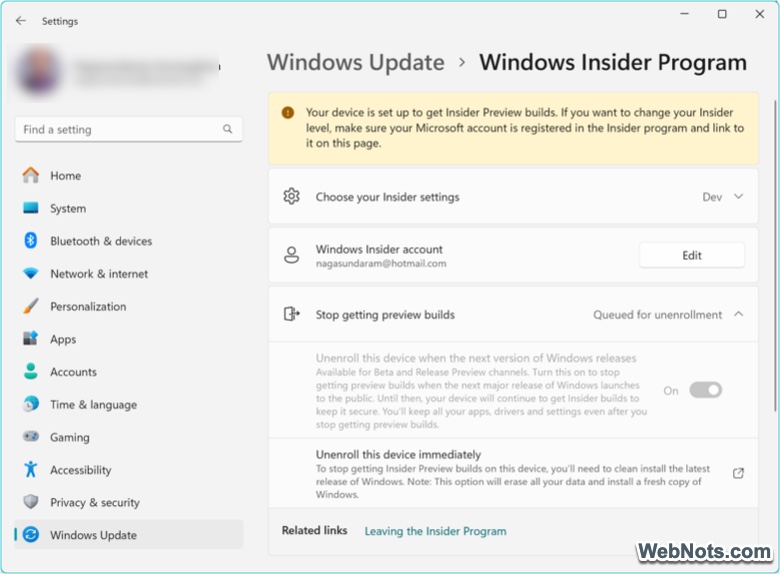
You can enroll your device and unroll anytime when done with testing. Participating in Insider Program is not necessary for normal Windows users.
Precaution and Post Update Checks
Though Windows updates happen automatically, you can enable restart notification as explained above. This will help you to check the details of the update and take a backup of your system if it is a major update. You can also create a manual restore point to roll back your system to a previous state if the update causes problems.
Here are some of the checks you can do after Windows updates to make sure everything is working properly.
- Even if the update doesn’t explicitly require it, a restart ensures that all changes take effect.
- Sometimes updates can cause drivers to malfunction. Go to Device Manager and look for any devices with a yellow exclamation mark, which indicates a problem. Update or reinstall the corresponding drivers if necessary.
- Sometimes updates can cause software compatibility issues. Ensure that your key applications (such as Office, browsers, etc.) are functioning properly and update them to the latest version.
- Pay attention to your system’s performance over the next few hours or days. If you notice any slowdowns, crashes, or unusual behavior, consider rolling back the update or troubleshooting.
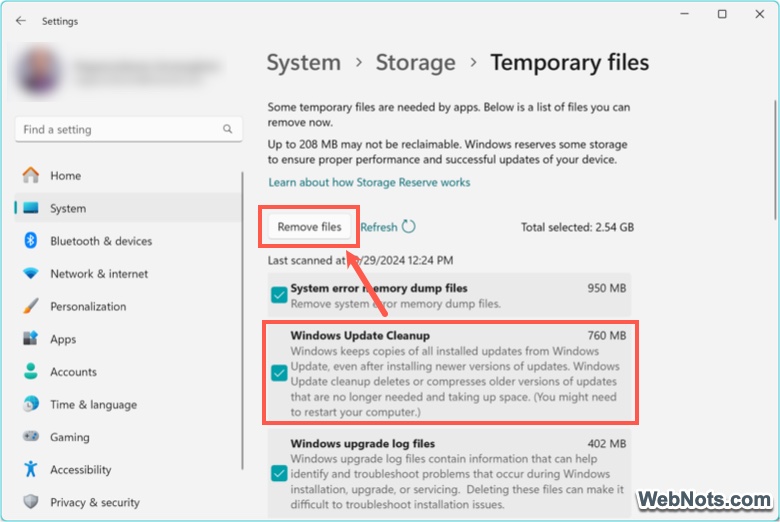
- If you notice the storage is reduced significantly after an update, you can free up disk space by deleting old update files. Go to “Settings > System > Storage > Temporary files” section and delete “Windows update cleanup” and other temporary files.
Troubleshooting Update Issues
Sometimes updates don’t go as planned. Here are some common issues and how to address them:
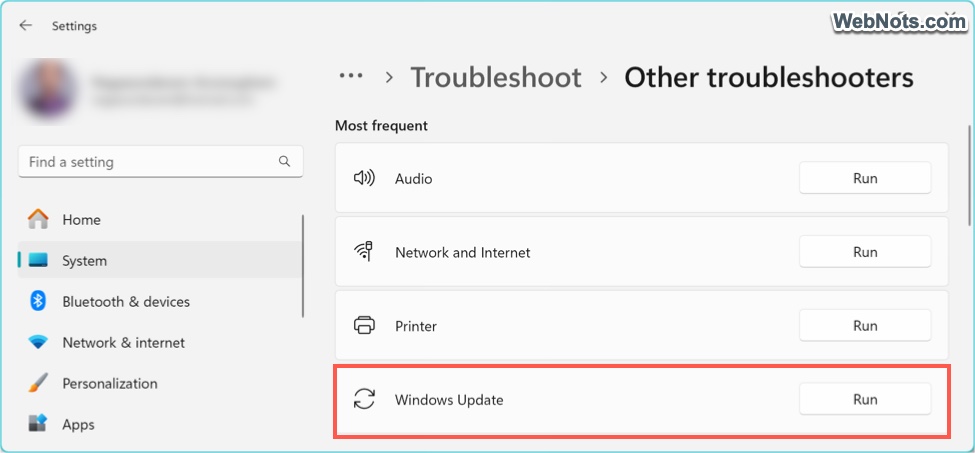
- If an update fails to install, restart your system and try again. If it still fails, got “Settings > System > Troubleshoot > Other troubleshooters” section. click on the “Run” button against “Windows Update” to run troubleshooter and fix the problem.
- If your update gets stuck at a certain percentage, wait a while, as some updates take longer than others. If it remains stuck, restart your computer and check for updates again.
- If the system is frequently crashing after an update, check if there are any patches released by Microsoft or check if the update can be uninstalled. Otherwise, you can use restore the system to previous state from your System Restore point.
Conclusion
Windows Updates are important for maintaining the health, performance, and security of your computer. While the process is automatic and smooth, sometimes it may cause unexpected problems. Make sure to enable restart notification and take a system backup before major updates. Follow the mentioned troubleshooting suggestions if you are stuck during and after updates.


