Adobe Express is a freemium creativity tool for generating media content for social, personal, and business purposes. You can use either the mobile app or the web interface to manage your projects. Both free and premium subscriptions come with limited storage space, and you should periodically delete content to continue using the service (especially on the free plan). However, if you have mistakenly deleted a file or project, here is how to retrieve it.
Storage Space in Adobe Express
Adobe Express offers the following cloud storage for users:
- Free plan – 5 GB
- Premium member ($9.99/month) – 100 GB
- Business account ($7.99/month/license) – 1 TB
All your files, including deleted items, count toward this storage space. When you delete a file, it goes to the cloud and is retained for 30 days before being permanently removed. So, you can retrieve deleted files within that 30‑day window and restore the content. On the other hand, simply deleting files from your project view is not enough to free up storage space and you must also empty the “Deleted” folder in your account settings.
Deleting a File or Project
The following steps use the web interface. You can follow similar steps on the mobile app.
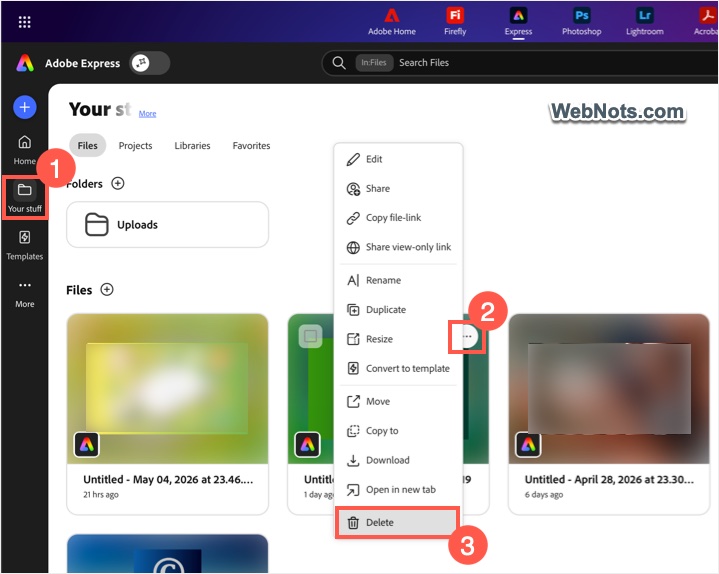
- After logging into your Adobe account, go to “Your stuff” from the left sidebar.
- You will see a list of all projects. Hover over the one you want to delete, click the three dots icon, and select “Delete” from the context menu.
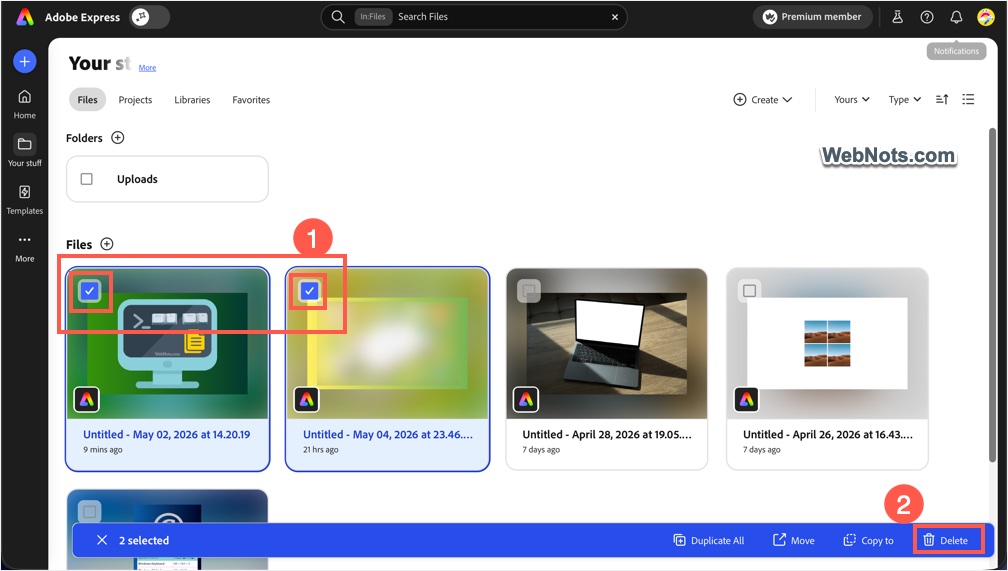
- To delete multiple projects, hover over each item and click the checkbox that appears. A bottom toolbar will show options for moving, duplicating, and deleting. Click the “Delete” option.
- To delete individual pages / files, first open your project, then click the “Show pages” button on the bottom right to view the timeline. Click the three dots icon on a file and select “Delete”.
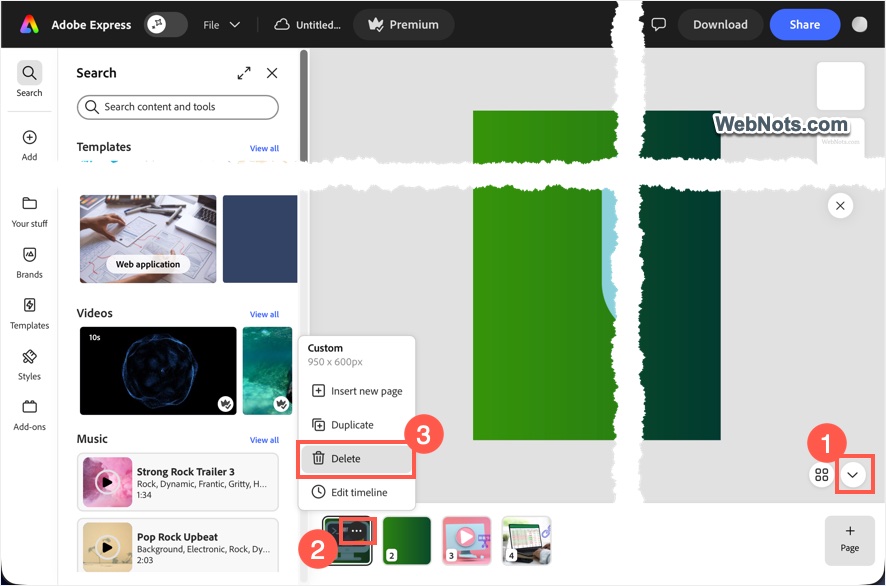
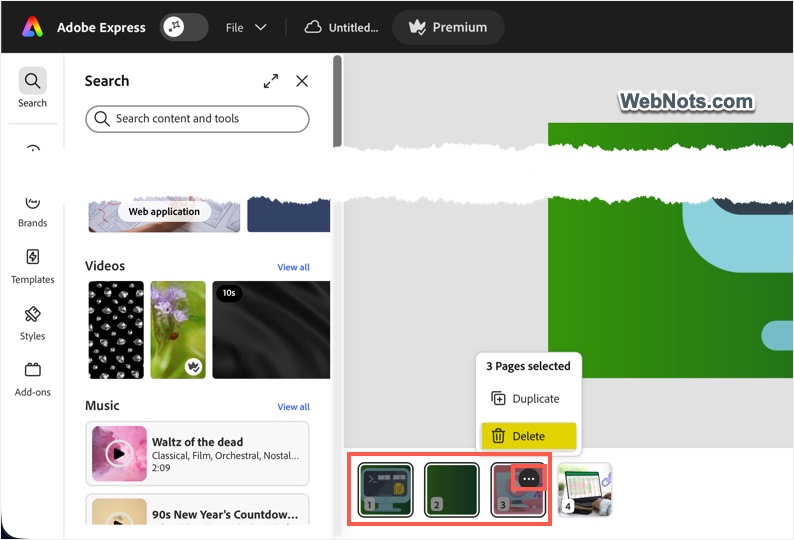
- To delete multiple files, hold the Ctrl (Windows) or Command (Mac) key while selecting them, then click the three dots icon and choose “Delete”.
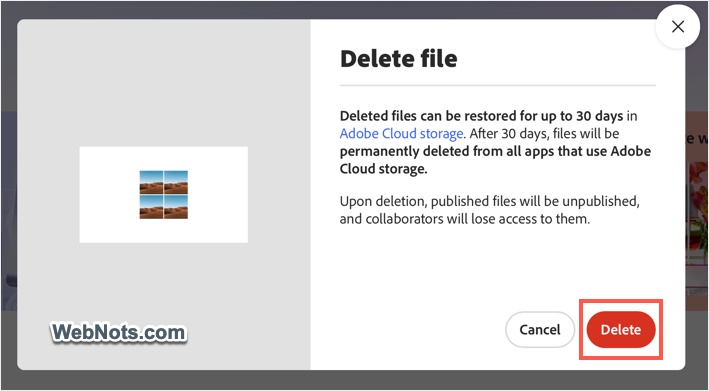
- Whether you are deleting a project or a file, Adobe will show a warning that the items will be unpublished and moved to cloud storage. Click the “Delete” button to confirm.
Restoring Deleted Files
Deleting a file or project is straightforward, but finding your deleted items is not obvious – there is no direct “Cloud storage” section inside Adobe Express. Actually, you need to simply go to the account section but clicking on the “Adobe Home” on the top toolbar will simply reload the Adobe Express page. Follow these steps to access and restore them:
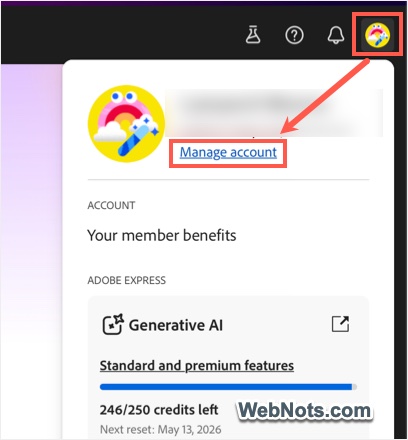
- Click your profile icon in the top right corner and select “Manage account”.
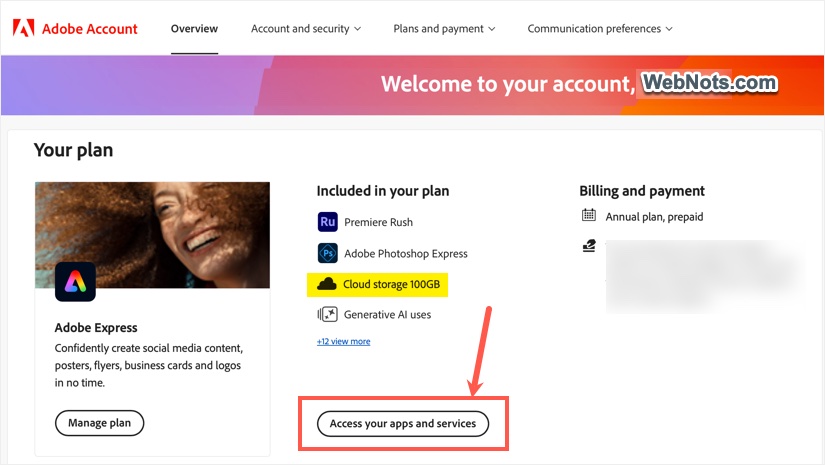
- On the account page, click the “Access your apps and services” button.
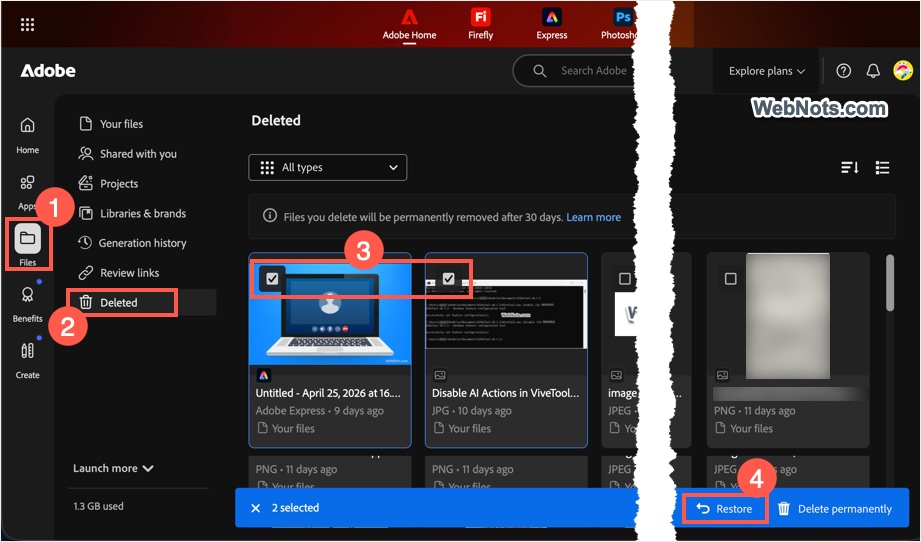
- Go to the “Files” tab in the left sidebar, then select the “Deleted” section.
- Select the files you want to recover.
- Click the “Restore” option on the toolbar at the bottom right corner.
- Adobe will show a “Item restored” confirmation message. The file will be put back into its original project in Adobe Express.
Checking Storage Space
You can see your total used storage space at the bottom left corner of the account management page. Hover over it to view more details if available. Your total eligible storage can also be found anytime by clicking your profile icon in the top right corner or by visiting your Adobe account home page.
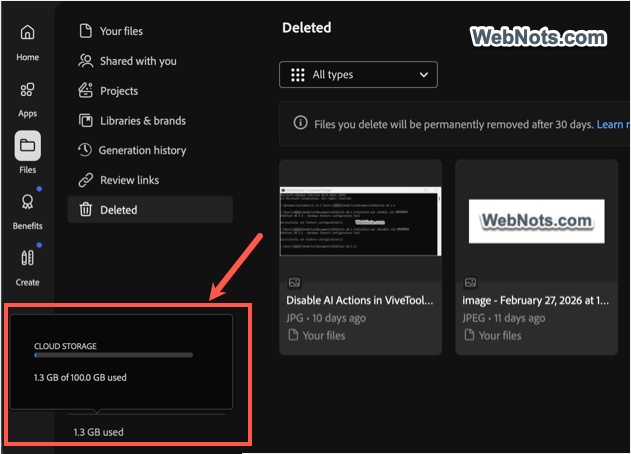
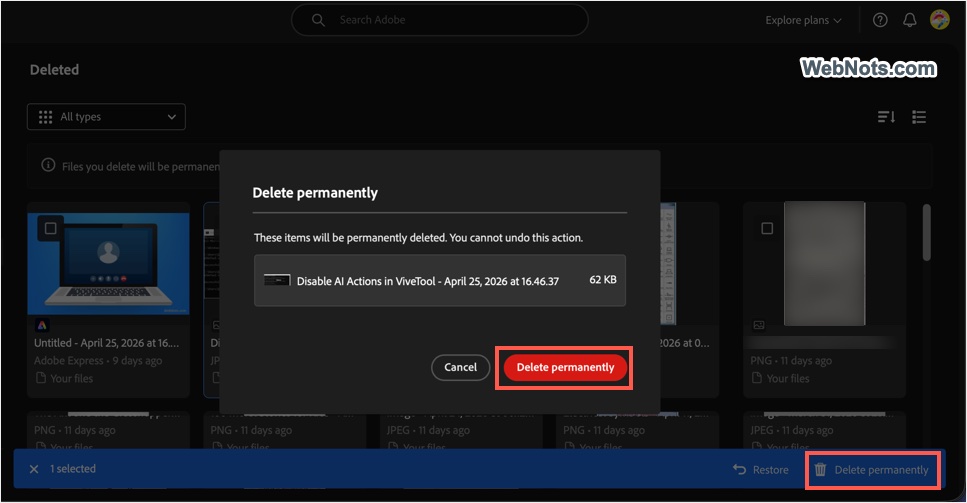
If you are running out of storage, permanently deleting files will immediately free up storage space without waiting 30 days. Select the files in the “Deleted” section and click “Delete permanently”. This action cannot be undone.