The registered symbol (®) indicates that a brand name, logo, or slogan is officially registered with a national trademark office in United States. It’s different from the trademark symbol (™), which is used for unregistered marks. While you don’t need to type these symbols constantly, knowing how to insert them quickly can save time when preparing legal documents, presentations, or website content. Here’s how to type the registered symbol on every major platform. With these methods, you’ll never be stuck searching for the ® symbol again, no matter what device or software you’re using.
Check this article, if you are looking for typing the trademark ™ symbol.
Registered Symbol Shortcuts Summary
| Symbol Name | Registered Sign |
|---|---|
| Category | Emoji, Latin Supplement |
| Windows Alt Code | Alt + 0174 |
| Windows Keyboard | Alt + Ctrl + R |
| Mac Alt Code | Option + 00AE |
| Mac Keyboard | Option + R |
| Word Shortcut | 00AE + Alt + X |
| Office Math AutoCorrect | (r) |
| HTML Entity Decimal | ® |
| HTML Entity Hexadecimal | ® |
| HTML Entity Name | ® |
| CSS Value | \00AE; |
| JavaScript Escape String | \u00AE |
| Decimal | 0174 |
| Hexadecimal | 00AE |
| Unicode Point | U+00AE |

1. Type ® On Windows
1.1. Alt Code Shortcut
This method requires a keyboard with separate numeric keypad.
- Make sure Num Lock is on.
- Hold down the Alt key and type 0174 on the number pad.
- Release Alt, and the ® symbol appears.
1.2. Other Keyboard Shortcuts
In Microsoft Word only, you can also use the hexadecimal code. Simply type 00AE then immediately press Alt + X and Word will convert it to ®.
Windows also has a hidden shortcut Alt + Ctrl + R to insert the registered symbol in any app.
1.3. AutoCorrect in Microsoft Office
When AutoCorrect is active in Word, PowerPoint, or Outlook, typing (r) automatically changes to ®.

If it doesn’t work, go to “File > Options > Proofing > AutoCorrect Options…” and make sure the text replacement is enabled.
1.4. Symbol Menu in Office Apps
- In any Office application, go to “Insert > Symbol > More Symbols…”.
- In the dialog box, select “Font” as Arial and “Subset” as Latin-1 Supplement under “Symbols” tab.
- Select the ® symbol and click “Insert”.

You can also find the registered symbol under “Special Characters” tabs.
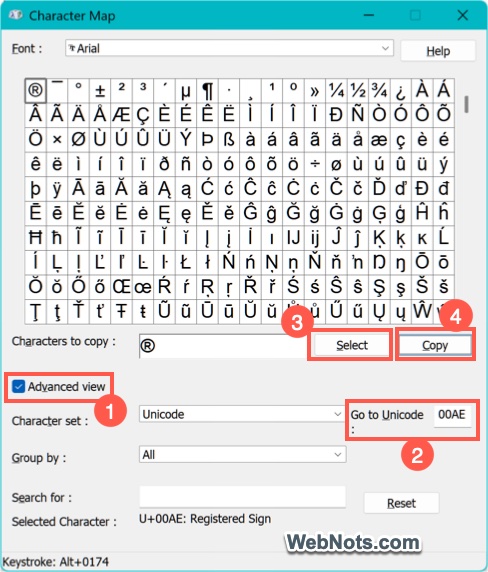
1.5. Using Character Map
Character Map is an independent app in Windows, which allows you to insert any Unicode symbol.
- Search and open Character Map app and check the “Advanced View” option.
- Type 00AE in the “Go to Unicode” box and press Enter to highlight the Registered Sign ®.
- Click the “Select” and then “Copy” buttons.
- Now, you can paste the symbol using Ctrl + V keys in any app.
1.6. Emoji Keyboard in Windows 10 and 11
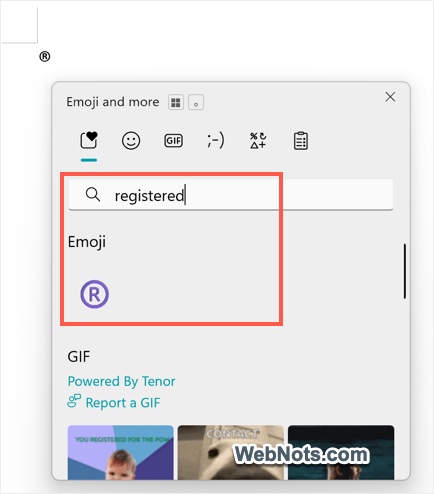
- Press Windows key + . (period) to open the emoji panel.
- Simply type “registered” in the search box to filter the symbol.
- Click the ® symbol to insert it.
2. Insert ® On Mac
2.1. Option Code Shortcuts
- The easiest method is to use Option + R. This works in Apple iWork apps (Pages, Keynote, Numbers) as well as Microsoft Office for Mac.
- If you enable the Unicode Hex Input keyboard layout in System Settings, you can use Option + 00AE to produce ®.
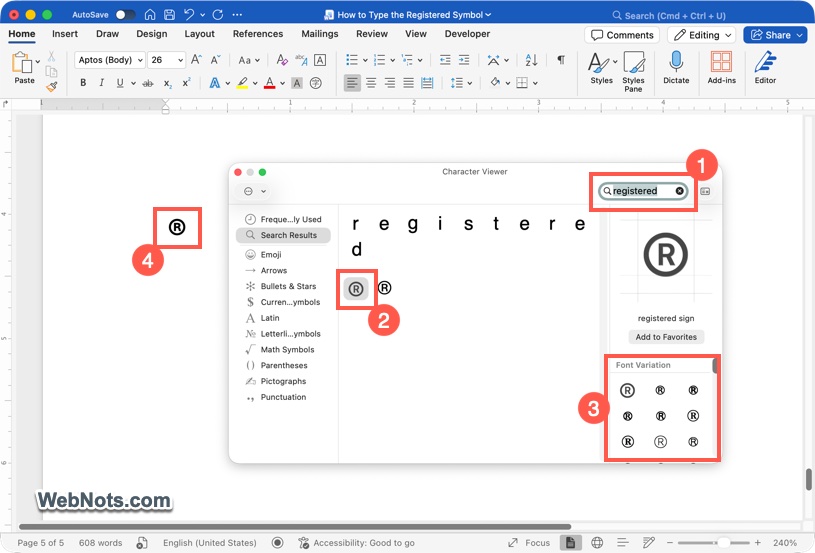
2.2. Character Viewer
- Press Control + Command + Space to open the Character Viewer.
- Search for “registered” and double-click the symbol.
- An advantage of Character Viewer is that you can pick different font variations of the symbol without manually changing formatting.
2.3. Symbol Tool in Office for Mac
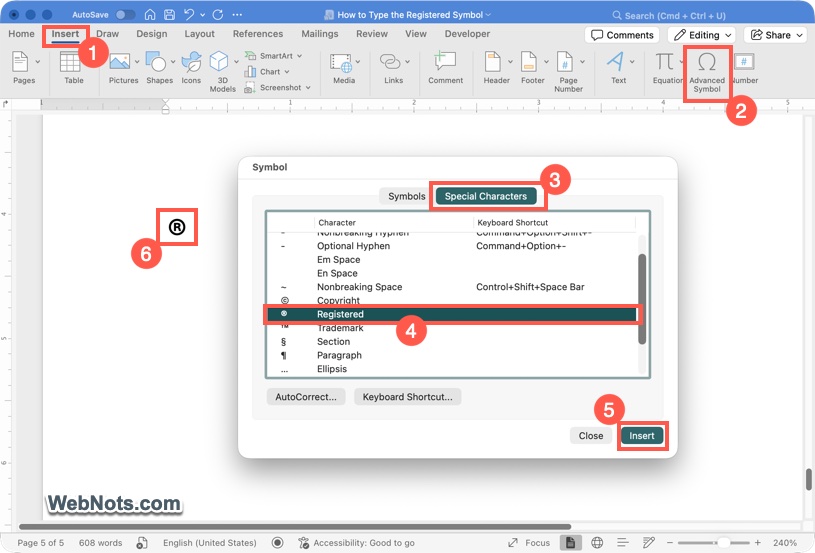
In Office apps, go to “Insert > Advanced Symbol”. The registered symbol appears under “Symbols” and “Special Characters” tabs, just like in Windows.
3. On the Web (HTML, CSS, JavaScript)
- HTML: Use the named entity ®, the decimal code ®, or the hexadecimal code ®.
- CSS: Use the escaped hexadecimal value \00AE inside a content property or string.
- JavaScript: Use \u00AE in strings.
Note: There’s also an enclosed alphanumeric variant Ⓡ (circled R). It’s not the official registered mark symbol but sometimes used stylistically. Its Windows Alt code is Alt + 9415; on Mac with Unicode Hex Input, Option + 24C7.
4. On Android and iPhone
Both Android and iOS platforms treat the registered symbol as part of the emoji set. When the on-screen keyboard is open:
- Tap the emoji/symbol key (smiley face or globe icon).
- Search for the ® symbol.
- Alternatively, type the word “registered” using your regular keyboard and the symbol often appears in the prediction bar as a suggestion. Tap it to insert.

There’s no need for third-party apps as the symbol is built right into the standard emoji keyboard.