
Apple’s expansive ecosystem enables seamless integration across all your devices, but there are times when you need to remove a device from your account. Perhaps you’ve sold an old iPhone, handed down a MacBook, or simply want to declutter the list of gadgets attached to your Apple account. Managing your device list isn’t just about organization, it’s also an important aspect of securing your digital life and safeguarding your personal information.
Why to Remove Devices from Your Apple Account?
In general, simply logging out of your account on a device will help, however, here are some reasons to remove old devices.
- Utilizing Latest Features: Legacy devices are not compatible with the most recent operating system updates. As a result, you can’t use features like “Recovery Contact” on newer devices also. In such case, removing them from your account becomes the only viable solution.
- Security: Devices linked to your Apple account can access sensitive data, including emails, messages, photos, payment information, and receive 2 factor authentication code. Removing unused or lost devices reduces the risk of unauthorized access.
- Privacy: Devices left attached might continue to receive updates, notifications, or access shared content such as calendars and notes – potentially exposing your private information.
- Organization: Over time, your device list can become cluttered with models you no longer own or use (like the Windows virtual machines installed on Macs). Keeping it tidy helps you manage your technology more effectively.
- Troubleshooting: Some Apple services and features, such as iCloud storage or device-specific settings, may be easier to manage when your device list accurately reflects what you own.
How to Remove Devices from Your Apple Account?
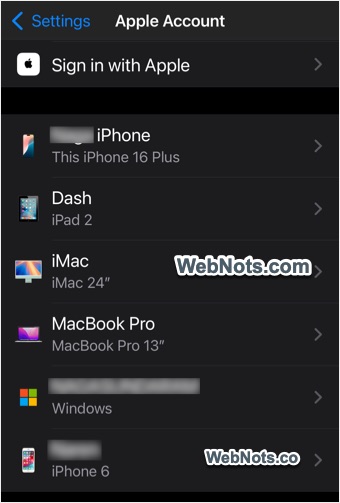
Linked devices typically linked include, iPhone, iPad, iPod touch, Mac (MacBook, iMac, Mac Mini, Mac Studio), Apple Watch, Apple TV, AirPods, HomePod, and , virtual machines installed on Mac, and Windows computers signed in with iCloud for Windows. You can remove the devices using one of the following methods.
Method 1: From iPhone, iPad, or iPod touch
- Open the Settings app.
- Tap your name at the top to access Apple account settings.
- Scroll down to view all devices associated with your account. Tap the device you want to remove.
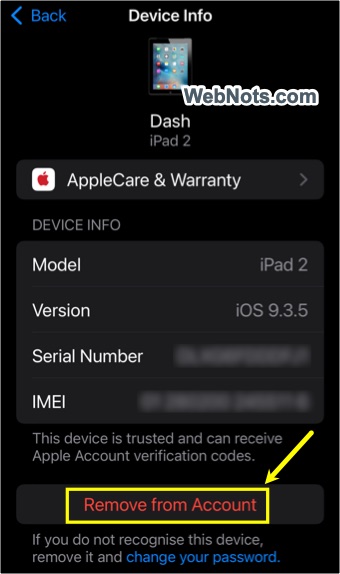
- Tap on “Remove from Account” button.
- Confirm your choice when prompted. The device will be disconnected from your Apple account.
Method 2: Remove Devices Using a Mac
- Click the Apple logo on top-left corner and select “System Settings…” option.
- Click your Apple account name at the top of left sidebar.
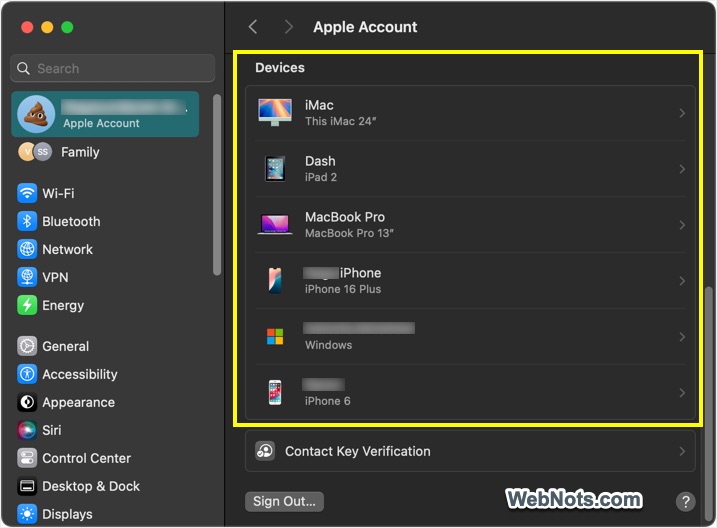
- Scroll down on the right pane and go to the “Devices” section.
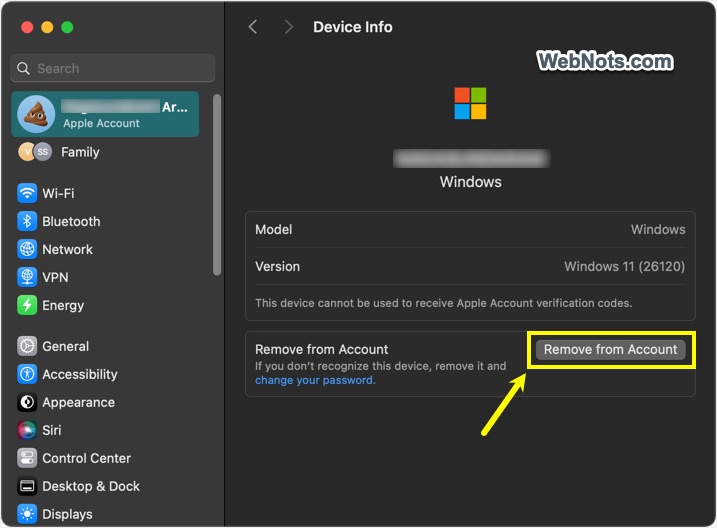
- Click on the device you want to remove, then click “Remove from Account” button.
- Confirm your choice when asked.
Method 3: Remove Devices Using Apple Website
- Go to the Apple account site and sign in with your credentials.
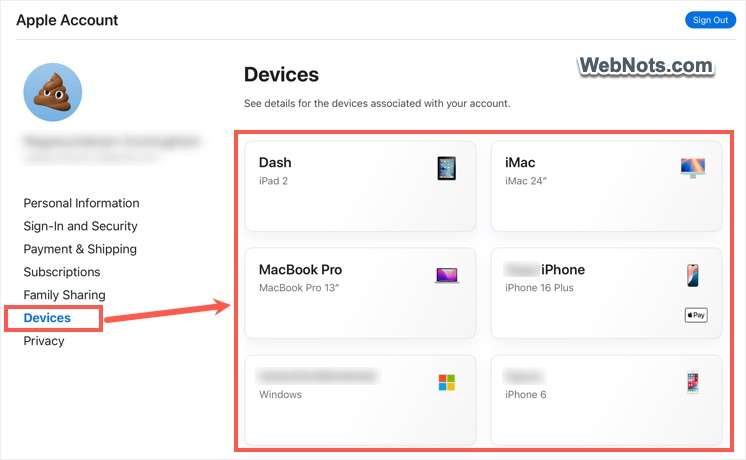
- In the “Devices” section, you’ll see a list of all devices connected to your account.
- Select the device you wish to remove.
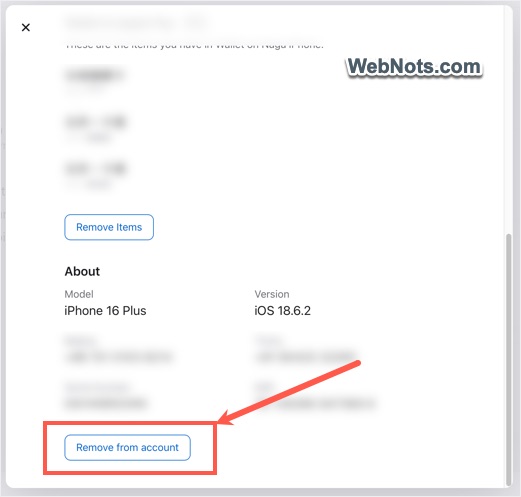
- Click “Remove from account” and confirm your selection.
Method 4: Using Find My to Remove Devices
This is a good option if you’ve lost a device or it’s been stolen as you can use Find My to remotely erase and remove it. it’s also possible to remove a family member’s device using this option.
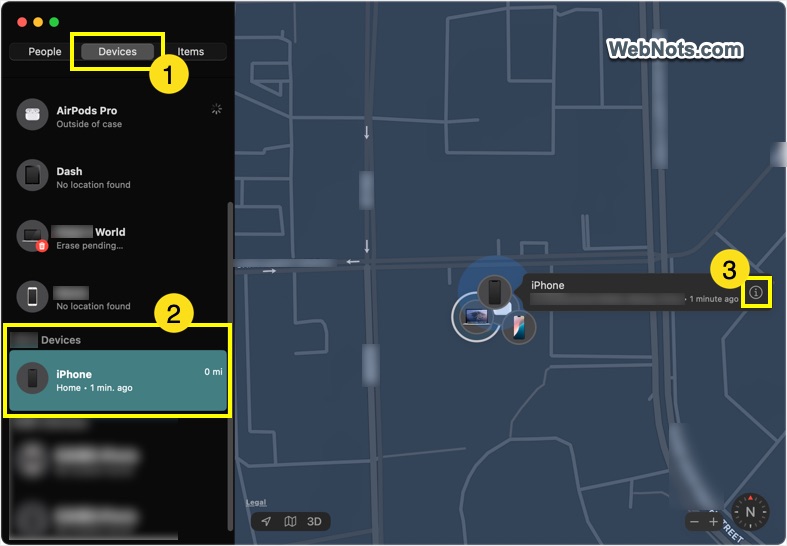
- Open Find My app on another Apple device or visit Find My app on iCloud website.
- Go to “Devices” tab and select the device from the list.
- Click the ⓘ icon showing on the map.
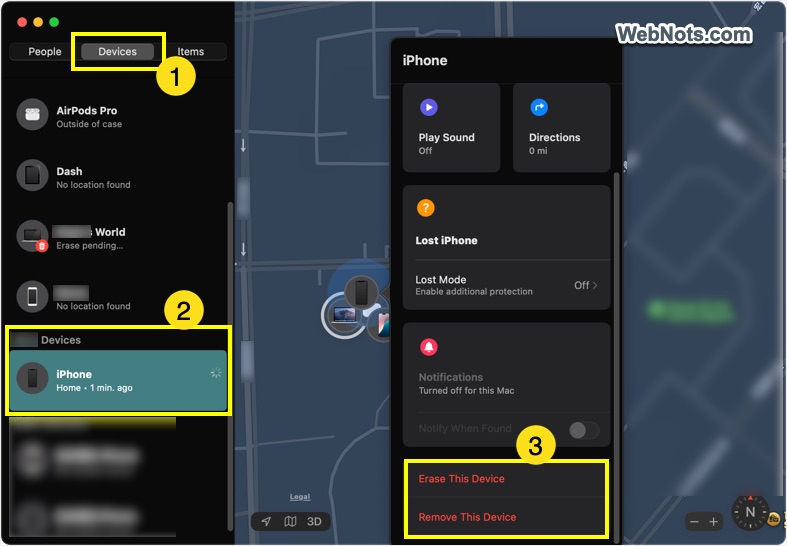
- Select “Remove This Device” option and confirm your action.
- If needed, choose “Erase This Device” to wipe its data. After erasing, remove the device from your account so that it can no longer access your Apple account.
What Happens When You Remove a Device?
You should remove the device when you’re selling, trading, or giving away a device, it’s lost or stolen, or no longer use or own the device. Here’s what will happen after removing it
- The device will no longer be associated with your Apple account and will lose access to iCloud data, purchased content, and Apple services like Find My and iMessage.
- Apps and content already downloaded on the device may remain, but new access to Apple services will require a sign-in with a valid Apple account.
- If the device was using iCloud Keychain, its stored passwords will be removed from your iCloud account.
- Apple Pay cards will be deleted from the device if it was using Apple Wallet.
- Activation Lock will be disabled for the removed device, allowing new owners to set it up.
If you plan to erase a device, make sure you’ve backed up important files, photos, and contacts. Go to “Settings > General > Transfer or Reset > Erase All Content and Settings” on your iPhone, iPad, or Mac for deleting all content.
Frequently Asked Questions
Yes. Using the Apple account website, iCloud.com, or Find My, you can remove devices remotely even if you no longer have physical access.
Sometimes, removed devices may linger due to syncing delays. Sign out of all Apple services on the device, restart it, and wait a few hours.
No, removing one device only affects that specific device’s access to your account. Your remaining devices will continue to work normally.
It’s a good idea to check your device list every few months, especially if you upgrade or replace gadgets frequently.
Yes. Removing devices is essential to protect your personal information and to allow the new owner to set up and enjoy the device without complications.


