Google Maps is one of the unavoidable apps for most of us. Whether you want to plan for trip or avoid traffic jam, Google Maps is handy to find routes and locations. Though it is easy to find directions, routes and discover nearby places, there are also some hidden tricks. In this article, we will explain top 8 tips for Google Maps which desktop users can make use of to get valuable information.
Google Maps on Desktop Vs Mobile
Accessing Google Maps with desktop browser is different experience than using Google Maps mobile app. Some of the options are only available on desktop while some are mobile specific. The below tips are explained with Google Chrome desktop browser.
1. Use Earth or Globe View
Globe view allows you to view the complete earth in arial view. You can rotate the earth and find a location with 3D experience.
- Click on the “Layers” image and select “More” option.
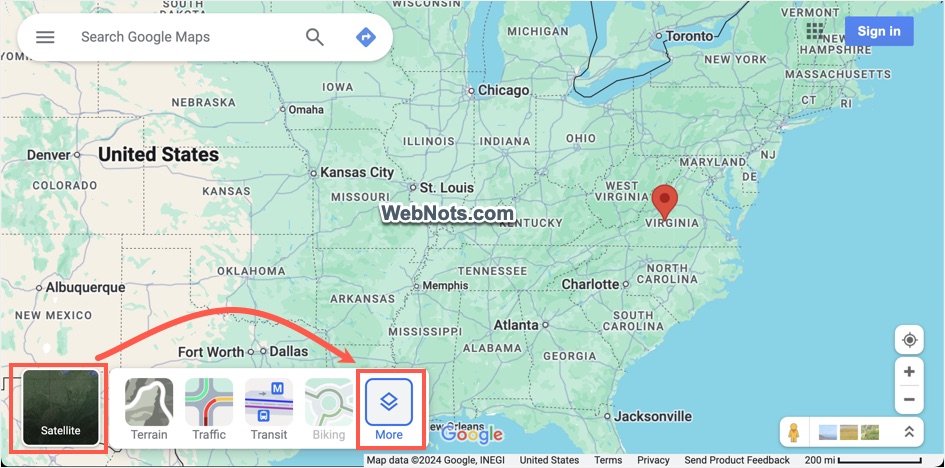
- Scroll down to the bottom in the pop-up and check “Global view” option.
- You can change the “Map type” to default or satellite to view the earth accordingly.

Satellite view shows additional 3D option on the right side. You can use the compass or mouse to rotate and use “Control + Mouse drag” to see full 3D view.

2. Get Air Quality Information
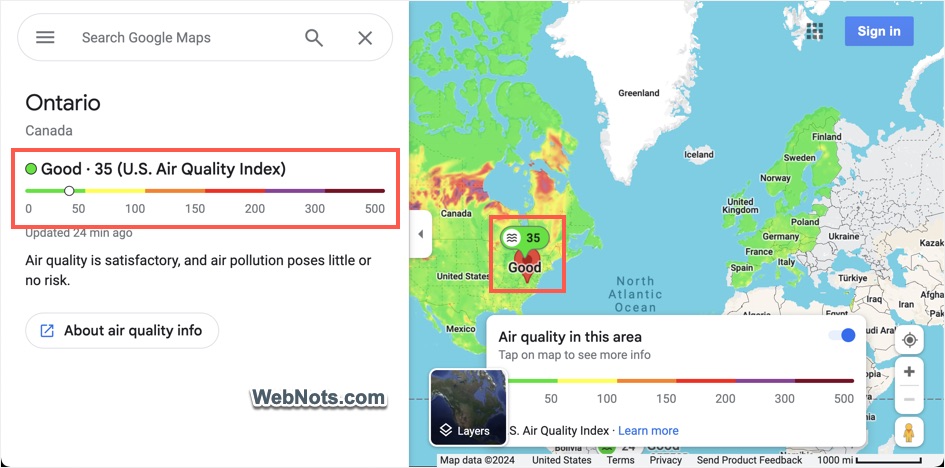
If you have health problems or worrying about the air pollution, then it is easy to find the AQI (Air Quality Index) to prepare yourselves.
- Click the “Layers” image and select “More” option.
- Select “Air Quality” under “Map details” section to enable it on the map.
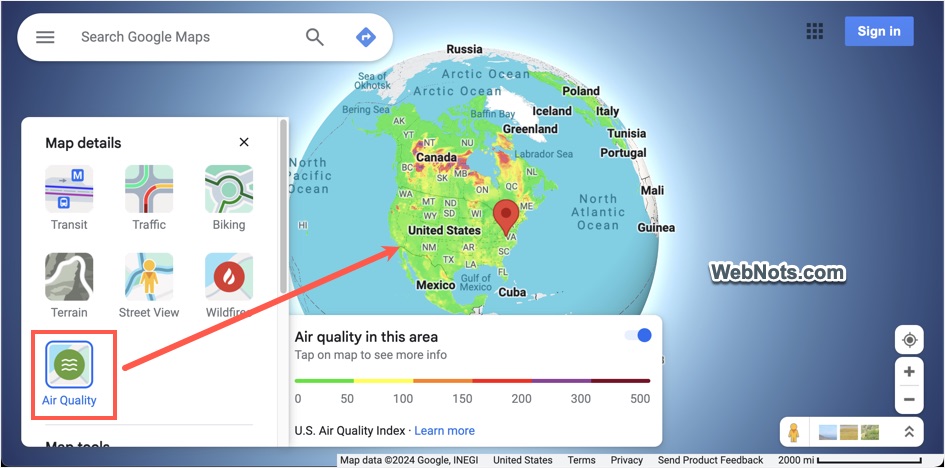
- Now, click on your location to find the AQI number.
3. Check Typical Traffic Situation
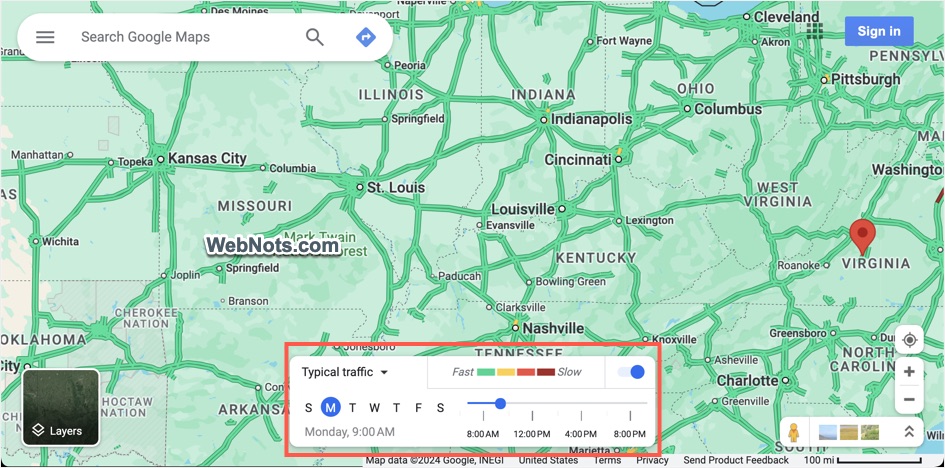
Google Maps shows traffic in real-time which you can use to find the jammed area. However, you can also find the traffic situation for any day and time. You can use this when planning for a trip by selecting the less traffic route.
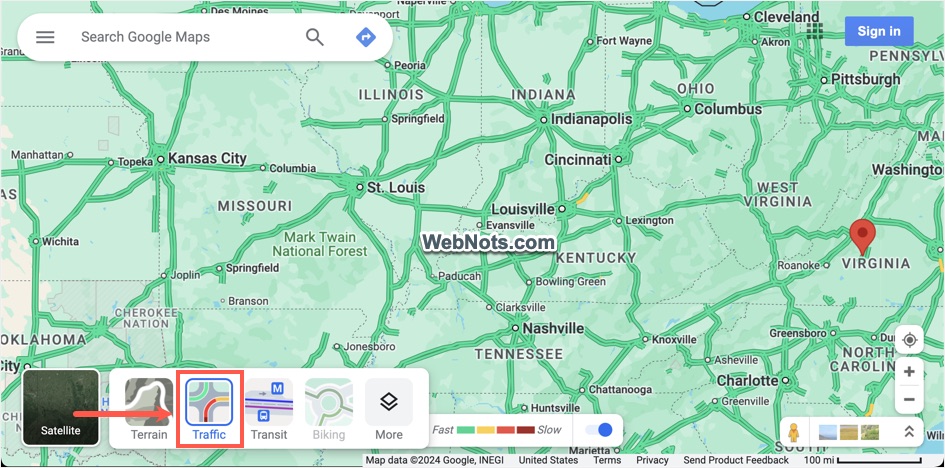
- Hover on the “Layers” image showing on left corner of the map.
- Select “Traffic” to enable traffic view.
- Click the “Live Traffic” dropdown and select “Typical Traffic” option.
- Now, change the day and time to view how typically the traffic looks.
4. Use Street View
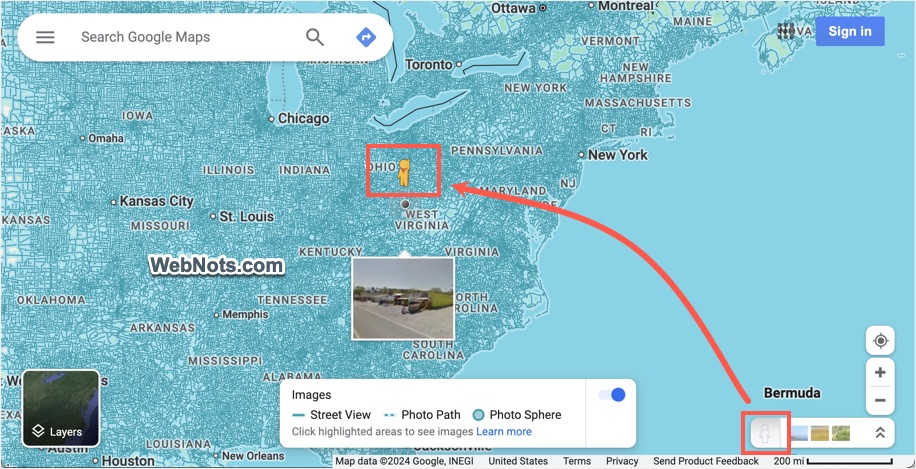
You can use the yellow man icon showing on bottom right corner to explore Street View with images. Simply drag the man and drop to any location on the map to view images from there.
5. Finding EV Charging Stations
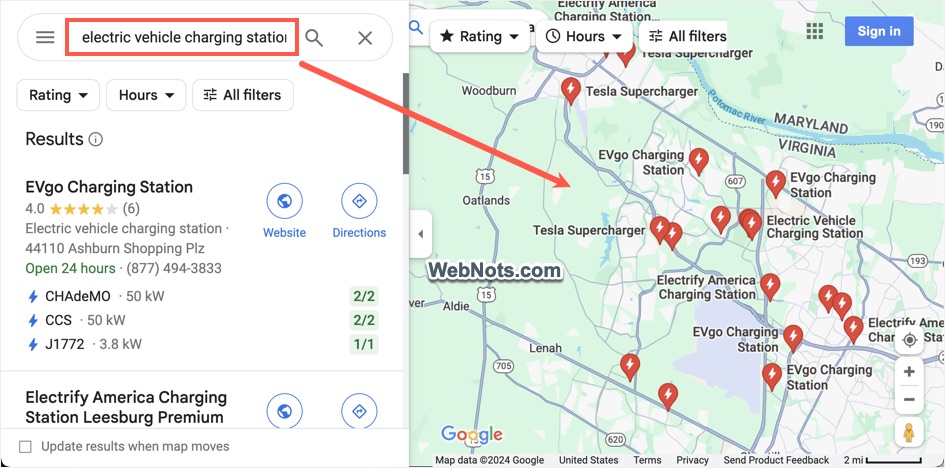
Finding a nearby charging station is one of the problems in having electric vehicles. You can overcome that by using Google Maps. Simply type “electric vehicle charging station” in the search box to get all nearby locations. Click directions to get route for any EV station.
6. Measure Distance Between Locations
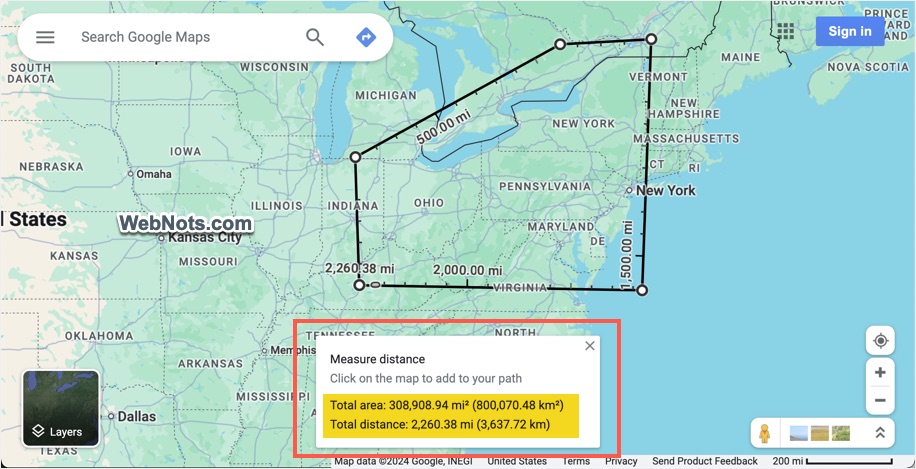
Do you want to find the distance between any two or multiple places? You can easily do that with Google Maps.
- First, right-click on a starting location and select “Measure distance” option.

- Click next location (or right-click and select “Distance to here”) and the Map will show the distance from the first selected location.
- You can select multiple locations to see the added up the total distance showing at the bottom.
- When you loop the selection, you can find the total area in addition to total distance.
- Simply close the “Measure distance” pop-up to quit the process.
7. Get Quick Flight Details
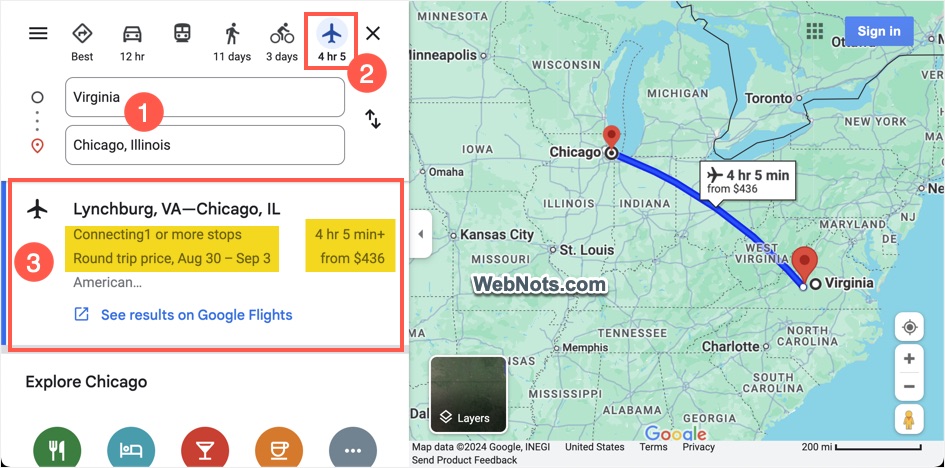
When you are searching for directions between two locations, click the flight icon to get quick flight details. It shows round trip price and duration for the specific dates. Click on the “See results on Google Flights” to open Google Search and find more flights.
8. Find More Details About a Business or Shop
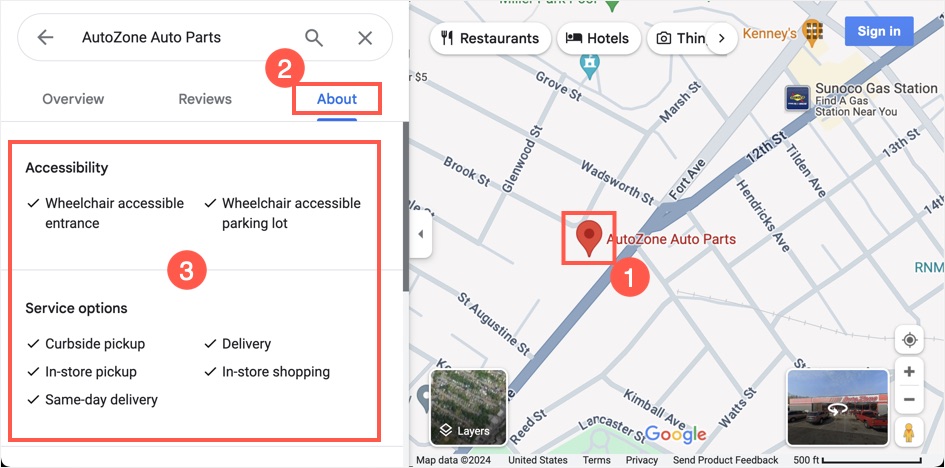
If you want to find more details about the business or shop, click the location to get overview in the side panel. Navigate to “About” section where you can find details like Accessibility, Service options, Payments, etc.
Google Maps Mobile App Tips
You can use most of the above tips on iOS and Android mobile apps also. However, there are additional features that work primarily on mobile apps:
- Use the Lens feature to identify a location with your camera.
- You can download map routes for offline use.
- Some AI search and recommendations work well with mobile.
- 3D “Map details” option allows you to view the location in immersive 3D experience.
- Enable “Accessible locations” from settings to find places with full accessibility feature.