Reader Mode is useful to remove unnecessary content like advertisements and read webpages without distractions. On Chrome, this Reader Mode also allows you to read aloud (speak) the content. However, Safari Reader Mode does not offer that feature. If you love to hear the webpage’s content on your Mac instead of reading, here are the options for you.
1. Using Speech Function in Safari
This is the simplest option without any customization features or additional apps.
- Open the webpage that you want to read and press Command + Shift + R keys to open the Reader Mode. Alternatively, go to “View > show Reader” menu.
- Once the webpage is cutter free, go to “Edit > Speech > Start Speaking”.
- Now, Safari will start reading the webpage’s content aloud.
- Go to “Edit > Speech > Stop Speaking” to stop the reading.
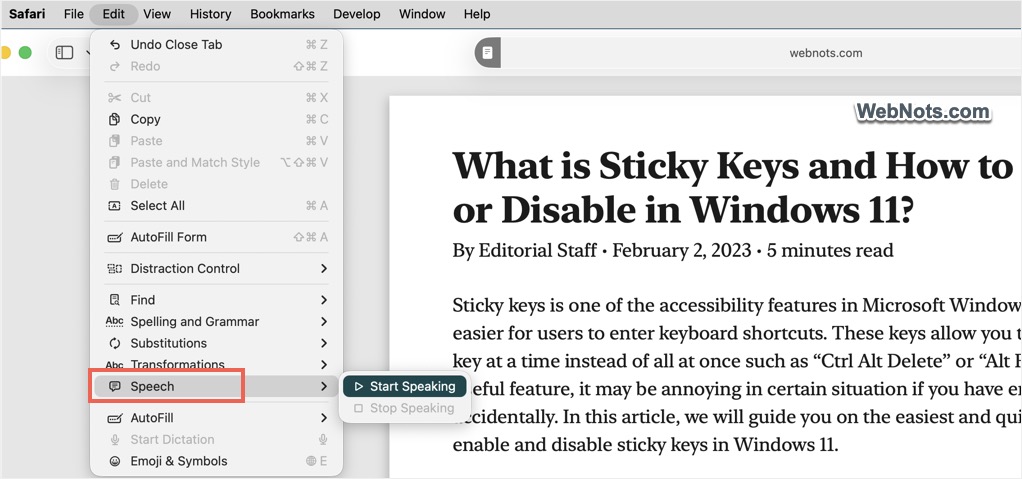
Note: Speech feature can be used on a webpage without Reader Mode. However, enabling the Reader Mode helps to remove the navigation, sidebar, and other content making it easier to understand the main content on the page.
1.1. Using Speak Selection
If you only want to read a section, simply select that section and right-click on it. Now, go to “Speech > Start Speaking” and Safari will read aloud the selected content. You can anytime stop speaking from the same right-click context menu.
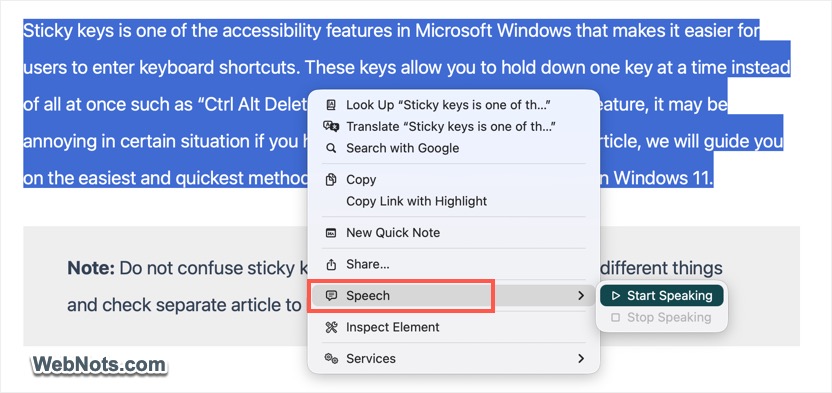
You can customize this “Speak Selection” in “Accessibility” settings.
- Click the Apple logo on top left corner and select “System Settings…” menu.
- When you are in the Settings app, go to “Accessibility” section.
- Select “Read & Speak” option under “Vision” heading.
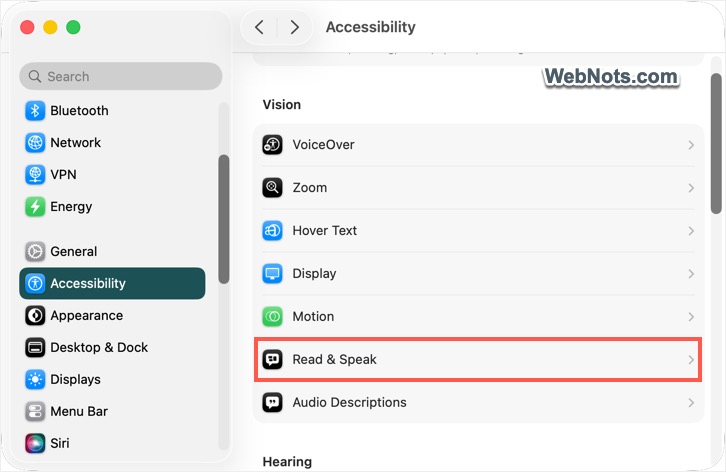
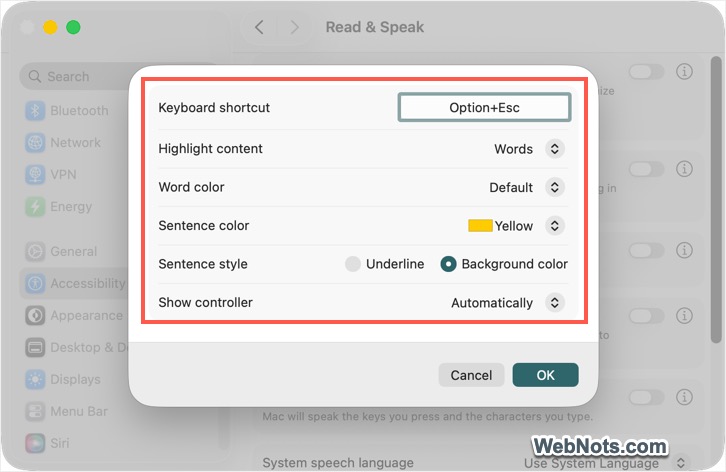
- Turn on “Speak selection” option and click the ⓘ icon next to it.
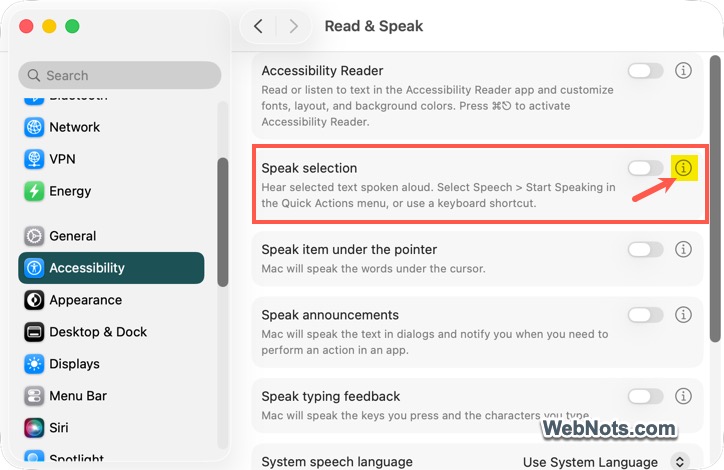
- Select options for highlighting, styling and change the default shortcut. Option + Escape is the default shortcut keys, simply click on it and then press any other key combination if you want to change.
- Click “OK” to apply your changes.
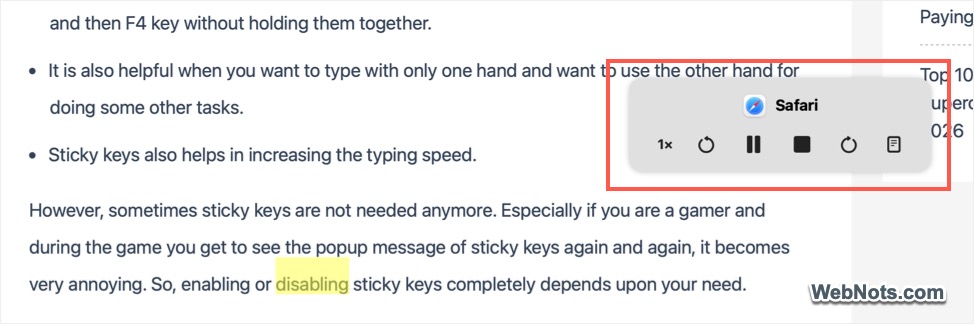
Now, select text content in Safari and press the shortcut keys (Option + Escape) to start reading the selection. Safari will highlight the content as it reads and shows a small panel with options for playing, pausing, and opening the Screen Reader.
Note: You can also use the “Speak item under the pointer” and “VoiceOver” accessibility features for reading the content anywhere on Mac. However, you should practice well to understand how and when to use these features, especially the VoiceOver.
2. Using Chrome to Read Aloud Webpages
This is the best option for reading a webpage’s content on Mac. First, download and install Chrome from the official website as the app is not available in App Store.
- Open a webpage in Chrome and press Command + Control + R keys to access Reading Mode.
- Press the play button and Chrome will start reading the page’s content for you.
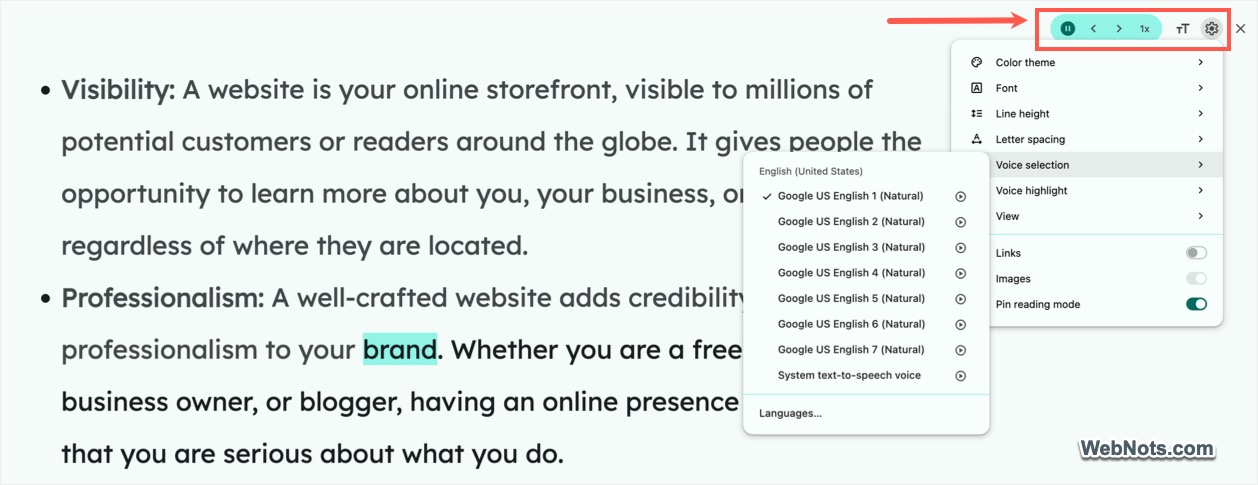
- Click the gear settings icon to customize the font, theme, voice selection, highlighting options.
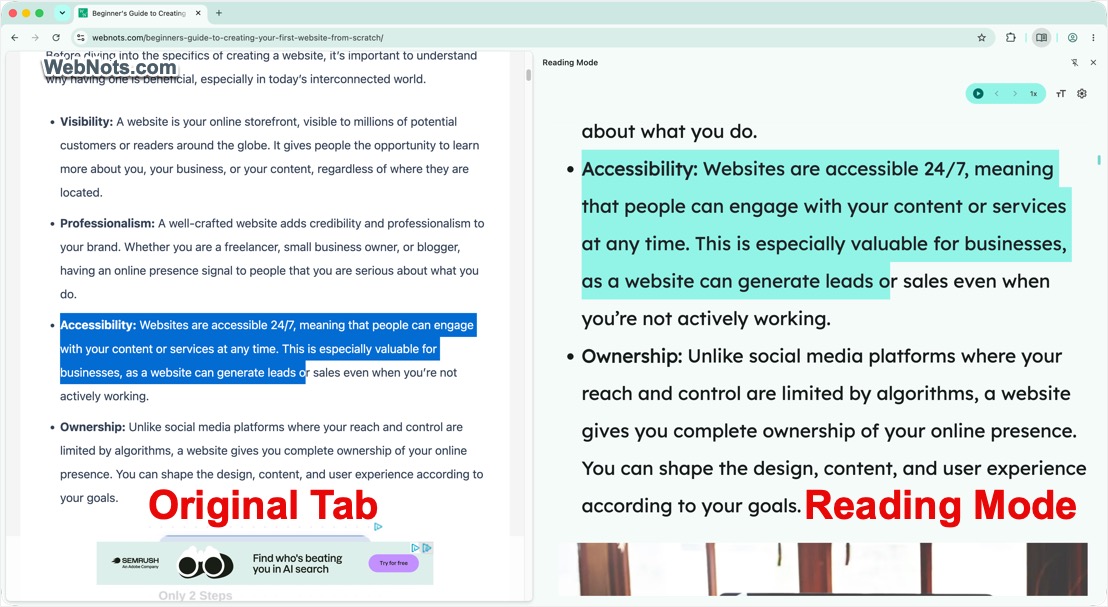
- Go to “View > Side panel” to open the original page and the Reading Mode in a split view.
- Click the pause button or quit Reading View to stop the reading.
3. Using Firefox to Read Aloud Webpages
Firefox is another option if you don’t prefer to use Chrome for privacy reasons. First, download and install Firefox app on your Mac. The app is not available on App Store, so you should download it from the official Firefox website.
- Open a webpage that you want to read aloud.
- Press Command + Control + R or go to “View > Enter Reader View” menu to remove the clutters.
- Simply press N and Firefox will start reading the page for you while highlighting the corresponding content. Otherwise, click the “Read aloud” (headphone) icon and then click the play button.
- You can adjust the speed and voice to listen comfortably.
- Press N or quit the Reader View to stop reading aloud.

Final Words
Out of the three browser apps we have tested, Chrome stands out with its outstanding reading quality and the customization features. Split panel is also very useful for viewing both original page as well as Reading Mode while the browser reads the content for you. If you occasionally use read aloud with content selection, Safari’s speech function is sufficient with a bit of customization required in accessibility settings. Otherwise, you can go with Chrome, Firefox or any other dedicated text-to-speech app for frequent use.