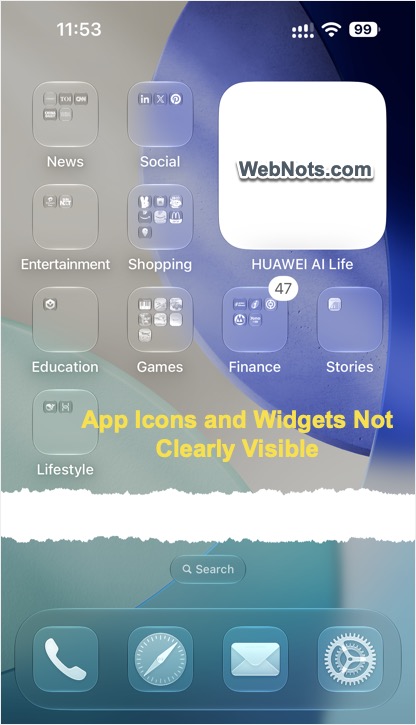
iOS 27 was officially released on September 15, 2026, for the public. After updating, we found that the Home Screen became completely unreadable. Some app icons and widgets became plain white with no text on them. If you have updated your iPhone and facing similar issues, here are some tricks to make the screen readable again.
Liquid Glass History
The glassy look comes from the Liquid Glass design that Apple introduced with iOS 26. The Liquid Glass design was one of the crappiest UI updates in iOS history. As with any corporation, Apple doesn’t want to provide an option to completely disable those eye-straining translucent effects. The only good thing is that there are a few customization options, which you can adjust to change the appearance of your screen. If you are not able to clearly see the app icons, widgets, or other text elements, that should be the first thing to check.
1. Adjust the Appearance
- Long-press an empty area on any of your Home Screen pages.
- When the icons start wiggling, tap the paintbrush icon in the top-left corner and select the “Customize” option.
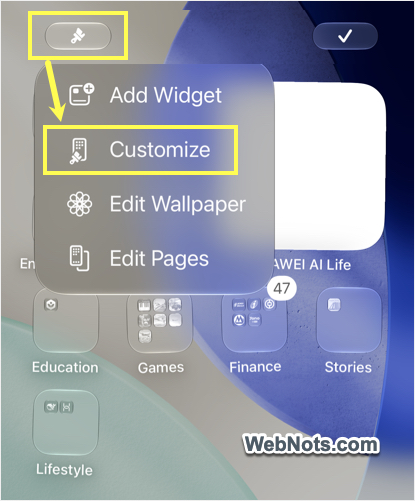
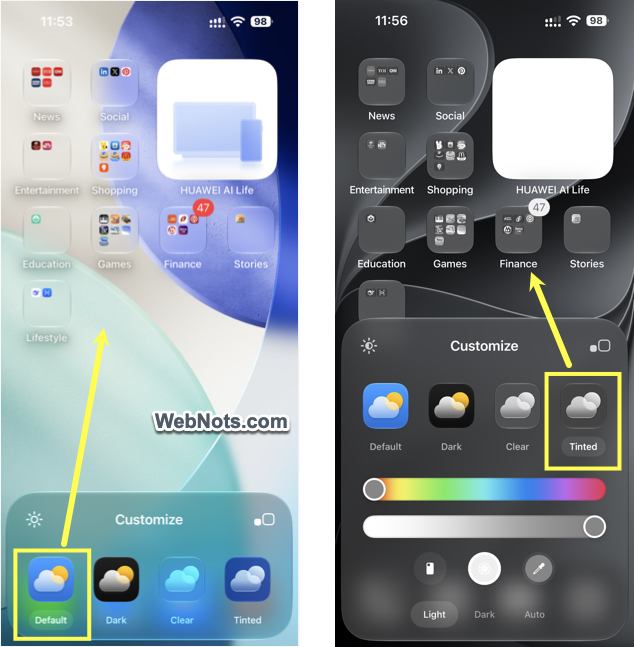
- You will see a list of options like Default, Dark, Clear, and Tinted. In most cases, the Clear appearance causes transparency and makes the app icons and widgets unreadable.
- So, change to “Default” and check the screen.
- Otherwise, select “Tinted” and apply the “Auto” mode. Adjust the color and saturation to make the screen readable.
2. Select Tinted Appearance from Settings
You can also try adjusting the Liquid Glass transparency from the Settings app.
- Open the Settings app and navigate to the “Appearance” section.
- Tap the “Liquid Glass” option.
- Move the slider to the far right to select “More Tinted”.
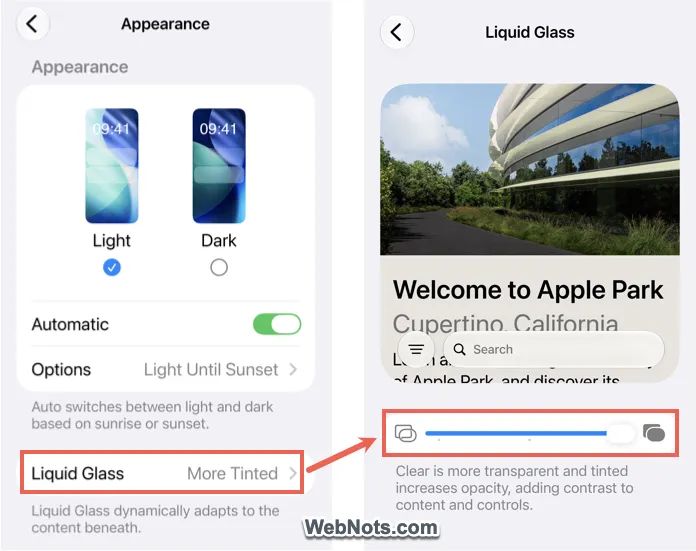
You can visually check the preview to see the difference in the glassy effects.
3. Change to iOS 27 Wallpaper
Custom wallpapers, especially from third-party apps, may have problems with the iOS 27 update (due to changes in the Liquid Glass effects).
- Open the Settings app and go to the “Wallpaper” section.
- Scroll to the far right and tap the + icon to create a new wallpaper.
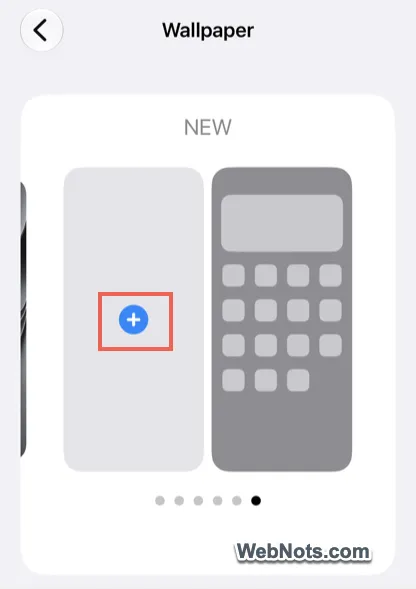
- In the list, scroll to the iOS 27 section and select one of the latest iOS 27 wallpapers.

- Tap the “Add” button in the top-right corner and set the wallpaper for both the Home and Lock Screens.
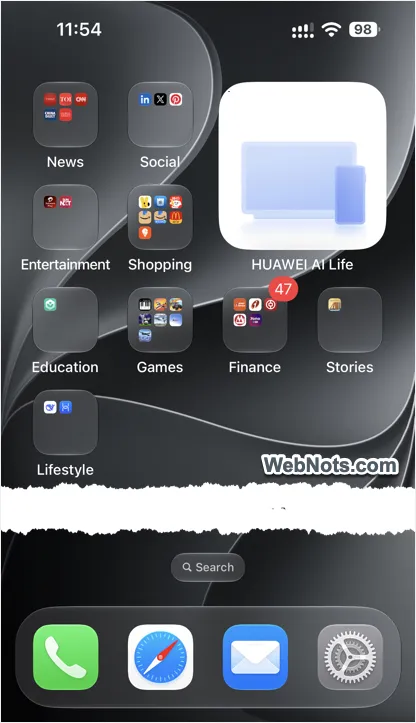
As you may notice, the default iOS 27 wallpapers have high contrast (even in Light appearance mode) to suit the glassy design. If this works, you can try custom high-contrast wallpapers from your custom wallpaper app.
4. Remove Transparency
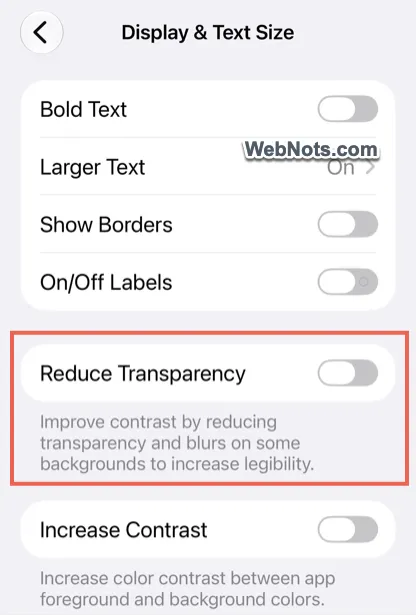
Removing that extra transparency helps to avoid seeing the background and increases visibility.
- Tap the Settings app and then navigate to the “Accessibility” section.
- Go to the “Display & Text Size” settings.
- Turn on the “Reduce Transparency” option.
5. Increase Contrast
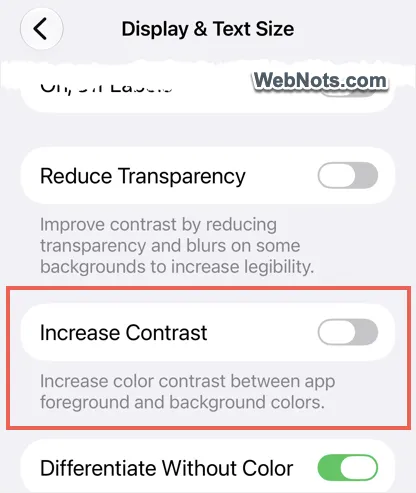
On the same “Accessibility > Display & Text Size” settings page, you can turn on the “Increase Contrast” option. This will add contrast to elements, thus reducing the glassy effect and eye strain.
6. Update Apps
If a specific app is not visible after updating to iOS 27, you may need to update it.
- Open the App Store and tap your profile icon in the top-right corner.
- Select the “App Updates” option.
- Check for any available updates for your app and tap the “Update” button.
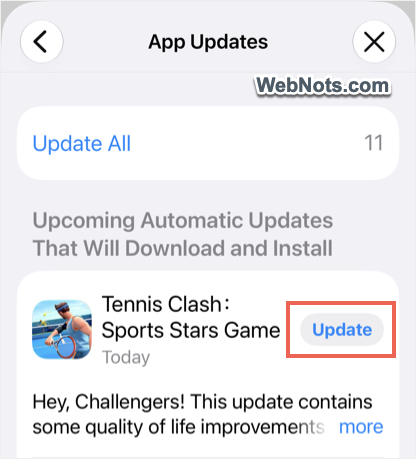
This may change the app icon and make it properly visible on the Home Screen with the latest iOS update.
7. Remove and Re-Add Widgets
For widgets, simply remove and re-add them on your Home Screen.
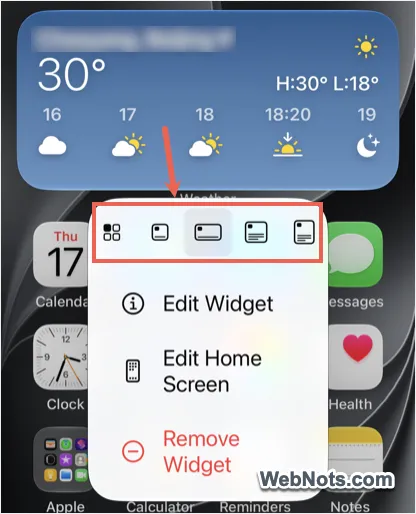
- First, long-press the widget and select “Remove Widget”.
- After that, long-press an empty area and tap the paintbrush icon.
- Select the “Add Widget” option and add the widget again.
- Long-press the added widget and select its size or drag it to adjust its position on the screen.
Final Words
As mentioned, you have to live with the Liquid Glass design by adjusting the available settings, as Apple does not allow you to disable it. You can follow the same tricks mentioned above to adjust visibility in Dark and Light modes (especially in apps like Mail while typing). If your primary problem is with the visibility of Home Screen apps and widgets, it’s a good idea to use a customized theme (that changes the wallpaper, colors, app icons, design, and styles) from a third-party app.