Apple has long been at the forefront of accessibility innovation, and its macOS operating system is no exception. Designed with inclusivity in mind, macOS offers a suite of features that ensure individuals with diverse abilities can seamlessly use their devices. From vision and hearing support to mobility and cognitive tools, these features enhance usability for all users and not only for disabled people. Here, we’ll explore the top accessibility features available in Mac and how they can help users.
Mac Accessibility Settings
Click the Apple Menu and select “System Settings…” to open Settings app. Navigate to “Accessibility” section where you can manage most the below explained settings.
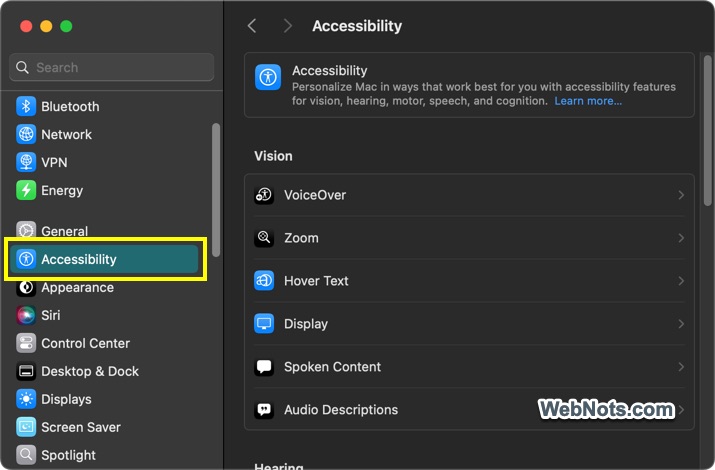
However, there are some settings or apps can be accessed independently (mentioned in that case).
1. VoiceOver: Screen Reading Excellence
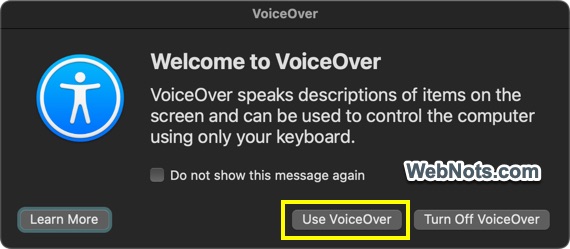
VoiceOver Utility is Apple’s built-in screen reader, enabling visually impaired users to interact with macOS through audio feedback. VoiceOver narrates on-screen content, including text, menus, and buttons, and supports gestures and keyboard shortcuts for navigation. When enabling the feature first time from Accessibility settings, you will see a pop-up like below and click on the “Use VoiceOver” button.
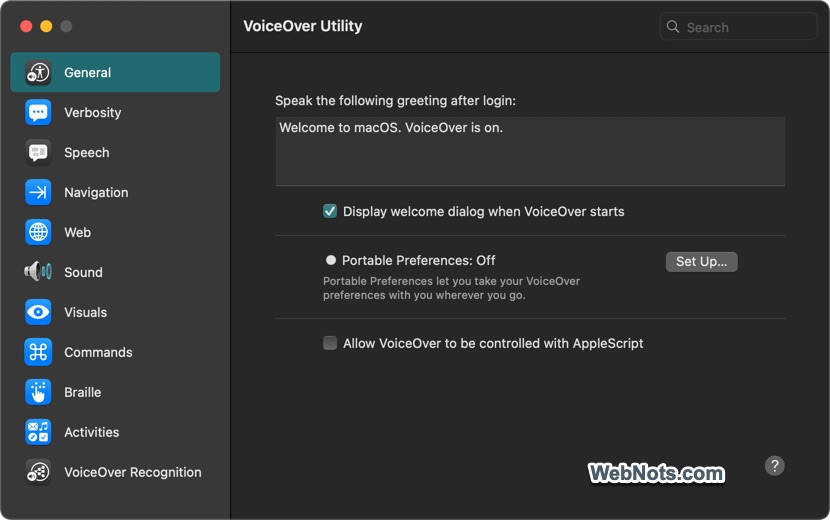
This will open VoiceOver Utility with the following features:
- Users can control VoiceOver using gestures on a trackpad on compatible devices.
- VoiceOver works with refreshable braille displays.
- Users can adjust the speaking rate, pitch, and voice to their preference.
2. Zoom: Magnify Your Screen
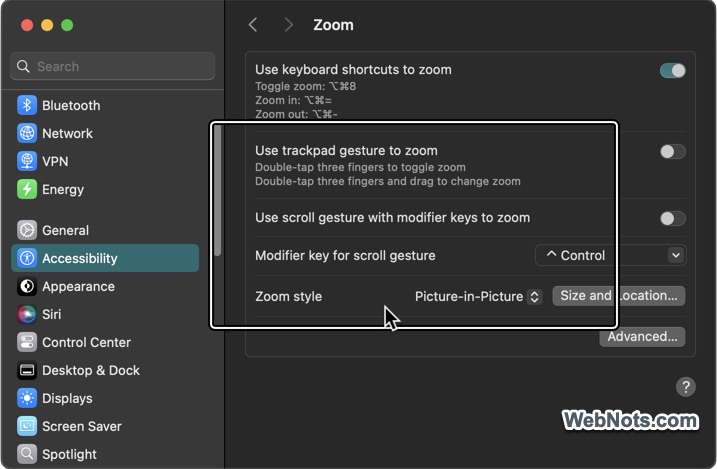
For users with low vision, macOS provides a robust screen magnification tool called Zoom. This feature allows users to enlarge specific parts of the screen to improve visibility.
- You can magnify the entire screen or create a separate magnified window.
- Adjust magnification levels for personalized use.
- Easily toggle Zoom on and off or adjust magnification using shortcut keys.
3. Voice Control: Hands-Free Navigation
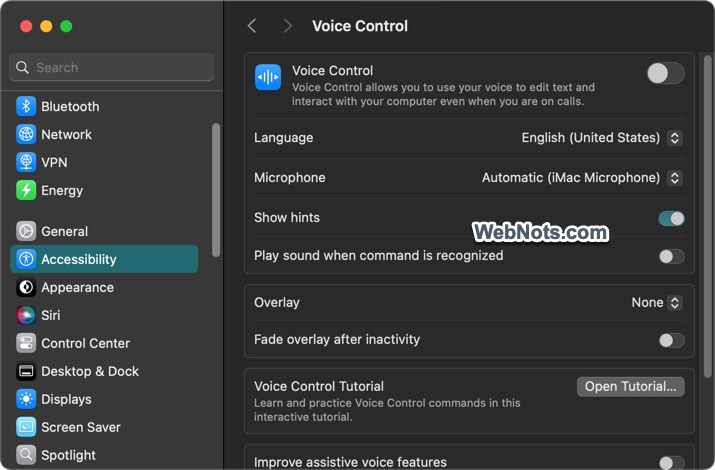
Voice Control gives users the power to operate their Mac entirely through voice commands. Designed for individuals with limited mobility, this feature offers a comprehensive hands-free experience.
- Open apps, type text, and perform system functions using voice commands.
- Create personalized commands for specific tasks.
- Dictate text with advanced speech recognition and edit documents using natural language commands.
4. Real-Time Text (RTT): Seamless Text Communication
Real-Time Text (RTT) is a communication feature designed for individuals with hearing or speech impairments. RTT enables live text conversations while you are on call without requiring external software, enhancing accessibility for calls.
- Use RTT with the native Phone app on iPhone or FaceTime.
- Messages are transmitted in real time, allowing both parties to see text as it is typed.
- Use RTT for all calls or use it only when needed.
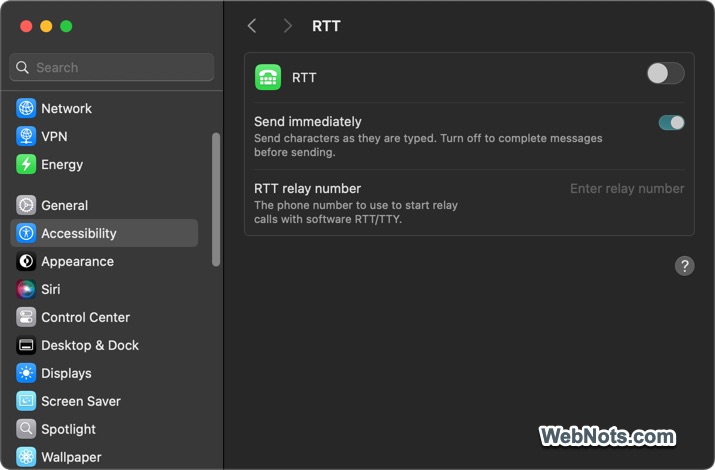
Note: RTT is not available in all countries and you should have enabled RTT on your iPhone also.
5. Color Filters and Inverted Colors: Enhanced Visual Customization
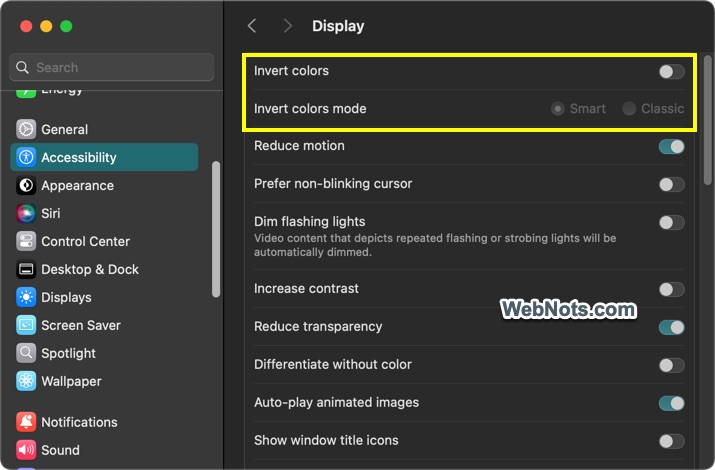
macOS supports visual adjustments to help users with color blindness or sensitivity to bright screens. Color Filters and Inverted Colors allow users to tailor the display to their needs.
- Apply color filters for red-green, green-red, blue-yellow, or grayscale.
- Improve contrast by inverting screen colors.
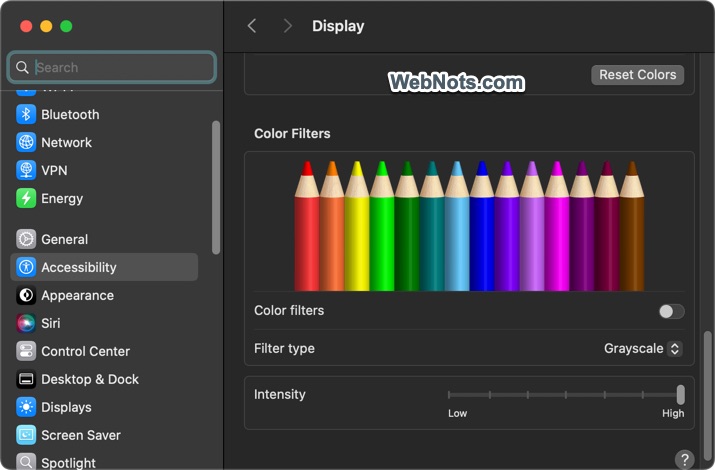
Note: Go to “Settings > Displays” section and click on the “Night Shift” button at the bottom. You can customize the Night Shift settings and adjust the color temperature of the screen to reduce eye strain.
6. Hearing Accessibility: Stay Connected
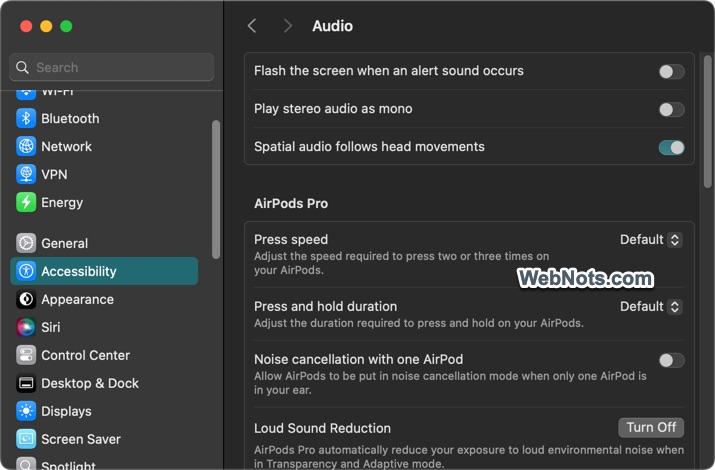
Macs include several features to assist users with hearing impairments, ensuring that communication and media consumption are accessible.
- Generate real-time live captions for video content.
- Combine multiple stereo audio channels into one mono audio for individuals with hearing loss in one ear.
- Receive visual notifications through the screen’s flash for alarms or incoming calls.
7. Reduce Motion and Transparency: Simplify Visual Effects
For users prone to motion sickness or distraction from dynamic screen elements, macOS allows you to reduce motion and transparency effects.
- Reduce Motion: Minimize animations like window zoom and parallax.
- Reduce Transparency: Simplify the visual interface for better focus.

8. Keyboard and Text Accessibility
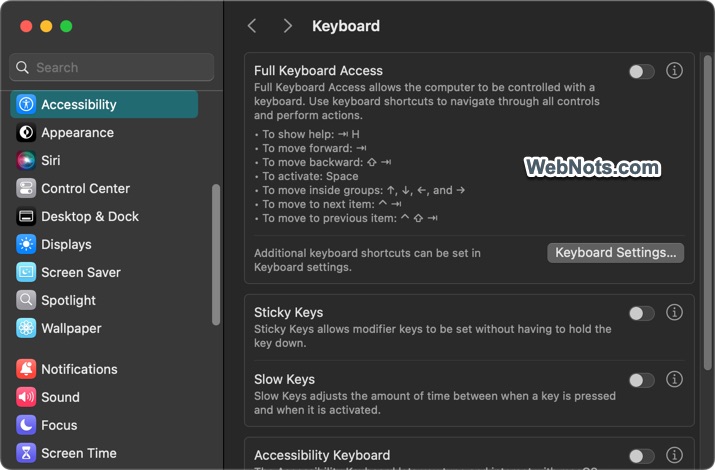
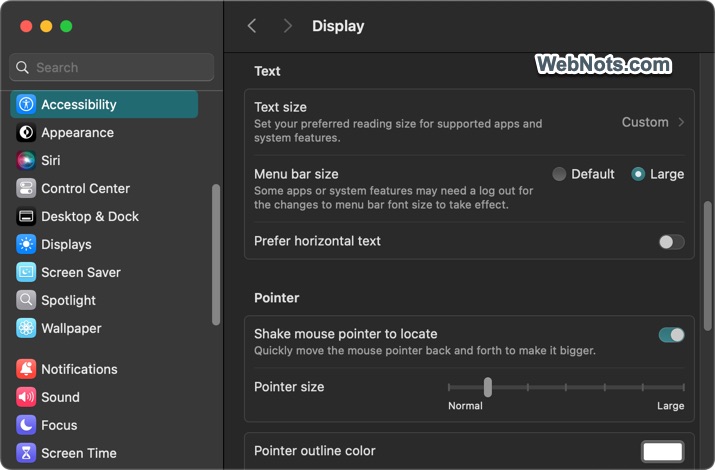
There are also accessibility tools available to make typing and reading easier for individuals with fine motor or cognitive challenges.
- Sticky Keys: Press modifier keys (like Command or Shift) sequentially instead of simultaneously.
- Slow Keys: Adjust how long a key must be held before it registers.
- Text & Pointer Size: Adjust the text size for easy reading and pointer size to locate your mouse pointer easily.
9. Focus Mode and Do Not Disturb
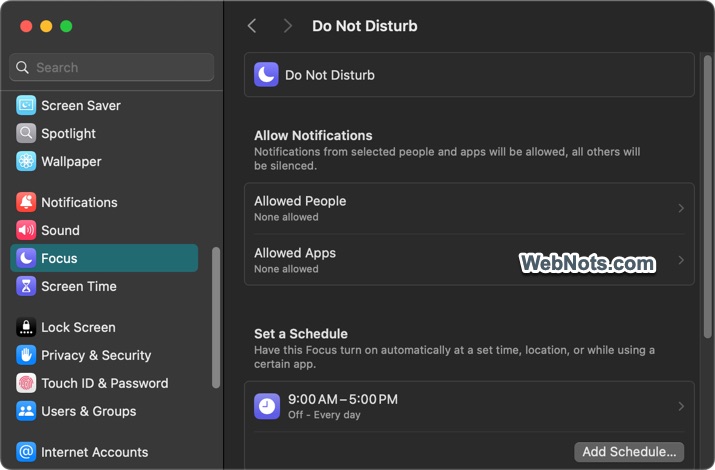
Catering to users who need to help in concentrating, macOS offers Focus Mode and Do Not Disturb options. Go to “Settings > Focus > Do Not Disturb” to configure your settings.
- Filter notifications based on time, activity, or preference.
- Automatically activate Focus Mode during specific periods.
- Maintain the same settings across all Apple devices.
10. Accessibility Keyboard: A Virtual Input Option
For users unable to use a physical keyboard, Mac offers an on-screen Accessibility Keyboard that offers powerful customization options.
- Create custom panels with shortcuts for frequently used actions.
- Suggest words and phrases as you type with predictive typing.
- Use switches or joysticks to navigate the on-screen keyboard.

Final Words
With these robust features, macOS ensures that every user can experience the full potential of their Mac. However, if the default options are not sufficient, then you can go for third-party apps. Simply, go to App Store and search for “accessibility” to find an app that suits your specific needs. Also, note that you can install some of the useful iPhone or iPad apps if you are using Mac with M series processor.