The WordPress REST API is designed to improve website functionality and enable seamless communication between WordPress and external applications. It powers many modern features, including plugins, themes, block editor functionality, and third-party integrations. However, when not properly configured, the REST API can create a range of technical and security-related issues. Some common problems include unauthorized data exposure, increased vulnerability to cyberattacks (such as brute force or DDoS attempts), plugin compatibility conflicts, and performance slowdowns caused by excessive API requests.
The error code starting with rest_no_route generally means WordPress received a valid REST API request but could not match it to any registered endpoint. In simple terms, WordPress recognizes the request but does not know where to send it. In this article, let’s explore how to identify and fix the rest_no_route error in WordPress.
How to Check the “rest_no_route” Error?
Unlike database errors, REST API-related issues often appear alongside broken functionality rather than visible frontend errors. In many cases, your website may appear normal while certain features silently fail in the background. To identify the issue, you need to inspect the browser console.
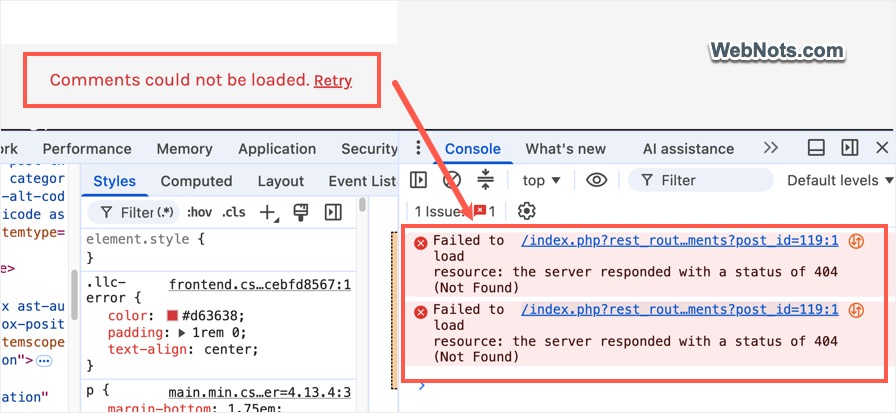
For example, in our case, a comment management plugin was recently updated to use a REST API endpoint and stopped loading comments entirely. Instead of displaying comments, it showed the error message: “Comments couldn’t be loaded. Retry”. After opening the browser console, we found a 404 Not Found error related to the plugin request.
Clicking the error entry revealed a detailed JSON response showing that the REST API could not locate the requested route.
{
    "code": "rest_no_route",
    "message": "No route was found matching the URL and request method.",
    "data": {
        "status": 404
    }
}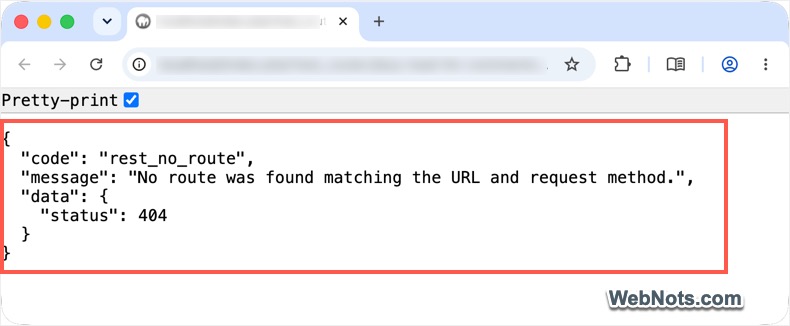
This confirms that WordPress is receiving the request but cannot find the corresponding REST API endpoint.
Why Does the “rest_no_route” Error Happen?
Since many WordPress features rely on the REST API, this error can occur for several reasons. Here are some of the most common causes:
- Broken permalinks: Your
.htaccessfile or Nginx rewrite rules may be outdated or corrupted. - Plugin or theme conflicts: A plugin or theme may disable the REST API or block specific routes.
- Server configuration issues:
mod_rewritemay be disabled, or the server may not properly handleindex.php. - Incorrect subdirectory setup: Sites installed in a subdirectory may have incorrectly configured
wp-jsonpaths. - Security restrictions: Firewall or security plugins may aggressively block API requests.
Follow the troubleshooting steps below to fix the rest_no_route REST API error on your site.
1. Verify That the REST API Is Working
Many security and performance optimization plugins allow you to disable the REST API on the frontend to reduce exposure. In our case, this was exactly what caused the issue. The comment management plugin expected a REST API endpoint to load comments, but another plugin had disabled REST API access for frontend visitors, resulting in a 404 error.
Open the following URL in your browser:
https://www.yoursite.com/wp-json/
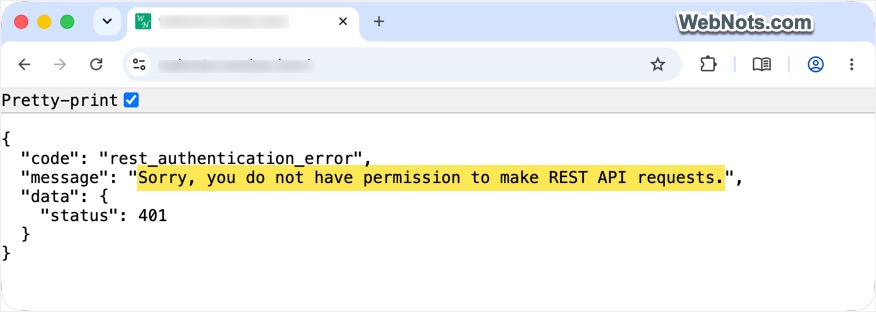
If the REST API is functioning properly, you should see a large JSON response containing WordPress data indicating the API is functioning correctly. However, if you receive a rest_authentication_error permission error with a 401 status code, the REST API may be restricted or disabled on your site.
Next, check whether a plugin has disabled the REST API. For example, if you are using the Perfmatters plugin:
- Go to “Settings > Perfmatters > General” section.
- Find the “Disable REST API” option and make sure it is enabled .
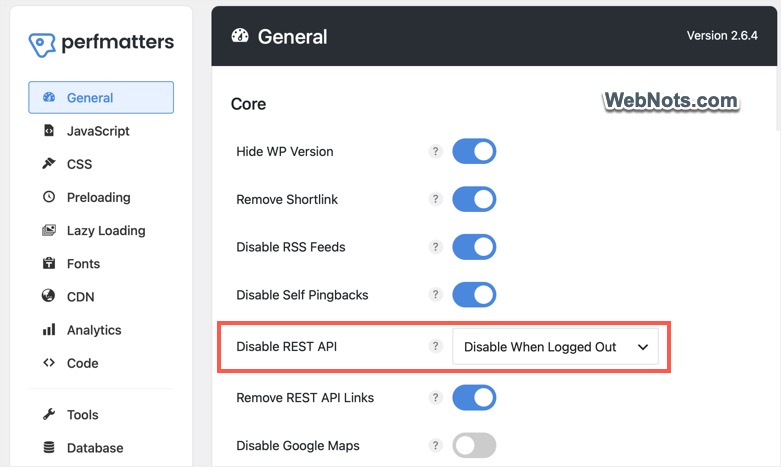
If frontend plugins rely on the REST API, avoid disabling it for logged-out users.
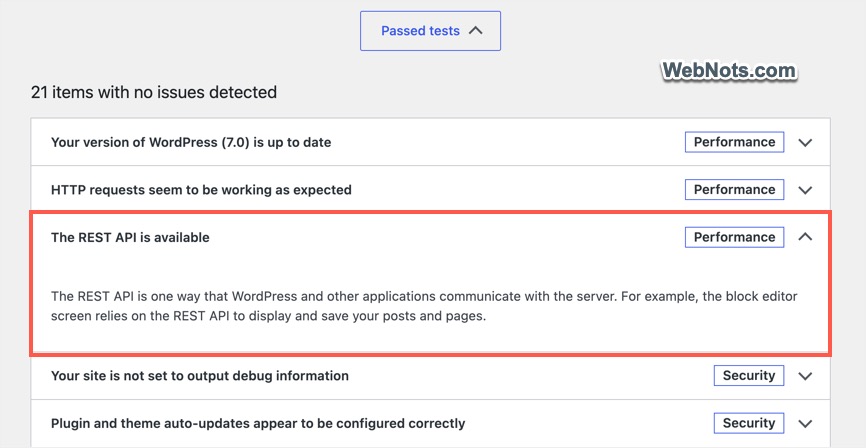
Note: You can also check REST API issues under “Tools > Site Health” section. WordPress may report REST API errors if the feature is disabled sitewide, including for logged-in users. Only disabling for logged out users, will not show error here.
2. Refresh Your Permalinks
If the REST API is not disabled, refreshing your permalink settings solves the issue in many cases.
Follow these steps:
- Go to “Settings > Permalinks” in your WordPress dashboard.
- Click “Save Changes” without modifying anything.
- Test your site again.

This action forces WordPress to regenerate rewrite rules and API routes.
Check the .htaccess File (Apache Servers)
If saving permalinks does not help, your .htaccess file may be missing or corrupted. Connect to your server using FTP or open the File Manager in your hosting account. Locate the .htaccess file in your WordPress root directory and ensure it contains the default WordPress rewrite rules:
# BEGIN WordPress
<IfModule mod_rewrite.c>
RewriteEngine On
RewriteBase /
RewriteRule ^index\.php$ - [L]
RewriteCond %{REQUEST_FILENAME} !-f
RewriteCond %{REQUEST_FILENAME} !-d
RewriteRule . /index.php [L]
</IfModule>
# END WordPress
If the file is missing:
- Create a new plain text file named
.htaccess. - Add the above rewrite rules.
- Upload the file to your WordPress root directory.
Nginx Configuration
If your site runs on Nginx, you may need to manually configure rewrite rules. Add the following code to your server block:
location / {
    try_files $uri $uri/ /index.php?$args;
}

location /wp-json/ {
    try_files $uri $uri/ /index.php?$args;
}
After updating the configuration, reload Nginx and check whether the issue is resolved.
3. Disable Plugins One by One
In many cases, security, caching, or optimization plugins may block REST API requests. If you cannot identify the cause:
- Temporarily deactivate all plugins.
- Test the
/wp-json/endpoint again. - If it works, reactivate plugins one at a time until you identify the conflicting plugin.
Once identified, check the plugin settings or contact the developer for support.
4. Check for Custom Code That Disables the REST API
If you regularly add code snippets from tutorials or forums without fully understanding them, custom code may be blocking REST API access for non-logged-in users. Check your theme’s functions.php file or code snippets plugin for code similar to this:
add_filter('rest_authentication_errors', function($result) {
    return new WP_Error('rest_forbidden', 'API disabled', array('status' => 403));
});
Some snippets may use a 401 status instead of 403. If you find similar code, temporarily remove or comment it out and test whether the issue is resolved.
5. Other Things to Check
If the problem still exists, try the following:
- Enable WordPress debugging as explained in our article and check whether any frontend or server-side errors appear.
- Inspect the source plugin or theme for the line of code causing the failed API request.
- Contact your hosting provider and confirm that required server modules such as
mod_rewriteare enabled. - Check whether your web application firewall (WAF) or security rules are blocking
wp-jsonrequests.
Final Words
In most situations, the rest_no_route error happens because the REST API has been accidentally disabled or permalink rules have become corrupted. Refreshing permalinks or enabling REST API access usually resolves the problem quickly. If a plugin update caused the issue, contact the developer and report the problem. As a temporary workaround, you can also revert to an older plugin version until a permanent fix becomes available.