A metered connection is a network setting that restricts the amount of data Windows uses. When you set a network as metered, Windows limits background data usage to prevent consuming too much of your data allowance. This feature is especially helpful for those who connect to the internet through mobile hotspots, limited broadband plans, or pay-per-use networks. In this article, we’ll explore what metered connection is, how it works in Windows 11, and when and why you might want to use it.
How to Set a Metered Connection in Windows 11?
Setting up a metered connection is simple in Windows 11. Here’s how you can do it:
- Right-click on the Start menu icon and select “Settings”.
- In Settings app, go to “Network & Internet” section.
- Depending on the type of connection you have, click on Wi-Fi or Ethernet. Then, choose the specific network name you’re connected to and open its properties.

- Scroll down to the “Metered connection” option and turn it on.

- When you go to “Network & Internet” section, you will see a notification showing you’re on a metered network and some apps might work differently to save data.

That’s it! Your selected network is now a metered connection, and Windows will limit data usage when connected to it.
Setting Data Limit for a Network
Regardless of whether you set a network as metered or not, it is possible to set a limit for data usage in Windows 11. On other hand, even you set a network as metered, Windows will NOT stop you from using the internet. So, you should set a limit to avoid over usage of data when working on metered connection.
- Go to “Settings > Network & internet” and select your network.
- After enabling metered connection, click the link “Set a data limit to help control data usage on this network”.

- This will open “Data usage” section showing the usage statics of apps and services along with their consumed data in GB.

- Click the “Enter limit” button to open “Set data limit” pop-up where you can setup the followings:
- Limit type – by default, limit is applied for a month and click the dropdown to select different duration. You can apply the limit for daily, weekly, monthly, one time or unlimited.
- Reset – depending upon the limit type, you can set the reset value from this dropdown. For example, select 1 to reset the data usage for each month when you have selected “Monthly” limit type.
- Data limit – type the actual amount of data you want to use.
- Unit – select MB or GB from the dropdown.
- Save – click “Save” to apply the limit for data usage.

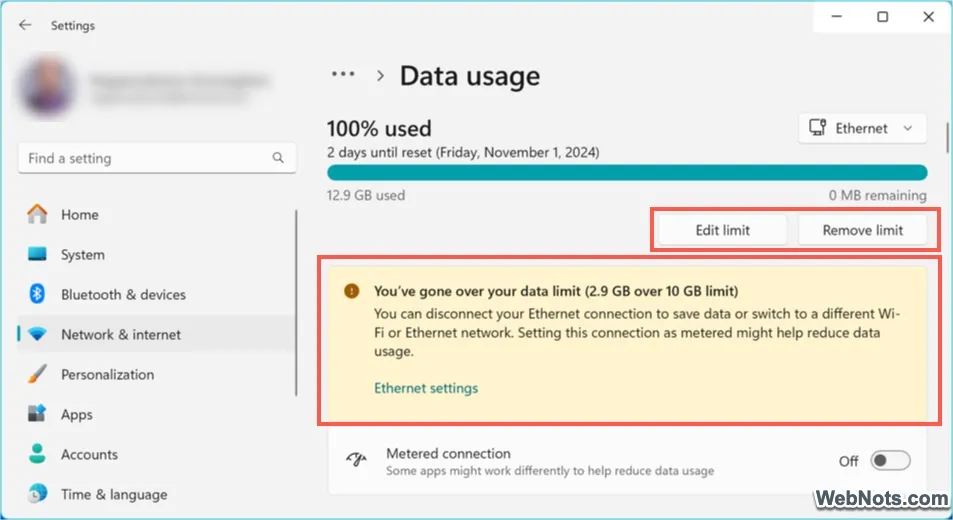
If the data usage is already exceeded the entered limit, you will see a notification saying you’ve gone over your data limit. Click the “Edit limit” or “Remove limit” buttons to change or remove the previously applied data limit.
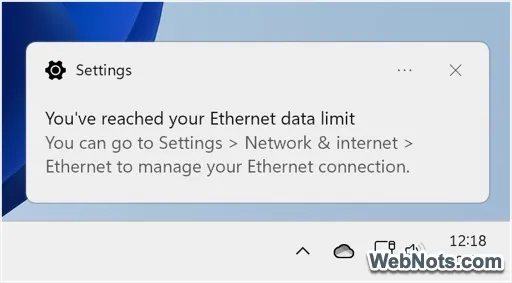
Windows will also trigger a system notification when the preset data limit is reached.
If you want to measure the data usage afresh (ignoring the current usage), scroll down to bottom on the “Data usage” settings page. Click on the “Reset” button against “Reset usage stats” option. This will delete the current usage and start the statistics afresh.

When to Use a Metered Connection?
Using a metered connection can be particularly useful in the following scenarios:
- Limited Data Plans – If you’re using a cellular data connection or a capped broadband plan, turning on metered connection ensures that Windows doesn’t consume your data with unnecessary updates or background processes.
- Mobile Hotspots – Mobile hotspots, especially those shared from your phone, can have limited data allowances or incur extra charges for high usage. Setting the connection to metered mode and limits the data usage helps to avoid unintended overages.
- Pay-Per-Use Networks – For pay-per-use connections, like those in hotels or airports, a metered connection will prevent data-heavy activities like large Windows updates from being downloaded, keeping your costs down.
- Bandwidth Management – If you are in an environment where multiple people or devices are sharing the same connection, setting a metered connection on your device can reduce bandwidth consumption, ensuring others can use the network smoothly.
What Happens When a Connection is Metered?
When a network is marked as metered in Windows 11, several things change in how your PC manages its connection:
- Windows only downloads critical updates. Larger feature updates are delayed until you connect to an unmetered network.
- Apps, particularly from the Microsoft Store, may delay updates. Services like OneDrive will also pause syncing files.
- Windows reduces background data usage, meaning apps won’t use the internet as freely as they normally would for tasks like fetching email or updating feeds.

Conclusion
The metered connection feature in Windows 11 is an essential tool for users who need to manage their data usage carefully. Whether you’re on a limited data plan, using a mobile hotspot, or simply want to conserve bandwidth, setting a metered connection can prevent unwanted data consumption and ensure your system only downloads critical updates and runs essential background processes.