Most WordPress users rely on plugins and themes to add functionalities to their website. However, the real power is the ability to automate tasks like scheduling posts, backup the site, or updating plugins/themes. These automated things can be achieved using a feature called a “cron job”. Understanding how WordPress handles these scheduled tasks and learning how to set up custom cron jobs can save you time, enhance site performance, and ensure your website runs smoothly.
Cron Job and WP-Cron
A cron job is an automated task scheduled to run at specific intervals on your web server. The term “cron” comes from the Unix-based cron utility, which executes commands or scripts periodically, as defined in a “crontab” (cron table). For example, you could schedule a cron job to run every day at midnight to back up your WordPress database.
Unlike traditional server cron jobs, WordPress uses a file called wp-cron.php to simulate scheduled tasks. This virtual cron system, called WP-Cron, is triggered each time someone visits your website. When a page is loaded, WordPress checks if any scheduled tasks are due to run and executes them. While convenient, WP-Cron has limitations: if your site has low traffic, scheduled tasks may not run at precise intervals; conversely, high traffic can trigger too many cron processes, causing performance issues.
1. Creating Custom Events
WordPress comes with built-in functions for scheduling events via WP-Cron. Here’s how you can use it for custom tasks, if this is difficult for you jump to option 2 or 3.
- To schedule a custom event, you need to register your hook in your theme’s functions.php file or in a custom plugin. An example hook will look like below:
function my_custom_cron_job() {
// Your code here, for example –  send an email, update a database, etc.
}
add_action('my_custom_cron_hook', 'my_custom_cron_job');- Next step is to programmatically schedule your event by adding the following code. This code checks if the event is already scheduled and, if not, schedules it to run hourly.
if ( ! wp_next_scheduled( 'my_custom_cron_hook' ) ) {
wp_schedule_event( time(), 'hourly', 'my_custom_cron_hook' );
}- If the event is no longer needed, you can unscheduled it.
$timestamp = wp_next_scheduled( 'my_custom_cron_hook' );
wp_unschedule_event( $timestamp, 'my_custom_cron_hook' );- The final step is to define a custom interval like scheduling your event ‘every_five_minutes’. You can add custom intervals to WP-Cron using the cron_schedules filter.
add_filter('cron_schedules', 'my_custom_cron_intervals');
function my_custom_cron_intervals($schedules) {
$schedules['every_five_minutes'] = array(
'interval' => 300,
'display' => __('Every 5 Minutes')
);
return $schedules;
}
2. Managing WP-Cron Tasks with Plugins
For those who prefer not to write code, several plugins help to manage, create, and monitor cron jobs in WordPress. WP Control is the best options, which lets you view, add, edit, delete, and run scheduled tasks within the WordPress admin dashboard.
- Go to “Plugin > Add Plugin” to find and install / activate WP Control plugin.
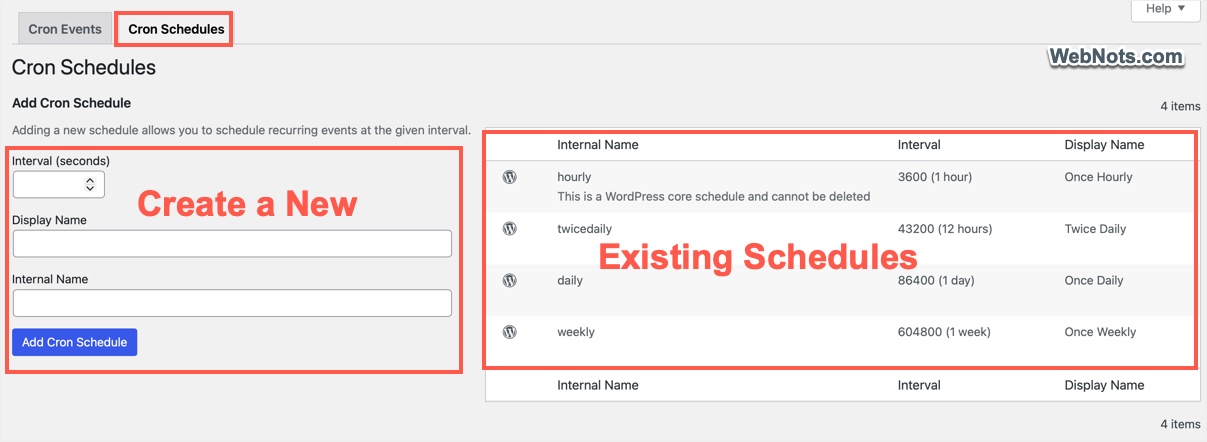
- Navigate to “Settings > Cron Schedule” to view existing schedules on your site. You will see an hourly, twice daily, daily, and weekly schedules, which are part of default WordPress setup and you can’t delete them.
- For adding a new schedule, enter the time interval in seconds, display name, internal name, and click “Add Cron Schedule” button.
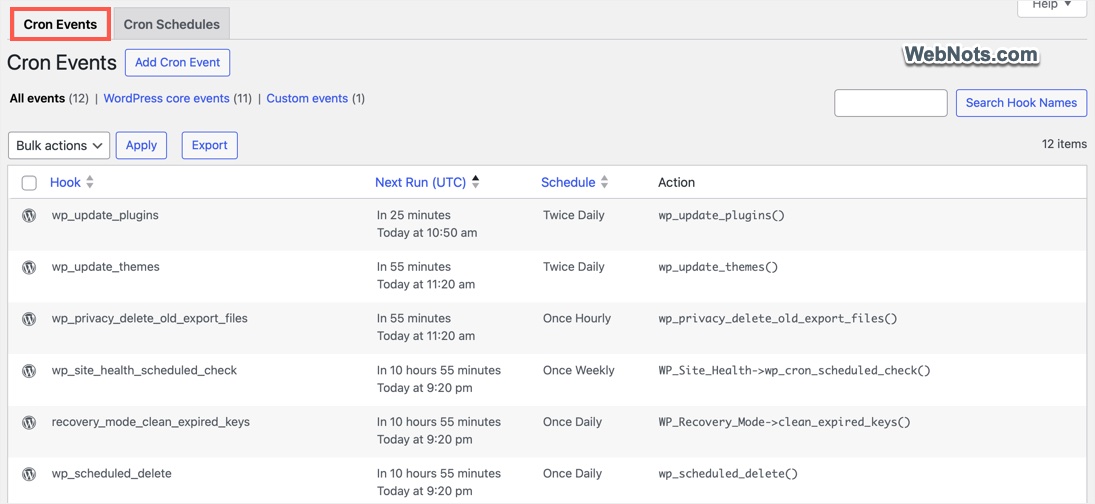
- Go to “Cron Events” tab or navigate to “Tools > Cron Events” to find all the events running on your website. You can view the hook, schedule, next run time, and action for each event.
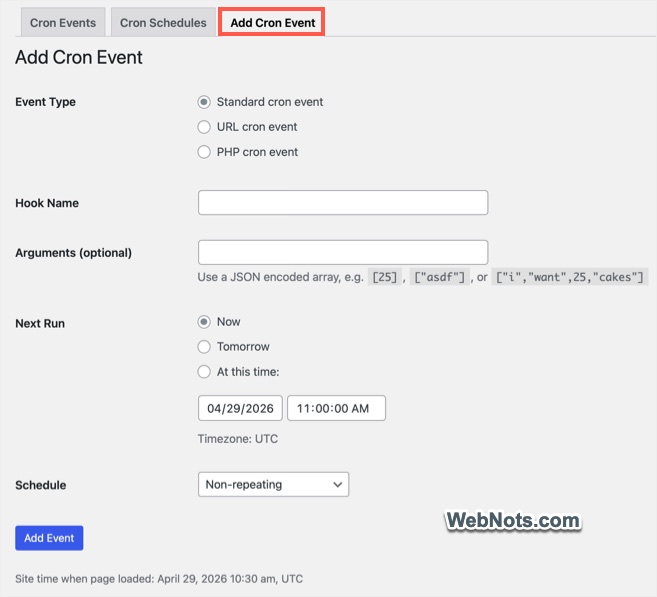
- Click the Add Cron Event” to create a custom cron job (standard, URL, or PHP based) and assign one of the schedules.
3. Setting Up Real Cron Jobs on the Server
WP-Cron’s reliance on site visits can hinder time-sensitive automation. For more reliable scheduling, you can disable WP-Cron and use your server’s native cron system to call wp-cron.php at fixed intervals.
- Add the following line to your wp-config.php file to disable WP-Cron’s automatic execution:
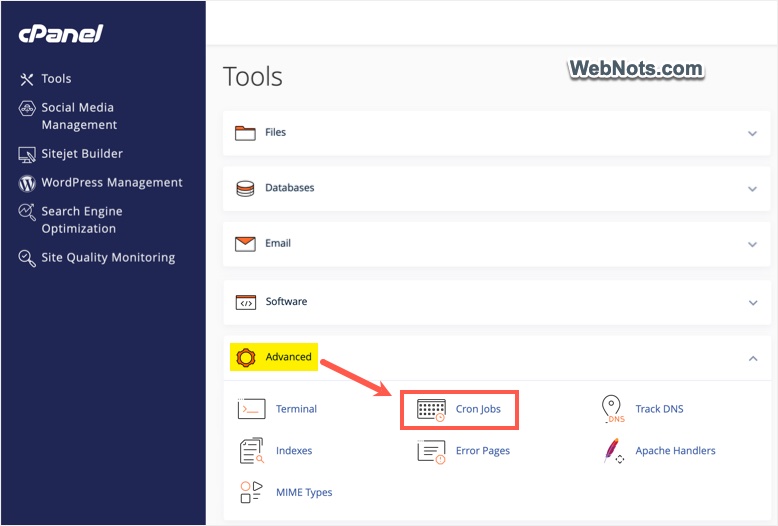
define('DISABLE_WP_CRON', true);- Access your server’s control panel (like cPanel) and locate the “Cron Jobs” section. For example, you can find this under “Advanced” tools section in the latest cPanel version.
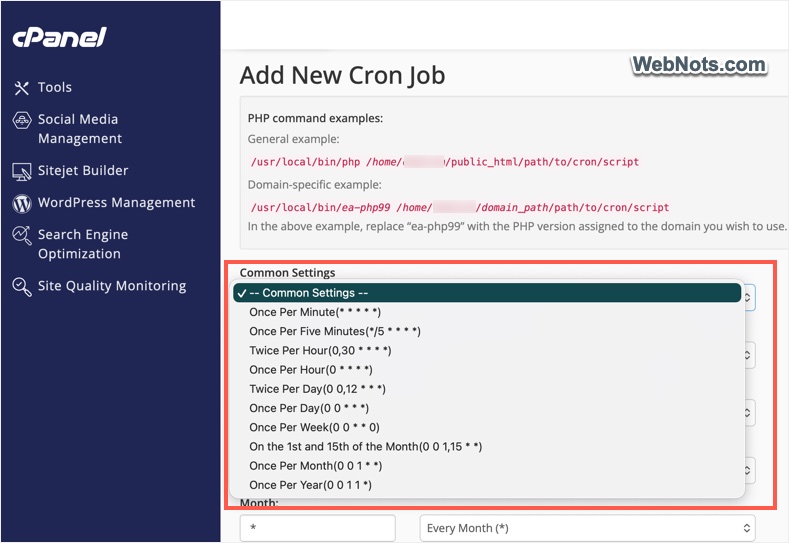
- Click the dropdown under “Common Settings” and set the job to run every 1 hour or at your preferred interval.
- Copy paste the following command in the “Command” box and add a new cron job to trigger wp-cron.php.
wget -q -O - https://yoursite.com/wp-cron.php?doing_wp_cron > /dev/null 2>&1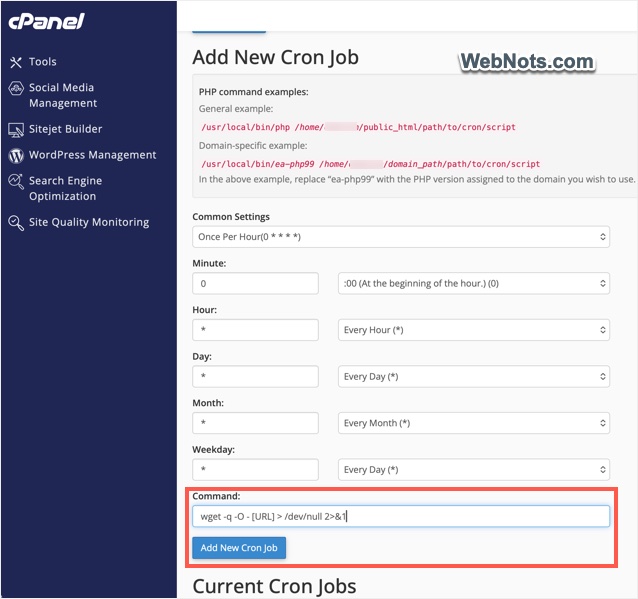
- Once created, you can see it under the “Current Cron Jobs” section.
What does the command do?
wgetis a command-line tool that requests a webpage or URL, similar to a browser visiting a page.-qstands for “quiet mode.” It suppresses output, so the command runs without displaying messages.-O -tellswgetto send the response output to standard output (the terminal) instead of saving it to a file.> /dev/nulldiscards the standard output completely./dev/nullis a “black hole” where output is thrown away.2>&1redirects error messages (stderr) to the same place as standard output, which is already being discarded.
So, what does the full command do?
It silently requests a URL, throws away all output and errors, and runs without generating cron emails or logs. If your hosting company supports email notifications, simply remove > /dev/null 2>&1 from the command to get the log in your email. You can use this log file for troubleshooting which events are running or failed on your site.
As you can see, cPanel visually allows you to select the schedule timing from the dropdown. However, if your server setup does not have an option to select the time, you can use the short form as below (to be added before the wget command):
| Format | Schedule |
|---|---|
| * * * * * * | Every minute |
| */5 * * * * | Every five minutes |
| 0,30 * * * * | Every 30 minutes |
| 0 * * * * | Hourly |
| 0 0,12 * * * * | Every 12 hours |
| 0 0 * * * | Daily |
| 0 0 * * 0 | Weekly |
| 0 0 1,15 * * | Fortnightly (1st and 15th of the month) |
| 0 0 1 * * | Monthly |
| 0 0 1 1 * | Yearly |
Here is an example command for running wp-cron.php every 5 minutes interval:
*/5 * * * * wget -q -O - https://yoursite.com/wp-cron.php?doing_wp_cron > /dev/null 2>&1Following will be the command format when using curl:
*/5 * * * * curl -s https://example.com/wp-cron.php?doing_wp_cron > /dev/null 2>&1Troubleshooting WordPress Cron Jobs
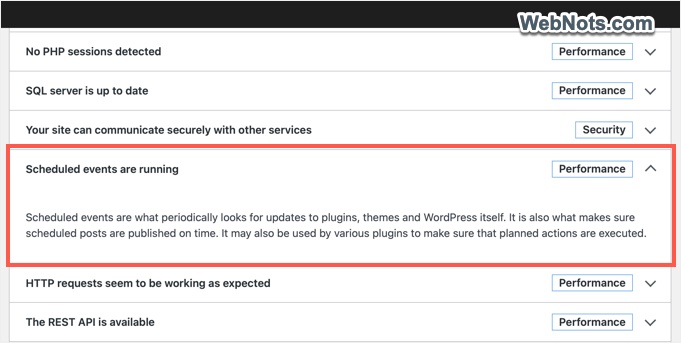
Ensure your scheduled tasks are running as expected by monitoring plugin logs, checking scheduled posts, or using a plugin like WP Control for oversight. You can also go to “Tools > Site Health > Status” section and check the “Scheduled events are running” task’s status (click the “Passed tests” button to see the task if it works properly).
Scheduled posts may fail to publish if WP-Cron is disabled, a plugin conflict is interfering, or the scheduled event was not set up correctly. Check your WP-Cron configuration, deactivate conflicting plugins for testing, and verify the event schedule.
High CPU usage often happens when too many scheduled tasks run at once or your site receives heavy traffic. This can overload server resources. Consider moving from WP-Cron to server-level cron jobs for better efficiency.
WP-Cron relies on site visits to trigger tasks. On low-traffic websites, scheduled tasks may not run reliably. Setting up a server cron job ensures critical tasks execute on time.
Use plugins like WP Control to inspect and manage scheduled events. You can also enable WordPress debugging by adding define('WP_DEBUG', true); to wp-config.php to trace cron-related errors. Otherwise, receive the log file in your email as explained above and analyze the events.
For time-sensitive automation, use server-level cron jobs instead of relying solely on WP-Cron. Regularly monitor logs and error reports for failed jobs, and document custom cron hooks and intervals to simplify maintenance and troubleshooting.
Conclusion
Automating tasks with cron jobs can transform your WordPress workflow, improving efficiency and reliability. You can always start by experimenting with simple scheduled events, then explore advanced options as your site’s needs evolve.