Windows 10 and Windows 11 come with a built-in emoji panel for quickly inserting emoji symbols. By default, you can press Windows + Dot to open the panel and insert the required symbol. However, if using a keyboard shortcut is inconvenient, you can pin the emoji panel to your taskbar’s system tray.
📌 Note: Pinning the emoji icon to the taskbar system tray is a Windows 11 exclusive feature. Windows 10 has an emoji panel but no permanent taskbar pin option.
Add Emoji Keyboard to Taskbar
Since this is a relatively new feature, make sure your Windows system is updated to the latest version, then follow these steps:
- Press Windows + I or right-click the Start icon and select Settings.
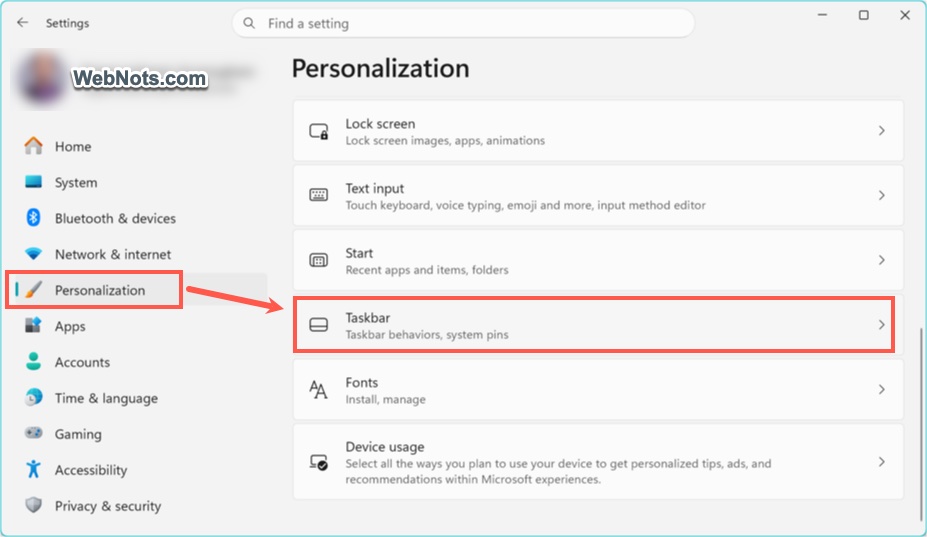
- In the Settings app, go to “Personalization” from the left sidebar.
- Scroll down in the right pane and select “Taskbar” option.
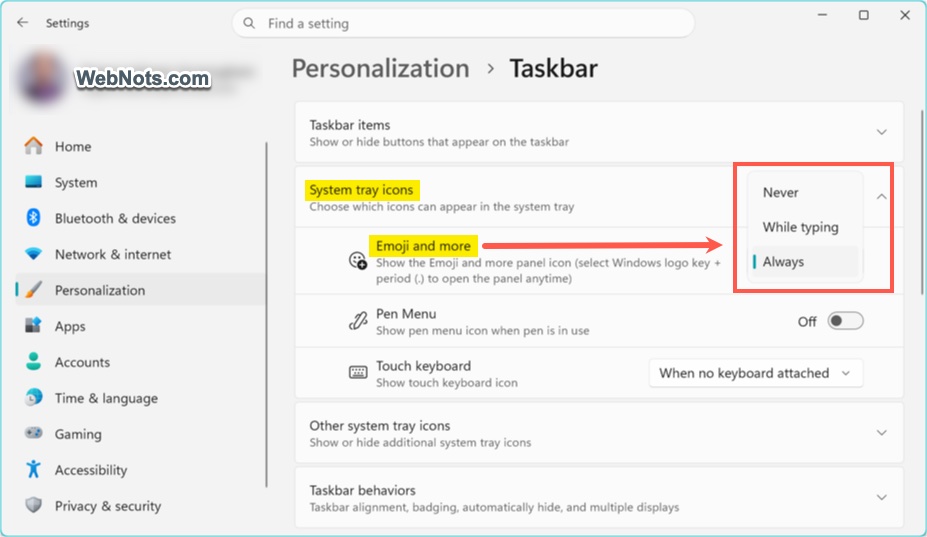
- Expand the “System tray icons” section and click the dropdown next to “Emoji and more”.
- “Never” is selected by default and change it to “Always”.
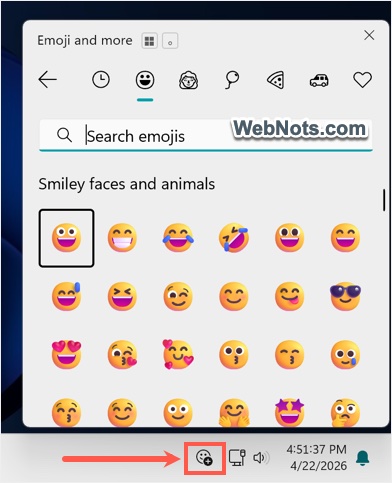
- You will now see an emoji icon in the system tray section of your taskbar and click on it to view the emoji keyboard panel.
- Alternatively, select “While typing” to show the icon only when typing in a text field.
Using Emoji Keyboard
When typing in text fields in apps like Word, Notepad, or social media sites like Facebook or X, click the emoji icon on the taskbar. This opens a panel near your cursor with several options:
- Most recently used: Opens by default and shows frequently used items.
- Emoji: Displays all Unicode emoji symbols, organized into categories with a search option.
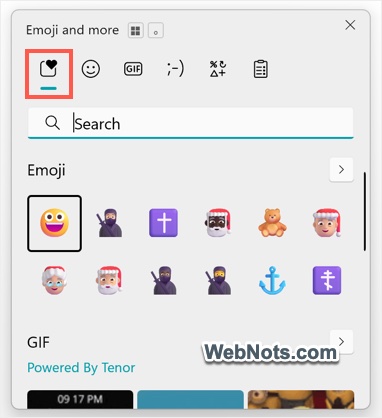
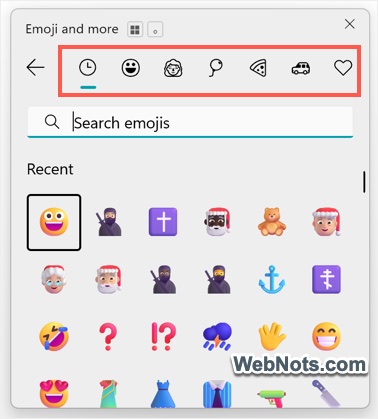
- GIF: Lets you find trending GIFs powered by Tenor.
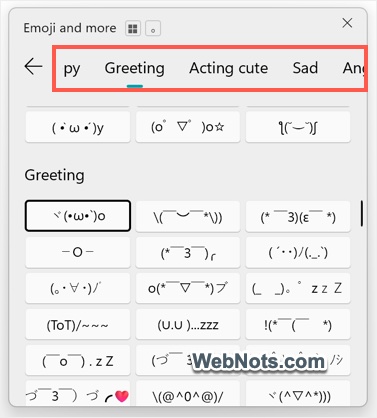
- Kaomoji: Contains ASCII and text-based emoticons.
- Symbols: Includes punctuation, currency, math, and special characters.
- Clipboard history: Lets you enable clipboard history and manage saved items. You can also press Windows + V to open clipboard history.
Customizing Emoji Panel Appearance
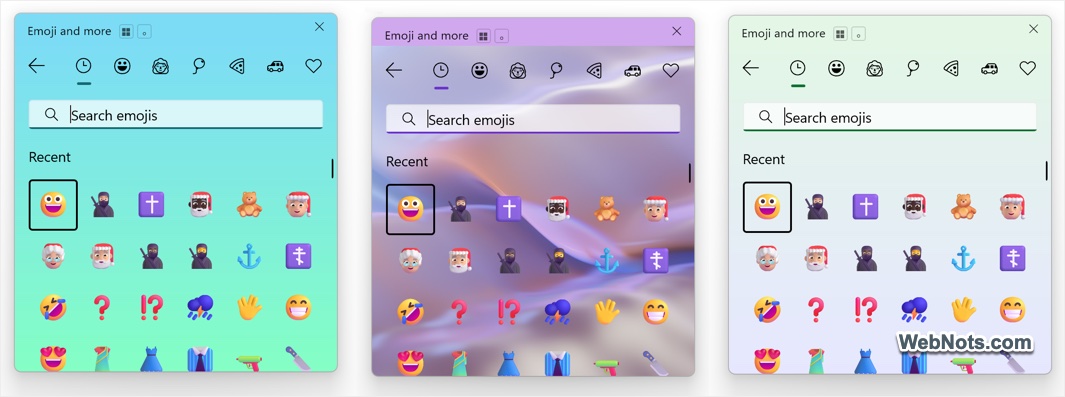
By default, the panel uses a light gray background as shown in the above pictures. If this makes it difficult to view symbols, you can customize its appearance:
- Press Windows + I to open Settings.
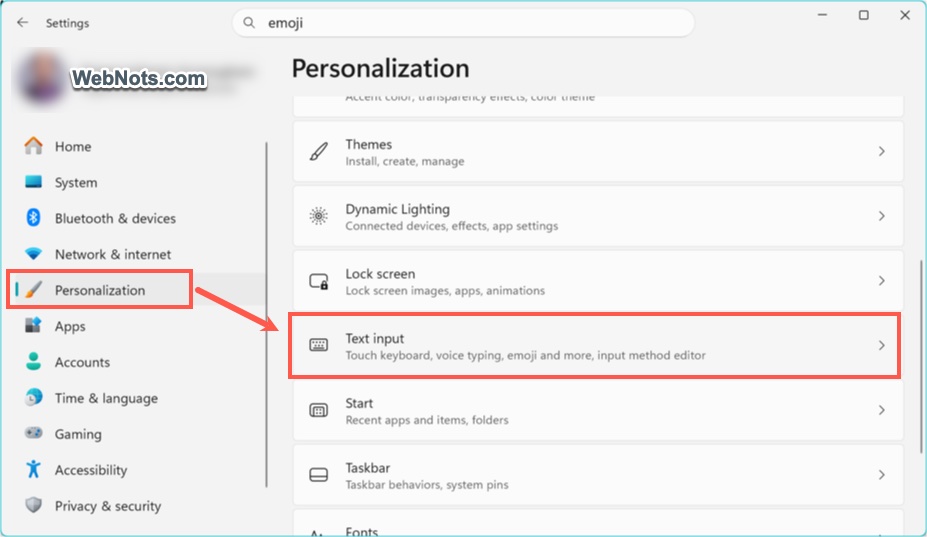
- Go to “Personalization > Text Input” section.
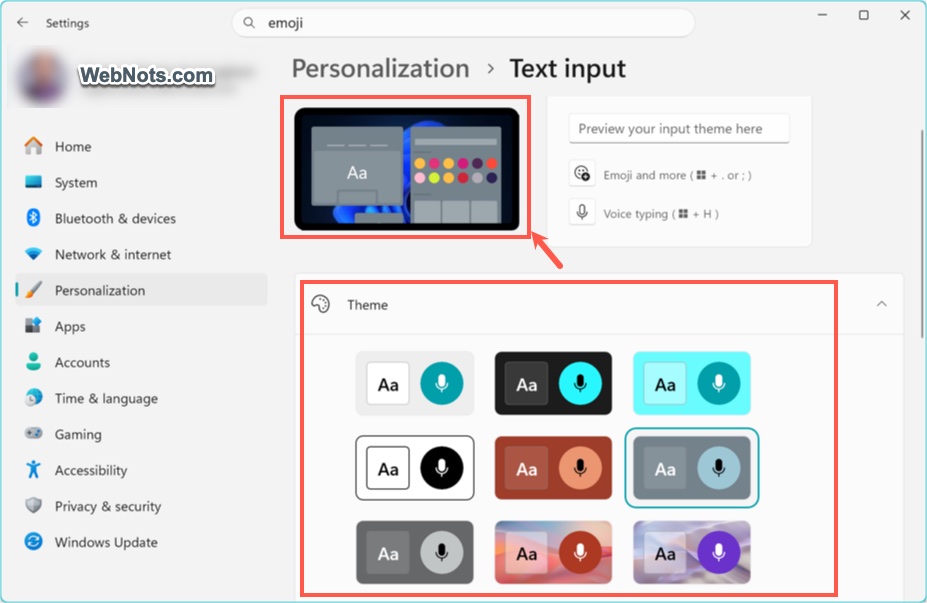
- Expand the “Theme” section and choose a theme.
- Preview the theme or click the emoji icon on the taskbar to see the changes.
- To create a custom theme, click the “+ Custom theme” button below the theme list.

- Configure background color, background image, accent color, and text color as needed. Optionally expand “Touch keyboard” to adjust additional settings.
- Click “Save” button to create a custom theme and apply to the emoji panel.
- Anytime you can click the “Edit” button and then the “Reset” to remove the custom theme from the list.

- Now, click the system tray icon to open the colorful emoji keyboard panel to find and insert the symbols.
📌 Note: Even after pinning, you can still use Windows + . or Windows + ; shortcuts. The pinned icon is just another way to launch the panel.