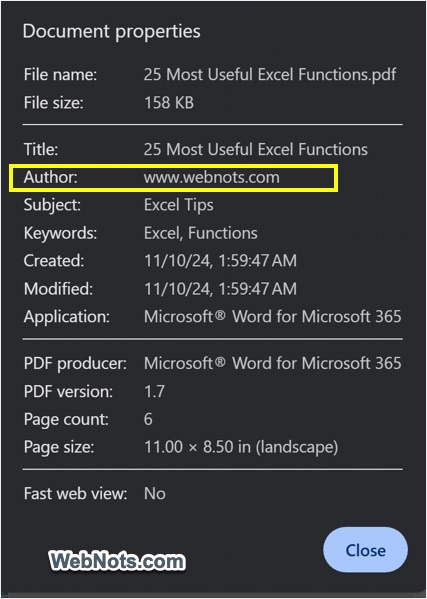
Have you ever wondered who created the PDF you are reading? There are many situations where knowing the author can be useful. For example, if you work with a freelancer who sends files remotely, you may want to verify how the PDF was generated and who created it. Similarly, if you regularly receive PDFs from a team and they usually come from one person, you can check the document properties to confirm who actually created the file. This helps you determine whether the sender is the original author or if the document was created by someone else.
PDF Document Properties
Most people create PDFs by converting files from Word, PowerPoint, or similar tools. Each of these documents contains its own properties, and those details are usually carried over into the PDF. Information such as the author’s name is typically taken from the user’s account details, for example a Microsoft account used in Word. Once the PDF is created, these document properties remain attached to the file unless they are manually removed or changed using a PDF editor.
Finding PDF Author on Mac
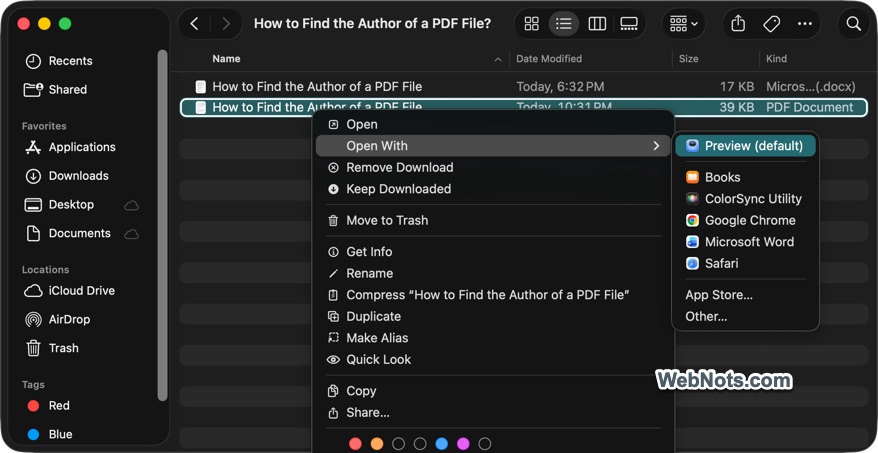
- Locate your PDF file in Finder and right-click on it.
- Go to “Open With” menu and then select “Preview” app.
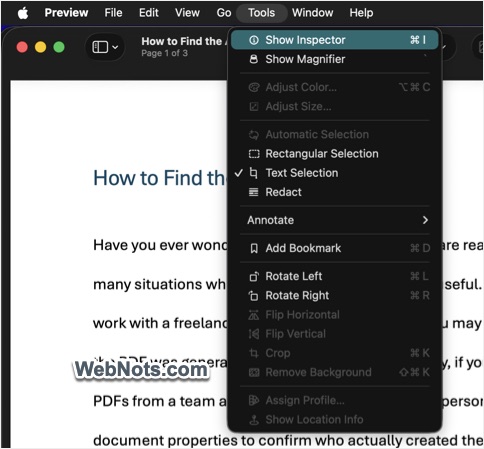
- When the file is opened in Preview, go to “Tools > Show Inspector” menu. Alternatively, click the “Show the Inspector” icon on top toolbar or press “Command + I” shortcut keys.
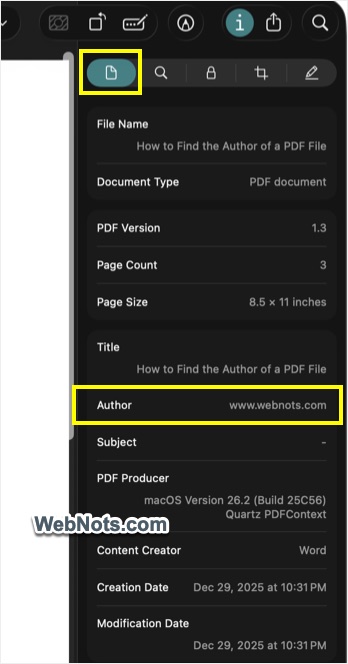
- This will show a sidebar on the right side with various inspector tools.
- Make sure you are in the “General Info Inspector” tab (the first item) and check the “Author” name.
- You can find many other details like PDF Producer (operating system used), Content Creator (app used), and creation / modification dates.
Finding PDF Author on Windows
By default, Windows will open all PDF files in Microsoft Edge browser.
- Locate your PDF file in File Explorer and right-click on it.
- Go to “Open with” and select “Microsoft Edge” app.
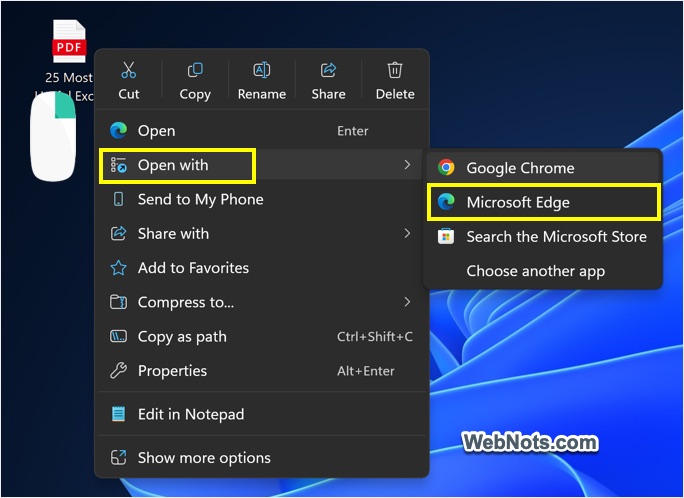
- When the PDF is opened on Edge, click the gear “Settings and more” icon on top right corner.
- Select “View document properties”.
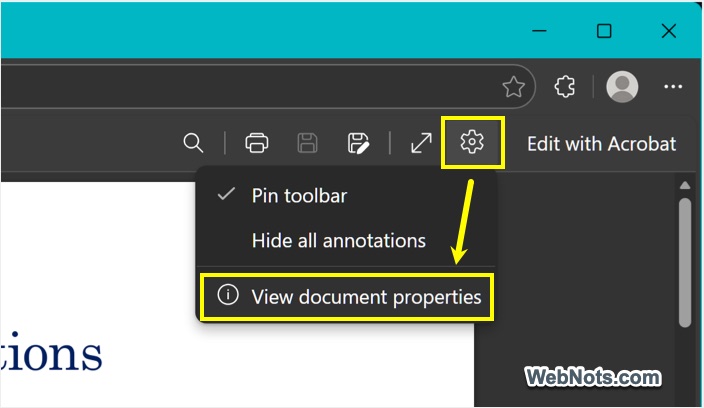
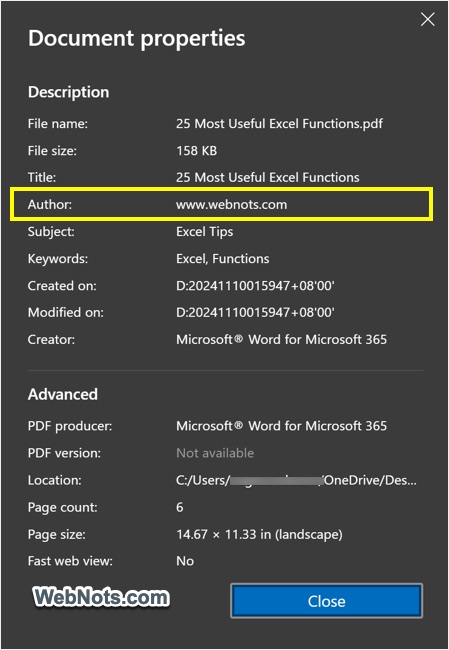
- A pop-up will open showing you all details like the document author, creator / producer (both will show Word app), and created / modified dates.
Find PDF Author in Chrome
Google Chrome also comes with a powerful PDF viewer. You can use this tool on any operating system.
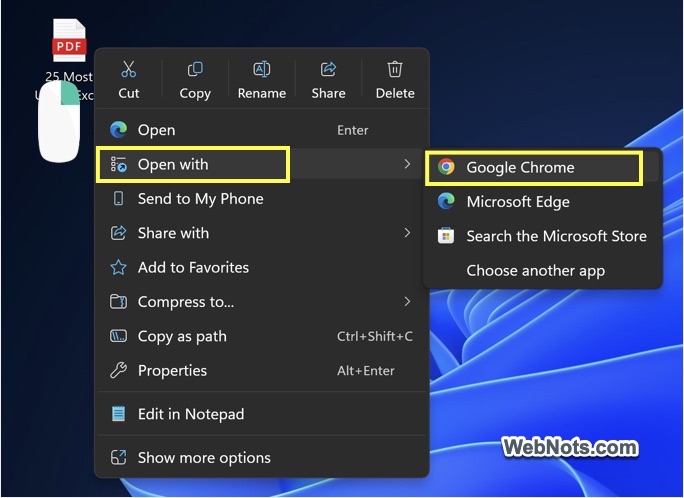
- Right-click on your PDF, go to “Open with” menu and select “Google Chrome” app.
- When the file is opened on Chrome, click the three dots “More actions” icon on top right corner and select “Document properties” option.
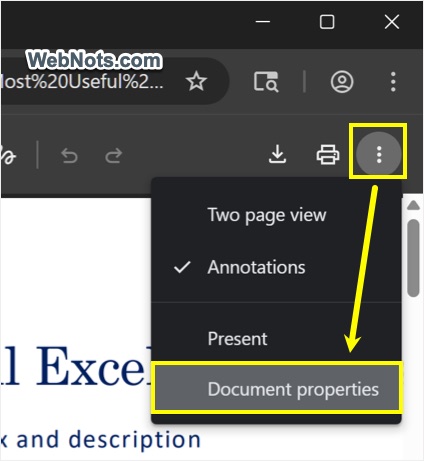
- This will show all document details like the author’s name, created / modified dates, application / PDF producer, subjects, keywords, etc.