Mac computers display the system clock in the upper-right corner of the Menu bar, which shows the date and time. Unlike Windows, macOS does not provide an option to completely remove the clock. However, you can hide the date and day information and reduce the amount of space used by the clock.
Remove the Date from the Menu Bar Clock
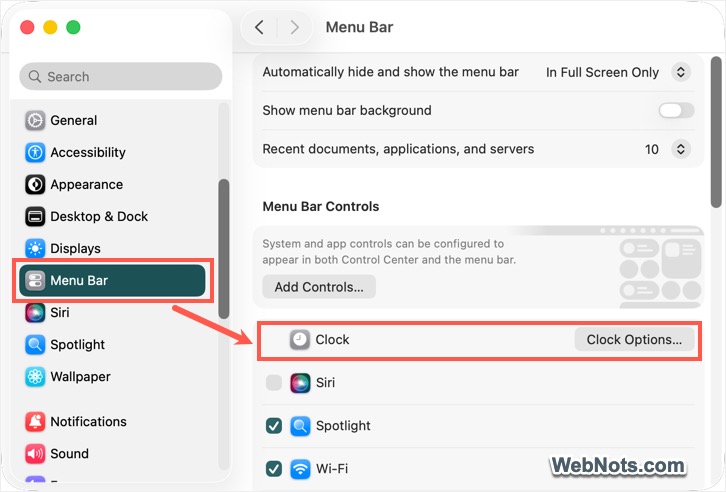
- Click the Apple logo on top left corner of the screen and select “System Settings…” menu.

- Go to “Menu Bar” section from the left sidebar.
- Locate “Clock” and click “Clock Options…” button.
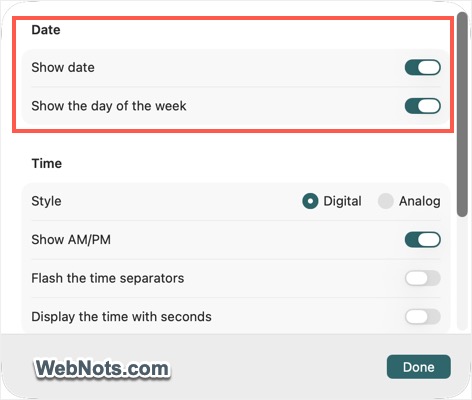
- A pop-up will appear and show “Date” and “Time” settings.
- Under the “Date” section, turn off the “Show date” option.
- Also, turn off “Show the day of the week” if enabled.
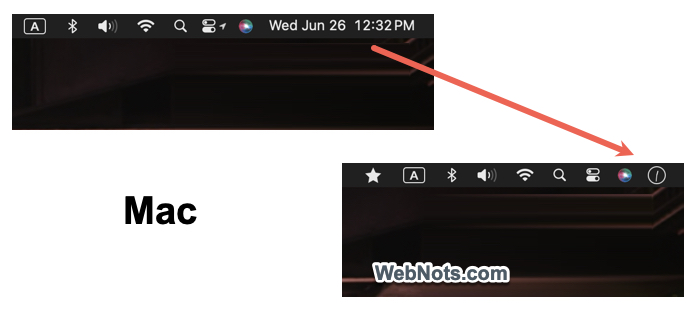
The date and weekday will no longer appear in the menu bar.
Reduce the Clock Size
To make the clock less noticeable:
- Open “Clock Options” in System Settings as explained above.
- Under the Time section, change the “Style” setting to “Analog”.
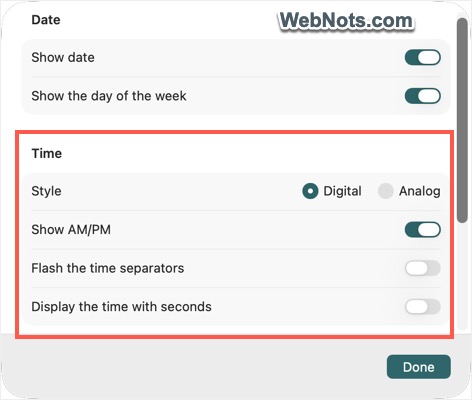
Using the Analog style automatically removes the date and day display while taking up less Menu bar space than the digital clock.
If you prefer to keep the digital clock, you can simplify it further by disabling:
- Show AM/PM.
- Display the time with seconds.
Note that simply selecting “Analog” style time without changing any date settings will also remove date and day from the clock.
Can You Completely Hide the Clock in macOS?
No. macOS does not include a built-in option to completely remove the system clock from the menu bar.
The reason is that the clock is closely integrated with other system features, including notifications, widgets, and Control Center functions. Because of this integration, Apple requires the time indicator to remain visible in the menu bar.
Note: Windows separates the clock from notifications and other taskbar components. This allows you to hide the clock while continuing to access notifications normally.
Using Clock App or Widget in macOS
Since macOS does not allow you to completely remove the system time from the menu bar, a better alternative is to use the built-in Clock app or desktop clock widget for quick access.
Using the Clock App
macOS includes a Clock app that offers several useful time-related tools.
- Open Spotlight Search by pressing Command + Space.
- Search for and launch the Clock app.
- The app includes World Clock, Alarms, Stopwatch, and Timer.
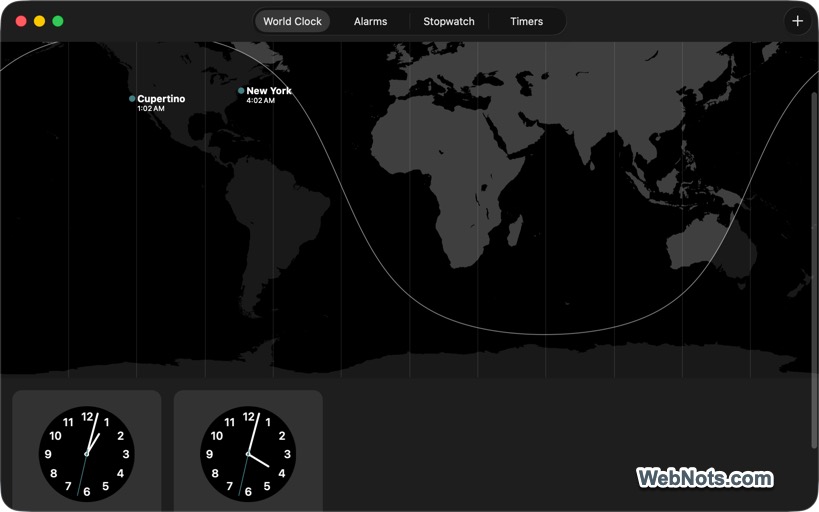
You can keep the app open whenever you need quick access to multiple clocks or timing tools.
Adding a Clock Widget to the Desktop
macOS also allows you to place clock and other widgets directly on the desktop.
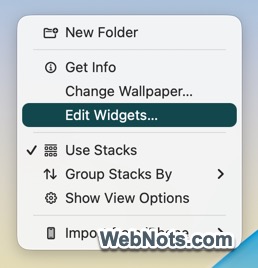
- Right-click (or Control-click) on an empty area of the desktop.
- Select “Edit Widgets…”.
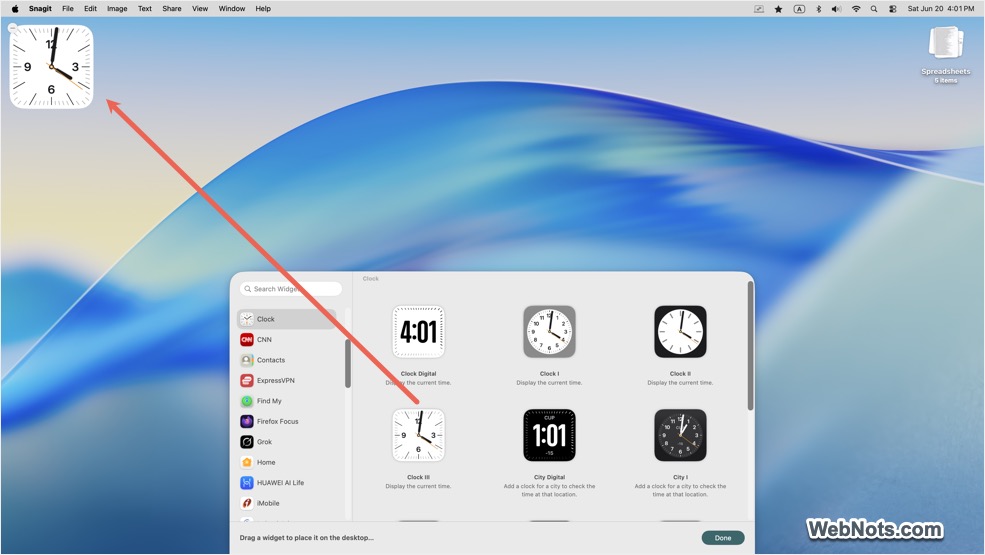
- Navigate to the “Clock” category and choose your preferred clock style.
- Click the widget or drag it to the desktop.
The widget is added immediately and remains available on the desktop for quick reference.
Showing Widgets in Stage Manager
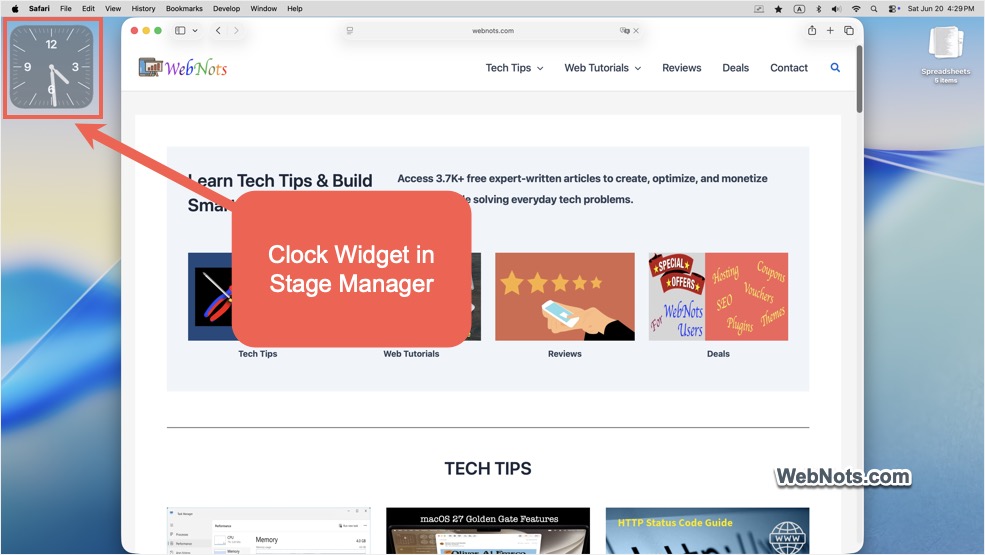
Unlike Windows, macOS does not provide a built-in option to keep an application or widget permanently on top of all other windows. However, you can use Stage Manager to keep desktop widgets visible while working with apps, which is particularly useful on larger displays.
- Go to “Apple Menu > System Settings…”.
- Select “Desktop & Dock” from the sidebar.
- Scroll down to the “Desktop & Stage Manager” section.
- Check “On Desktop” and “In Stage Manager” options for “Show Items”.
- Make sure to turn on “Stage Manager”.
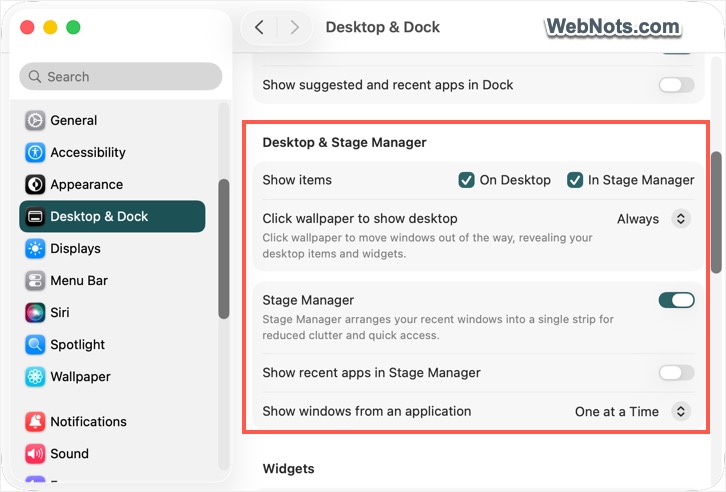
- Optionally enable “Show recent apps in Stage Manager” if you want to see your open application thumbnails on the side (otherwise, only the widgets are shown).
Using Third-Party Clock Apps
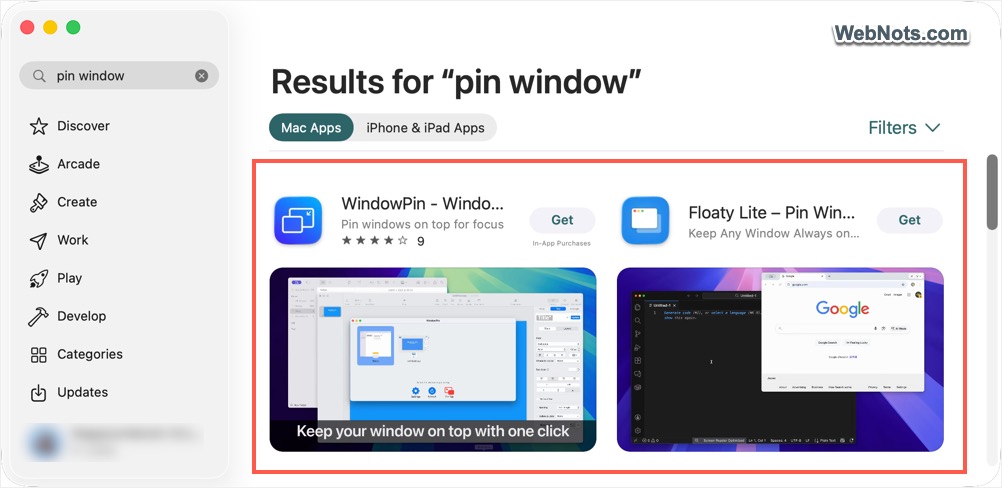
If the built-in Clock app and widgets do not meet your requirements, you can install third-party clock applications from the Mac App Store. Many clock apps offer additional features like floating clock windows, customizable clock styles, multiple time zones, desktop overlays, and menu bar enhancements.
You can also install window-pinning utilities that allow supported clock applications to stay above other windows for quicker access while working.
Final Words
Although macOS does not allow you to completely remove the system time from the menu bar, you can simplify its appearance by hiding the date and other optional details. If you need a more prominent clock, consider using the built-in Clock app, desktop widgets, or a third-party clock application.