
Task Manager is one of the most useful apps that comes as part of Windows OS. you can monitor currently running processes, terminate apps/processes dragging system performance, monitor memory usage and do many other things with the latest Task Manager app. If you wonder how to open Task Manager in Windows 11, here are the various options for you.
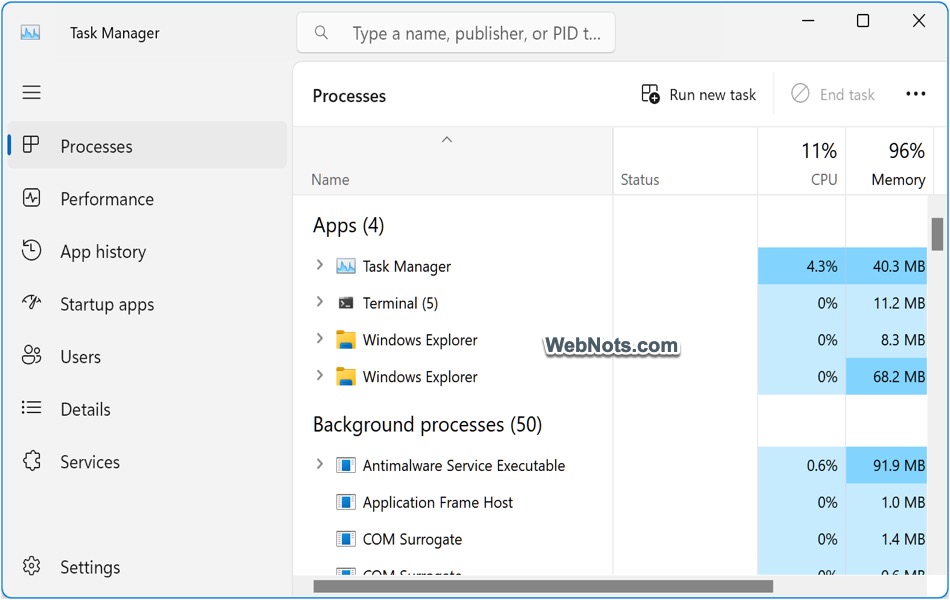
Task Manager App in Windows 11
By default, Windows does not add Task Manager app neither in Start menu app list nor in Taskbar though you have shortcut menu available from Taskbar. If you want to frequently use the app, you can add it Taskbar or Start menu or add a desktop shortcut for quick access. Remember that Google Chrome has its own Task Manager and do not confuse it with Windows Task Manager.
1. Open Task Manage from Copilot
Windows 11 still has a Cortana assistant to search and open apps. However, Cortana will be retired soon and Microsoft added Copilot AI assistant by default. You can use this Windows Copilot to open any app like Task Manager.
- Click the Copilot icon in Taskbar or press “Win + C” shortcut keys to open Copilot.
- Type “open task manager” or use the microphone to talk and press enter key.
- Copilot AI will consider this as an “Open an App” command and ask your confirmation.
- Click “Yes” button to launch Task Manager app.

If you are fond of voice commands or AI chatbot, then this will be the go-to option for you. You may find the Copilot icon showing either in right end or along with other icons in the center. Only problem is that Windows Copilot is not available in all countries. If you miss Copilot, then use other methods listed below.
2. Open Task Manager with Keyboard Shortcut
The best and simple way is to use the keyboard shortcuts. Simply press “Control + Shift + Escape” keys to open Task Manager app.

Problem with this method is that some people may have difficulties in holding multiple keys together. In addition, it may not work if you have a custom keyboard layout like using Mac keyboard on Windows virtual machine setup.
3. Open from Taskbar
Next option is to open from Taskbar. Simply right-click on the Taskbar’s empty area and select “Task Manager” from the context menu.

4. Open from Power User Menu
Instead of using right-click context menu on Taskbar, right-click on Start icon to open Windows power user menu. Alternatively, you can also press “Win + X” keys to open the menu list. Select “Task Manager” from the huge list of items to open the app.

4. Open Task Manager from Windows Tools
As mentioned, Windows does not have Task Manager app listed in Start menu app list. However, you can still find it under Windows Tools section.
- Click the Start menu icon on Taskbar.
- Click “All apps” button to open the complete list of apps.
- Scroll down to “W” section and click on “Windows Tools”.
- This will open Control Panel showing a list of system tools like Task Manager, Character Map, Command Prompt, etc.

You can also paste Control Panel\All Control Panel Items\Windows Tools in File Explorer or Control Panel address bar to directly open Windows Tools folder.
5. Open from Quick Access Menu
Press “Control + Alt + Delete” shortcut keys to open Quick Access Menu. You will see a list of options and select “Task Manager”.

6. Use Windows Search
Click the Start icon and type “task manager” in the search box. If you have Windows Search box in the Taskbar, then directly type “task manager” in the box. Find the app from the search results and open. The advantage with this method is that you can use “Pin to Start” or “Pin to taskbar” option to add Task Manager app in Start menu or Taskbar for quick access.

7. Use Run Dialog
- Press “Win + R” keys to open the Run dialog box.
- Type taskmgr in the box and press “OK” button.
- This will open Task Manager app.

9. Open Task Manager from Command Prompt
You can use the same taskmgr command in Command Prompt or Windows PowerShell.
- Right-click on the Start icon and select “Terminal (Admin)” option.
- Type taskmgr in the prompt and press enter.
- This will open Task Manager instantly.

Note: Terminal will open with Command Prompt or Windows PowerShell. You can use the same command in either interface.
10. Use File Explorer
The last option is to find and open Task Manager from File Explorer.
- Press “Win + E” keys to open File Explorer.
- Paste C:\Windows\System32 in the address bar and press enter.
- Click the “Type” column to sort the list of files/folders.
- Search based on the Application type and name to find Taskmgr app.
- Double click on the Taskmgr exe application file to open Task Manager.

Right-click on the application file and select “Pin to Start” to add Task Manager to your Start menu list. For adding to Taskbar, select “Show more options” from right-click context menu and then select “Pin to Taskbar” option.
Final Words
So, you have 11 different methods to open Task Manager in Windows 11. Though keyboard shortcut is an easy option, you can also try Copilot, Windows Search or Run dialog. As mentioned, you can add Task Manager app to Start menu or Taskbar from File Explorer or from Windows Search result options.


