Randoms Access Memory or RAM is a temporary memory used by computers to store and retrieve data faster. For example, RAM can hold the data needed by a game app when you are playing thus increasing the speed. All data kept in RAM will be deleted once you close the app thus making it as a volatile memory. RAM size is an important factor to check when you want to purchase a new PC. However, if you notice slow performance or apps crashing, here is how to check how much RAM your computer has and the other RAM specifications.
Checking RAM Specifications in Windows 11
Though size is important RAM has lot of other details like speed, type, manufacturer, etc. It is difficult to find all specification details in the frontend using Windows system apps. You either need a third-party or go for Terminal (Command Prompt or PowerShell). Here we will explain all possible options and you can use the one based what detail you are looking for.
1. Checking RAM Size, Speed, Slots in Task Manager
- Right-click on Taskbar and select “Task Manager” option. Alternatively, right-click on the Start icon and select “Task Manager” menu.

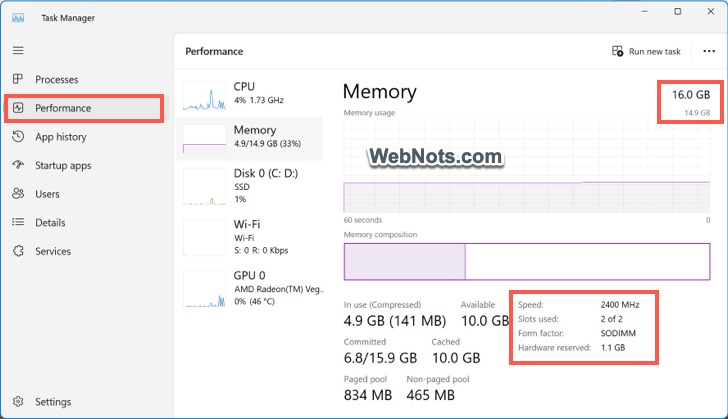
- Go to “Performance” section and click “Memory” option.
- Check the total physical memory (RAM) capacity nearer to top right corner.
- On the bottom portion, you can find RAM speed, slots used and form factor details.
You can also check memory details using Resource Monitor app in Windows 11.
2. Check RAM Size in Settings App
If you simply wanted to check the RAM size, then using Windows Settings app is the best option.
- Right-click on the Start icon and select “Settings” menu.
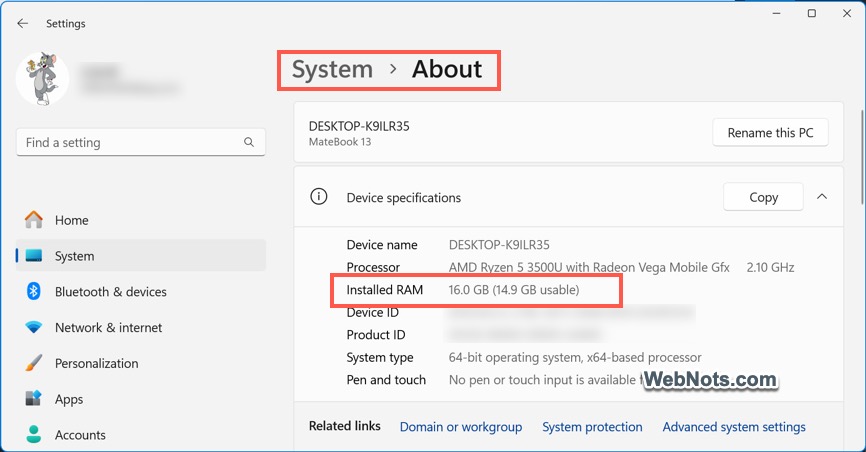
- Go to “System” section from left sidebar, scroll down to bottom of the page on right pane and select “About” option.
- Expand the “Device Specifications” section and find “Installed RAM” size.
3. Check RAM Size in System Information App
Instead of Settings app, you can also use System Information in Windows to find the physic memory installed on your computer.
- Type “system information” in Windows Search box to find and open System Information app.
- Click “System Summary” section from left sidebar and scroll down on the right pane.
- Check the value against “Installed Physical Memory (RAM)” item to find your RAM size.

You can also type “RAM” in the “Find What” search box showing at the bottom and press enter to quickly find the RAM size without navigating through different sections. In addition to installed RAM, System Information section will also show total/available physical memory, total/available virtual memory and page file size.
4. Get Complete RAM Specifications in Terminal
As mentioned, using Terminal app is the solution to get complete RAM specification in Windows 11 (without any third-party apps).
- Right-click on Start icon and select “Terminal (Admin)” menu.
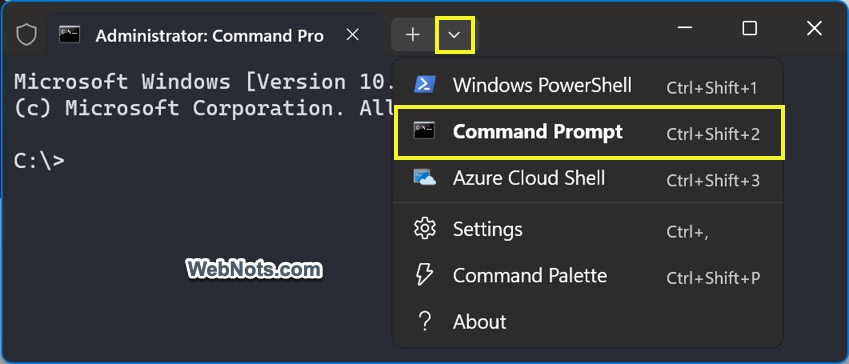
- Depending upon your profile setting, Terminal will either show Command Prompt or Windows PowerShell. If you are in PowerShell, click the small down arrow icon showing on the title bar and select “Command Prompt” to open a new tab.
- Type the following command and press enter to get the complete specifications of your installed RAM.
wmic memorychip list full
- The details include capacity, form factor, type, manufacturer, serial number, speed, etc. If your computer has two RAM slots, you will see two sections repeated with BankLabel as Channel A and Channel B showing details of both slots.
- You can also get single or multiple parameters instead of the entire specifications. For example, the following command will show you the capacity, speed and manufacturer details. You can use any parameter in the full list in this command.
wmic memorychip get capacity, speed, manufacturer
Points to Note
Command Prompt shows the RAM capacity in bytes. So, 8589934592 bytes are equal to 8589934592 / (1024*1024*1024) = 8 GB which is for a single slot. Total RAM for two slots is 16 GB which is the same you can find in Task Manager and System Information.
For memory type parameter, below are the numbers used by Windows. However, in most situations, you will see 0 indicating unknown type.
- 0: Unknown
- 1: Other
- 2: DRAM
- 3: Synchronous DRAM
- 4: Cache DRAM
- 5: EDO
- 6: EDRAM
- 7: VRAM
- 8: SRAM
- 9: RAM
- 10: ROM
- 11: Flash
- 12: EEPROM
- 13: FEPROM
- 14: EPROM
- 15: CDRAM
- 16: 3DRAM
- 17: SDRAM
- 18: SGRAM
- 19: RDRAM
- 20: DDR
- 21: DDR2
- 22: DDR2 FB-DIMM
- 24: DDR3
- 25: FBD2
- 26: DRR4
Note on Using Windows ARM
If you have Windows ARM installation on Mac, the size you will see using the above methods is the RAM size allocated for Windows installation. This is not the total physical memory installed and you should check the Mac’s RAM to find the total RAM.