Microsoft is pushing AI throughout its products and consolidated the name to Copilot in all occurrences. Now, you can find the Copilot is installed in Windows 11 as a default app. You can also find the app icon in Edge sidebar as well as on Bing website. This article deals with how AI Copilot looks, problems with Copilot approach and how you can disable Copilot in Windows 11.
Windows 11 Copilot
First, make sure to update your system to the latest Windows 11 version. You will see a new Copilot icon automatically appear next to search icon/bar/box in the Taskbar. Earlier, it used to show “PRE” on the icon indicating it was in preview stage.

However, “PRE” text is removed from the icon as it is available for all as an app.

Click on the icon to launch Copilot and login with your Microsoft account for using the complete features. Earlier, it was opening in the sidebar as shown below.

Now, the app will open in a separate window like any other app.

Disable or Uninstall Windows 11 Copilot
At this point, it does not make sense to use Copilot just to get factually incorrect results from Bing search. Even if you want, you can use Windows Search, Edge Copilot or directly use bing.com instead of trying it from your computer. So, you can simply remove the Taskbar icon or uninstall it completely till the time Microsoft comes with some useful Copilot features.
1. Remove Taskbar Icon
Simply right-click on the Copilot icon on your Taskbar and select “Unpin from taskbar” option to remove it.

2. Hide Icon from Taskbar (Retired)
Earlier, you had an option to remove the Taskbar icon from Settings app. However, this option is not more available in later Windows 11 versions.
- Press “Windows + I” keys to open Settings app and navigate to “Personalization > Taskbar” section.
- Expand “Taskbar items” section and turn off “Copilot (preview)” option.

3. Completely Uninstall Copilot App
Since Copilot is out of preview mode, you can uninstall it like any other app in your PC.
- Right-click on Start icon on Taskbar and select “Settings” menu.
- Go to “Apps” section and click “Installed apps” option.
- Find Copilot app from the list or use search box to filter the app.
- Click the three dots icon showing against Copilot app.
- Select “Uninstall” from the menu.
- Again, confirm your action by pressing “Uninstall” button.

You can any time go to Microsoft Store app and reinstall Copilot app again.

All above options will remove Copilot icon from Taskbar and you can use Windows Search option instead.

4. Disable Copilot from Edge Sidebar
For removing Copilot from Edge sidebar, go to “edge://settings/sidebar” page. Select “Copilot” under “App specific settings” section and turn off “Show Copilot” option.

Is it Worth to Use Windows 11 Copilot?
As mentioned, Copilot is mostly same as previous Bing Chat AI and Microsoft did not add much to that. You have the same three conversation styles as Creative, Balanced or Precise and post your question to start a conversation. In fact, features like opening an app or searching files are removed to avoid overlapping with default Windows Search. Earlier, when you ask Copilot to “open Notepad”, you need to confirm the action for opening the app.

Now, when you ask to open an app, Copilot will show results from the web for opening an app. The same changes are also happened for file search.
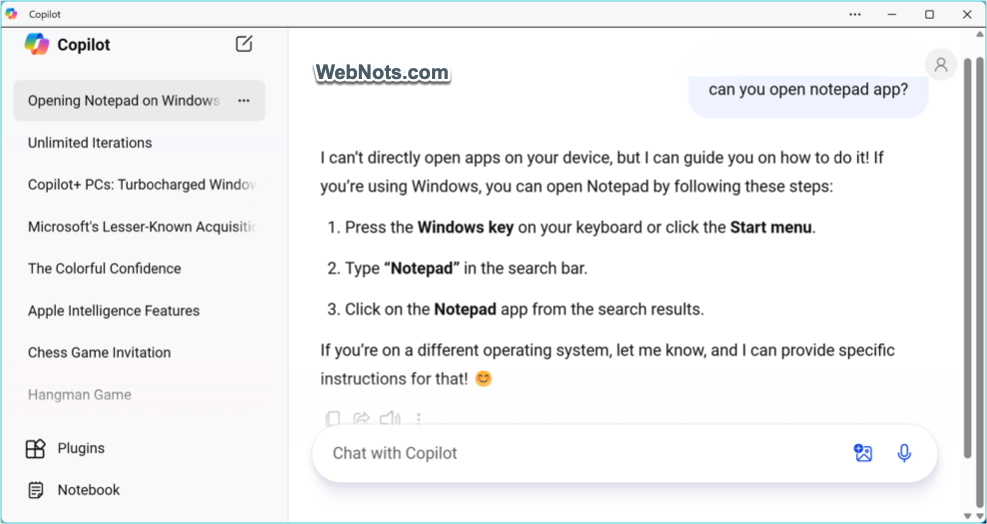
The only improvement is that there is no iteration limit for each conversation. Windows 11 Copilot will be useful if you are already using AI chat stuff like image creation. Otherwise, it will be annoying as Windows already has in-built search option. Even for image creation, you will be given few free credits and then you need to upgrade to Pro version or it will take forever to generate free images using the DALL-E3.
The point here is that you can use the default Windows Search in Taskbar to conveniently open any app and search for queries. The web search with Windows Search also shows results using Bing search from Microsoft.

As you can see, Windows Search exactly shows results like Copilot as an overview with citations. In addition, you can also find results from individual websites without scrapping and skewing the answers. You can also filter the results in Windows Search which is very useful to find relevant items within your computer. The only difference we could see is that Copilot is conversational but we still don’t see the importance of keeping it on the desktop screen all the time. Microsoft also offers Copilot Pro for $20 subscription per month. So, it’s all about money for pushing Copilot everywhere in Windows and all other products.
Copilot in Microsoft Edge
Microsoft Edge browser also shows Copilot icon in sidebar to use AI chat. Earlier it used to show Bing AI chat icon, then it was removed in favor of Windows Copilot and now it has come back as Edge Copilot. You can use this exactly the same way as Taskbar Copilot. In addition, you can create blog posts and compose emails in Edge which you can’t do from Windows Copilot. So, it’s a confusion to keep Copilot in Edge and Windows Taskbar with different features.

Other Copilot Problems
Besides Microsoft keep on changing Windows 11 interface to fit Copilot, there are few problems with pushing Copilot in primary interface (on desktop screen).
- AI results are factually incorrect in many situations.
- It is very slow and does not respond some times.
- Copilot is not available in all the countries like China and Russia. It will be annoying to see the icon in Taskbar and Edge but clicking on it will show “Sorry, this service is not available in your region”. If you purchased laptop from those countries or travel there, then this Copilot will become useless.

Final Words
Though AI hype is fading slowly, Microsoft is not ready to give up their Copilot (Bing AI) stuffs. There are duplicate operations in Windows 11 with Windows Search, Cortana (retired), Edge Copilot and Windows Copilot. Windows 11 is a premium software for the purpose of keeping things on PERSONAL COMPUTER and not primarily for chatting and scrapping from internet. Microsoft should remember this fact and understand pushing Copilot to large users through Windows 11 is not the way to go with AI. It will spoil good experience you can get with the default features like Windows 11 Search. So, for now, you can simply disable or uninstall Copilot and continue your stuff.