MS-DOS or Microsoft Disk Operating System commands are popular among those using Windows from the beginning. They are powerful tools for system administration, troubleshooting, and automating tasks allowing users to interact directly with the operating system, bypassing the graphical user interface (GUI). Though some DOS commands were obsolete and removed, most of them will still work and are called Windows commands. This article provides a detailed overview of 100 popular Windows commands with their purpose and examples, organized in a user-friendly table.
Top 100 Windows Commands
Below is a table listing each command with its purpose and an example. All these commands are tested in latest Windows 11 version.
| Command | Purpose | Example |
|---|---|---|
| arp | Displays or modifies the Address Resolution Protocol table. | arp -a to display current entries |
| assoc | View or change file associations. | assoc .jpg=jpegfile |
| attrib | Displays or changes file attributes. | attrib +r file.txt sets read-only attribute |
| call | Calls a batch file from another batch file. | call myscript.bat |
| cd | Changes the current directory. | cd C:\Windows\System32 |
| chdir | Displays or changes the current directory. | chdir C:\Windows |
| chkdsk | Checks the integrity of a disk and fixes errors. | chkdsk C: /f will fix disk errors |
| chkntfs | Displays or modifies automatic disk check at startup. | chkntfs /d to restor default behavior |
| cipher | Encrypts or decrypts files and directories. | cipher /e file.txt |
| clip | Copies the output of a command to the clipboard. | dir | clip will copy the current directory to clipboard |
| cls | Clears the Command Prompt screen. | cls |
| cmdkey | Manages stored usernames and passwords. | cmdkey /list |
| color | Changes the Command Prompt baground and fireground colors. | color 0A (0 – black background and A – Light Green foreground) |
| comp | Compares the contents of two files. | comp file1.txt file2.txt |
| control | Opens the Control Panel. | control |
| copy | Copies files from one location to another. | copy file.txt D:\Backup\ |
| date | Displays or sets the system date. | date /t displays current date |
| del | Deletes one or more files. | del file.txt |
| dir | Lists files and directories in the current directory. | dir C:\Users\John\Documents |
| diskperf | Enables or disables disk performance counters. | diskperf -y sets all performance counters when restarted |
| diskusage | Displays disk usage for a directory or drive. | diskusage C:\ /h |
| doskey | Edits command lines or creates macros. | doskey list=dir /b |
| driverquery | Lists installed drivers and details. | driverquery /v displays verbos output |
| echo | Displays a message or turns on/off command echoing. | echo Hello, World! |
| endlocal | Ends localization of environment changes. | endlocal |
| exit | Exits the Command Prompt. | exit |
| explorer | Opens File Explorer. | explorer C:\ |
| fc | Compares two files and shows differences. | fc file1.txt file2.txt |
| find | Searches for text in a file. | find “error” log.txt |
| findstr | Searches for a string in files. | findstr “error” log.txt |
| for | Executes a command for each item in a list. | for %i in (*.txt) do echo %i |
| format | Formats a disk for use with Windows. | format E: /fs:NTFS |
| fsutil | Performs tasks related to file systems. | fsutil dirty query C: |
| ftype | Displays or changes file types. | ftype txtfile=notepad.exe %1 |
| getmac | Displays the MAC address of network adapters. | getmac |
| goto | Directs batch execution to a labeled line. | goto start |
| gpresult | Displays Group Policy settings and results. | gpresult /R |
| gpupdate | Updates Group Policy settings. | gpupdate /force |
| hostname | Displays the computer’s hostname. | hostname |
| icacls | Displays or modifies access control lists. | icacls file.txt /grant <username>:F |
| if | Performs conditional processing in batch scripts. | if exist file.txt echo File found! |
| ipconfig | Displays network configuration details. | ipconfig |
| label | Changes the label of a disk. | label C: Backup |
| lodctr | Updates or displays performance counter settings. | lodctr /r will rebuild performance counter settings from system backup |
| md | Creates a new directory. | md NewFolder |
| mkdir | Creates a new directory. | mkdir NewFolder |
| mode | Configures system devices. | mode con:cols=120 lines=30 |
| move | Moves files from one directory to another. | move file.txt D:\NewFolder |
| mstsc | Opens the Remote Desktop Connection tool. | mstsc /v:192.168.1.100 |
| net | Manages network resources. | net view |
| net session | Displays information about server sessions. | net session |
| net share | Manages shared resources. | net share Documents=C:\Docs |
| net user | Manages user accounts. | net user displays all user accounts |
| netsh | Configures network settings. | netsh wlan show profiles |
| netstat | Displays network statistics and connections. | netstat -an |
| notepad | Opens Notepad text editor. | notepad file.txt |
| nslookup | Queries DNS to obtain domain name information. | nslookup google.com |
| path | Displays or modifies the system path. | path |
| pathping | Combines ping and tracert to show network performance. | pathping www.google.com |
| pause | Pauses the execution of a script. | pause |
| ping | Tests connectivity to a network host. | ping 8.8.8.8 |
| popd | Restores the previous directory. | popd |
| powercfg | Configures power settings. | powercfg /hibernate on |
| powershell | Opens the Windows PowerShell interface within Command Prompt. | powershell (use exit to return to Command Prompt) |
| pushd | Saves the current directory and changes to another. | pushd D:\Projects |
| query | Displays information about system services, sessions, or processes. | query user |
| rd | Removes an empty directory. | rd OldFolder |
| reagentc | Configures the Windows Recovery Environment. | reagentc /info |
| ren | Renames a file or directory. | ren file.txt newname.txt |
| replace | Replaces files. | replace file1.txt C:\Backup\file1.txt |
| rmdir | Removes a directory. | rmdir /S C:\MyFolder – removes all files and delete MyFolder |
| robocopy | Robust file copy for advanced operations. | robocopy C:\Source D:\Destination /MIR |
| sc | Manages Windows services. | sc query spooler |
| schtasks | Schedules tasks. | schtasks /create /tn “Backup” /sc daily /tr “backup.exe” |
| set | Displays or sets environment variables. | set PATH=C:\NewPath;%PATH% |
| setlocal | Begins localization of environment changes. | setlocal ENABLEDELAYEDEXPANSION |
| setx | Sets environment variables permanently. | setx PATH C:\NewPath |
| sfc | Scans and repairs system files. | sfc /scannow |
| shutdown | Shuts down or restarts the computer. | shutdown /r /t 60 will restart after 60 seconds |
| start | Opens a new Command Prompt window or program. | start notepad.exe |
| subst | Maps a directory to a drive letter. | subst X: C:\Users\John |
| systeminfo | Displays detailed system information. | systeminfo |
| takeown | Takes ownership of a file or directory. | takeown /f file.txt |
| taskkill | Ends a running process. | taskkill /IM notepad.exe |
| tasklist | Displays a list of running processes. | tasklist |
| taskmgr | Opens the Task Manager. | taskmgr |
| time | Displays or sets the system time. | time /t shows current time |
| timeout | Waits for a specified amount of time. | timeout /t 10 |
| title | Sets the Command Prompt window title. | title My Command Prompt |
| tpm.msc | Launches the Trusted Platform Module management console. | tpm.msc |
| tracert | Traces the route to a network host. | tracert www.google.com |
| tree | Displays the directory structure as a tree. | tree C:\ |
| type | Displays the contents of a text file. | type file.txt |
| ver | Displays the Windows version. | ver |
| vol | Displays the volume label of a drive. | vol C: |
| wevtutil | Manages event logs and publishers. | wevtutil query-events System |
| where | Locates and displays files in the PATH. | where notepad |
| whoami | Displays the current username. | whoami |
| wmic | Executes Windows Management Instrumentation commands (deprecated but useful). | wmic cpu get name |
| xcopy | Copies files and directories, including subdirectories. | xcopy C:\Files D:\Backup /E |
How to Use These Commands?
Windows 11 has a new Terminal app making it easier to switch between Command Prompt and PowerShell command-line interfaces. These commands are tested and to be triggered from Command Prompt, though they will still work from PowerShell.
- Right-click on the Start menu icon or press “Windows Logo + X” keys to open the power user menu.

- Select “Terminal (Admin)” from the list of menu items that appears. You will be prompted with User Account Control dialog box and press “Yes” to allow access.
- Make sure you are in “Administrator: Command Prompt” interface. otherwise, click the small arrow on the title bar and select “Command Prompt” from the list (or press “Control + Shift + 2” keys).
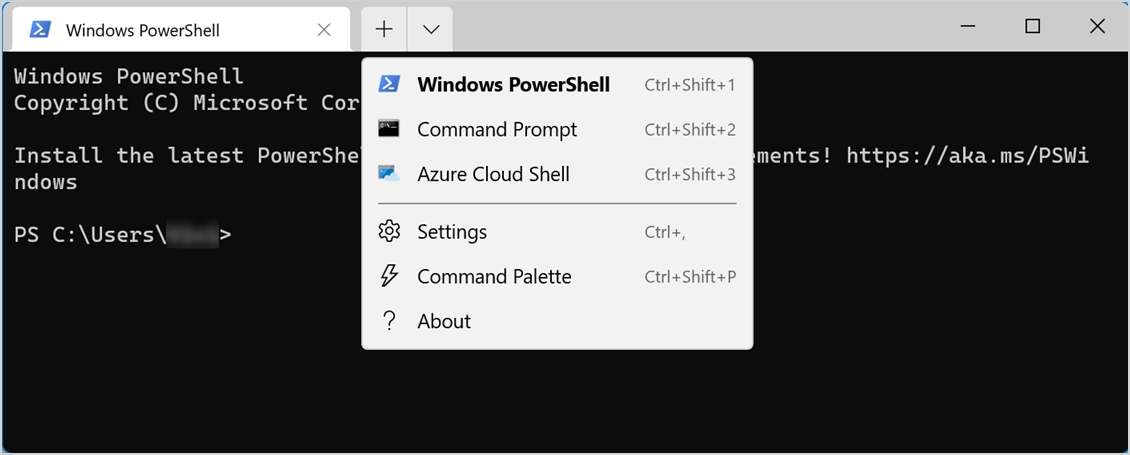
Always back up data before running commands that modify files or system settings. Use the /? switch to learn more about any command – for example, xcopy /? If you have wrongly executed a command that runs for longer time, press “Control + C” keys terminate it and return back to the prompt.
Note that you can also use most of the Run commands from Terminal app.
Some Example Usages
For changing the title of current Command Prompt tab, simply type title My Commands and press enter. This will change the title to “My Commands”.

Use color 5b command to change the background to purple and text color to light aqua.

Use ipconfig command to get your system’s IP address, run chkdsk command to fix hard drive error, control or notepad commands to open Control Panel or Notepad app.

Why Windows Commands are Essential?
Windows commands simplify many complex tasks, especially for advanced users and IT professionals. They help in:
- Automating tasks: Repetitive processes can be scripted.
- Troubleshooting: System issues can be diagnosed and resolved faster.
- Managing files and directories: Easier handling of large datasets.
- Network management: Efficient configuration and testing.
Whether you’re a beginner or an advanced user, this list will serve as an invaluable reference.