
Each computer has a unique name and knowing it is necessary in many situations. Whether you want someone to find your computer on the network, connect from another device or troubleshooting a connection issue, you need to know the name of your device. You have multiple ways to find the computer name in Windows 11.
Use of Computer Name
Your computer name is a unique identifier assigned by Windows to identify your device from others on a network. For example, you can find the Windows computer name on Mac Finder under “Network” location as shown in the below picture. When you have multiple devices on the network, it is necessary to know the correct device’s name for connecting to it.
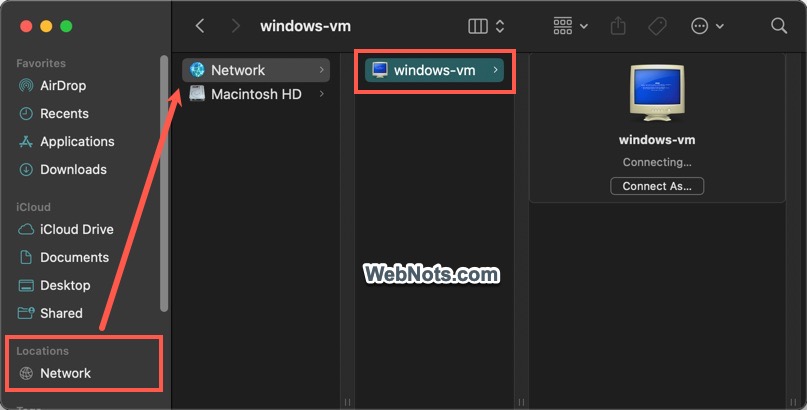
Similarly, you can find the devices under “Network” section of Windows File Explorer with their names.

1. Using the Settings App
- Press “Windows Logo + I” keys or right-click on the “Start” menu icon and select “Settings” from the list to open Windows Settings app.
- Go to “System” section and select “About” option.

- You should see the computer name on top and also under “Device specifications” section as “Device name”.

Note: “System” section in old Control Panel app will redirect you to “System > About” section Settings app.
2. Use System Information
System Information is a default app comes with Windows OS and provides all important software and hardware details about your system.
- Type “system information” in Search box in Taskbar.
- Find System Information app from the result and open it.

- Go to “System Summary” section and find “System Name” to get your computer’s name.

3. Using Command Prompt
It is also possible to Find your computer’s name from command line interface.
- Press “Windows Logo + R” keys to open the Run dialog box. Type “cmd” and press “OK” button.
- When you are Command Prompt, simply type
hostnameand press enter key. - This command will display your computer’s name as output.

4. Using Windows PowerShell
Similar to Command Prompt, you can also use PowerShell to get your computer name.
- Type “powershell” in Windows Search box to find and open Windows PowerShell app.
- In the PowerShell prompt, type the following command and press enter.
[System.Environment]::MachineName- This command will show your computer name as the output.

Changing Your Computer Name
As mentioned, there are many reasons you need the computer name. For example, if you are a network administrator, knowing the device’s name allows to quickly configure the settings. When you have administrator access it is easy to change your device’s name:
- Open Settings app and go to “System > About” section.
- Click on the “Rename this PC” button.

- Enter a new name containing letters, hyphen and numbers and click “Next” button.

- You will be prompted to restart and click “Restart now” button for the changes to be effective.

Note that you can’t use space in the computer name and changing the name will not affect your username or other account details. Learn how to change PC name in Windows 10.
Final Words
As you can see, it is easy to find the computer name in Windows 11. So, you can be faster when next time your IT support or someone asks for the device name. Computer name is also called device name, machine name, system name or host name and you can change it for easier identification.


