Making the switch from Windows to Mac can be an exciting but daunting experience. While the Mac operating system (macOS) offers a sleek and user-friendly interface, you will have difficulties in finding familiar tools and applications. To ease the transition, here is a list of 10 essential Mac apps for beginners planning to switch from Windows.
Note: You can easily install Windows on Mac and use both operating systems on a single machine. Especially, tools like Parallels Desktop for Mac allows to work on multiple virtual machines without rebooting your Mac with M series processor. Check our article on how to install Windows 11 on Mac with Parallels Desktop app.
Top 10 Mac Apps for Windows Switchers
Below is the summary of top 10 essential apps if you have switched from Windows to Mac recently. You can also check our article for additional Mac tips for Windows switchers.
| App Name | Purpose | Free / premium | Download from |
|---|---|---|---|
| Raycast | Productivity and Spotlight replacement | Free (Pro version available) | Developer’s site |
| Rectangle | Window management | Free | Github repository |
| iTerm2 | Terminal emulator | Free | GitHub repository |
| Bartender | Menu bar cleaner | Premium (4 weeks free trial available) | Developer’s site |
| The Unarchiver | Compress / unarchive files | Free | Mac App Store |
| CheatSheet | Keyboard shortcuts | Free | Third-party site |
| AppCleaner | Deleting and cleaning up apps | Free | Developer’s site |
| AdBlock Pro | Block ads | Free (in-app purchase available) | Mac App Store (Safari extension) |
| Amphetamine | Keep system awake | Free | Mac App Store |
| Magnet | Window snapping | Premium | Mac App Store |
Note that you can also install iPhone and iPad apps on Mac with M series processor.
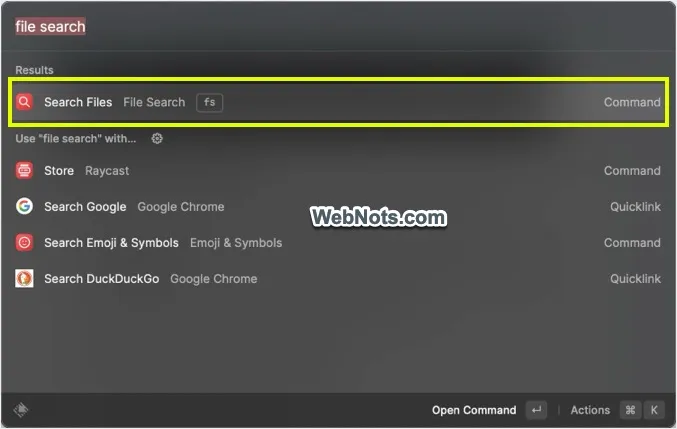
1. Raycast: A Powerful Productivity Booster
Raycast is a versatile productivity app that acts as a Spotlight replacement with enhanced capabilities. It allows users to launch applications, search the web, and execute various tasks with simple keyboard shortcuts. Raycast’s customizable workflows and extensions make it an indispensable tool for boosting efficiency and streamlining everyday tasks.
2. Rectangle: Window Management Made Easy
Windows switchers often miss the simplicity of window management on their previous operating system. Rectangle solves this problem by offering an intuitive way to organize and resize windows with keyboard shortcuts. This app provides a seamless window management experience, making multitasking on your Mac a breeze. Rectangle is a free, open-source app which is a forked version of older app called Spectacle.

3. iTerm2: A Feature-Rich Terminal Emulator
For users accustomed to the power and flexibility of the command line on Windows, iTerm2 is an excellent replacement for the native Terminal app. iTerm2 offers advanced features like split panes, search capabilities, and customizable profiles, providing a robust command-line experience for both novice and experienced users.

4. Bartender: Tidy Up Your Menu Bar
Mac’s top menu bar can quickly become cluttered with various icons and menu items, and this is where Bartender comes in handy. Bartender allows users to organize and hide menu bar items, providing a cleaner and more organized desktop. With a simple click, you can reveal hidden icons, ensuring easy access to your preferred apps and tools. You can assume it something like a hidden Taskbar system tray icons in Windows OS.

5. The Unarchiver: Effortless File Extraction
Windows users are accustomed to file compression tools like WinRAR or 7-Zip. The Unarchiver is a Mac equivalent that supports a wide range of archive formats. This app simplifies the process of extracting files and ensures compatibility with compressed folders you may encounter while browsing the web or receiving attachments.

Note: Mac has a default Archive Utility to create ZIP files. However, this app can’t open some of the files with long names and Unarchiver does the best job.
6. CheatSheet: Quick Shortcut Reference
Learning new keyboard shortcuts can be overwhelming, especially for those accustomed to Windows commands. CheatSheet is a handy app that displays a list of all available shortcuts for the active application by holding down the “Command” key. This quick reference tool helps users adapt to Mac shortcuts more efficiently.

7. AppCleaner: Thorough App Uninstallation
You can simply drag an app and drop it in a Trash to uninstall it from your Mac. However, the app might have left lot of residual and property files. AppCleaner makes the process more straightforward – you need to drag and drop and app on the AppCleaner website. This tool will inform you all associated files and settings (property files) which you can delete. It helps to maintain a clutter-free system and recover valuable disk space.

8. AdBlock Pro: Ad-Free Browsing Experience
Windows users often rely on third-party ad blocker extensions for Edge for a smooth browsing experience. Though you can install extensions in Safari, it is quite a different process compared to installing add-ons on Edge. AdBlock Pro is a robust ad-blocking tool that seamlessly integrates with Safari on Mac, providing a cleaner and faster online environment. It not only blocks webpage ads, pop-ups and YouTube ads but also enhances privacy by preventing redirects to illegal/porn sites.

9. Amphetamine: Keep Your Mac Awake
Amphetamine is a useful utility for preventing your Mac from going to sleep or the screen from dimming. It is particularly handy during presentations, video streaming, or any scenario where you want to keep your Mac awake. The app offers customizable settings, ensuring you have control over the duration of wakefulness.

10. Magnet: Intuitive Window Snapping
Windows users familiar with the “Snap” feature will appreciate Magnet for Mac. This app simplifies window management by allowing users to snap windows to predefined areas on the screen with simple drag-and-drop actions. Magnet enhances productivity by facilitating a more organized and efficient workspace.

Note that, Apple introduced a similar feature for rearranging apps in macOS version 15.0 (Sequoia).
Default macOS Apps for Switchers
In addition to the above list, below is a list of default macOS apps that are equivalent to Windows apps. All macOS apps are free while some Windows apps are from third-party or need Microsoft subscription.
| macOS App | Windows App | Purpose |
|---|---|---|
| TextEdit | Notepad | Basic text editing |
| Safari | Microsoft Edge | Web browsing |
| Finder | File Explorer | File management |
| Preview | Windows Photo Viewer | PDF and image viewer |
| Microsoft Outlook | Email client | |
| Photos | Windows Photos | Photo management and viewing |
| Calendar | Microsoft Calendar | Calendar and event scheduling |
| GarageBand | FL Studio or Audacity | Music creation and editing |
| iMovie | Windows Movie Maker | Video editing |
| Terminal | Terminal (Command Prompt or PowerShell) | Command-line interface |
| Pages | Word | Rich text processing and editing |
| Numbers | Excel | Spreadsheet processing |
| Keynote | PowerPoint | Slide preparation |
Conclusion
Transitioning from Windows to Mac can be a smooth and enjoyable experience with the right set of applications. Above-mentioned Mac apps cater specifically to beginners, providing with essential tools to enhance productivity, streamline tasks, and make the most of macOS environment. By incorporating these apps into your daily workflow, you will quickly adapt to the Mac ecosystem and unlock the full potential of your Apple computer.