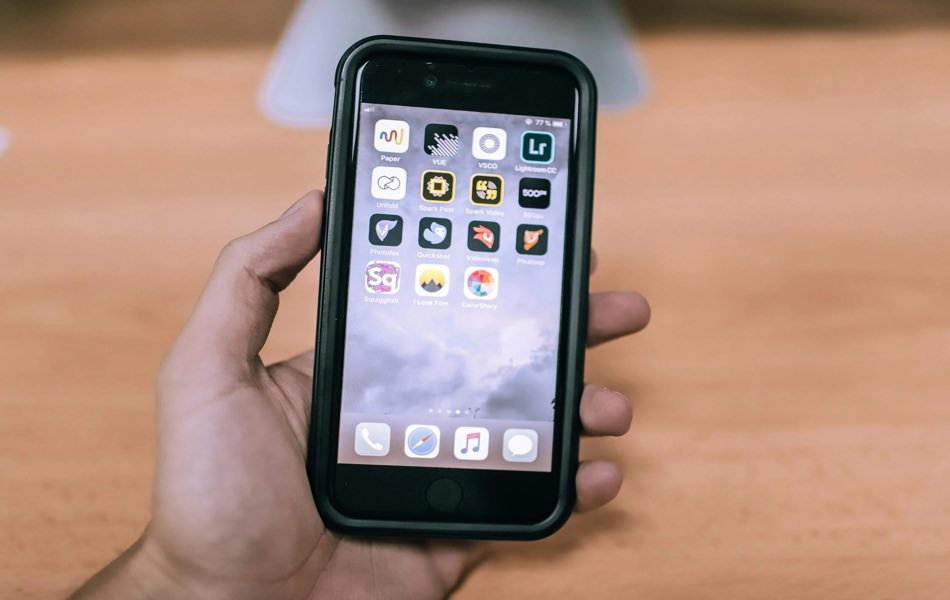
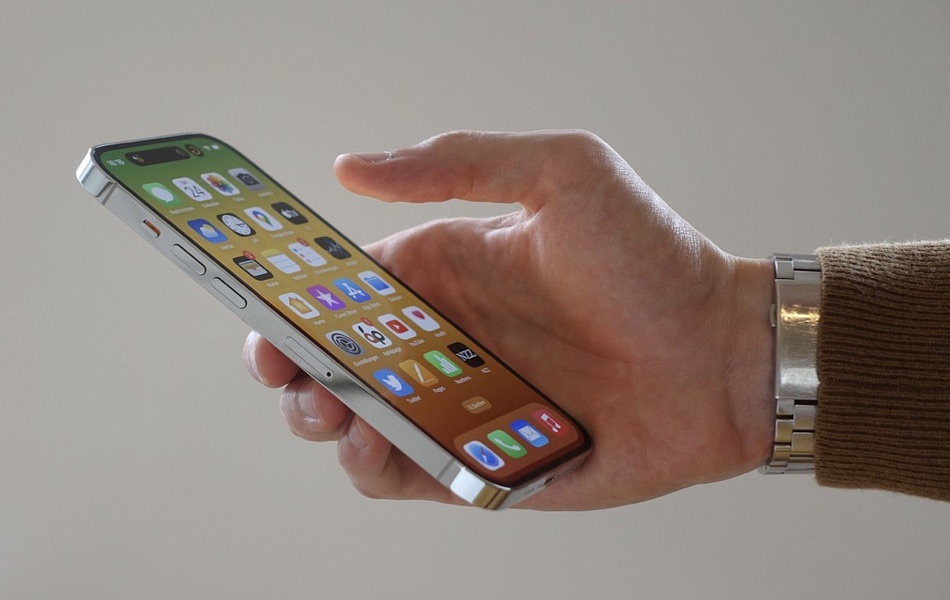
Apple’s iPhone is known for its sleek design and user-friendly interface. While the touchscreen handles most functions, physical buttons and connectors play an important role in navigation, accessibility, and convenience. In this article, we’ll explore the functions of the default buttons and connectors that come with on an iPhone.
iPhone Buttons & Connectors
The latest iPhone models have the following items:
- Buttons – Volume Up, Volume Down, Action Button, Side Button, and Camera Control Button.
- Connectors – USB-C connector (lightning connector on older models), built-in microphones, and stereo speakers.
- Others – SIM Tray.

1. Volume Up & Volume Down Buttons
The Volume Up and Volume Down buttons are located on the left side of the iPhone. Their primary functions include:
- Press Volume Up to increase the sound and press Volume Down to decrease it.
- Use Volume Up + Side Button simultaneously to capture a screenshot.
- During an incoming call, press either button to mute the ringtone.
- While playing music or videos, these buttons are used to adjust playback volume.
- You can press either button to take a photo when the Camera app is open.
- Quickly press Volume Up, then Volume Down, then press and hold the Side Button until the Apple logo appears to force restart the device.
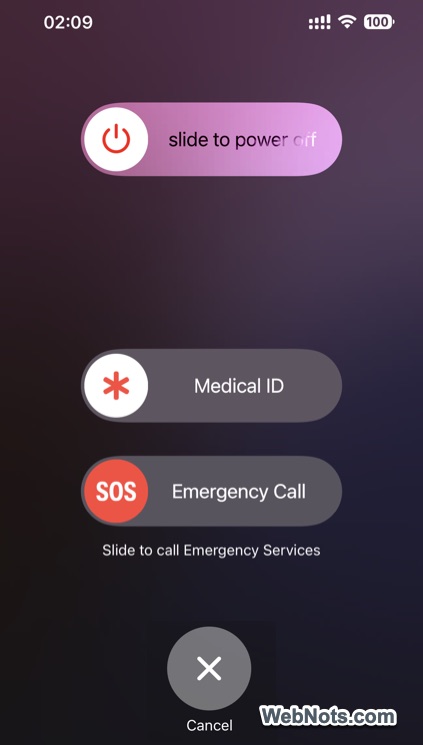
- On some models, holding “Volume Up + Side Button” for longer timer triggers the Emergency SOS feature. Face ID will be disabled after reaching the SOS screen and you enter the passcode to access home screen.
2. Action Button (iPhone 15 Pro & Later)
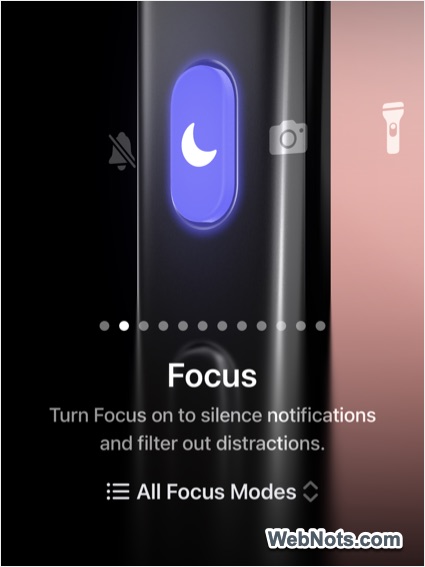
The Action Button replaced the traditional mute switch or silent button on iPhone 15 Pro series onwards. By default, it toggles Silent Mode on or off, but Apple allows customization for different functions, such as:
- Activating Focus Modes (like Do Not Disturb).
- Launching the Camera App.
- Turning on the Flashlight.
- Find the Music playing nearby with Shazam.
- Translate content or conversations.
- Magnifier to zoom objects.
- Set a custom action from Control Center.
- Set a Shortcut from Shortcuts app.
- Select an Accessibility feature.
- No action.
Users can configure the Action Button in “Settings → Action Button” to personalize its function.
3. Power Button (Side Button)
The Power Button, also known as the Side Button, is on the right side of the iPhone. It controls several essential functions:
- Press and hold the Side Button until the Apple logo appears to turn the phone on.
- To turn off, press and hold the Side Button + Volume Up or Volume Down, then slide to power off.
- A single press locks the screen or wakes it when the phone is asleep.
- Press and hold the button to summon Siri for voice commands.
- Double-press the Side Button to open Apple Pay for quick payments.
4. Camera Control Button (iPhone 16 & Later)
Camera Control Button is a feature introduced from iPhone 16 models replacing the physical SIM tray location (on applicable countries). It functions as:
- A quick launcher to open the Camera app instantly – either press once or twice.
- Swipe on the button to use various controls like zoom, focus, etc.
- When the camera is opened – press once to capture a photo and press twice to start video recording.

5. SIM Tray (iPhone Models Outside the US)
The SIM Tray is located on the right side of iPhone models before Camera Control Button was introduced. Now it has been moved to the left side on the most international iPhone models. It allows users to insert or remove a physical SIM card for cellular network access.
- Use the SIM ejector tool (a pin comes with iPhone package or you can use a paperclip) to push into the tiny hole next to the tray to open the SIM Tray.
- Once ejected, remove or insert the SIM card carefully. All latest iPhone models support dual nano-SIM cards.

Apple has removed the SIM tray from iPhone 14 & later models in the US, relying entirely on eSIM technology. For example, you can store up to eight eSIMs and use two simultaneously on iPhone 16 series.
6. USB-C Connector
The USB-C connector, located at the bottom of the iPhone, is a versatile port for:
- Connect your device to a power source for fast charging.
- Transfer files between your iPhone and other devices.
- Plug in USB-C-compatible accessories like external storage or headphones.
The transition to USB-C (from lightning cable), starting with iPhone 15, enhances compatibility with a wide range of devices and accessories.
7. Built-In Microphones
The iPhone features multiple built-in microphones, important for:
- Capturing clear audio during calls, video recordings, and voice memos.
- Ensuring crisp sound quality by reducing ambient noise.
- Use commands to pick up your voice when interacting with Siri.
These microphones are located on the bottom edge as well as on the top of front camera module.
8. Built-In Stereo Speakers
The built-in stereo speakers deliver high-quality sound and are located at the bottom edge and near the earpiece:
- Provides rich, immersive audio for music, videos, and games.
- Ensures clear audio during hands-free calls.
- Produces balanced sound for a dynamic listening experience.
Note: Though the physical home button is no more available, you can use AssistiveTouch to add soft home button on iPhones.
Final Thoughts
The iPhone’s buttons and connectors combine design and functionality to deliver a seamless user experience. Understanding these components ensures you get the most out of your iPhone, whether you’re making calls, taking photos, or customizing shortcuts for daily convenience.