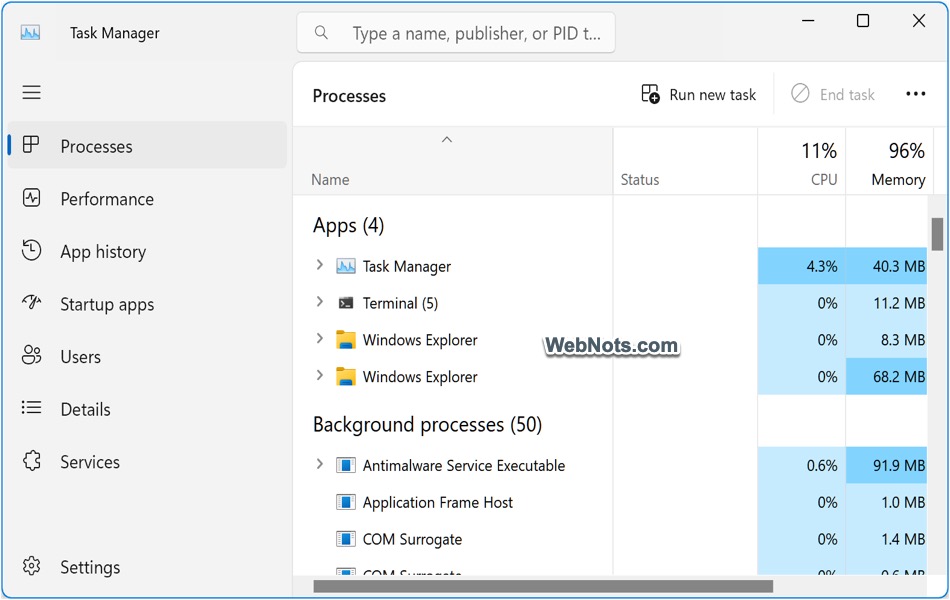
Windows OS offers a sandbox for creating an isolated environment, which can be used for testing and development purposes without affecting the standard setup. However, when it comes to browsers, most modern apps handle tabs, windows, and extensions simultaneously. This can create a security issue when one tab or window has a problem. To improve security and stability, Microsoft Edge uses a technology called process isolation. In this article, we will explain what process isolation is, how it works in Microsoft Edge, and how you can configure or verify it.
What is Process Isolation?
Process isolation is a security feature in Edge where different browser components run in separate operating system processes instead of sharing a single one. This allows each website (tab) and extension to run in its own process. The browser interface also runs independently from web pages using dedicated processes.
The advantage is obvious: if one process crashes or becomes compromised, the others continue running normally. This not only improves Edge security against malicious websites but also reduces the risk of websites accessing data from other tabs.
How Microsoft Edge Uses Process Isolation?
Microsoft Edge is built on the Chromium engine, which automatically applies process isolation for most browsing activities. By default, Edge isolates individual tabs, cross-site navigation, extensions, browser services, and GPU/network processes. You do not need to enable anything manually because these protections are already active. However, you can see how Edge isolates processes using the Edge Task Manager.
- Open Microsoft Edge and press Shift + Esc keys.
- The browser Task Manager opens, where you’ll see separate processes for tabs and extensions under “Tabs & extensions”.
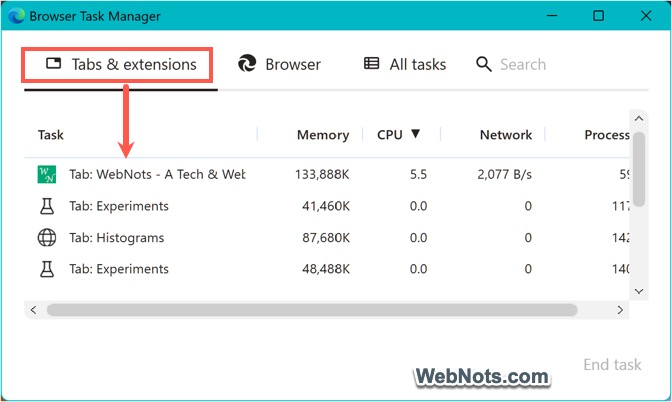
This confirms that Edge is using multiple isolated processes. You can also inspect Edge processes using the Windows Task Manager app.
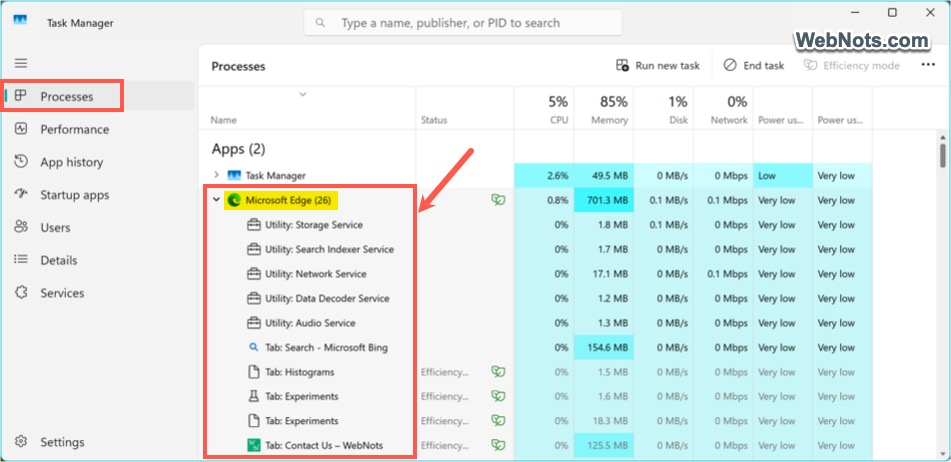
- Open Microsoft Edge and then press Ctrl + Shift + Esc.
- This opens the Windows Task Manager. Go to the “Processes” tab.
- Expand Microsoft Edge and you’ll notice many Microsoft Edge processes instead of just one. Each serves a different purpose.
Site Isolation in Microsoft Edge
Site isolation is a security feature built on top of process isolation that ensures content from different websites (origins/sites) runs in separate renderer processes.
Process Isolation
│
├── Browser process
├── Renderer processes
├── GPU process
├── Network process
├── Extension processes
└── Site Isolation
     ├── Site A → Renderer Process 1
     ├── Site B → Renderer Process 2
     └── Site C → Renderer Process 3
It ensures the following:
- Different websites run in different renderer processes.
- A compromised website cannot easily access information from another site.
- Sensitive websites receive stronger protection against speculative execution attacks and similar vulnerabilities.
This feature is enabled automatically in modern versions of Microsoft Edge. If you want to enforce stronger isolation, Edge includes experimental settings.
- Open Microsoft Edge and go to the edge://flags settings page.
- Search for “site isolation” and find the “Strict-Origin-Isolation” flag.
- Click the “Default” button and select “Enabled”.
- Relaunch the browser to apply the changes.
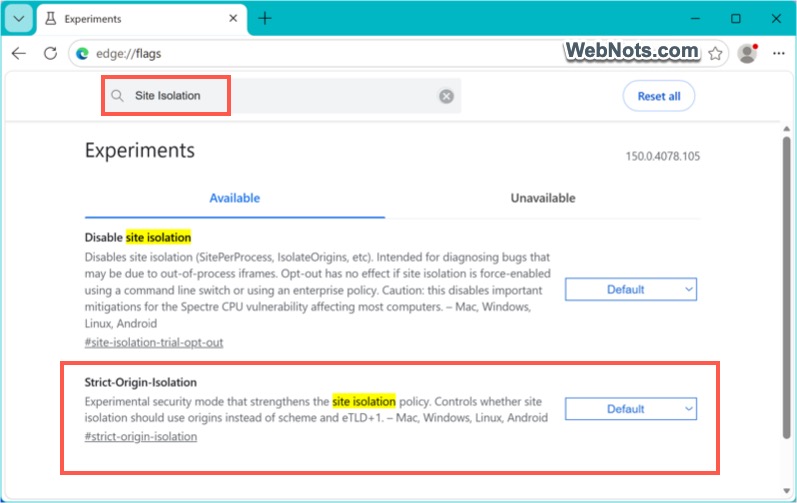
Note: Experimental flags may change or disappear in future versions. Organizations can manage process isolation using Microsoft Edge policies.
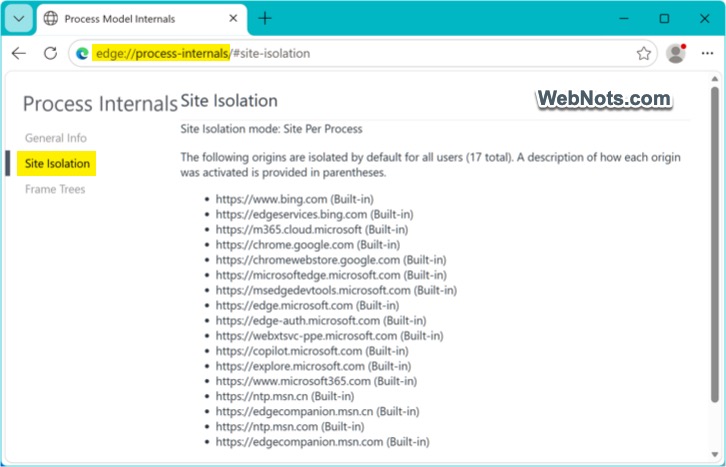
To see detailed information about isolated sites, open the edge://process-internals page in Edge. Depending on your Edge version, diagnostic pages provide information about renderer processes and browser internals.
Disable Process Isolation in Edge
If any third-party app like your antivirus is not working, then you can consider disabling process isolation in Edge (although it is not recommended) using the Registry Editor app. Back up your registry before making any changes as a safety measure.
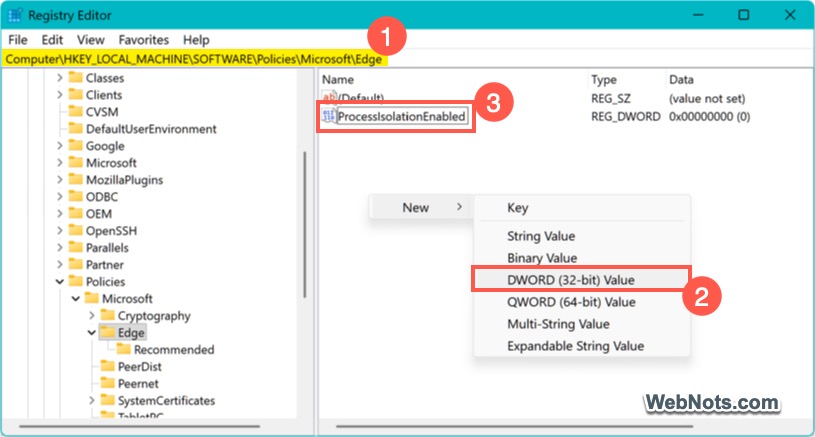
- Search for and open the Registry Editor app.
- Copy and paste the following path in the address bar and press Enter:
Computer\HKEY_LOCAL_MACHINE\SOFTWARE\Policies\Microsoft\Edge
- Right-click on the empty area in the right pane, go to “New > DWORD (32-bit) Value” option.
- Name the item as ProcessIsolationEnabled.
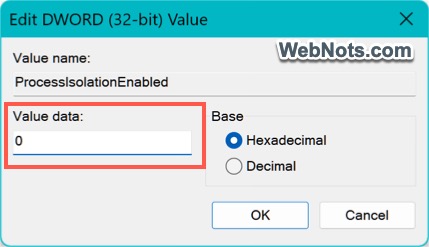
- Double-click the newly created item and make sure its “Value Data” is 0.
- Click “OK” to apply your changes and close the app.
You can at any time change the item’s value to 1 to enable process isolation or simply delete it from your registry.
Frequently Asked Questions
No. Sandboxing restricts what a compromised process can do, while process isolation separates browser components into different operating system processes. Microsoft Edge uses both technologies together to improve security.
Not always. Edge intelligently decides how to group tabs based on factors such as the website, memory usage, extensions, and system resources. Many tabs receive dedicated processes, while others may share processes when appropriate.
Since multiple processes are created, memory usage is generally higher than in older single-process browsers. However, the impact on browsing speed is generally minimal, and the gains in security and stability make it a worthwhile trade-off. Microsoft Edge also includes memory-saving features such as Sleeping Tabs and Efficiency Mode to reduce overall resource consumption.
Edge does not offer any setting to disable process isolation. Although you can disable it using Registry Editor and disable site isolation using an experimental flag, it is not recommended.