
Finally, Microsoft Edge has grown into a capable and feature-rich browser powered by Chromium backend. However, Microsoft supplies the browser app some default settings that may compromise privacy, affect performance, or simply prove unnecessary for most users. By disabling these settings, you can make Edge more secure, private, and efficient. In this article, we will explain 10 Microsoft Edge settings you should consider disabling and explain how to do so step-by-step.
Before Disabling Settings
Some settings may affect the functionalities of the browser. Unlike passwords, you can’t export the entire settings and reimport again. So, if you notice any problem, you need to manually revert to previous state or reset the browser to initial settings. Also, make sure you are using personal computer with administrator access. Otherwise, you may see a notification in Edge settings page saying that settings are managed by your organization and you will not be able to modify them.
1. Disable Tracking and Diagnostic Data Sharing
By default, Microsoft Edge collects diagnostic and usage data to improve the browser. However, this comes at the cost of user privacy. You can disable the corresponding settings to prevent Edge from sending unnecessary browsing and diagnostic data back to Microsoft, enhancing your privacy.
- Open Edge and go to “Settings” or go to edge://settings page.
- Navigate to “Privacy, search, and services” section.
- First, turn on the “Tracking prevention” and then select “Strict” option. Also, turn on “Always select “Strict” tracking prevention when browsing InPrivate” option.

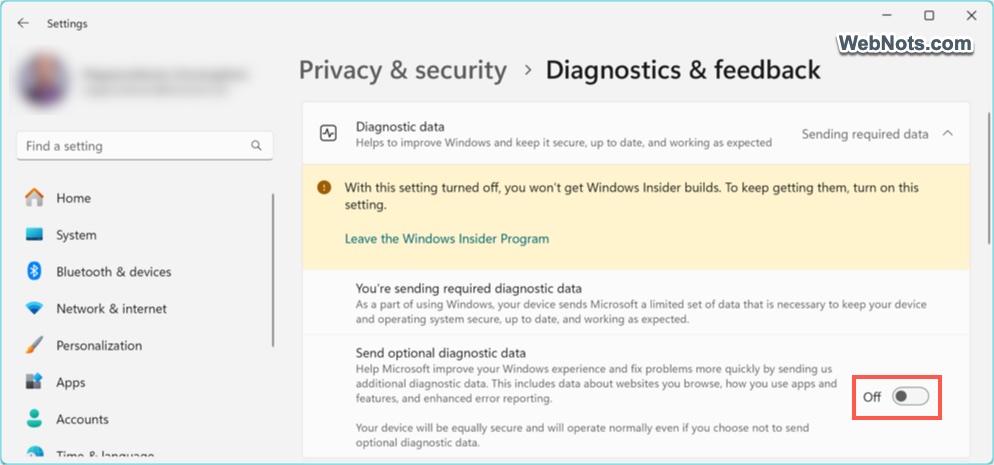
- Scroll down on the page and turn off “Optional diagnostics data” and “Search and service improvement” options. You need to restart the browser for the changed to take effect.

Note that for “Optional diagnostic data”, click the “Windows diagnostics data setting” link. This will open Windows Settings app where you can disable “Send optional diagnostics data” option. As mentioned, this will show a warning if you are using Windows Insider Build if you are using it. For a stable version, it will not show any message.
2. Turn Off Preloading of Pages for Faster Browsing
Edge preload pages it thinks you might visit next to speed up browsing, but this can unnecessarily consume system resources and bandwidth.
- Go to “Cookies and site permissions” in Edge settings page.
- Select “Manage and delete cookies and site data” option.
- Disable “Preload pages for faster browsing and searching” option.
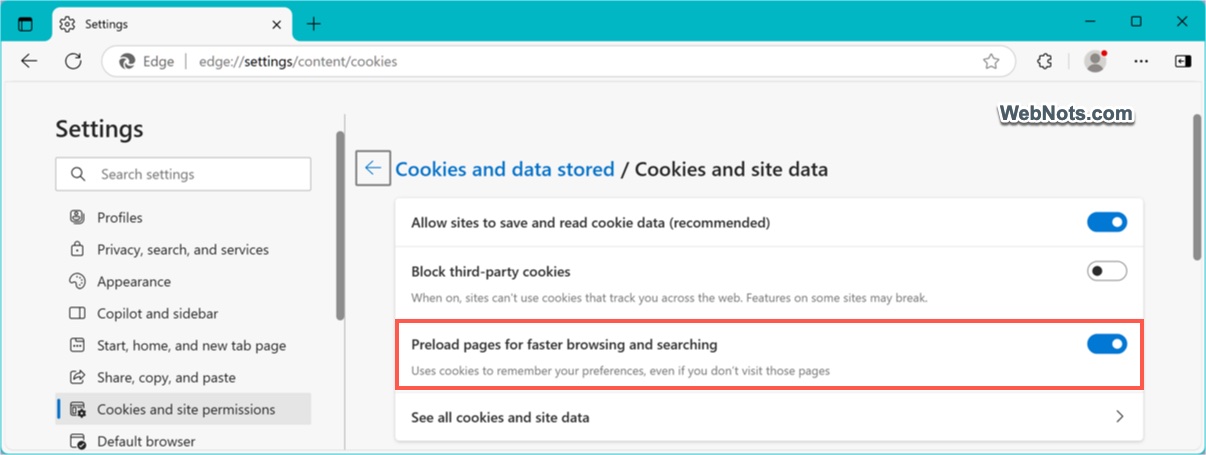
This prevents Edge from preloading pages, reducing memory and data usage, and improving overall browser performance.
3. Disable Personalized Ads and Suggestions
Edge collects browsing habits to display personalized ads, promotions, and suggestions. If you value privacy, disabling this feature is essential.
- Open Settings and go to “Privacy, search, and services” section.
- Scroll down to “Personalization & advertising” section and disable it.

This reduces tracking and stops Edge from showing personalized ads based on your browsing behavior.
4. Stop Saving Payment Methods Automatically
While Edge can save payment methods for convenience, it may not be ideal for users concerned about sensitive data security.
- Go to “Edge Settings > Profiles > Payment info” to open “Microsoft Wallet”.
- Click the “Settings” button and check under “Payment methods” heading.
- Turn off “Save and fill payment info” and “Automatically save payment info” options.

Disabling these options ensures your credit card details aren’t stored in the browser, lowering the risk of unauthorized access.
5. Disable Autofill for Forms and Passwords
Edge’s autofill feature saves form data like names, addresses, and passwords. While convenient, it can pose a security risk if someone gains access to your browser.
- Go to “Edge Settings > Profiles > Personal info”.
- Under “Personal info” heading, disable “Save and fill personal info”, “Enable machine learning powered autofill suggestions” and “Automatically fill my info on sign up forms” options.
- Similarly, you can turn off “Offer to save passwords” and “View and autofill passwords and passkeys” option under “Passwords” section.

This prevents Edge from storing sensitive personal information that could be misused.
6. Turn Off Startup Boost
Startup Boost allows Edge to preload processes in the background to make the browser open faster. However, this consumes system resources.
- Go to “Edge Settings > System and performance” section.
- Turn off the “Startup boost” option under “System” section.
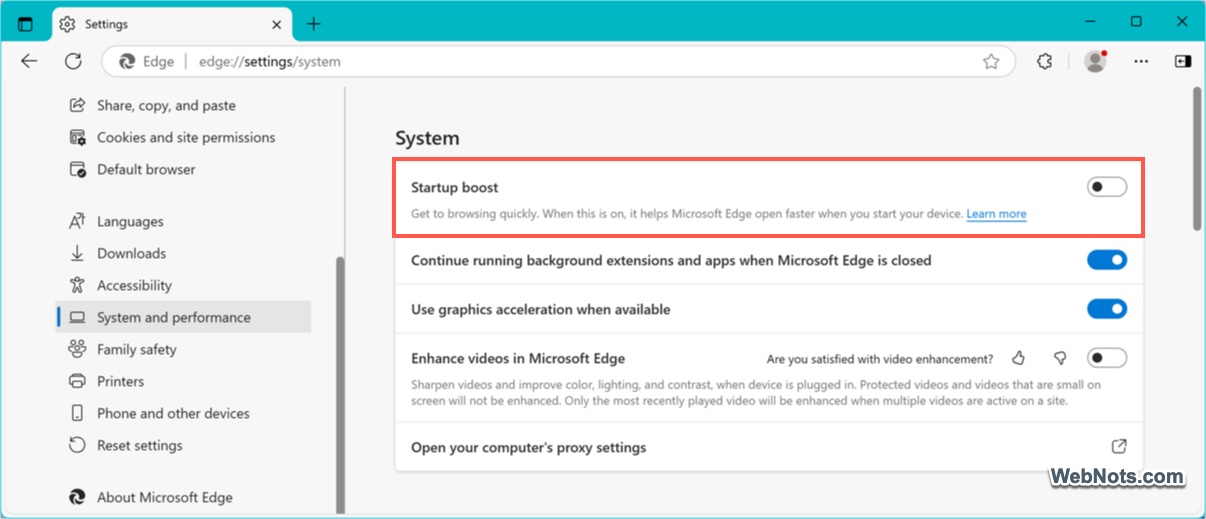
This frees up RAM and CPU resources that Startup Boost uses, which is especially helpful for lower-end PCs.
7. Stop Edge from Running in the Background
Edge continues running background processes even after you close it, which can slow down your system.
- Go to “Edge Settings > System and performance” section.
- Disable the toggle for “Continue running background extensions and apps when Microsoft Edge is closed” option.
Disabling this ensures Edge completely stops running when you close it, saving system resources.
8. Disable Search Suggestions in the Address Bar
Edge provides search suggestions as you type in the address bar, but this sends keystrokes to default search engine (generally, Bing).
- Go to “Edge Settings > Privacy, search, and services”.
- Scroll down to the bottom and click “Address bar and search” option under “Services” section.
- Select “Search suggestions and filters” option on the next page.
- Turn off the toggle for “Show me search and site suggestions using my typed characters”. Also, disable “Show me trending searches from Microsoft Bing” option.

Turning this off ensures your typed keystrokes aren’t sent to search engine company, improving privacy.
9. Turn Off Media Autoplay
By default, Edge allows websites to autoplay videos and media, which can be distracting and consume data.
- Go to “Edge Settings > Cookies and site permissions”.
- Scroll down and click on “Media autoplay”.
- Set “Control if audio and video play automatically on sites” option to “Block”.
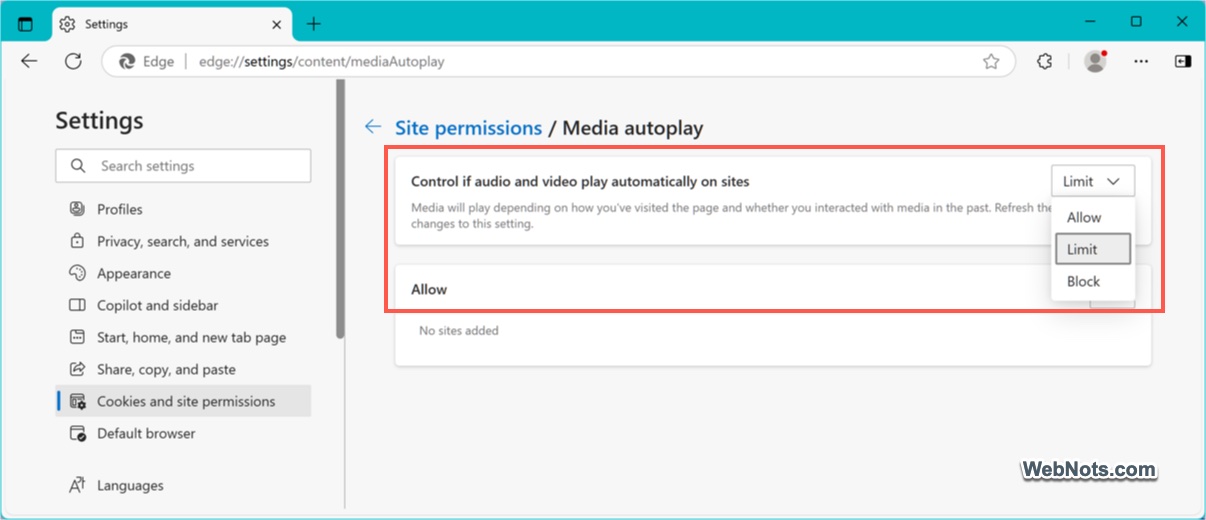
This prevents websites from automatically playing media, improving your browsing experience and reducing data usage.
10. Stop Edge from Syncing Data Across Devices
Edge syncs your browsing data, bookmarks, history, and passwords across devices. If you don’t need this, disabling it improves privacy.
- Go to “Edge Settings > Profiles”.
- Click “Sync” under “Profile settings”.
- Turn off the items you don’t want to be synced.

Disabling sync stops your browsing data from being stored on Microsoft servers, enhancing your privacy.
Conclusion
Microsoft Edge, while powerful, comes with numerous default settings that prioritize convenience over privacy, security, and performance. By disabling these 10 settings, you can take greater control over your browsing experience. Not only will your browser run faster, but you will also enjoy a more private and secure online experience.


