
Have you ever placed your AirPods in your ears and realized that the sound was not playing in one of them? In a few seconds, you can find that one AirPod is not working because it has 0% battery, although the other one has full or sufficient charge. Sometimes it will start working simply by recharging it, but most of the time, the same issue will repeat after a while. Also, it happens with any side AirPod (left or right), indicating there is a problem with the charging or with the AirPod itself. Before assuming that your AirPod needs to be replaced, use the following checks and troubleshooting methods.
Check the Battery Percentage of Both AirPods
First, confirm that one AirPod is actually not charging.
- Place both AirPods inside the charging case.
- Open the lid near your iPhone, iPad, or Mac.
- The battery status should appear on the screen (you can see it from Control Center on Mac). Alternatively, go to “Settings” and tap on the AirPods name to view the battery percentage on iPhone / iPad (go to “Apple menu > System Settings… > AirPods Name” on Mac).
- It shows the charge percentage level for the left AirPod, right AirPod, and charging case. A single 100% value below the AirPods indicates that both pods are charged fully.
You should see that the problematic AirPod shows a significantly lower percentage (mostly at 0% or remains at 1%) or does not display a charging indicator, while the other AirPod is charging. This confirms the problem, so continue with the fixes below.
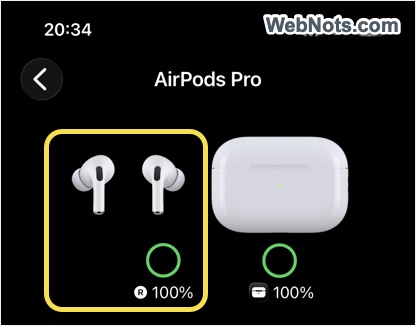
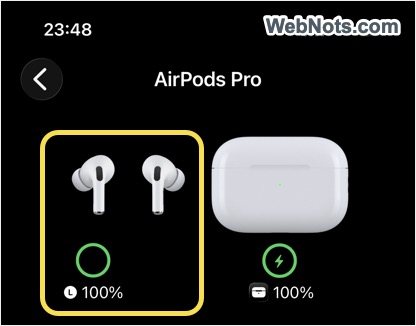
Note: You can also check the individual battery levels using the “Batteries” widget on your iPhone or iPad. Unlike other devices, AirPods charge faster, and you can visually see the percentage increasing on the iPhone / iPad screen when the charging case lid is open. This means you can easily see that the problematic one will remain stuck at the same percentage while the other one is rapidly charging.
1. Perform the Basic Charging Checks
Start with the physical charging components, as these are among the most common causes of one AirPod not charging.
- Make sure the case has sufficient charge and works properly by checking the battery % on your device. You should see a brief glowing orange light when it is connected to power.
- After that, check that the affected AirPod’s metal strips and the metal piece inside the case’s slot are not worn or damaged. Clean those metal strips and make sure there is no dust accumulation.
- Place the AirPod in the slot and make sure it sits properly inside the case so the strips are in contact.
- Close the lid, wait a few seconds, and open it again to check whether charging has started.
In most cases, this will resolve the issue, as dust, earwax, and other debris can prevent the AirPod from making proper contact with the charging components inside the case.
2. Forget and Reconnect Your AirPods
If the AirPod is seated correctly and the charging contacts are clean, try removing the AirPods from your Bluetooth settings and pairing them again.
- On your iPhone / iPad, go to “Settings > Bluetooth”. On Mac, go to “Apple menu > System Settings… > Bluetooth”.
- Find your AirPods name and tap the information (ⓘ) icon next to it.
- Select “Forget This Device” and confirm.
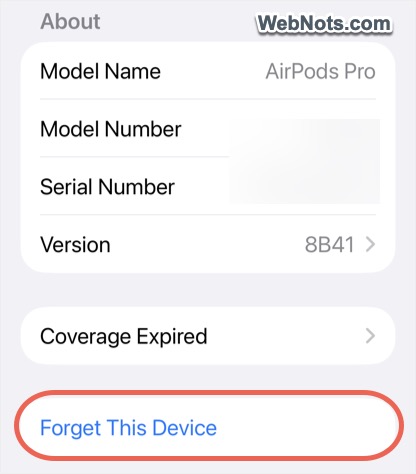
Place both AirPods in the charging case and follow the normal pairing procedure to reconnect them to your device. After reconnecting, check whether the affected AirPod now displays the charging indicator.
3. Reset Your AirPods
If reconnecting the AirPods does not solve the charging problem, resetting them can clear connection and configuration issues.
- First, remove the AirPods from your device Bluetooth settings as explained above (using the “Forget This Device” option).
- After that, place both AirPods in the charging case and close the lid.
- Wait about 30 seconds and open the lid.
- For AirPods (3rd and 4th generation), double-tap on the case’s front side to see the white glowing light. For other models, press and hold the setup button on the back of the case for about 15 seconds and release it when the status light flashes white.
After the reset, pair them again with your device and check whether the AirPod that was not charging now shows a charging indicator.
4. iCloud Sync Issues
AirPods need to be connected with your iCloud account for many purposes, like checking warranty status, using Find My, and receiving firmware updates. A single AirPod not charging can also indicate iCloud sync issues, and you should reconnect in such a case.
- You will see a notification on your device that the left/right AirPod has been left behind and is not detected.
- Place the AirPods in the case, open the lid, and bring them nearer to your device.
- You will see the device showing your AirPods model’s name; tap on the “Connect with iCloud” button.
- If prompted, enter your password and reconnect AirPods with your iCloud account.
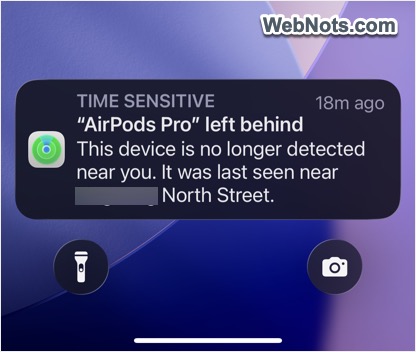

Now, check if this can fix the charging issue and detect the AirPods properly from your device.
Note: Although the case and the 2 AirPods are a single device as a whole, they have three different serial numbers. Go to Bluetooth settings on your device and tap the ⓘ icon at the end of the AirPods name. Check under the “About” section and tap on the “Serial” number value shown. It will show another number for the left AirPod; tap on it again to see the number for the right AirPod.
5. Update the AirPods Firmware
AirPods firmware helps with connectivity, charging behavior, battery reporting, etc., and keeping the firmware updated can help resolve software-related problems. Generally, updates are delivered automatically and there is no manual software update option (like for iPhone, iPad, or Mac). To give your AirPods an opportunity to receive an available firmware update:
- Go to this Apple support page to find the current firmware version applicable for your AirPods model.
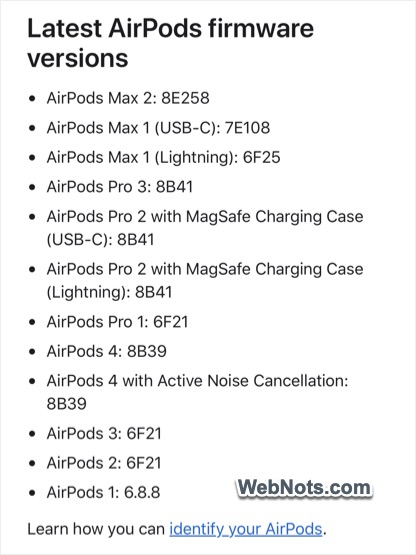
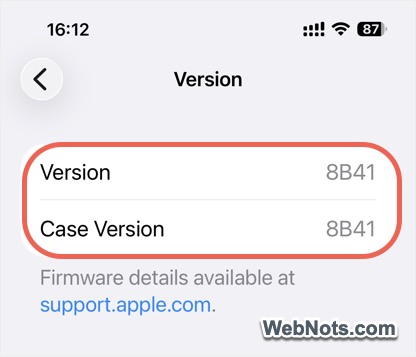
- After that, go to the AirPods Bluetooth settings on your device and check the firmware “Version” under the “About” section. If the versions are different, proceed further to update the firmware.
- Make sure your iPhone, iPad, or Mac is connected to Wi-Fi, Bluetooth is enabled, and your AirPods have been paired with the device.
- Place both AirPods inside the charging case, close the lid, and connect the charging case to power.
- Keep the AirPods within Bluetooth range of your iPhone, iPad, or Mac and leave them charging for at least 30 minutes.
- This will update the firmware if available. After that, check that the versions are the same and confirm whether both AirPods charge normally.
6. Restart Your iPhone
If both AirPods appear physically fine but the battery percentage or charging status is behaving unexpectedly, restart your iPhone. A restart can clear temporary Bluetooth, system, or battery-status reporting problems that may cause incorrect AirPods information to appear.
After restarting the iPhone, open the AirPods case near it and check the battery percentages again. This step is especially useful when an AirPod appears to be charging normally but your iPhone continues to show an old or incorrect battery level.
7. Update Your Device OS
Keeping iOS updated helps to maintain compatibility with AirPods and can resolve Bluetooth and connectivity related problems. Note that the firmware may also get updated through an OS update.
- Go to “Settings > General > Software Update” on iPhone / iPad and “Apple menu > System Settings… > General > Software Update” on Mac.
- Check whether an OS update is available for your device.
- If yes, download and install it.
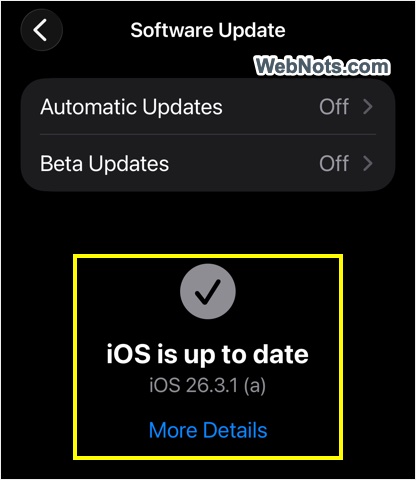
After updating, check whether both sides of the AirPods are detected and charging correctly.
8. Check for a Hardware or Battery Problem
If the same AirPod still refuses to charge after following all the above steps, hardware failure becomes more likely. A hardware problem is particularly likely if the affected AirPod:
- Consistently remains at 0% or 1%
- Is not detected when inserted into the case.
- Charges only when pushed or repositioned.
- Stops charging intermittently.
- Loses battery power unusually quickly.
- Does not respond after an extended charging period.
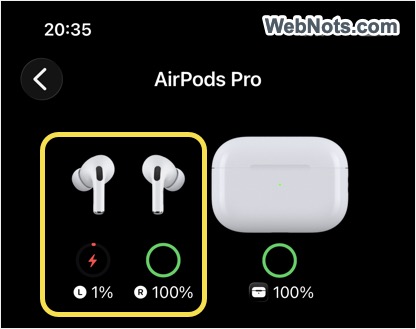
If you suspect the case is the problem, try charging the AirPods with another case, possibly at a retailer’s shop in a mall. If the AirPods charge properly, check the case’s metal strips and the charging port. In any case, you need to contact Apple Support or an authorized service provider for hardware-related issues. You may not need to purchase a completely new set. Depending on the model and service options available, an individual AirPod or charging case can be replaced separately.


