iPhone 14 or earlier models show the time bar in different colors as we have explained in our earlier article. It appears that iPhone 14 Pro and later models do not display the time bar in different colors. Instead, various colored dots are shown on the Dynamic Island area or the top status bar. These colored dots indicate the usage of specific system functions like the microphone, camera, screen recording, and location service. In this article, we will explain the meaning of colored dots appearing on iPhone.
What Are the Colored Dots on iPhone?
These dots serve as privacy indicators, ensuring users are aware when sensitive hardware components are being accessed on iPhone. You can find which apps are using camera, microphone, screen recording, or location services and control the behavior.
1. Green Dot – Camera Access Indicator
A green dot appears on the Dynamic Island area when an app is actively using the camera or both the camera and microphone. The best examples include the Camera app, FaceTime, and any video calling apps like WhatsApp.

2. Orange Dot – Microphone Access Indicator
An orange dot appears when an app is actively using the microphone. It either appears on the Dynamic Island area or on the right-corner of the status bar. You will see this dot whenever making a call using the Phone app or when using apps like Voice Memos and Siri. It also appears when using audio calls on like WhatsApp, Zoom, and Google Meet.

3. Red Dot – Screen Recording Indicator
A red dot appears on Dynamic Island when the screen is being recorded. You can see this red dot typically when using built-in Screen Recording feature of iOS.

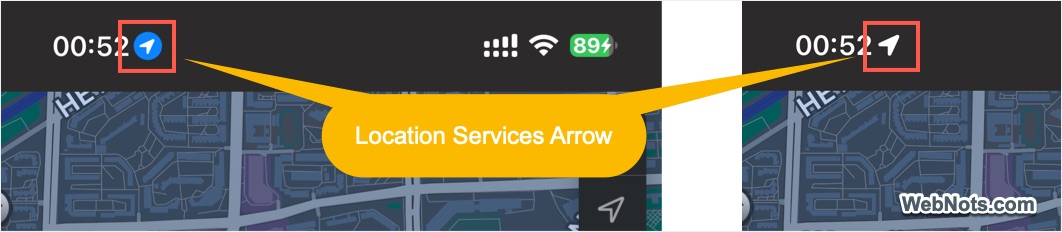
4. Blue or Grey Arrow – Location Services Indicator
This is not a dot, but a blue or grey arrow appears when an app is using location services (GPS). Apps like Google Maps, Apple Maps, Weather, Find My, taxi booking apps, and food delivery apps need your location and show arrows in different colors.
5. Blue Dots on App Icons
You may also notice a blue dot showing below certain app icons on the home screen. This indicates a newly installed or recently updated app that hasn’t been opened yet.
Check out the complete list of iPhone symbols and their meanings.
Summary of Colored Dots on iPhone
| Color | Location | Meaning | Apps Using It | Privacy Concern |
|---|---|---|---|---|
| Green Dot | Dynamic Island | Camera is in use | Camera, FaceTime, Snapchat, Instagram | Ensure no unknown app is accessing the camera |
| Orange Dot | Dynamic Island / Status Bar | Microphone is in use | Phone, Voice Memos, WhatsApp, Zoom | Check if an app is listening without your consent |
| Red Dot | Dynamic Island | Screen recording is in progress | Screen Recording, Twitch, mirroring apps | Ensure no app is recording without your knowledge |
| Blue Arrow | Status Bar | Location services in use | Google Maps, Maps, Weather, Fund My | Apps may track location in the background |
| Blue Dot on App Icon | Home Screen | Newly installed or updated app | Any app | No privacy concern |
Check Which App Is Using the Camera/Microphone/Screen
If you see a green or orange dot without knowingly using your camera or microphone, a background app / service may be accessing it. You can check by following the below steps to view the responsible app(s).
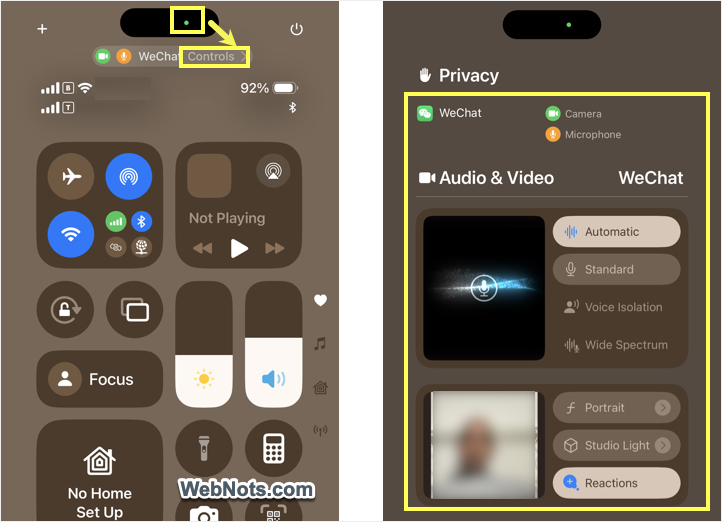
- Tap on the Dynamic Island or swipe down from the top-right corner to open Control Center.
- Look for the app name at the top that is accessing the microphone, camera, or recording the screen. Tap on the “Controls” option if available.
- You will again see the details along with additional customization options. For example, you can dynamically adjust the audio & video setup while making a video call using these controls.
If an unknown app is listed for the arrow symbol, open Settings app and go to “Privacy & Security > Location Services” section to manage the location access for individual apps.