It is common to work with multiple apps in Mac and switch across them using “Command + Tab” or “Command + Shift + Tab” keyboard shortcuts. However, did you any time wonder how to toggle through multiple windows of the same application? This is super easy on Windows as you can see all instances of an app as an individual thumbnail when using “Alt + Tab”. Unfortunately, it does not work like that in Mac, and here are different methods to efficiently switch between same app windows on your Mac.
1. Keyboard Shortcuts for Switching Same App Windows
Press Command + ` keys in Mac to switch between windows of the same app. Backlit ` symbol is shown along with Tilde key which is located below the “Esc” key (or above Tab) on most Mac English keyboard models.

This shortcut allows you to cycle through all open instances within the active application. You can use Command + Shift + ` keys to cycle through app windows in reverse manner. However, you will not visually see any thumbnails or app icons on the screen.
2. Change Cmd + ` Shortcut Keys
The problem with the backlit or tilde key is that it will not be available in most European and other language keyboards. In that case, you may need to use different key combination with Command instead of tilde. To avoid confusion, you can find the actually assigned shortcut keys on your Mac and change it as per your convenient.
- Click the Apple menu and select “System Settings…”.
- Go to “Keyboard” section and click on the “Keyboard Shortcuts…” button.
- Navigate to “Keyboard” section and find “Move focus to next window” option.
- The shortcut assigned here (⌘`) is what your default shortcut to switch windows of same app.
- Double-click on the shortcut and press any key combination as per your wish to set a new shortcut.
- Click “Done” button and start using the newly assigned shortcut henceforth.


3. Use Down Arrow with Command + Tab
As mentioned, most Mac users know you can switch across app windows using the “Command + Tab” App Switcher (or Application Switcher) shortcut. However, you can also use the same shortcut with arrow keys to toggle between open windows of same app.
- Press “Command + Tab” on your keyboard to open App Switcher.
- While holding down the “Command” key, use “Tab” or “Right or Left Arrow” keys to highlight the desired app.

- Now, press “Down Arrow” key to view all open windows of the highlighted app.
- Select the instance you want to open with mouse. Alternatively, use arrow keys to navigate through open windows and press enter key to open the highlighted instance.

4. Using Mission Control
Mission Control is another feature that simplifies window management on your Mac. To activate it, press “F3” on your keyboard or use a four-finger upward swipe on the trackpad. On some keyboards, you may need to use “Fn + F3” keys to launch Mission Control. This will show you all your open app windows including apps with multiple instances. Click on a thumbnail to open that app window.
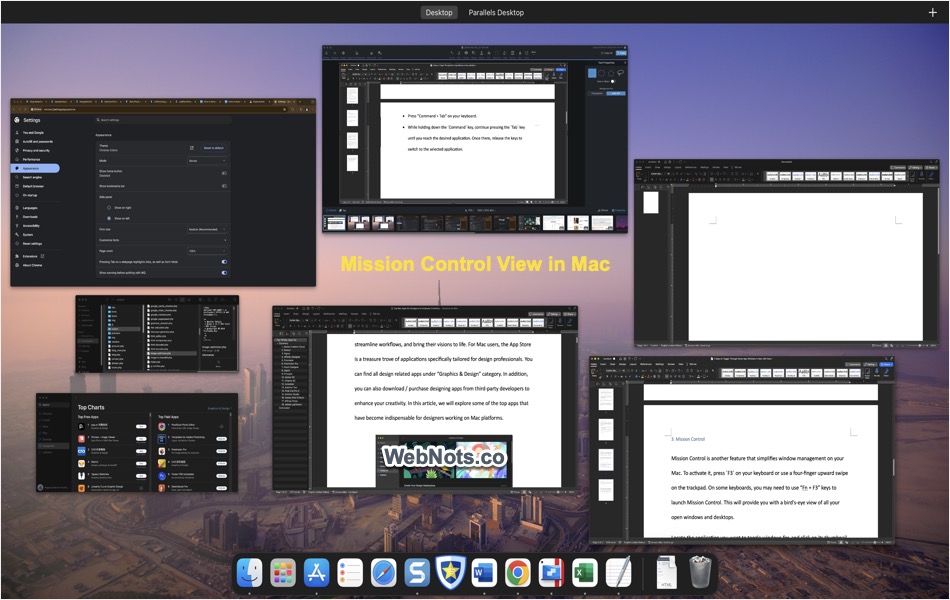
The advantage with Mission Control is that you can easily switch between virtual desktops and select the app windows on different screen. You can also group the app windows in Mission Control view from “Apple Menu > System Settings… > Desktop & Dock > Mission Control” settings.

This will group same app windows along with the app icon so that you can easily pick up the needed window.

5. Using Trackpad Swipe Gestures for Full Screen Windows
If you’re using a MacBook with a trackpad, you can make use of swipe gestures to toggle between full screen app windows. Let’s say, you have two Word documents opened in a full screen mode. Swipe left or right with three or four fingers to move between them. This is a quick way to navigate through app’s full screen windows if you are comfortable with finger movements.
You can change the trackpad gesture to use three or four fingers swipe. For that, go to “Apple Menu > System Preferences… > Trackpad > More Gestures” (or System Settings in new macOS). Make sure to check “Swipe between full-screen apps” item and select three or four fingers option from the dropdown.

6. Control Click on Dock Icon
If you prefer a visual approach by seeing the document name, then simply control-click (or right-click) on the app icon on your Dock. This will show the titles or document names of all open app windows. You can either use mouse to select an item or use the arrow key to highlight an item and press enter to open it.

7. Keeping Minimized Windows as Separate Icons on Dock
Mac also allows you to show each instance of same app window on Dock when you minimize them.
- Go to “Apple menu > System Preferences… > Dock & Menu Bar” section on old macOS. Otherwise, go to “Apple menu > System Settings… > Desktop & Dock” section in new macOS.

- Disable “Minimize windows into application icon” option.
- This will show all your minimized windows of the same app as separate icons on the Dock.

Conclusion
We hope the above tips help to switch between same app windows in Mac with ease. Whether you prefer keyboard shortcuts, trackpad gestures, or mouse, you can easily manage multiple windows. Unfortunately, there are no options to view individual browser tabs and switch across them in Mac. All you can do is to keep separate browser windows and select from Dock or use App Switcher with down arrow key. Within a browser window, you can use number 1 to 9 keys along with Command to quickly navigate through the tabs.