Windows 11 includes a built-in touch keyboard that lets you type without a physical keyboard. It is useful on touchscreen based laptops, 2-in-1 devices, tablets, and computers and includes useful features like emoji, GIFs, voice typing, and handwriting input. You can use the touch keyboard when the physical keyboard is unavailable or not working.
Touch Keyboard vs. On-Screen Keyboard
Windows 11 also comes with an On-Screen Keyboard, which is different from the Touch Keyboard.
- The Touch Keyboard is primarily designed for touchscreen devices.
- The On-Screen Keyboard is an accessibility tool that displays a more traditional keyboard interface on the screen. It can be useful when a physical keyboard is unavailable or when you need an alternative input method. You can open the On-Screen Keyboard by pressing Windows + Ctrl + O keys.
This article explains various options available for using Touch Keyboard. Check our earlier article on how to use On-Screen Keyboard.
Enable or Disable Touch Keyboard in Windows 11
Windows can automatically display the touch keyboard when you tap a text field on a touchscreen device. If it does not show up, you can manually enable it from the Settings app. On other hand, you can disable the touch keyboard if you have a physical one connected to the device.
- Press Windows + I keys and open the Settings app.
- Navigate to “Personalization” section and select “Taskbar” option.
- Expand “System tray icons” and click the dropdown next to “Touch keyboard” option.
- Select “Never” for disabling it completely. For enabling, choose “Always” or “When no keyboard attached”, depending on your preference.
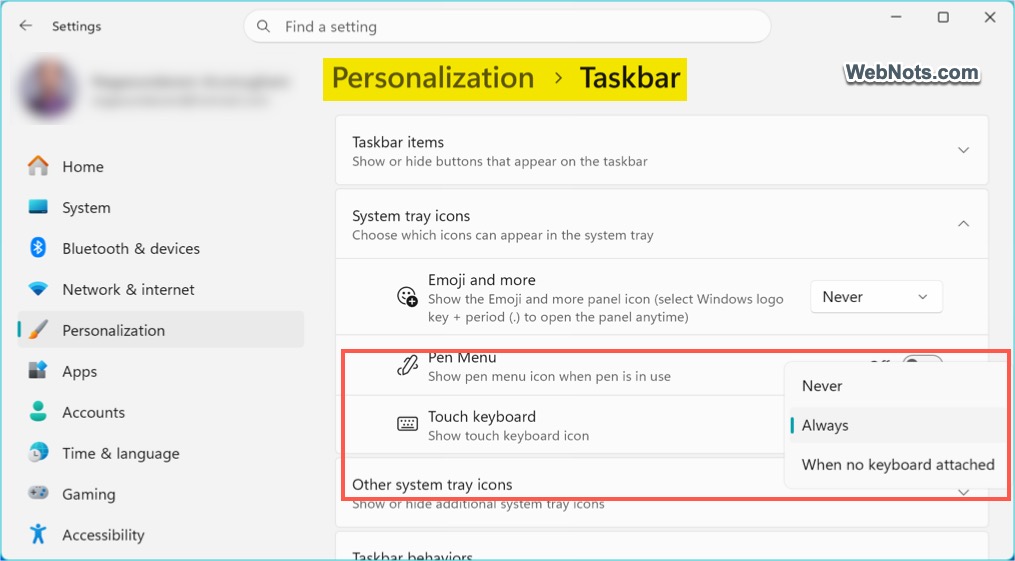
- You should now see a keyboard icon in the system tray section of your taskbar and click or tap it to open the keyboard.
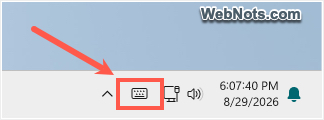
Note: You can also enable touch keyboard by navigating to “Settings > Time & language > Typing > Touch keyboard > Show the touch keyboard”. However, you need the taskbar icon to launch the keyboard.
Changing Size and Theme
Windows 11 lets you customize the touch keyboard.
- Go to “Settings > Personalization > Text input”, where you can find options for customizing the touch keyboard’s appearance.
- Depending on your version of Windows 11, you may be able to change keyboard theme, size, background, and key size.
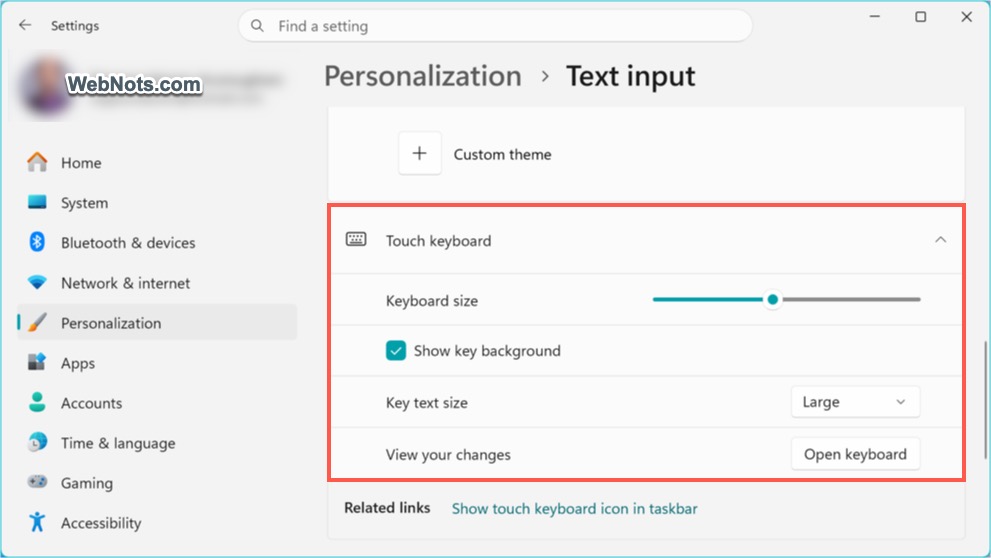
- You can select one of the built-in themes or create a customized appearance. This is useful if you want the keyboard to match your Windows 11 appearance.
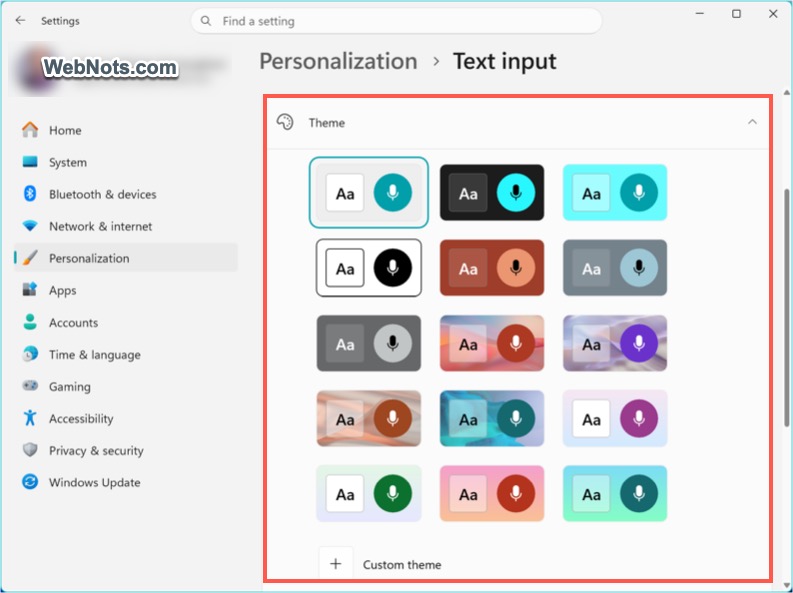
Note: The selected theme will also affect the emoji panel and voice typing interfaces.
Change Touch Keyboard Layout
It is also possible to change the touch keyboard layout.
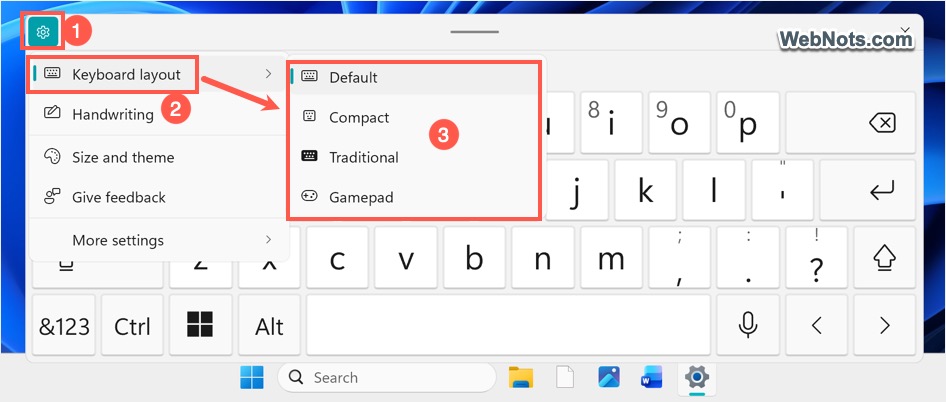
- Open the touch keyboard by clicking the taskbar icon.
- Click the gear settings icon on top left corner of the keyboard.
- Go to “Keyboard layout” menu and choose one of the layouts such as Default, Compact, Traditional, or Gamepad. The available options can vary depending on the device and Windows configuration. A split layout (if available) can be useful when holding a tablet with both hands, while the standard layout is more suitable when typing on a desk.
Using the Touch Keyboard
The main touch keyboard displays letters by default and support all functions included in the emoji panel (can be opened with Windows + Dot key).
- Numbers & Basic Symbols: To access numbers and additional symbols, tap the &123 key. This opens a numeric and symbol keyboard containing numbers, punctuation marks, and other commonly used characters. Tap abc key to return to the normal letter keyboard.
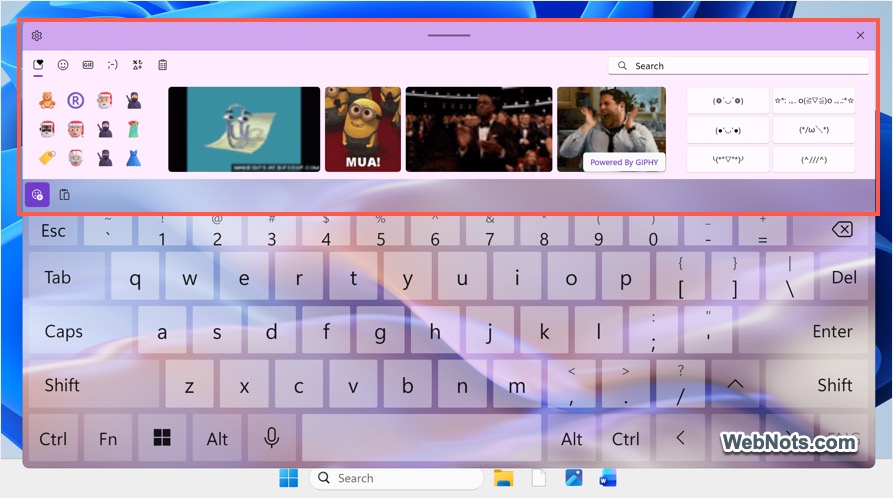
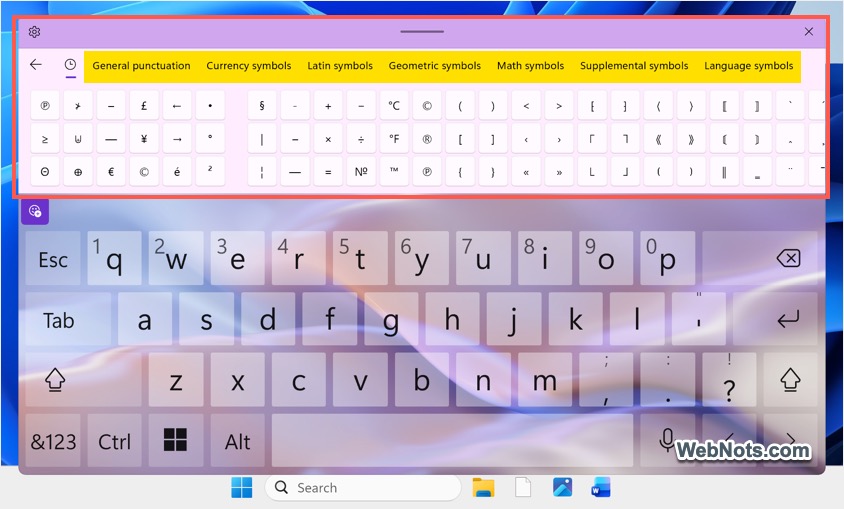
- Emoji, Kaomoji, and Unicode Symbols: Click the emoji icon (showing just below the settings icon) and then select the “Emoji” icon again. Now, you can browse through categories to insert an emoji into the current text field. You can also search for an emoji by typing a keyword. Similarly, select “Kaomoji” to insert text based Lenny faces, select “Symbols” to insert punctuation, currency, Latin, geometric, mathematics, and language symbols from Unicode, or insert GIF images.
- Clipboard History: After clicking the emoji icon, click the “Clipboard history” icon to access recently copied text and other supported content.
Using Voice Typing and Handwriting
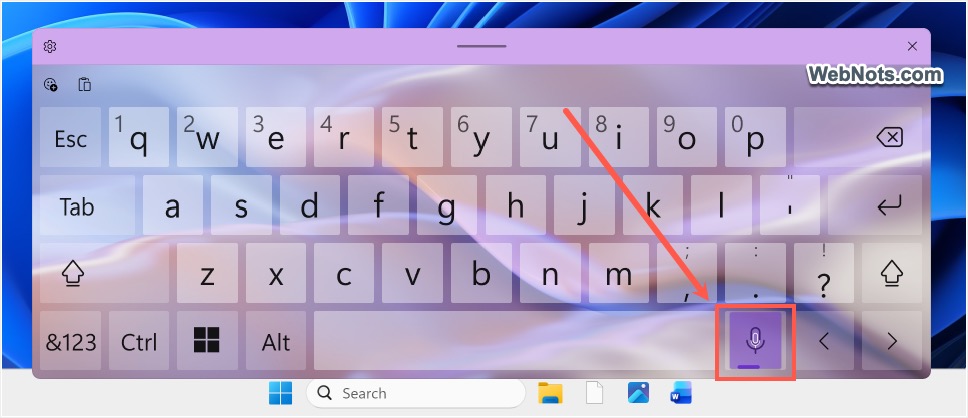
One of the most useful features for touchscreen users is voice typing. Open a text field and display the touch keyboard. Click or tap the microphone or voice typing button. Windows will start listening through your microphone. Speak naturally, and Windows will convert your speech into text. Windows can enter the sentence directly into the selected application.
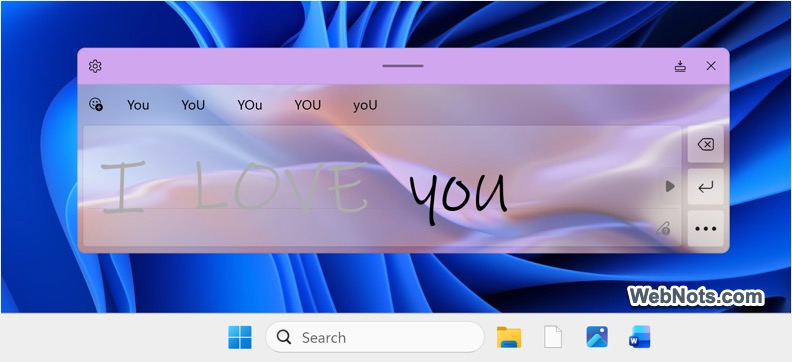
Windows can also recognize handwriting on compatible touchscreen devices. Click or tap the gear settings icon and select “Handwriting” option. A handwriting panel will appear where you can write using your finger or a compatible stylus. Windows attempts to automatically recognize your handwriting and convert it into typed text.
Customizing Typing with Touch Keyboard
There are also few options available to customize the usage under “Settings > Time & language > Typing” section.
- Enable or disable key stroke sound.
- Capitalize the first letter of each sentence.
- Enable inserting period after double-tapping the spacebar.
- Show or hide voice typing key.
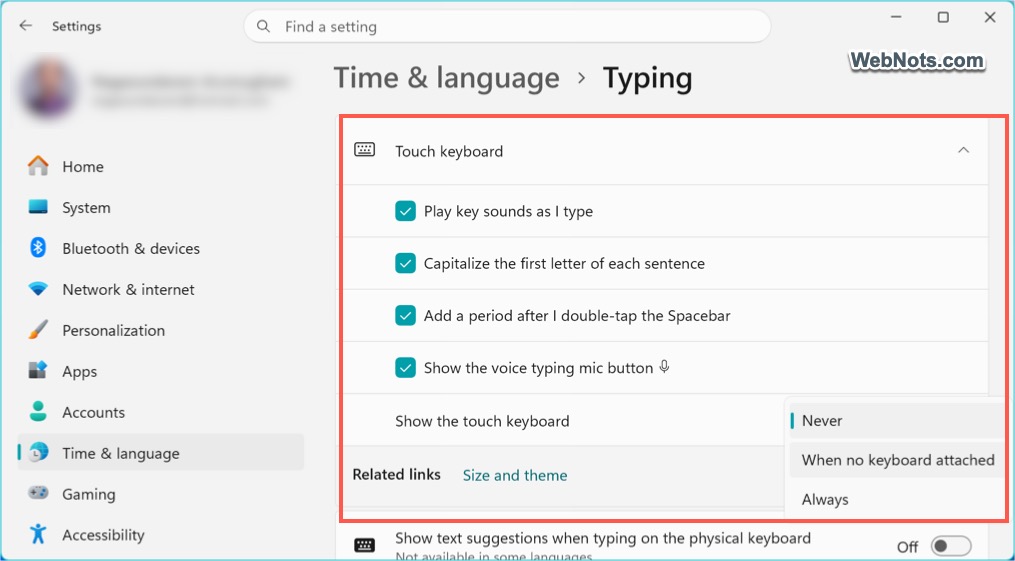
In case if you are missing the microphone icon on the layout, you can turn it on from this settings page.
Final Thoughts
If you use a Windows 11 touchscreen laptop or tablet regularly, enabling the Touch Keyboard icon on the taskbar is one of the easiest ways to make these features readily accessible.