Every digital file contains hidden information known as metadata. While metadata in images is commonly referred to as EXIF data, in productivity files like PDFs, Word documents, Excel spreadsheets, and PowerPoint presentations, it is simply called document properties. This information typically includes personal details such as the author’s name, creation date, and software version. Whenever you share a PDF, you are unintentionally sharing these properties with the recipient, who can easily view them to see who originally created the file or when it was last modified. Updating this metadata not only helps you control exactly what data you share but also allows you to organize your own digital library more effectively.
What Are PDF File Properties?
PDF properties provide descriptive information about the file without altering its visible content. You can view these details using almost any PDF viewer:
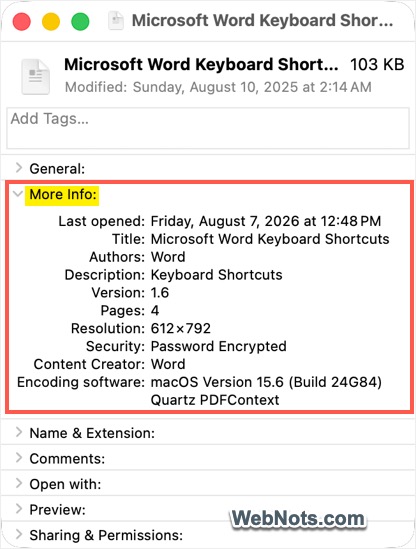
- Via Finder: Select a PDF file and press Command + I to open its “Get Info” window. Expand the “General” and “More Info” sections to view basic metadata like file size, creation date, and the author’s name.
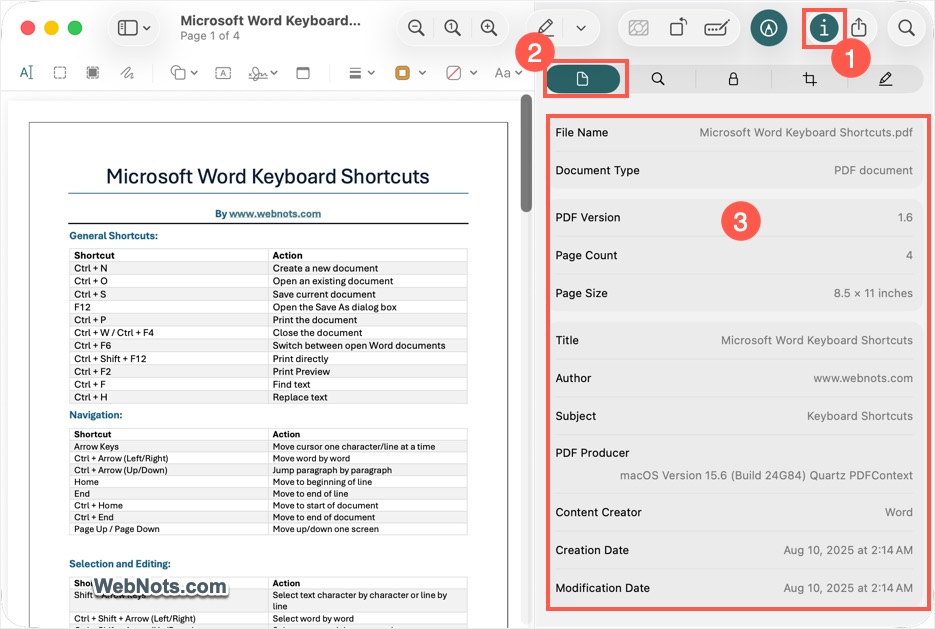
- Via the Preview App: Double-click to open the PDF in Preview, then press Command + I (or go to “Tools > Show Inspector”). Click the “General Info” tab (clipboard icon) in the Inspector sidebar to see a comprehensive list of internal metadata.
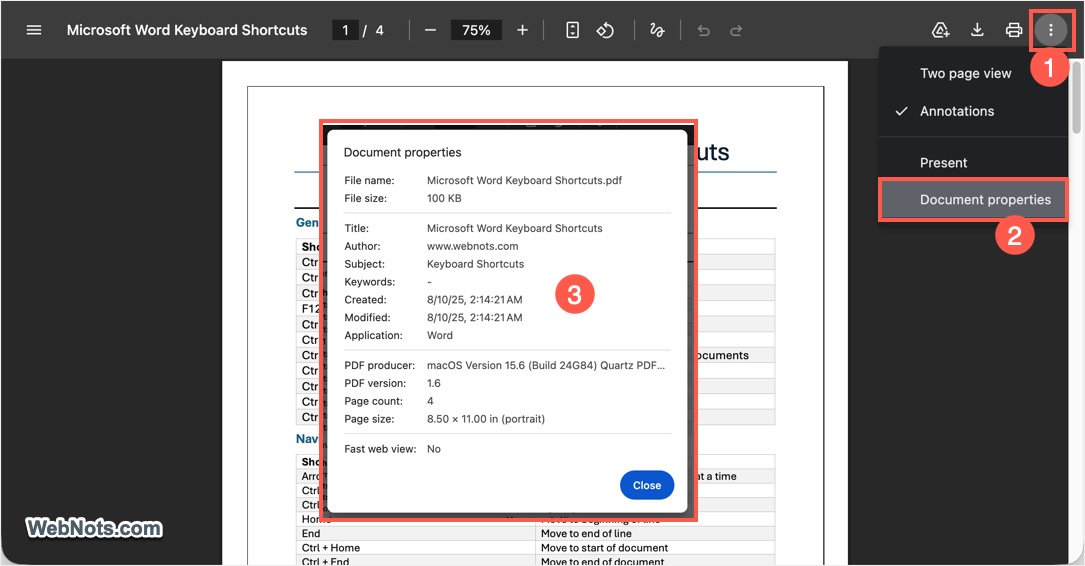
- Via Google Chrome / Browsers: Drag the PDF into a Chrome window. Click the three-dot icon in the top-right corner of the built-in viewer and select “Document Properties” to view core details.
Common PDF properties include:
- Title
- Author Name
- Subject
- Keywords
- Creator (the software used to create the file)
- Producer (the software used to convert to PDF)
- Creation Date
- Modification Date
- PDF Version
- Number of Pages
- File Size
- Security Settings (permissions and encryption)
Why Change PDF Properties?
Editing PDF metadata serves several practical purposes:
- Remove personal or identifiable information before sharing files publicly.
- Update the document title to reflect its current content or version.
- Add relevant keywords to improve searchability within large archives or DAM (Digital Asset Management) systems.
- Correct inaccurate author attributions that may have been carried over from templates.
- Maintain consistent naming and classification conventions in business or academic environments.
- Improve workflow efficiency when managing extensive collections of documents.
How to Change PDF Properties Using the Preview App?
While PDF viewers allow you to view document properties, PDF editors let you modify them. macOS includes a built-in workaround using the Preview app to rewrite metadata. It is important to note that this method generates a brand-new PDF file, which may slightly alter image compression or file size. However, elements like hyperlinks, annotations, and colors usually remain intact.
- Open your PDF in the Preview app. You can double-click the file, or right-click it and select “Open With > Preview”.
- Go to the “File > Print” menu or press Command + P on your keyboard.
- At the bottom-left corner of the print dialog, click the “PDF” dropdown button. Otherwise, click the small arrow on the “PDF” button and Select “Save as PDF…” from the menu.
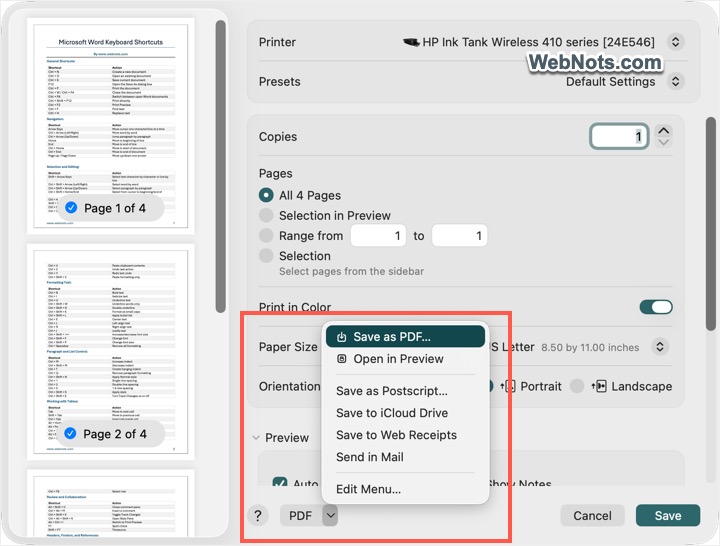
- In the save window, you will see fields for Title, Author, Subject, and Keywords. Enter your desired metadata. For adding multiple keywords, separate them with commas.
- Click “Save” to create a new copy. The updated metadata is now embedded in this new document.
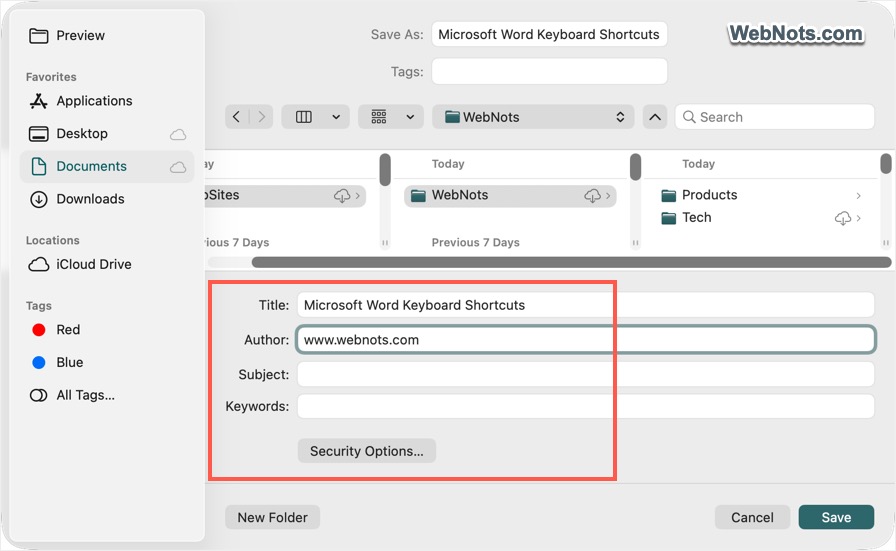
You can use this feature in other apps like Word, Excel, or PowerPoint and convert the files to PDF with correct document properties. Open the newly created PDF file in Preview and confirm the correct metadata is showing with the Inspector tool and make sure to review the file’s content before sharing it with others.
Security Option: In the same print pop-up, click “Security Options…” to set a password. You can restrict the file from being opened, printed, or copied based on your requirements.
Avoid Using Online PDF Editors
While the internet is full of free online PDF tools (including those from Adobe and Canva), most tools are designed for visual annotations, form-filling, and markup. We have checked these tools and most of them are not for editing underlying document metadata. In fact, you can already perform these annotation tasks and rearrange pages right inside Preview on your Mac. For advanced batch-processing, you can use the Automator or Shortcuts app to combine and split files without needing an internet connection.
Importantly, never upload confidential or sensitive documents to these online services. Their terms of service often allow them to store uploaded files permanently on their servers, posing a significant privacy risk.
Note: In addition to document properties, PDF may also contain hidden embedded information such as revision history, tracked changes, hidden text or objects layered behind visible elements, form data and submitted entries, attachments and embedded scripts. If you are purchasing a dedicated PDF editor, make sure it includes a feature to remove these hidden information.