
Have you ever tried to copy files on your Mac and received the error message saying, “A fatal error occurred while copying files. Copy operation has been aborted?” It will be annoying, especially when you are in hurry to email a file (for example, from an external hard drive or USB). This error usually indicates that macOS encountered a problem that prevented the file transfer from completing. Here are some common causes and the best solutions to fix the issue.
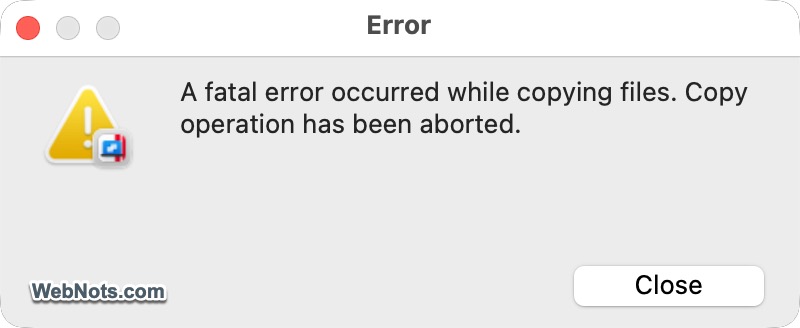
Why Does This Error Occur?
The error happens primarily when you copy files from external drive or virtual machine to Mac. However, there may be other reasons, including:
- Corrupted files.
- Insufficient disk space.
- File permission problems.
- Damaged external drives.
- Unsupported file systems.
- File names that are too long or contain invalid characters.
- Temporary Finder glitches.
1. Basics Checks
Follow these basics before start troubleshooting:
- Check the File for Corruption: Check if you can copy other files without problem. If it works, the specific file might be corrupted and you need to focus on retrieving the file instead of checking macOS. For example, you can re-download or recreate the file if possible.
- Restart Your Mac: A temporary macOS or Finder issue may interrupt copy operations especially in virtual machines. Simply restarting your Mac can resolve temporary system problems.
- Copy Files in Smaller Batches: Large transfers involving thousands of files may fail midway. Instead of copying everything at once, divide files into smaller folders and copy one folder at a time. This helps to check whether one specific file is causing the error.
- Check Available Storage Space: Lack of free storage on the destination drive also result in file copying error. Open Finder, select the destination drive, and press Command + I. Review the available storage under “General” section and confirm sufficient space is available.
- Check File Name: Some storage devices and network shares cannot handle special characters. So, rename files if they contain unusual symbols by removing them and use plain text. Also, avoid excessively long file names.
- Disconnect and Reconnect the External Drive: A loose connection or communication error can interrupt copying (especially if you are using Windows based NTFS drives on Mac). Safely eject the drive, disconnect it and reconnect it to your Mac. If possible, connect it directly without using USB hubs.
- Update macOS: Some file transfer bugs are fixed through macOS updates. Go to “Apple menu > System Settings… > General > Software Update” section and install any available updates.
If the basics are looking fine, then proceed with the followings.
2. Check the External Drive for Errors
If you’re copying files to an external drive, the drive itself may have file system errors.
- Open Disk Utility app from “Finder > Applications > Utilities” folder.
- Select the external drive from the sidebar.
- Click “First Aid” on the toolbar and confirm by clicking “Run”.
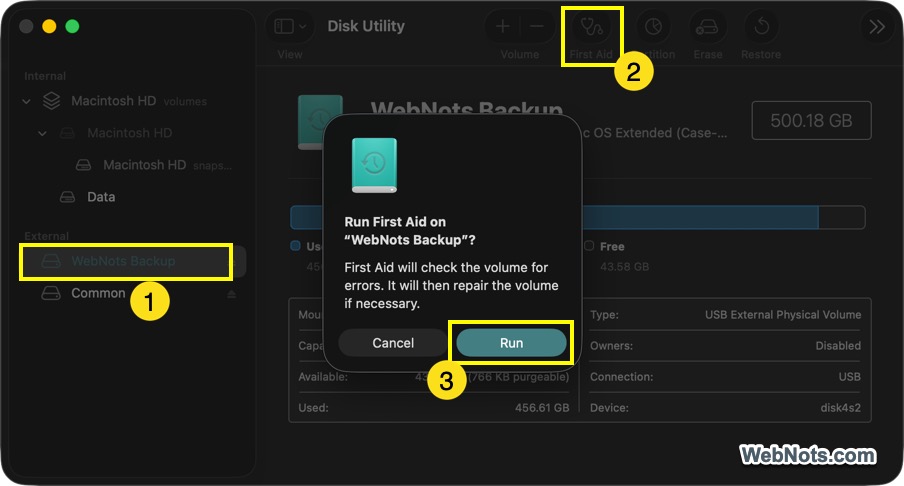
Disk Utility will automatically scan and repair common disk issues. After that check whether you can copy the files to the drive.
3. Verify File Permissions
Sometimes macOS blocks copying because you don’t have permission to access or modify the files.
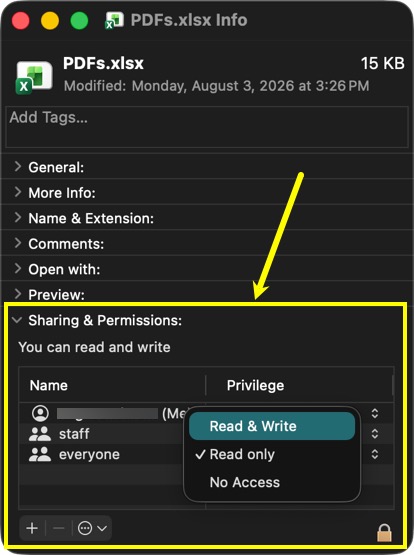
- To check permissions, right-click the file or folder and select “Get Info”.
- Expand “Sharing & Permissions” section in the pop-up.
- Ensure your account has “Read & Write” access.
- If not, click the lock icon and authenticate with your administrator password.
- Now, click the privilege showing for your account and select “Read & Write” from the dropdown.
4. Check the Destination File System
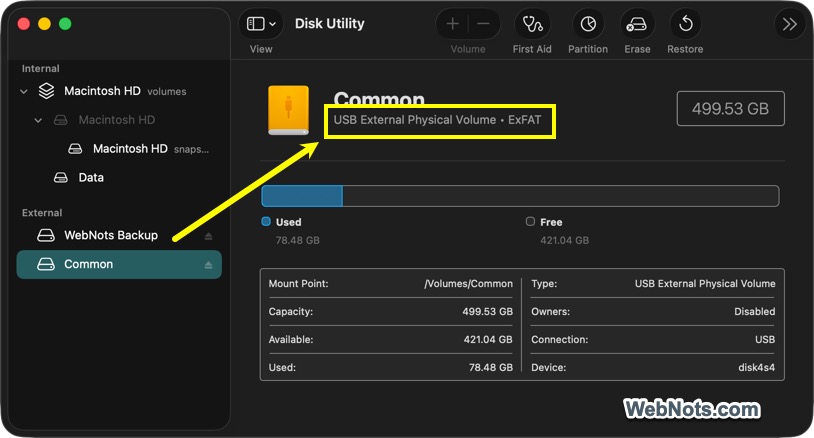
There are some limitations you should understand when copying files to an external drive. Many external drives use FAT32, which has a maximum file size limit of 4 GB. If you’re copying a file larger than 4 GB, the operation will fail.
- You can check the drive format from the Disk Utility app. Simply select the drive and look below the disk’s name.
- If the drive uses FAT32, back up all files and consider reformatting it to exFAT, APFS, or Mac OS Extended (Journaled).
Note: If you are using Windows based NTFS formatted external drive, by default Mac will only allow you to read the file. Although this does not show copy error, it’s common when you move files from Windows based setup to macOS.
5. Try Copying with Terminal
Sometimes, Finder may fail even when the files themselves are fine. You can try Terminal instead. For example, use the below command in Terminal for copying an entire “MyFolder” directory (including subfolders) to the external drive.
cp -R "/Users/<Username>/Documents/MyFolder" "/Volumes/ExternalDrive/"For large transfers, you can also use the following command. It copies all files and folders from the Documents directory to the external drive while preserving metadata and displaying detailed progress.
rsync -avh "/Users/<Username>/Documents/" "/Volumes/ExternalDrive/"Terminal often provides more detailed error messages if a specific file is causing the problem.
6. Start Your Mac in Safe Mode
Safe Mode starts macOS with only essential system software and performs a basic disk check. If the copy operation works in Safe Mode, a third-party app or startup item may be causing the problem. Check our article on how to boot your Mac in Safe Mode as the process depends on the type of processor your use (Apple silicon or Intel).
Once you’re in Safe Mode, try copying the files again. To exit Safe Mode, simply restart your Mac normally.
7. Try Another User Account
Testing the copy operation from another user account can help determine whether the problem is related to your user profile. To create a temporary account:
- Go to “Apple menu > System Settings… > Users & Groups.
- Click “Add User” and create a temporary account.
- Sign in to the new account and try copying the files again.
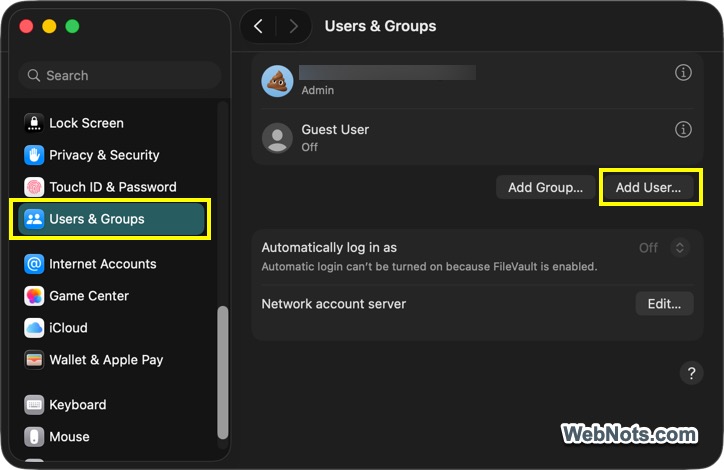
If the files copy successfully, the issue is likely caused by corrupted user settings, permissions, or login items in your original account. If the error still occurs, the problem is more likely related to the files, storage device, or macOS itself.
8. Check Virtual Machine File Sharing Settings
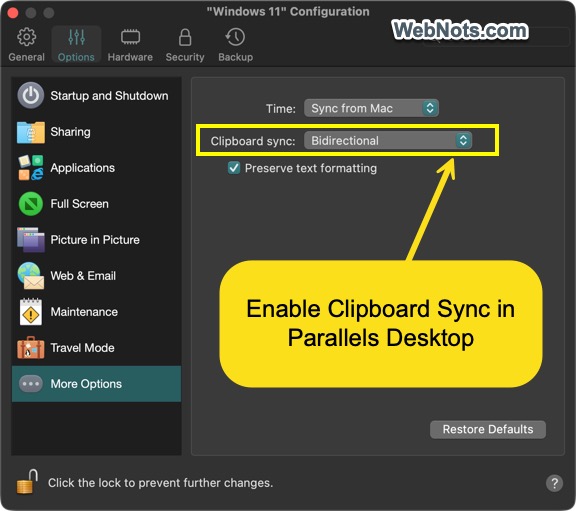
If the error occurs while copying files between macOS and a virtual machine, such as Windows running in Parallels Desktop, the issue may be related to shared folders or integration settings.
- Restart both the virtual machine and your Mac.
- Ensure file sharing is enabled in the virtual machine settings.
- Try copying the files using a shared folder instead of drag and drop, or vice versa.
- If you’re copying large files, move them in smaller batches to rule out temporary transfer issues.
If you are using Parallels Desktop, update the app for the latest macOS and reinstall the Parallels Tools inside the virtual machine if prompted. If copying works normally within macOS or within the virtual machine itself, but fails only when transferring files between them, the issue is likely with the virtualization software rather than the files or your Mac.
Frequently Asked Questions
The error usually occurs because of insufficient storage space, damaged files, disk errors, permission issues, or an incompatible destination file system.
Yes. A failing USB flash drive, SD card, or external hard drive can interrupt file transfers and trigger this message.
Yes. FAT32 cannot store files larger than 4 GB. Attempting to copy larger files results in transfer failures.
In many cases, yes. Running First Aid repairs common file system errors that prevent successful copying.


