Earlier days, people hesitated to share their personal photos, and some even believed that taking pictures could reduce their lifespan. However, such beliefs have little relevance in today’s social world, where people share everything from personal moments to official documents without caring much about privacy. Many people who post images online are unaware that their photos can reveal far more than intended. Hidden within every digital image is a collection of embedded information known as EXIF data. This article explains what EXIF data is, why it matters, and most importantly, how you can remove it from your images to protect your privacy.
What is EXIF Data?
EXIF stands for Exchangeable Image File Format. It refers to metadata embedded within an image file that functions like a digital record of how and where the photo was created. This information is automatically generated and stored by your camera or smartphone when you take a picture. It contains a wealth of information, which can be broadly categorized as follows:
| Category | Examples of EXIF Data |
|---|---|
| Camera Settings | Camera make and model, aperture, shutter speed, ISO speed, focal length, flash setting, white balance |
| Date and Time | The exact date and time the photo was taken |
| Location (Geotags) | GPS coordinates (latitude and longitude) of where the photo was captured, if location services are enabled |
| File Information | Image dimensions, file format, resolution, and color space |
| Copyright and Software | Copyright information and the name of the software used to edit the image |
Why Should You Remove EXIF Data?
For photographers and hobbyists, EXIF data is valuable for organizing photo libraries and analyzing camera settings such as aperture, shutter speed, and ISO to improve future shots. However, when images are shared online, this hidden metadata can create serious privacy and security concerns.
Privacy Risks
The most sensitive element is often GPS location data. If location services are enabled, a photo taken at home may contain precise latitude and longitude coordinates. Sharing such an image can unintentionally disclose your exact address. This becomes especially risky when interacting with people on dating apps, online marketplaces, or public forums. Someone with malicious intent could use that data to identify where you live, work, or where your family members spend time.
Unintentional Information Exposure
EXIF metadata can also reveal the make and model of your device, which may indirectly suggest your purchasing power. In some cases, the camera owner’s name is embedded in the file settings, exposing personal identification details without your knowledge.
Platform Vulnerability
Many major social media platforms such as Facebook and Instagram remove EXIF data when images are uploaded to their servers. However, this practice is not universal. When you share images through email, messaging applications, online forums, or your own website, the metadata often remains intact and can be accessed by anyone who downloads the file.
File Size Considerations
Metadata increases file size. Although the difference may be small for individual images, removing EXIF data can slightly reduce file size, which may improve loading speed on websites or reduce storage usage over time.
How to Remove EXIF Data from Your Images?
Fortunately, stripping this hidden data from your images is an easier process. Here are several methods depending on the device you use. Regardless of the device, the first step is to turn off your camera or phone’s geolocation (GPS) feature if the setting is on.
On Windows
- Find and locate the image file in File Explorer. You can see the file details in preview pane.
- Right-click on the image file and select “Properties” or press Alt + Enter keys.
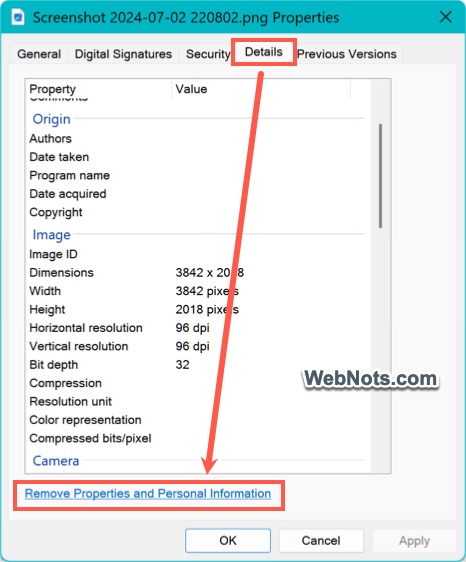
- Go to the “Details” tab to view all EXIF details stored in the image.
- Click the “Remove Properties and Personal Information” link at the bottom.
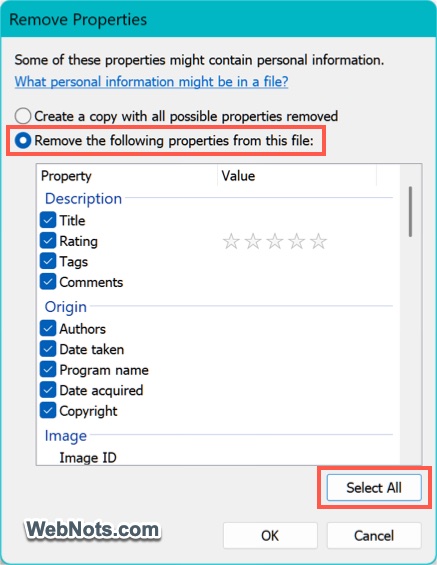
- You can choose to create a copy with all possible properties removed or select specific properties to remove from the file.
On macOS
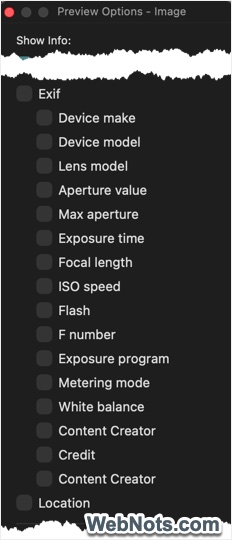
- Open Finder and select your image. Go to “View > Show Preview Options” and select the “Exif” details you want to show in the preview pane.
- Press Command + Shift + P keys to open the preview pane and find the EXIF details under “Information” heading.
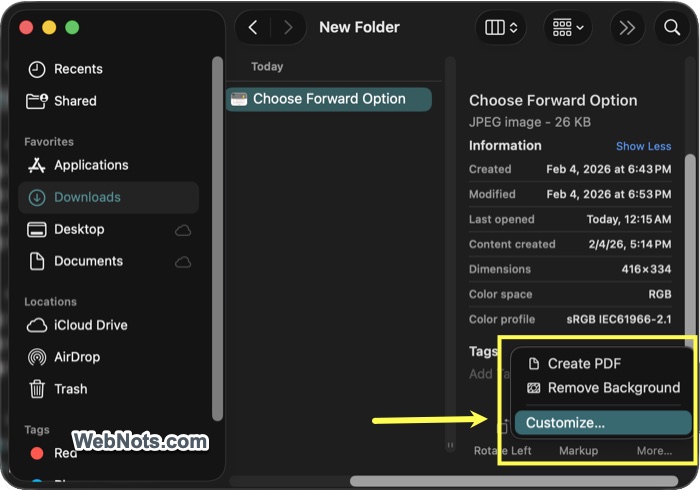
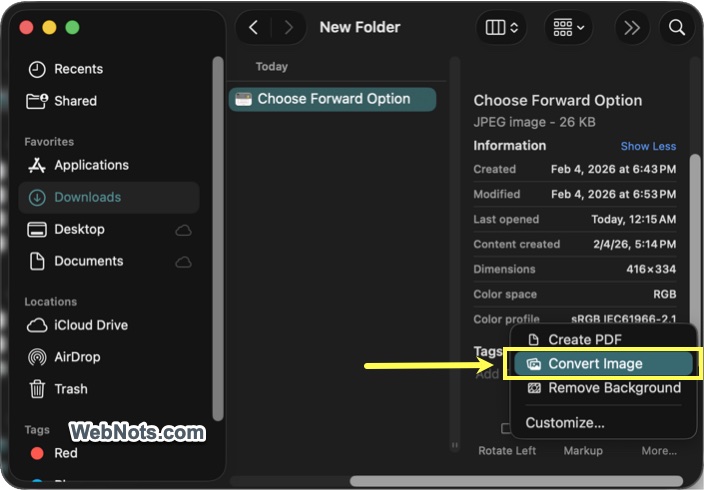
- Check the “Convert Image” extension is showing on bottom of the preview pane. If not, click the “More…” icon and select “Customize” option.
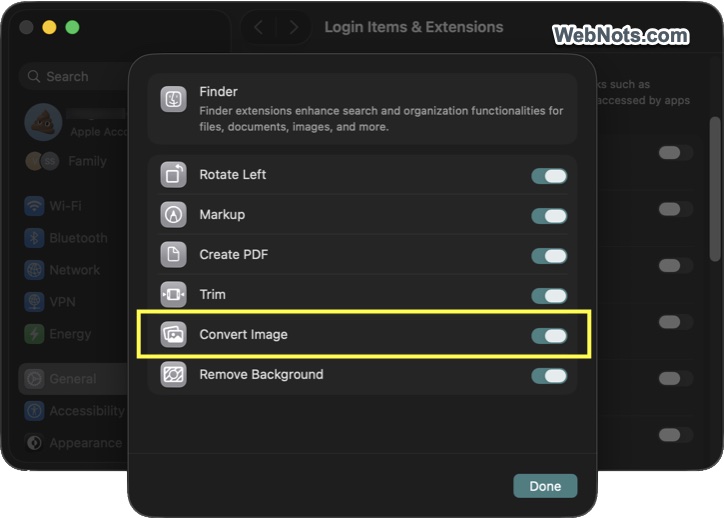
- Turn on “Convert Image” option in the pop-up and click “Done” button.
- Now, click the “More… > Convert Image” action in Finder.
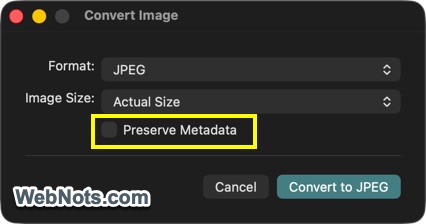
- You don’t need to change the format or size, simply uncheck “Preserve Metadata” box and click “Convert to JPEG/PNG/HEIF” button.
- This will save the copy of your image in the same folder without EXIF data and you can provide a new file name to save the file.
Android
- Open an image file with your photos or gallery app and tap on the info icon.
- You will see the EXIF data on a pop-up window.
- Tap on “Edit” or “More options” (depending on your device) to delete or modify the EXIF data.
iOS
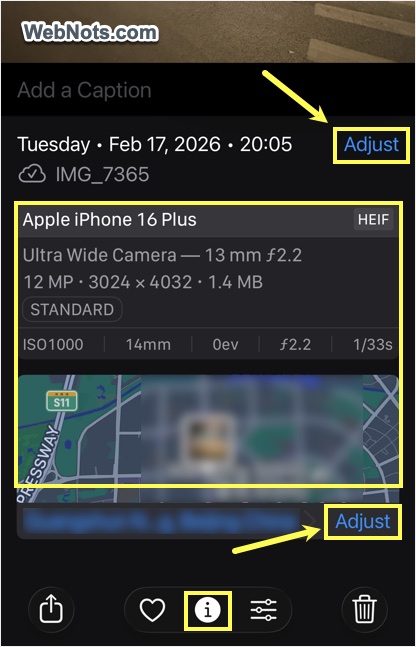
- Open an image file with Photos app and swipe up from the bottom of the screen or press the ⓘ icon on the bottom.
- You will see the EXIF data on a panel below the image and tap on “Adjust” next to location.
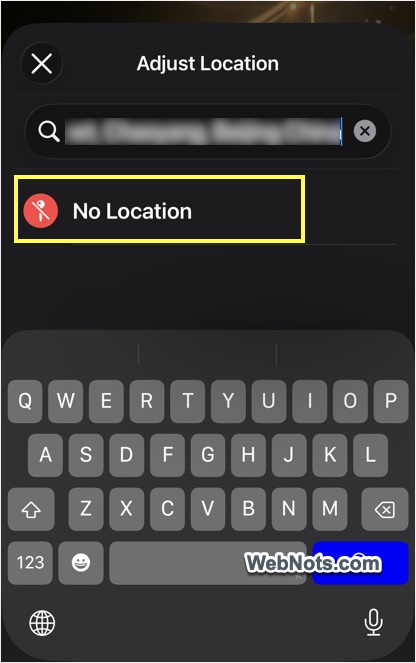
- Select “No Location” to delete the location attached to the image.
- Similarly, select “Adjust” next to date / time to change that details if needed.
You can only change the date, time, and location of pictures on iPhone and need to use a third-party app for removing other details.
Use a Third-Party App
There are many free and easy-to-use applications designed specifically for cleaning metadata.
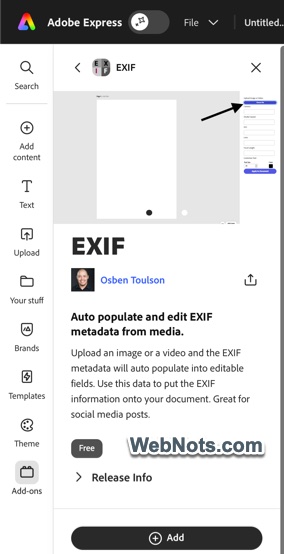
- Desktop: EXIFCleaner is a fantastic, free, and open-source option for Windows, Mac, and Linux. You can simply drag and drop multiple images onto the application window to instantly strip all metadata from the files. If you are familiar or prefer command line tools, then try autoexif from GitHub for Windows and Linux. There are also free add-ons available for premium tools like Adobe Express, which you can make use of to remove the personal details before finalizing your projects.
- iOS: EXIF Viewer Lite is a free app for viewing, editing, and removing details from your images. You can either directly remove the details from original image or create a copy without EXIF details. The free version is ad supported and has a limitations for bulk viewing / processing. You need to get the app for $2.99 to get the full features.
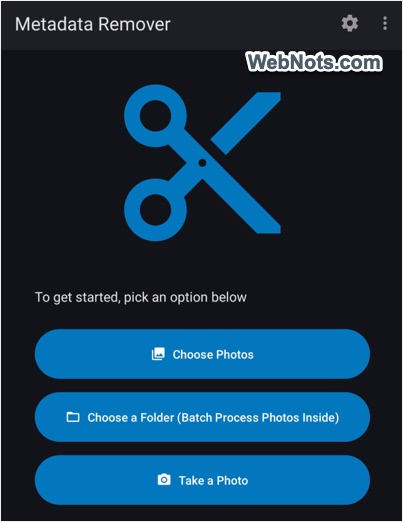
- Android: Photos Metadata Remover is a free app for Android to bulk remove GPS, camera, lens, and other details from your pictures.

Conclusion
Your digital photos are telling stories you might not want to be public. Understanding and managing EXIF data is the first step in protecting your privacy online. Make it a habit to clean your images before you share them using one of the above methods. A moment of precaution can prevent your personal information from falling into the wrong hands.