
Microsoft Edge offers a range of features designed to enhance user experience and caret browsing is one among them. This lesser-known but highly useful feature allows for easier text navigation and selection using only your keyboard (without the need of mouse). Whether you’re a student highlighting passages for research or a professional managing online tasks, caret browsing will be very useful. Here’s everything you need to know about what caret browsing is, how to enable it, and how to make the most of it.
What is Caret Browsing?
Caret browsing is a feature that lets you navigate and select text on a webpage using your keyboard, much like you would in a word processor (like Microsoft Word app). The term “caret” refers to the blinking vertical line, or cursor, that appears when you edit text. With caret browsing enabled, this cursor becomes active on webpages, allowing you to move it through text, select sections, copy content, and more – all without touching your mouse or trackpad.
Turn On Caret Browsing in Microsoft Edge
Enabling caret browsing in Microsoft Edge is simple and can be done with just a few steps. Here’s how:
Method 1: The Keyboard Shortcut
The easiest way to enable caret browsing is by pressing the F7 key on your keyboard when you’re reading a webpage in Edge browser. When you do this, a pop-up will appear asking for confirmation to turn on caret browsing. Select “Turn on”, and the feature will be activated immediately.
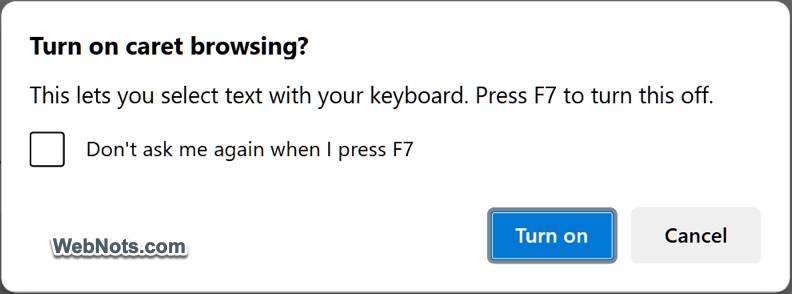
Press the same F7 key again and select “Turn off” to toggle the caret browsing off.
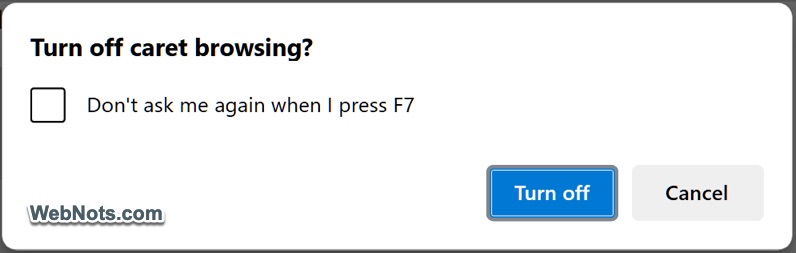
If you’re frustrated with these pop-ups, check “Don’t ask me again when I press F7” option. The function will be toggled on or off without any notification.
Note: You may need to hold the Fn key on some computers. This means you need to press “Fn + F7” keys.
Method 2: Using Edge Settings
Follow these steps to enable caret browsing via browser settings:
- Open Microsoft Edge and click on the three-dot menu in the top-right corner of the window (or press Alt + F” keys).
- Navigate to “Settings” and then select “Accessibility” section from the left-hand menu.
- Under the “Keyboard” section, toggle on the “Navigate pages with a text cursor” option.

This method is particularly useful to ensure that caret browsing remains enabled every time you open the browser (it works even after closing and reopening the browser).
How to Use Caret Browsing?
Once caret browsing is activated, using it is straightforward. Here are some tips and tricks to help you navigate webpages using this feature:
Basic Navigation
The arrow keys on your keyboard are central to caret browsing:
- Up Arrow: Move the caret up one line.
- Down Arrow: Move the caret down one line.
- Right Arrow: Move the caret right by one character.
- Left Arrow: Move the caret left by one character.
You can hold down these keys to move more quickly through text.
Selecting Text
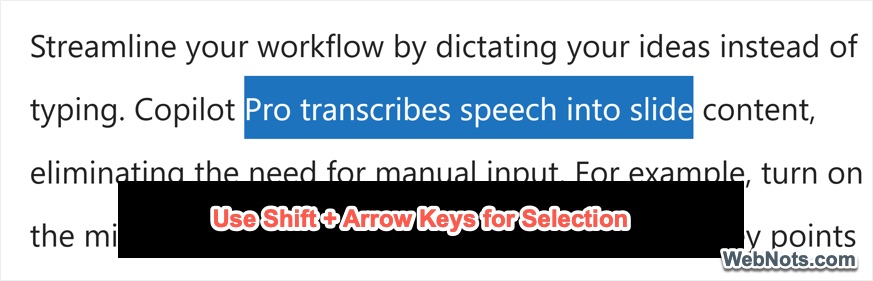
Press and hold down the Shift key while using the arrow keys to select or highlight text on the webpage. For example:
- Shift + Right / Left Arrow: Highlight one character to the right / left of the caret.
- Shift + Up / Down Arrow: Highlight text one line above / below the caret.
To extend your selection, you may continue to hold down the arrow keys.
Copying and Pasting Text
After selecting the desired text, use Ctrl + C to copy it and Ctrl + V to paste it elsewhere. This is particularly useful for quickly copying content from webpages.
Navigating Links
Caret browsing allows you to navigate links using the keyboard. When the caret is positioned over a hyperlink, press Enter to open the link. This eliminates the need to use a mouse for clicking.
Using Caret Browsing in PDFs
Microsoft Edge also supports caret browsing for PDFs opened in the browser. This means you can use the same keyboard controls to navigate and select text within a PDF document.
Benefits of Caret Browsing
Caret browsing offers numerous advantages, including:
- Navigate and select text with greater accuracy compared to using a mouse.
- Ideal for users who prefer or rely on keyboard controls.
- Improves web navigation for users with mobility challenges or visual impairments.
- Reduces reliance on a mouse, which can be helpful in certain work environments or for ergonomic reasons.
- The right-click context menu (called mini menu) in Edge may annoy you whenever you try to select the text with mouse. You can simply avoid that menu by using the keyboard.
Note: While caret browsing is a powerful feature, it may not work properly on websites with complex layouts or use heavy JavaScript. In the Accessibility section of Edge’s settings, you can enable additional features such as larger text, high contrast mode, or a screen reader to complement caret browsing.
Conclusion
Caret browsing in Chromium based Microsoft Edge is a cool accessibility feature that streamlines text navigation and selection. This tool can significantly enhance your productivity if you frequently copy text or images from websites for reference. Only thing is that you need to master its keyboard controls to get familiarize yourself.


