
The top row of the MacBook keyboard layout has list of function keys along with escape and power button. They are labeled from F1 through F12 linked with default shortcuts to trigger actions on your system. So, knowing and using them can help to make your life easier. In addition, there are also some customizations possible and you can use these function keys with other key combination as keyboard shortcuts.
Functions of F1 to F12 Keys on Mac
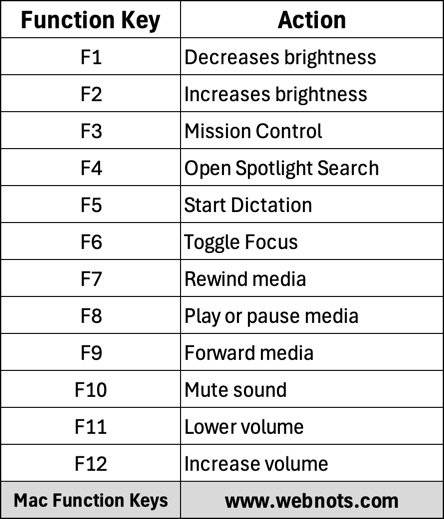
Unlike Windows laptops, which has different keyboard layouts, Mac has quite a standard keyboard layout (we explained the variations at the end of this article). Below is a list of default functions of F1 to F12 keys on Mac along with the actual key images from keyboard. If you need, save it as an image for offline reference.
| Function Key | Action | Keyboard Key |
|---|---|---|
| F1 | Decreases brightness |  |
| F2 | Increases brightness |  |
| F3 | Mission Control |  |
| F4 | Spotlight Search (Launchpad on old Macs) |  |
| F5 | Start Dictation (Reduces keyboard backlight brightness on old Macs) |  |
| F6 | Toggle Focus (Increase keyboard backlight brightness on old Macs) |  |
| F7 | Rewind media |  |
| F8 | Play or pause media |  |
| F9 | Forward media |  |
| F10 | Mute sound |  |
| F11 | Lowers volume |  |
| F12 | Increases volume |  |
Some function keys will toggle the action when pressed repeatedly. For example, press F10 to mute the sound and press it again to unmute and use the previously set volume.
Function Key Keyboard Shortcuts with Modifier Keys
It’s not about just using the default assigned functions, there are few useful keyboard shortcuts on Mac used in combination with one of the function keys.
| Shortcut Keys | Action |
|---|---|
| F3 + Control | Show all available windows of the current app along with Dock |
| F3 + Command | Show Desktop |
| F5 + Command | Launch VoiceOver |
| F1 / F2 + Option | Open System Displays Settings |
| F3 + Option | Open General System Settings |
| F9 / F10 / F11 / F12 + Option | Open Sound Settings |
| F11 + fn | Show Desktop |
The shortcut “F3 + Control” is a cool one as it shows all open instances of the app along with Dock. For example, you can quickly view all open Pages documents along with recently opened files and Dock.
Also, some apps may use function keys with other key combinations for custom shortcuts that work only in that app.
Using Function Keys F1…F12 with or without Fn/Globe Key
You can either use these F1 to F12 keys independently without the need of holding any additional modifier keys or use along with fn key. Old MacBook model simply show fn key on bottom left corner of the keyboard. However, the latest models and Apple Magic Keyboard combines the fn and globe keys as a single key marked with fn and 🌐 symbols.
- Go to “Apple logo menu > System Settings… > Keyboard” section.
- Click on the “Keyboard Shortcuts…” button.

- Select “Function Keys” from the sidebar.
- By default, “Use F1, F2, etc. keys as standard function keys” option will be turned off which means the F1 to F12 keys will work independently.
- If you turn on this option, F1 to F12 keys will work only if you hold fn / globe key.

Changing Mapping or Completely Disabling Fn / Globe Key
Mac offers lot of flexibilities for using the fn / globe key. You can completely disable it, set a pre-defined action or map the key to another modifier key like Command, Option, Shift, Caps Lock, Escape or Control.
Assigning predefined action or disable:
- Go to “Apple logo menu > System Settings… > Keyboard” section.
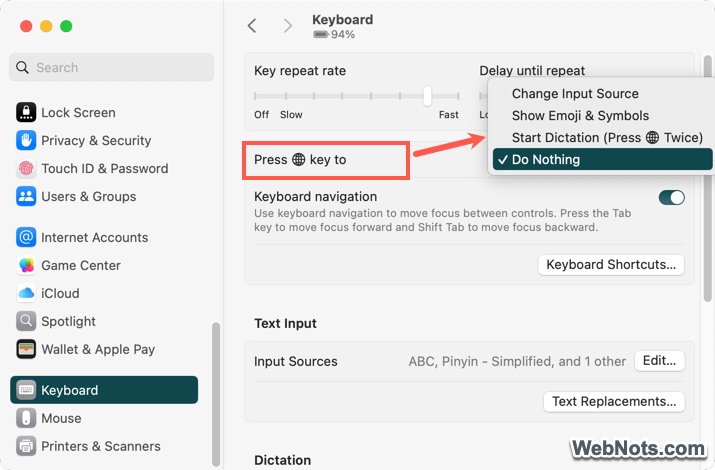
- Click the dropdown against “Press 🌐 key to” option.
- Select one of the options from the list to assign an action. You can choose from Change Input Source, Show Emoji & Symbols, Start Dictation (Press 🌐 Twice) or Do Nothing.
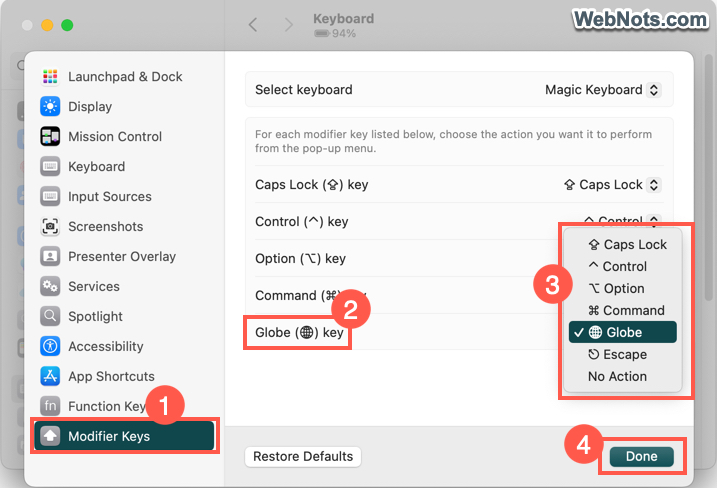
When you are on the keyboard shortcuts settings pop-up, go to “Modifier Keys” section. click the dropdown against “Globe (🌐) key” and select the new mapping. Choosing “No Action” will completely disable the key on your keyboard.
Keyboard Variations
As you can see in the above explained table of F1 to F12 functions, F4, F5 and F6 keys have different functions on old and new Mac keyboard layout. Below is the old MacBook Pro keyboard showing F4 to open launchpad and F5 / F6 for adjusting backlight brightness.
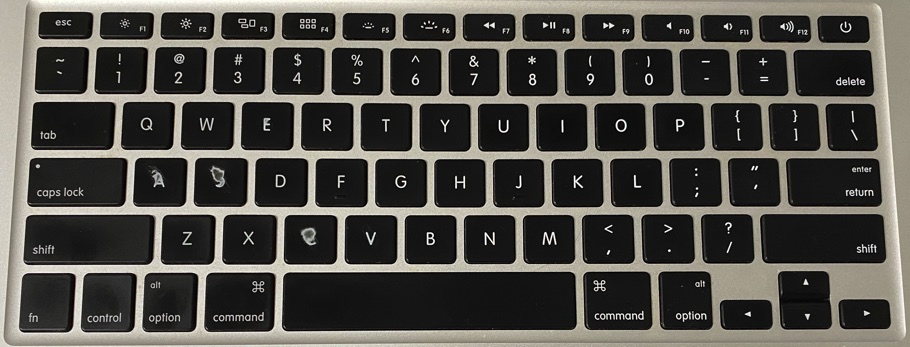
However, the latest MacBook models have F4 for Spotlight, F5 for dictation and F6 for Focus as shown below.
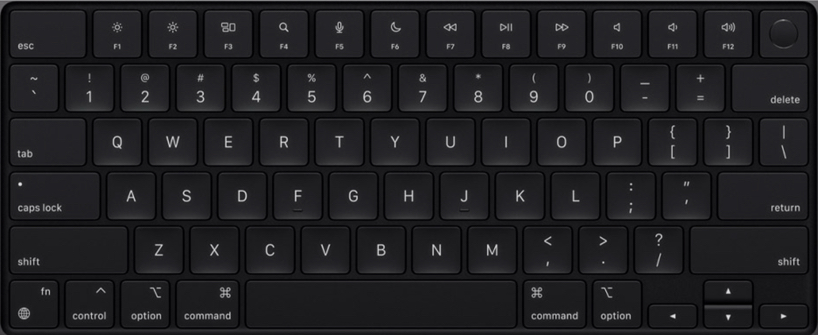
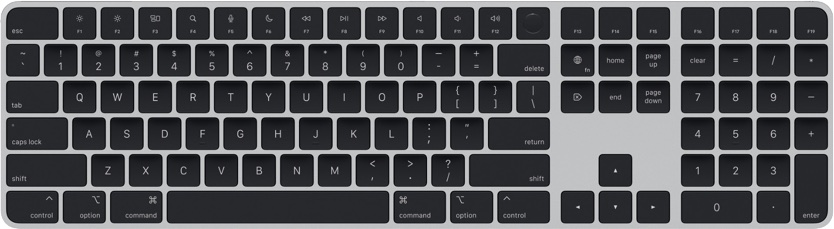
Also, function keys are replaced with the dynamic Touch Bar on some MacBook models. This Touch Bar can display a wide range of functions depending on the application. Finally, Apple Magic Keyboard with numeric pad has additional function keys from F13 to F19. You can assign custom functions to these keys as they do not have default functions.
Final Words
Function keys are very useful especially when you frequently play media files (audio or video). You can also quickly mute, launch Mission Control or dictation without going through long navigation route. In addition, key combinations like “F3 + Command” or “F11 + fn” can save your time in quickly checking the desktop screen. If fn / 🌐 key is confusing, then you can simply disable it and use F1 to F12 keys independently.


