Microsoft Edge has lot of features like screenshot, split screen, sleeping tabs, vertical tabs, etc. Though some of these features are useful, features meddling with text selection will be annoying for most users. In our earlier article, we have explained how to disable Rewrite with Copilot option that appears when you select the text content in any online editor interface. In this article, let us explain how to disable the mini menu in Edge that appears whenever you select text on any webpage.
Mini Menu in Edge
Just open a webpage in Edge, select some text or double click on a word. You will see a mini menu that shows few icons.

Hover over the icons to reveal name of menu items in the list.

You have options to Ask Copilot, Copy and Search the selection on web. Clicking on “More Actions” will reveal the full right-click context menu.
Disabling Mini Menu from Hide Menu Option
If you want to get rid of the mini menu, select a text and then click “Hide Menu” item from the mini menu list.
- Click on “Hide Menu for This Site” to remove the mini menu only from the site you are viewing.
- Click on “Hide Menu Always” to permanently disable the mini menu on all sites.

Disable Mini Menu from Edge Settings
In the mini menu, go to “Hide Menu > Menu Settings” option. This will open Edge Appearance settings where you can turn off “Show mini menu when selecting text” option. This will disable the feature on all websites.

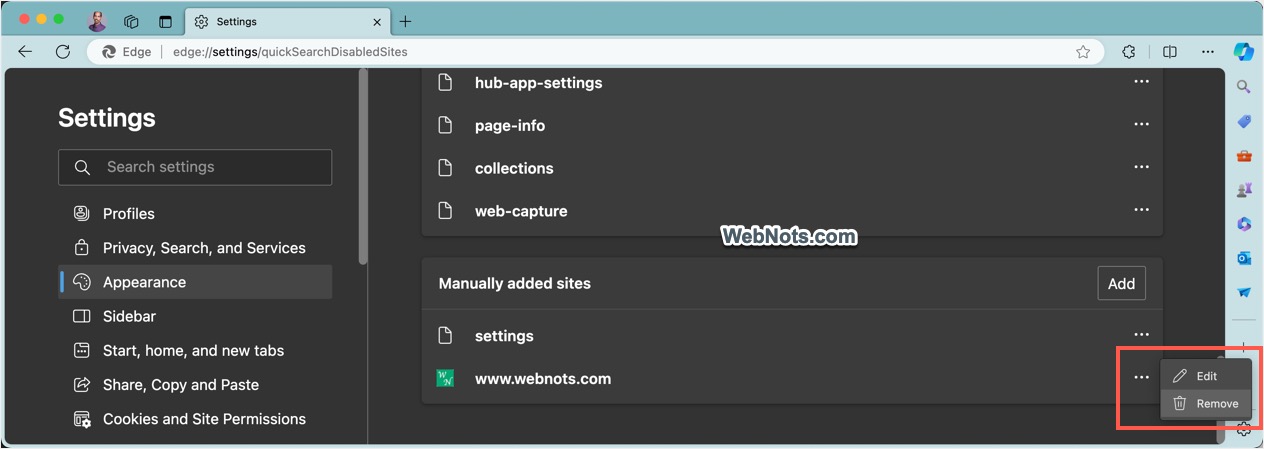
If you want to disable on a specific site, click the “Disallowed sites” option. You can see that Edge automatically added sites like Outlook, Bing, Office, SharePoint, etc. as exception to remove the mini menu on those sites. Scroll down to bottom and click on the “Add” button against “Manually added sites” option.

Enter the site URL in the pop-up box and click “Add” button to include the site in disallowed list and disable the mini menu on that site.

Note: Choosing “Hide Menu Always” will turn off “Show mini menu when selecting text” option in Edge Settings. Similarly, choosing “Hide Menu for This Site” will add the site under “Disallowed sites > Manually added sites” section.
Accessing Edge Settings Page
Let’s say, you have hidden the mini menu always by selecting a text on the webpage and wanted to enable it after some time. Since the menu itself will no longer appear on the page, the only option for you is to find the settings in Edge and enable it manually.
- Click the three dots icons on the top right corner of the Edge app and select “Settings” menu from the list.
- Go to “Appearance” section from left sidebar.
- Scroll down on the right pane and find “Context menus” section.
- Under “Mini menu on text selection” heading, turn on “Show mini menu when selecting text” option.

If you have disabled the menu only on a particular site, then click on the “Disallowed sites” option. scroll to bottom and click the “More action” icon showing against the site name under “Manually added sites” section. Select “Remove” option to delete the site and enable the mini menu again. Similarly, you can also delete the sites added by Edge automatically enable the mini menu on those sites.