
Microsoft Word is a powerful tool for creating, editing, and sharing documents, but protecting your privacy when using it is essential. Whether you’re drafting sensitive information, collaborating with others, or simply managing personal notes, understanding how to set up the app, work securely, and share content appropriately can make all the difference. Below, we explore the best practices to ensure your privacy remains intact while using Microsoft Word.
Microsoft 365 Apps
The topics explained here deals with Word desktop app that comes as part of Microsoft 365 subscription. So, some of the stuffs can be applied to other apps in the package like Excel, PowerPoint, or Outlook. If you’re using Copilot or any other third-party add-ins, make sure to understand how they collect your data before installing the item.
1. Setting Up the App for Privacy
The first step in protecting your privacy is configuring the Word app correctly from the start. When you install or open the app, ensure the followings:
1.1. Use a Secure Account
Since you need the Microsoft account for downloading / installing and accessing the app, make sure to have strong security measures in place. Use strong and unique password and enable two-factor authentication to add an extra layer of protection for your Microsoft account.
1.2. Adjust Privacy Settings
Microsoft Word often collects data to improve functionality, but you can opt out of telemetry (usage data) and adjust permissions to limit data sharing. Take the time to read through any data collection notices and set your preferences accordingly. Access the settings menu and carefully review privacy options.
- Navigate to “File > Options > Trust Center > Trust Center Settings” and review the options under “Privacy Options” section.
- Enable features like “Remove personal information from file properties on save”. If the option is disabled, click “Document Inspector…” and uncheck not required items.
- Similarly click the “Privacy Settings…” button and disable unnecessary data collection by unchecking “Optional diagnostic data” and “Personalized offers and discounts for Microsoft products” options, ensuring your information isn’t shared without your explicit consent.

Note: At any case Microsoft will collect some usage information as part of “Required diagnostic data” and “Connected experiences”. Unfortunately, you can’t disable these items as it will affect the functionalities like Copilot and other integrations.
1.3. Regular Software Updates
Outdated software can have vulnerabilities that compromise privacy.
- Always keep Microsoft Word updated to benefit from the latest security patches. Go to “File > Account > Update Options > Update Now” to get the latest release for your Microsoft 365 apps (it’ll update the package including other apps like Excel, PowerPoint, and Outlook).

- Enable automatic updates through your device settings to ensure you don’t miss critical fixes.
Regular updates not only introduce new features but also patch known vulnerabilities that could expose your data.
1.4. Secure Device Settings
Your device’s system settings can also influence the security of your apps. On Windows, ensure that privacy settings are optimized, such as controlling app permissions and managing connected devices appropriately.
2. Protecting Privacy While Working on Documents
Once your app is set up, maintaining privacy during document creation is also important. Here are some best practices you can adopt:
2.1. Local vs. Cloud Storage
Microsoft integrated OneDrive in Word allowing to save the documents automatically on cloud. Though this is useful for collaboration and multi-device access, it’s a good idea to keep the sensitive documents locally on your encrypted storage device. Even if you want to save on OneDrive, it’s possible to disable auto saving of documents (so that you can keep the original and save the changes as a new document).
Turn off autosave by going to “File > Options > Save” and unchecking “Autosave files stored in the cloud by default in Word” or change the save frequency time(default is 10 minutes, you can change to 30 minutes for example).

2.2. Remove Personal Metadata
Every document stores metadata information like author name, edit history, and document properties. Before sharing or storing your documents, remove metadata by navigating to “File > Info > Check for Issues > Inspect Document”. This feature helps you strip out hidden information like author names and editing timestamps.

Note: You can also change the author’s name of your document if required. For example, use your organization name in official documents instead of your personal name.
2.3. Use Encrypted Files
Encrypting your Word documents ensures they cannot be opened without authorization (password). Go to “File > Info > Protect Document > Encrypt with Password” and set a strong password for sensitive files.

This simple measure helps prevent unauthorized access if your file is misplaced or stolen.
2.4. Beware of Macros
Macros in Word documents can be exploited for malicious purposes. Navigate to “File > Options > Trust Center > Trust Center Settings > Macro Settings” and disable all macros. You can disable macros with or without notification.

When notification is enabled, Word will show a warning whenever you open a macro enabled document. Avoid opening such documents from unknown senders.
3. Sharing Content Securely
Sharing documents is often necessary, but careful steps should be taken to ensure privacy during the process.
3.1. Restrict Content Editing
Password protection is effective when the document is accessed solely by you or a designated group of collaborators. However, sharing a password-protected document isn’t ideal because you’d need to share the password with all recipients. The alternate option is to use the read only mode to prevent accidental edits or unauthorized changes.
- Go to “File > Info > Protect Document > Restrict Editing” or got “Review > Protect > Restrict Editing”.
- Check “Allow only this type of editing in the document” under “Editing restrictions”.
- Select “No changes (Read only)” from the dropdown.
- Click “Yes, Start Enforcing Protection” button under “Start enforcement” heading.
- Set a strong password and save your document.

3.2. Share via Secure Links
Instead of attaching files to an email, use Word’s “Share” option to generate a secure link from OneDrive. You can set permissions (view-only or edit), require recipients to sign in, and even set expiration dates for access.
- First, make sure to save your document in OneDrive.
- Click the “Share” button on top right corner and select “Copy Link…”.
- Click “Anyone with the link can edit” option showing below the generated OneDrive link.
- Select “Specific people” and add the recipients, allow edit or view permission, and set expiration set if needed.

Note: Consider enabling Track Changes to monitor edits made by collaborators.
3.3. Convert Documents to PDFs
If you no longer require recipients to edit the document, converting your document to a PDF can help lock in formatting and reduce the chance of hidden personal data being included. Additionally, you may set up a password to protect the PDF from unauthorized copying (only for copying and not for viewing).
PDF is also a good option if you’re emailing your Word document. Go to “File > Export > Create PDF/XPS Document” and click “Create PDF/XPS” button to save a PDF copy of your document.
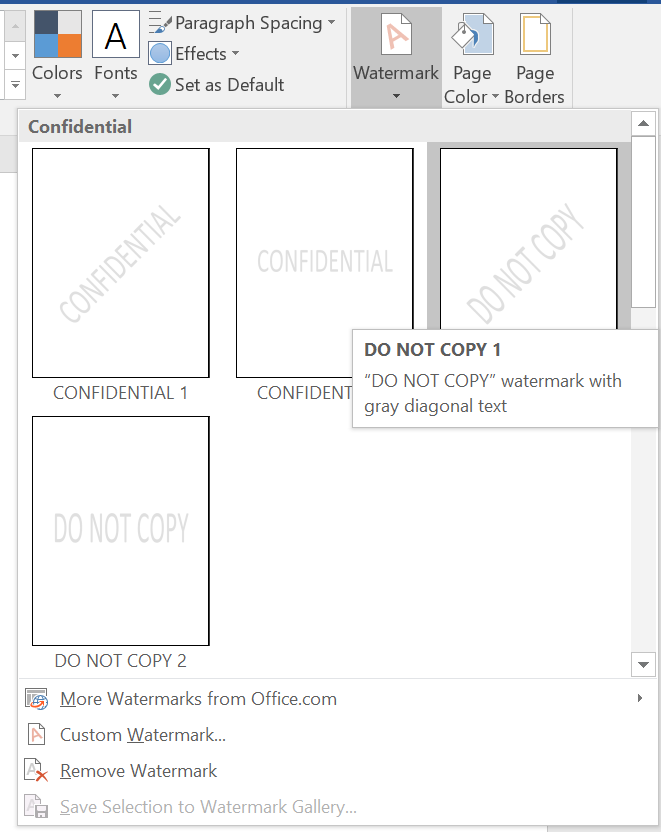
3.4. Watermark Sensitive Documents
Adding a watermark to sensitive files helps prevent unauthorized sharing. Go to “Design > Watermark” and insert text like “Confidential” or “Do Not Copy” for extra precaution. You can also convert the document to PDF with the watermark.
General Tips for Privacy Awareness
Beyond app-specific settings, fostering an overall sense of privacy awareness is also important.
- Beware of Public Networks – Avoid working on or sharing sensitive Word documents while connected to public Wi-Fi.
- Regularly Audit Shared Files – Periodically review documents you’ve shared to remove access for collaborators who no longer need it.
- Backup Sensitive Files – Backup your private files securely on external drives or encrypted storage solutions for additional peace of mind.
- Stay Informed About Threats – Educate yourself on the latest digital privacy threats and adapt your practices accordingly. Microsoft often provides security bulletins highlighting vulnerabilities and fixes.
Conclusion
Protecting your privacy in the Word app is a multi-step process that starts with secure app setup, continues with careful document handling, and extends into vigilant sharing practices. Whether you work offline or online, using features like encryption, metadata cleaning, and secure sharing methods can make a significant difference in keeping your personal and professional information safe. Adopting these measures not only safeguards your data but also builds a habit of digital mindfulness, essential in an era where information security is paramount.


