
iPhone Mail app allows you to add multiple email accounts in a single app. This is very useful to switch mail accounts without switching apps. When using multiple email accounts, sometimes you will not receive email notifications at all. That will be frustrating as you may miss important information or updates. If you wonder why the app is not sending push notifications, here is how to check and fix the issue.
Turn on Notifications
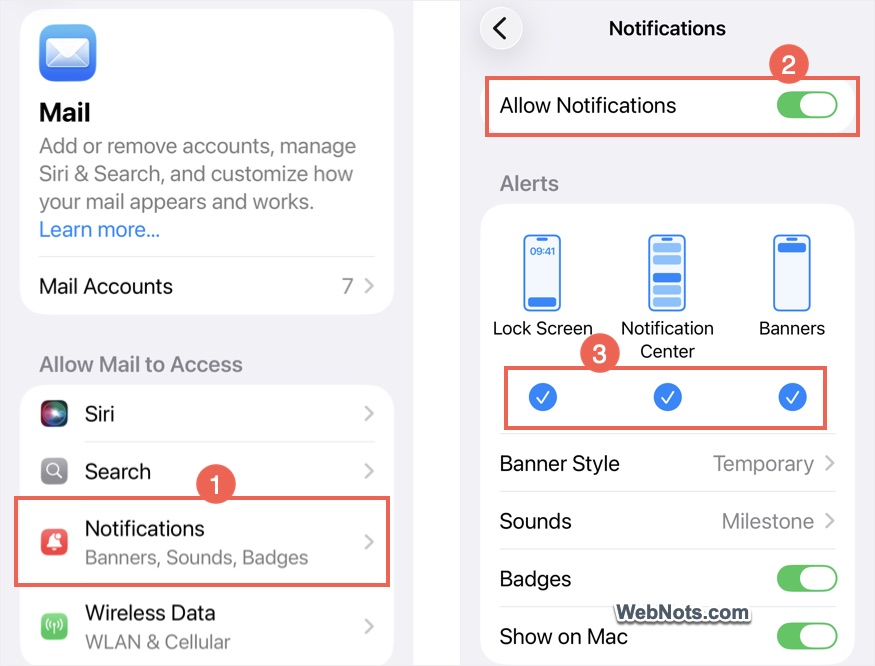
Before proceeding, first make sure that you have turned on the notifications for Mail app. Go to “Settings > Apps > Mail > Notifications” and make sure “Allow Notifications” option is turned on. Check the alerts for “Lock Screen”, “Notification Center” and “Banners” as you need.
Now, follow the below suggestions.
1. Check Notifications for Primary Inbox and Remind Me
There are two Mail options in iOS, which supersede all other notification settings.
- Go to “Settings > Apps > Mail > Notifications”.
- Scroll down to bottom and tap on “Customize Notifications”.
- Tap on “Remind Me” option showing below all your email accounts and turn on “Alerts”, “Sounds” and “Badges” as you prefer.
- Similarly, tap on “Primary Inbox” option and turn on “Alerts” and “Sounds”.
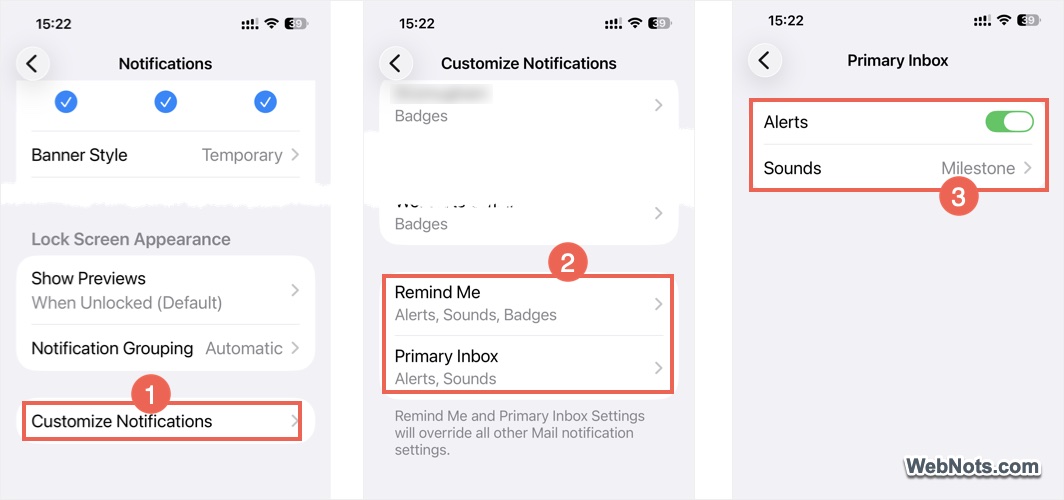
You will not receive any email notifications when alerts for “Primary Inbox” and “Remind Me” are turned off.
2. Set Immediate Alerts Instead of Summary
iPhone also allows you to get a summary of notifications and receive it on a scheduled time. This helps to avoid frequent distractions with email alerts and other app notifications. So, either turn off notifications summary completely or only for the Mail app.
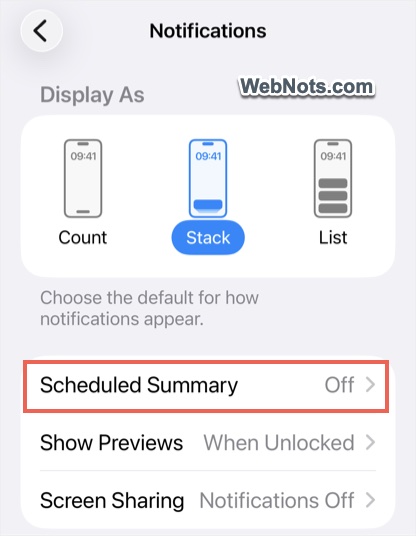
- Go to “Settings > Notifications > Scheduled Summary” and turn off the “Scheduled Summary” option.
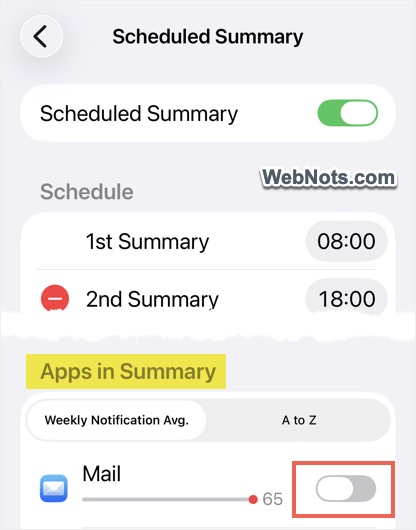
- If you want to use that option, scroll down to “Apps in Summary” Section” and turn off “Mail” to exclude the app.
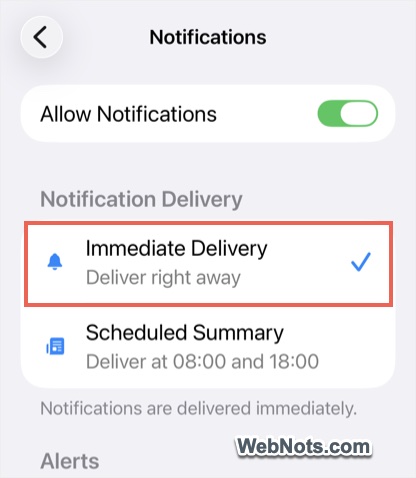
- Alternatively, go to “Settings > Apps > Mail > Notifications” and select “Immediate Delivery” option under “Notifications Delivery” heading.
3. Set Automatic Email Fetching
Mail app has three options to download new emails from the server – Push, Fetch and Manual. If you select “Manual” option, new emails will be downloaded only when you use the Mail app, which means you will never receive any notifications. So, all you need is to select “Push” or set an automatic schedule for “Fetch” option for getting immediate email notifications.
- Go to “Settings > Apps > Mail > Mail Accounts”.
- Scroll down to bottom and tap on “Fetch New Data” option.
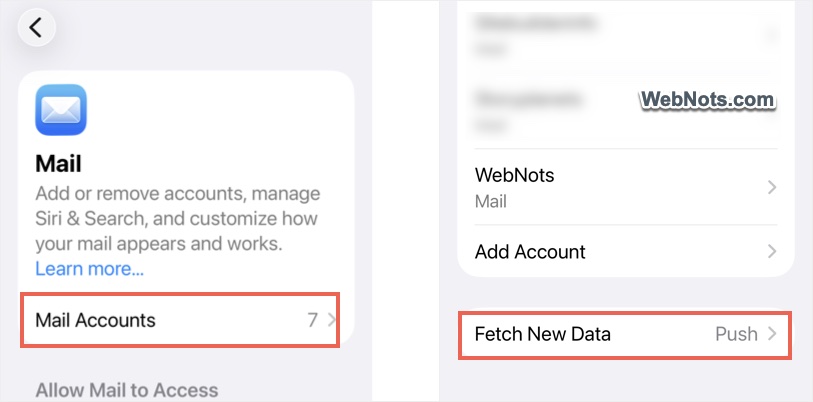
- Turn on “Push” option and tap the first email account.
- Select “Fetch” option or select “Push” if it is available.
- Follow the same steps and set “Fetch” or “Push” for all your email accounts.
- After that, scroll down on the “Fetch New Data” settings page and select “Automatically” under “Fetch” section.

This will allow your iPhone to fetch new emails immediately from the server and send you notification alerts. However, this reduces the battery usage and the fetching works when the background refresh is enabled or when the iPhone is connected to WLAN and on power source.
4. Enable Cellular Data for Mail App
As mentioned, Mail app needs to use the cellular data for fetching emails in the background. Otherwise, you will get the notifications only when using the Wi-Fi.
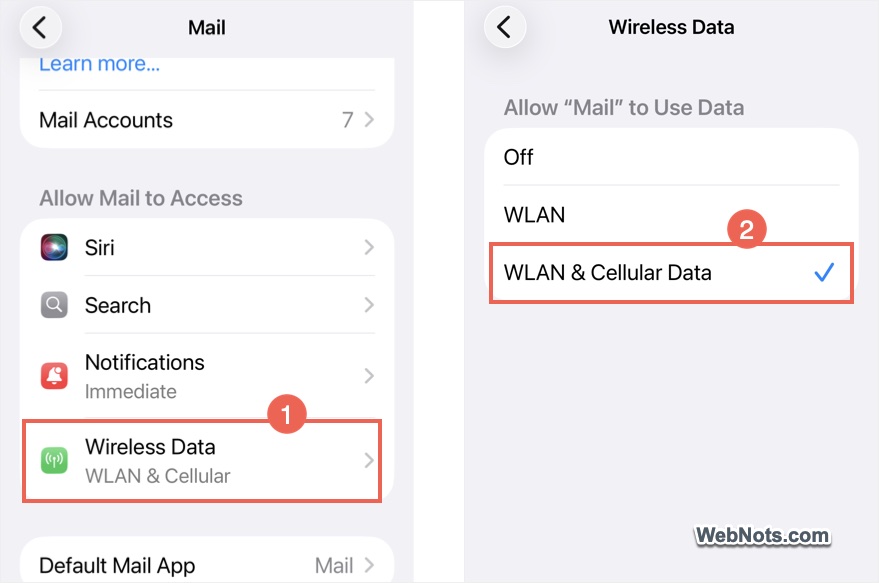
- Go to “Settings > Apps > Mail”.
- Tap “Wireless Data” option under “Allow Mail to Access” section.
- Select “WLAN & Cellular Data” option.
5. Correct the Badge Count on Mail App Icon
You may get confused if the Mail app shows a badge count of 10 on the app icon while there are actually 20 unread emails across your inboxes. The Mail app can automatically group messages into categories such as Primary, Transactions, Updates, and Promotions. Depending on your notification settings, the unread badge count may be configured to show only messages from the Primary category. In that case, emails in other categories will not be included in the badge count, even though they are still unread in the inbox.
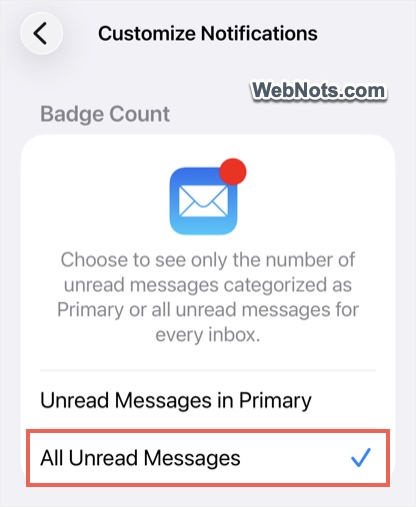
- Go to “Settings > Apps > Mail > Notifications > Customize Notifications” section.
- Select “All Unread Messages” under “Badge Count” section.
6. Disconnect VPN
Many VPN apps include a feature that disconnects internet access when the VPN connection drops. This is usually called Connect On Demand or Network Kill Switch. The issue with this feature is that it can block all background network activity when the iPhone is locked (VPN will disconnect but block the internet).
This will prevent the Mail app from fetching emails and show notifications on the Lock Screen. You might then receive a batch of delayed notifications after unlocking the iPhone and the VPN reconnects. To avoid this problem, turn off the network kill switch feature in your VPN app or disable the VPN entirely when locking the iPhone.
7. Disable Low Power Mode
Low Power Mode helps to save battery life by disabling background features like email fetching. This is generally automatically enabled when your battery reaches 20%.
- Go to “Settings > Battery > Power Mode” section.
- Turn off “Adaptive Power” and make sure “Low Power Mode” is also turned off.
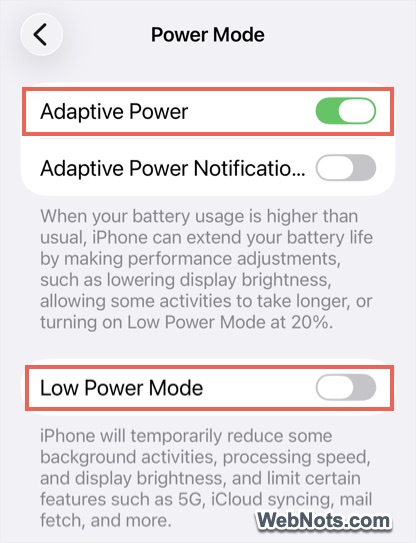
This is not recommended unless you are expecting to receive important email notifications. Make sure to turn on “Adaptative Power” option when you charge the iPhone.
8. Allow Email Notifications During Focus Mode
Focus mode will obliviously block notifications and calls to avoid distractions. iPhone will enable the Focus mode automatically when “Smart Activation” is turned on or if you have scheduled it for a specific time.
- Go to “Settings > Focus” and select “Do Not Disturb” .
- Tap the “Apps” and include “Mail” app for “Allow Notifications From”.
- Similarly, allow Mail app for Personal, Sleep and any other custom Focus modes.
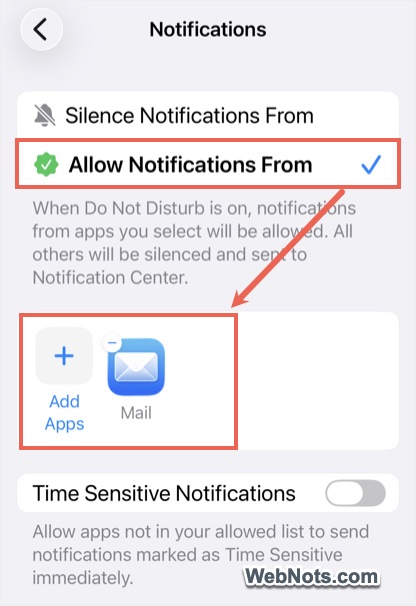
This will exclude Mail app from the Focus mode and send new email alerts.
9. Other Options
If the problem is not resolved with the above suggestions, then here are some additional things to check:
- Go to “Settings > General > Shut Down” and then restart your iPhone.
- Go to “Settings > General > Software Update” and make sure to install the latest iOS version.
- If you are facing problem with a particular email account, remove that account and add it again in the Mail app.
- As a final resort, go to “Settings > General > Transfer or Reset iPhone” and select “Reset > Reset Network Settings” option. Keep your Wi-Fi password handy as you need to renter it after the network reset.
Final Words
In most cases, enabling alerts for the Primary Inbox and Remind Me will resolve Mail notification issues on your iPhone. You can also review settings of Notification Summary, Focus mode and email fetch options to make sure everything is configured correctly. If the problem continues only for a specific email account, it may be related to your email provider. In that case, consider using the provider’s official app (like Gmail app from Google), instead of the built-in Mail app.


